kubectl
kubectl is the command-line tool for talking to a Kubernetes cluster. Use it to deploy apps, inspect and manage resources, stream logs, and debug running pods.
kubectl is the command-line tool you use to talk to a Kubernetes cluster. Whatever you can do through a dashboard, you can do faster here: deploy apps, inspect resources, stream logs, run commands inside containers, and take nodes in and out of service.
The mental model is simple. You tell kubectl a verb and a resource (get pods, delete deployment, apply -f file.yaml), it talks to the cluster’s API server, and the cluster does the work. Get comfortable with get, describe, logs, and apply and you’re already most of the way there.
Key features
- One tool for everything: deploy, inspect, update, scale, and debug from a single CLI.
- Declarative or imperative: apply YAML you keep in Git, or fire off quick one-off commands.
- Flexible output: reshape any command into wide tables, JSON, YAML, JSONPath, or custom columns for scripting.
- Built-in debugging: stream logs, exec into containers, attach ephemeral debug containers, and forward ports to your laptop.
No commands found
Try adjusting your search term
Getting Started
Check your setup, switch between clusters, and find your way around the API.
Setup and Version
Confirm kubectl can reach your cluster, then make the tool faster to type.
Check the client and cluster versions
If the server version is missing, kubectl can't reach the cluster yet. Check your kubeconfig before anything else.
# Show both the kubectl (client) and cluster (server) versionskubectl version
# Just the client, formatted as YAMLkubectl version --client -o yaml
Turn on autocomplete and a short alias
Autocomplete works for resource names too, not just flags, so you tab-complete pod names. It's the single biggest quality-of-life win.
# Load completion for the current shell (add to ~/.bashrc to keep it)source <(kubectl completion bash)   # use 'zsh' for zsh
# Most people alias kubectl to 'k' since you type it all dayalias k=kubectl
Contexts and Namespaces
A context bundles a cluster, a user, and a namespace. Switching contexts is how you move between clusters.
See where you're pointed and switch clusters
Every command runs against the current context. When something looks wrong, check this first. You might be on the wrong cluster.
# Which contexts exist, and which one is active?kubectl config get-contextskubectl config current-context
# Switch to another cluster/contextkubectl config use-context staging
Set a default namespace so you stop typing -n
# Pin the current context to a namespacekubectl config set-context --current --namespace=payments
# Override per-command when you need tokubectl get pods -n kube-systemkubectl get pods -A            # -A means all namespaces
Discovering the API
When you forget a field name or a resource's short name, ask the cluster instead of guessing.
Look up resource types and their fields
api-resources is how you learn that 'deployments' is 'deploy' for short and 'services' is 'svc'. explain saves a trip to the docs.
# List every resource type, its short name, and API groupkubectl api-resources
# Read the schema for a field, drilling down with dotskubectl explain pod.spec.containers
Creating and Applying Resources
Two styles ship work to the cluster. Declarative means applying a file, imperative means running a command. Lean on declarative.
Apply Manifests
Declarative management. You describe the desired state in YAML and let Kubernetes reconcile.
Apply a file, a folder, or a URL
apply creates resources that don't exist and updates the ones that do, so the same command works for the first deploy and every change after.
# A single manifestkubectl apply -f deployment.yaml
# Every manifest in a directory (great for a whole app)kubectl apply -f ./k8s/
# Straight from a URLkubectl apply -f https://example.com/app.yaml
Preview changes before you apply them
diff is your safety net. Run it in CI and in code review so nobody is surprised by what apply actually does.
# Show exactly what would change against the live clusterkubectl diff -f deployment.yaml
# Validate without touching anything (server-side)kubectl apply -f deployment.yaml --dry-run=server
Imperative Create
Quick, one-off commands for prototyping or generating starter YAML.
Spin up common resources from the command line
# A deployment from an imagekubectl create deployment web --image=nginx:1.27
# A one-shot job and a scheduled cronjobkubectl create job backup --image=postgres -- pg_dump mydbkubectl create cronjob nightly --image=busybox \  --schedule="0 2 * * *" -- /bin/sh -c 'echo run'
Let kubectl write the YAML for you
This is the fastest way to get a correct starting manifest. Generate it, tweak it, and from then on manage it with apply.
# Generate a manifest without creating anything, then edit and commit itkubectl create deployment web --image=nginx \ --dry-run=client -o yaml > deployment.yamlViewing and Finding Resources
get for the quick list, describe for the full story, and output formats for scripting.
Get and Describe
The two commands you'll run more than any other.
List resources, then dig into one
describe is where you find out WHY a pod is stuck. Scroll to the Events section at the bottom first.
# A quick list, then the same list with node and IP columnskubectl get podskubectl get pods -o wide
# The full picture: events, conditions, and recent state changeskubectl describe pod web-7d9f
Watch resources change in real time
# Refresh the list as things change (Ctrl-C to stop)kubectl get pods -w
# Combine resource types in one callkubectl get deploy,svc,pods
Output Formats
Reshape output for humans or for scripts with -o.
Pull out exactly the fields you need
JSONPath and custom-columns let you script against kubectl without piping through jq. Handy in CI checks and quick reports.
# The whole object as YAML (handy for copying spec fields)kubectl get pod web -o yaml
# Just the names, one per line, via JSONPathkubectl get pods -o jsonpath='{.items[*].metadata.name}'
# Your own table with custom columnskubectl get pods \  -o custom-columns='NAME:.metadata.name,NODE:.spec.nodeName'
Filtering and Sorting
Narrow a long list down to the resources you actually care about.
Filter by label, field, and sort the results
Label selectors are the same ones your Services and Deployments use, so filtering with -l mirrors how Kubernetes wires things together.
# Only pods with a matching labelkubectl get pods -l app=web,tier=frontend
# Only pods that are actually runningkubectl get pods --field-selector=status.phase=Running
# Sort by how many times each pod has restartedkubectl get pods \  --sort-by='.status.containerStatuses[0].restartCount'
Updating Resources
Roll out new versions, scale up and down, and tweak live objects.
Rollouts
Ship a new image and control or undo the rollout if it goes wrong.
Update an image and watch the rollout
A Deployment rolls out gradually, replacing old pods with new ones, so users keep getting served while the update happens.
# Change the container image, which triggers a rolling updatekubectl set image deployment/web web=nginx:1.27.1
# Follow the rollout until it finishes (or fails)kubectl rollout status deployment/web
Roll back a bad release
undo is your fast path out of a broken deploy. It's much quicker than editing the image back by hand under pressure.
# See past revisionskubectl rollout history deployment/web
# Go back to the previous versionkubectl rollout undo deployment/web
# Or jump to a specific revisionkubectl rollout undo deployment/web --to-revision=3
Scaling
Add or remove replicas, by hand or automatically.
Scale manually or set up autoscaling
autoscale creates a HorizontalPodAutoscaler. It needs the metrics-server running in the cluster to read CPU usage.
# Run four copies of the appkubectl scale deployment/web --replicas=4
# Or let Kubernetes scale on CPU between 2 and 10 replicaskubectl autoscale deployment/web --min=2 --max=10 --cpu-percent=70
Labels and Patches
Make small, targeted changes to a live resource without re-applying the whole file.
Add labels and patch a single field
Use patch for scripted, surgical edits. Use 'kubectl edit' when you'd rather open the live object in your editor and change it by hand.
# Tag a pod with a label (use --overwrite to change an existing one)kubectl label pod web-7d9f environment=prod
# Change one field with a strategic merge patchkubectl patch deployment/web \  -p '{"spec":{"replicas":5}}'
Interacting With Pods
Read logs, run commands inside containers, reach a pod from your laptop, and debug.
Logs
The first place to look when an app misbehaves.
Read and stream logs
--previous is the one people forget. After a crash loop, it shows the logs from the container that just died, which is exactly what you need.
# Stream logs live (-f), only the last 100 lines to startkubectl logs -f web-7d9f --tail=100
# Pick a container in a multi-container podkubectl logs web-7d9f -c sidecar
# Logs from the previous container after a crash/restartkubectl logs web-7d9f --previous
Exec and Debug
Get a shell or a one-off command inside a container, or attach a debug container.
Run a command or open a shell inside a pod
Everything after -- runs inside the container. Use /bin/sh if /bin/bash isn't there, since slim images often ship without bash.
# One-off commandkubectl exec web-7d9f -- env
# Interactive shell (-it = interactive + TTY)kubectl exec -it web-7d9f -- /bin/sh
Debug a pod that has no shell at all
kubectl debug adds an ephemeral container that shares the target's namespaces, so you can inspect a distroless image that has no shell of its own.
# Attach a temporary debug container with full toolskubectl debug -it web-7d9f \  --image=busybox --target=web
# Or launch a throwaway pod to poke the networkkubectl run tmp --rm -it --image=busybox -- sh
Port-Forward and Copy
Reach a pod directly from your machine and move files in or out.
Tunnel a local port and copy files
port-forward reaches an internal service or a database without exposing it to the world.
# Open localhost:8080 straight to the pod's port 80kubectl port-forward pod/web-7d9f 8080:80
# Forward to whatever pod a Service points atkubectl port-forward svc/web 8080:80
# Copy a file out of a pod (tar must exist in the container)kubectl cp default/web-7d9f:/var/log/app.log ./app.log
Resource Usage
See which pods and nodes are actually using CPU and memory.
Check live CPU and memory
top needs the metrics-server add-on. If it errors out, that component probably isn't installed in the cluster.
# Usage per node and per podkubectl top nodeskubectl top pods --all-namespacesCluster and Node Management
Inspect the cluster as a whole and safely take nodes out of service for maintenance.
Cluster Info
A quick health read on the control plane and nodes.
Look at the cluster and recent events
Check the cluster-wide events list early during an incident. It often points straight at the failing component.
# Control plane endpointskubectl cluster-info
# Node list with readiness and versionskubectl get nodes -o wide
# Recent events across the cluster, newest lastkubectl get events --sort-by=.metadata.creationTimestamp
Node Maintenance
Drain a node before you patch or reboot it, then bring it back.
Safely take a node down and bring it back
drain moves pods off the node gracefully so workloads keep running elsewhere. Always cordon or drain before a reboot.
# Stop scheduling new pods herekubectl cordon node-1
# Evict the existing pods (skip DaemonSet-managed ones)kubectl drain node-1 --ignore-daemonsets --delete-emptydir-data
# ...do your maintenance, then allow scheduling againkubectl uncordon node-1
Handy One-Liners
A few commands worth keeping in your back pocket.
Useful Patterns
Small recipes that come up again and again.
Decode a Secret without leaving the terminal
Secret values are only base64-encoded, not encrypted at rest by default, so anyone with get access can read them. Lock down RBAC accordingly.
# Secrets are base64-encoded; decode one valuekubectl get secret db-creds \ -o jsonpath='{.data.password}' | base64 -dForce-delete a pod stuck in Terminating
Use this sparingly. It tells the API to forget the pod immediately even if the node never confirmed it stopped, which can leave orphaned processes if the node is actually alive.
# Last resort when a pod won't go awaykubectl delete pod web-7d9f --grace-period=0 --forceContexts & kubeconfig
Switch between clusters, users, and namespaces, and manage merged kubeconfig files.
Inspecting & Switching Contexts
List contexts, see which is active, and change the default context or namespace.
List and switch contexts
get-contexts shows every cluster/user/namespace triple; use-context sets the active one.
kubectl config get-contexts # list contexts (* marks current)kubectl config current-context # print the active context namekubectl config use-context my-cluster # make my-cluster the defaultPin a default namespace onto the current context
Sets a default namespace so you can drop -n on every command against this context.
kubectl config set-context --current --namespace=team-aViewing & Merging kubeconfig
Inspect the merged config and combine several kubeconfig files for one invocation.
View the config for the current context only
--minify narrows output to the active context; --raw exposes full credentials, so handle it carefully.
kubectl config view --minify # only the current context (redacted)kubectl config view --raw # merged config incl. cert/key dataMerge multiple kubeconfig files
Colon-separated list merges files for one command (use ; on Windows).
KUBECONFIG=~/.kube/config:~/.kube/config-prod kubectl config viewNamespaces & Labels
Create namespaces and organize or filter resources with labels, annotations, and selectors.
Namespaces
Create namespaces imperatively or generate their manifests.
Create a namespace or generate its manifest
--dry-run=client -o yaml renders the manifest without touching the cluster. Handy for GitOps.
kubectl create namespace team-akubectl create namespace team-a --dry-run=client -o yaml > ns.yamlLabels, Annotations & Selectors
Attach metadata and filter resources with equality, set-based, and field selectors.
Label and annotate resources
Labels are selectable identifying metadata; annotations are non-selectable free-form metadata.
kubectl label pods my-pod version=v1kubectl label pods my-pod version=v2 --overwrite # required to changekubectl annotate pods my-pod description='owned by team-a'Filter with label and field selectors
-l selects on your labels; --field-selector filters built-in fields like status.phase server-side.
kubectl get pods -l 'environment in (prod,qa)' # set-based selectorkubectl get pods --show-labels # add a LABELS columnkubectl get pods --field-selector=status.phase=Running # filter on fieldsRollouts & Scaling
Drive, inspect, roll back, and scale Deployments and other rollout-capable workloads.
Managing Rollouts
Monitor progress, review history, and roll back or restart Deployments.
Watch, roll back, and restart
rollout restart re-creates pods without changing the spec; undo reverts to a prior revision.
kubectl rollout status deployment/my-app # block until complete/failedkubectl rollout history deployment/my-app # list revisionskubectl rollout undo deployment/my-app --to-revision=2 # roll backkubectl rollout restart deployment/my-app # re-create pods (e.g. rotate secret)- rollout pause and rollout resume let you batch several edits into a single rollout.
Scaling & Autoscaling
Set fixed replica counts or attach a HorizontalPodAutoscaler.
Scale manually or add an HPA
--current-replicas makes the scale conditional; autoscale creates an HPA targeting 80% CPU.
kubectl scale deployment/my-app --replicas=5kubectl scale deployment/my-app --replicas=3 --current-replicas=2 # guardedkubectl autoscale deployment/my-app --min=2 --max=10 --cpu-percent=80Debugging & Troubleshooting
Inspect failing pods and nodes with ephemeral containers, events, describe, logs, and live metrics.
Ephemeral & Node Debug Containers
Attach debug containers to running pods or nodes, even for distroless images with no shell.
Debug a pod or a node
kubectl debug (stable since 1.25) injects an ephemeral container or a privileged node pod without editing the workload.
# share the target's process namespace (great for distroless)kubectl debug -it my-pod --image=busybox:1.28 --target=my-container# a node debug pod with the host mounted at /hostkubectl debug node/my-node -it --image=ubuntuEvents, Logs & Metrics
Read events, previous-container logs, and live resource usage to diagnose failures.
Events, crash logs, and usage
For a CrashLoopBackOff, logs --previous shows why the dead container exited; the live one is already gone.
kubectl events --for pod/my-pod # dedicated events cmd (GA 1.28)kubectl get events --sort-by=.metadata.creationTimestamp # portable formkubectl logs my-pod --previous # logs from the crashed instancekubectl top pods --containers # live CPU/memory (needs metrics-server)RBAC & Access
Check permissions, inspect your identity, and create RBAC objects and service accounts.
Checking Permissions & Identity
Verify what you can do and who the API server thinks you are.
can-i and whoami
can-i answers permission questions without side effects; auth whoami is GA since Kubernetes 1.28.
kubectl auth can-i create deployments # prints yes/nokubectl auth can-i delete pods --namespace=team-a # scope to a namespacekubectl auth can-i --list # every allowed actionkubectl auth whoami # your user + groups (GA 1.28)RBAC Objects & Impersonation
Create service accounts, roles, and bindings, and test access by impersonating a subject.
Create RBAC objects and impersonate
--as impersonates a user or service account (needs impersonate privilege) to check effective access.
kubectl create serviceaccount ci-deployerkubectl create role pod-reader --verb=get,list,watch --resource=podskubectl create rolebinding read-pods --role=pod-reader \ --serviceaccount=default:ci-deployerkubectl get pods --as=system:serviceaccount:default:ci-deployer # verifyOutput, JSONPath & Kustomize
Shape output precisely, preview changes safely, and apply Kustomize overlays.
JSONPath, Columns & Explain
Extract exact fields, build custom tables, and read field documentation.
Shape output and read schema
jsonpath and custom-columns pull exact fields; explain documents any resource path.
kubectl get pods -o jsonpath='{.items[*].metadata.name}'kubectl get nodes -o custom-columns='NAME:.metadata.name,STATUS:.status.conditions[?(@.type=="Ready")].status'kubectl explain deployment.spec.strategy --recursive- go-template works too, e.g. decode a secret with -o go-template='{{index .data "tls.crt" | base64decode}}'.
Diff, Dry-run & Kustomize
Preview what apply would change and build Kustomize overlays with the built-in kustomize.
Preview changes and apply an overlay
--dry-run takes client or server (the bare boolean form was removed); -k uses the built-in Kustomize, no separate binary.
kubectl diff -f app.yaml # what apply would changekubectl apply -f app.yaml --dry-run=server # validate against the APIkubectl apply -k ./overlays/prod # build + apply a kustomizationkubectl kustomize ./overlays/prod # render without applyingWas this useful?
Continue on this topic
The same subject, covered a different way from the cheatsheet above.
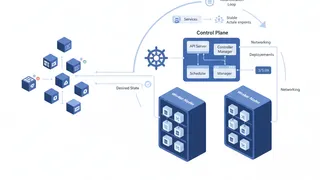 Quiz
QuizKubernetes: Container Orchestration Essentials
Test your knowledge of Kubernetes fundamentals with a quiz covering Pods, Services, Deployments, StatefulSets, storage, networking, RBAC, autoscaling, and container orchestration best practices.
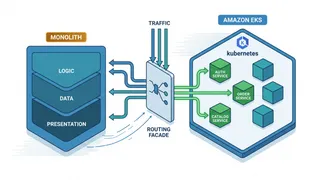 Case study
Migrating a Monolith to Kubernetes Without a Big-Bang Cutover
Using the strangler-fig pattern to move a large monolith onto EKS service by service, with a routing facade, gradual traffic shifting, and a rollback at every step.
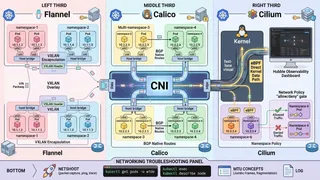 Article
Kubernetes Networking Demystified: CNI Plugins, Network Policies, and Pod-to-Pod Communication
A friendly, technical guide to Kubernetes networking. We cover how CNI plugins like Calico and Cilium work, how to write Network Policies, and how to debug those annoying connectivity issues.
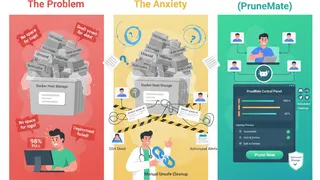 Dev tip
Docker Is Eating Your Disk Space (And How PruneMate Fixes It)
Your Docker host is slowly filling up with unused images, orphaned volumes, and stale build cache. Manual cleanup feels risky, and you might accidentally delete the wrong thing. Here's how PruneMate automates Docker maintenance across your home lab with scheduled cleanup, remote host support, and a clean interface that shows exactly what you're deleting before you commit.
You might also enjoy
More posts on similar topics
6 related posts