Dockerfile
Dockerfile reference guide covering FROM, RUN, COPY, EXPOSE, CMD, ENTRYPOINT, environment variables, build optimization, best practices, and container image construction.
This cheat sheet covers the core Dockerfile instructions, best practices, and common pitfalls for building small, secure Docker images. Each section pairs a Dockerfile snippet with the build output it produces, plus notes on how the instruction behaves.
No commands found
Try adjusting your search term
Getting Started
FROM - Base Image Selection
Base image selection and version pinning for a Dockerfile
FROM Ubuntu LTS Base Image
Select a specific Ubuntu version as the base image. Pinning the version keeps builds reproducible and makes the patch level explicit.
FROM ubuntu:20.04RUN apt-get update && apt-get install -y curl$ docker build -t myapp:latest .Step 1/2 : FROM ubuntu:20.04 ---> 1d622ef08d5eStep 2/2 : RUN apt-get update && apt-get install -y curl ---> Running in 5f8a9c2b3d4eCollecting packages... ---> 7c9e4f2b3a5dSuccessfully built 7c9e4f2b3a5d- Always use specific versions, never just 'ubuntu' or 'latest'
- ubuntu:20.04 is LTS and receives security updates longer
- First instruction must be FROM
FROM Alpine Lightweight Base
Alpine-based images are minimal, which suits production microservices where image size matters.
FROM alpine:3.18RUN apk add --no-cache python3 py3-pip$ docker build -t lightweight-app:latest .Step 1/2 : FROM alpine:3.18 ---> a24bb4aacf12Step 2/2 : RUN apk add --no-cache python3 py3-pip ---> Running in 3f7e2c1a9b5d ---> 9c2d4e7f1a3bSuccessfully built 9c2d4e7f1a3b
# Final image size: 89MB vs 77MB (Ubuntu) - but lighter for specific apps- Alpine uses musl libc instead of glibc
- Package manager is 'apk' not 'apt'
- Smallest base images available
FROM Official Python Image
Language-specific official images ship with the runtime already installed, so the Dockerfile stays shorter.
FROM python:3.11-slimWORKDIR /appCOPY requirements.txt .RUN pip install -r requirements.txt$ docker build -t python-app:latest .Step 1/4 : FROM python:3.11-slim ---> b9ef8f396e26Step 2/4 : WORKDIR /app ---> Running in 3a5f8d2c1e4b ---> 6e2a7f9d4c1bStep 3/4 : COPY requirements.txt . ---> c9d4e2f7a1b5Step 4/4 : RUN pip install -r requirements.txt ---> Running in 7f2e4c9a3d1bSuccessfully built 8d3f5e2a7c4b- python:3.11 has full Python plus build tools (1.1GB)
- python:3.11-slim has minimal dependencies (181MB)
- python:3.11-alpine is smallest (51MB)
Image Naming and Tags
Docker image naming conventions and tagging strategies
Tag Image with Domain Registry
Tag images with registry domain and semantic version for private registries and version management.
FROM nginx:1.25COPY index.html /usr/share/nginx/html/$ docker build -t gcr.io/my-project/web-server:1.0.0 .Successfully built 4d8e2f5a9c1b
$ docker push gcr.io/my-project/web-server:1.0.0The push refers to repository [gcr.io/my-project/web-server]8c3f7e2d4a1b: Pushed1.0.0: digest: sha256:abc123...- Format: [registry]/repository:tag
- gcr.io = Google Container Registry
- registry.example.com for self-hosted registries
Multiple Tags for Single Image
Tag same image with multiple names for version management and release strategies.
FROM node:18-alpineCOPY app.js .CMD ["node", "app.js"]$ docker build -t myapp:1.2.3 -t myapp:latest -t myapp:stable .Successfully built 5f9d3a2c8e1b
$ docker images | grep myappmyapp 1.2.3 5f9d3a2c8e1bmyapp latest 5f9d3a2c8e1bmyapp stable 5f9d3a2c8e1b- Use -t flag multiple times to create multiple tags
- All tags reference same image layers (no duplication)
- Common tags: latest, stable, v1.2.3, main, rc1
Multi-Stage Dockerfile Overview
Introduction to multi-stage builds for optimized image sizes
Single Stage vs Multi-Stage Comparison
A single stage keeps the build tools in the image, so the result is large and carries dependencies the application never uses.
# Inefficient single stageFROM golang:1.21WORKDIR /srcCOPY . .RUN go build -o /usr/local/bin/app .ENTRYPOINT ["app"]$ docker build -t app:single .Successfully built a2b8f4d7c3e1
$ docker images app:singleREPOSITORY TAG IMAGE ID SIZEapp single a2b8f4d7c3e1 1.3GB- golang:1.21 is 1GB+ because it includes compiler and build tools
- Binary is only a few megabytes
- Extra bloat in production image
Optimized Multi-Stage Build
Multi-stage builds separate compilation from runtime, so the final image holds 15MB instead of 1.3GB.
FROM golang:1.21 AS builderWORKDIR /srcCOPY . .RUN go build -o /usr/local/bin/app .
FROM alpine:3.18RUN apk add --no-cache ca-certificatesCOPY --from=builder /usr/local/bin/app /usr/local/bin/appENTRYPOINT ["app"]$ docker build -t app:multi .Step 1/5 : FROM golang:1.21 AS builder ---> 2d8c4f1a9e3bStep 3/5 : RUN go build -o /usr/local/bin/app . ---> Running in 4c5f8a2d7e1b ---> 7e3f4c6b1a9dStep 5/8 : FROM alpine:3.18 ---> a24bb4aacf12Step 6/8 : COPY --from=builder /usr/local/bin/app /usr/local/bin/app ---> c8d2f5a1e7b4Successfully built 8f2a4e9d3c1b
$ docker imagesapp multi 8f2a4e9d3c1b 15MB- builder stage discarded after build
- Only Alpine runtime included in final image
- 1.3GB -> 15MB reduction (1000x smaller)
Copying & Adding Files
COPY - Basic File Operations
Copy files and directories from build context to container
Copy Single File
Copy single file from build context (current directory) into container filesystem.
FROM nginx:1.25-alpineCOPY index.html /usr/share/nginx/html/$ docker build -t web:latest .Step 1/2 : FROM nginx:1.25-alpine ---> a24bb4aacf12Step 2/2 : COPY index.html /usr/share/nginx/html/ ---> 5c2f8e1a3d7bSuccessfully built 5c2f8e1a3d7b- Source path is relative to build context (docker build . directory)
- Destination is absolute path in container
- Creates destination directory if it doesn't exist
Copy Multiple Files with Wildcard
Use wildcards to copy multiple files matching pattern into container.
FROM python:3.11-slimWORKDIR /appCOPY *.py ./COPY requirements.txt .$ docker build -t python-app:latest .Step 1/4 : FROM python:3.11-slim ---> b9ef8f396e26Step 2/4 : WORKDIR /app ---> Running in a1b2c3d4e5f6 ---> 7e2f4c8a1d3bStep 3/4 : COPY *.py ./ ---> 3c5f9a2e7d1bStep 4/4 : COPY requirements.txt . ---> 8f4a2c6e9d1bSuccessfully built 8f4a2c6e9d1b- Wildcards: * matches any characters, ? matches single character
- COPY *.py ./ copies all Python files to current directory
Copy Directory Recursively
Copy entire directories with all subdirectories and files.
FROM node:18-alpineWORKDIR /appCOPY src ./srcCOPY public ./public$ docker build -t node-app:latest .Successfully built 9d5e3f2a8c1b- Directories copied recursively by default
- Preserves directory structure in container
COPY with Ownership
Copy files and set ownership to non-root user
Copy with User Ownership
Copy files and assign ownership to non-root user for better security.
FROM node:18-alpineRUN addgroup -S nodejs && adduser -S nodejs -G nodejsWORKDIR /appCOPY --chown=nodejs:nodejs . .USER nodejsCMD ["node", "index.js"]$ docker build -t secure-app:latest .Successfully built 7c3e5f1a2d8b
$ docker run secure-app:latest# App runs as nodejs user, not root- Format: COPY --chown=user:group source dest
- Prevents running container as root
- User/group must exist in image
Copy with Numeric User ID
Use numeric user:group IDs for CHOWN (more portable across systems).
FROM python:3.11-slimRUN groupadd -r appuser && useradd -r -g appuser appuserWORKDIR /home/appuser/appCOPY --chown=1000:1000 . .USER appuserENTRYPOINT ["python", "main.py"]$ docker build -t app:latest .Successfully built 4b2f7d9a1c5e- Numeric IDs are more reliable than names
- 1000:1000 common for non-root user
ADD - Advanced File Operations
Add files, directories, or remote URLs with automatic extraction
ADD from Remote URL
Download files from URLs and automatically extract tar archives.
FROM ubuntu:20.04ADD https://example.com/app.tar.gz /tmp/WORKDIR /appRUN tar -xzf /tmp/app.tar.gz && rm /tmp/app.tar.gz$ docker build -t app:latest .Step 1/4 : FROM ubuntu:20.04 ---> 1d622ef08d5eStep 2/4 : ADD https://example.com/app.tar.gz /tmp/Downloading [==================================================>] 42MB/42MB ---> 8c5f2a1d4e9bStep 3/4 : WORKDIR /app ---> 7e3f4c2a1d8bSuccessfully built 7e3f4c2a1d8b- Automatically extracts .tar.* files
- Downloads happen during build
- Should be followed by cleanup (rm) to remove archive
ADD Automatically Extracts TAR
TAR archive automatically extracted to destination directory.
FROM alpine:3.18ADD https://releases.example.com/v1.2.3/app.tar.gz /opt/WORKDIR /optRUN ls -la$ docker build -t app:latest .Successfully built 3f9e2d5a1c7b
Step 4/4 : RUN ls -la ---> Running in 5d8c3f2a1e9btotal 48drwxr-xr-x 3 root root 4096 Feb 28 12:00 .drwxr-xr-x 1 root root 4096 Feb 28 12:00 ..-rw-r--r-- 1 root root 12345678 Feb 28 12:00 app-rw-r--r-- 1 root root 54321 Feb 28 12:00 config.yaml- Only extracts recognized tar formats (.tar.gz, .tar.bz2, .tar)
- Regular files copied as-is
Running Commands
RUN - Basic Command Execution
Execute commands during image build
RUN Single Command
Execute shell command during build. Each RUN creates a new layer.
FROM ubuntu:20.04RUN apt-get updateRUN apt-get install -y curl$ docker build -t app:latest .Step 1/3 : FROM ubuntu:20.04 ---> 1d622ef08d5eStep 2/3 : RUN apt-get update ---> Running in 5f8a9c2b3d4eReading package lists... Done ---> 7c9e4f2b3a5dStep 3/3 : RUN apt-get install -y curl ---> Running in 3d7f2a1c8e5bSetting up curl (7.68.0-1ubuntu4)... ---> 8b4f3e2c9a1dSuccessfully built 8b4f3e2c9a1d- Each RUN instruction creates separate layer
- Inefficient to use multiple RUN for related commands
- Command executes in /bin/sh by default
RUN Chain Commands with AND
Chain multiple commands with && to create a single layer and keep the image smaller.
FROM ubuntu:20.04RUN apt-get update && \ apt-get install -y curl git vim && \ apt-get clean$ docker build -t app:latest .Successfully built 9d5e3f2a8c1b
$ docker history app:latestIMAGE CREATED SIZE9d5e3f2a8c1b 30 seconds ago 187MB- && runs the next command only if the previous one succeeded
- Backslash continues line in Dockerfile
- apt-get clean removes package cache
RUN Install Multiple Packages
Multi-line RUN with backslash for readability while maintaining single layer.
FROM debian:12-slimRUN apt-get update && apt-get install -y \ build-essential \ git \ curl \ wget \ && apt-get clean \ && rm -rf /var/lib/apt/lists/*$ docker build -t build-tools:latest .Step 1/2 : FROM debian:12-slim ---> 7b2f8e3a9c1dStep 2/2 : RUN apt-get update && apt-get install -y ... ---> Running in 4f9d2c5a1e8bProcessing triggers... ---> 8c3f7e2d4a9bSuccessfully built 8c3f7e2d4a9b- apt-get clean removes cache (reduces layer size)
- rm -rf /var/lib/apt/lists/* also reduces layer
RUN - Exec Form vs Shell Form
Differences between the exec form and the shell form of RUN
Shell Form (Default)
Shell form processes variables and shell syntax (pipes, redirects, etc).
FROM alpine:3.18RUN echo "Building application"RUN echo $PATH$ docker build -t app:latest .Step 1/3 : FROM alpine:3.18 ---> a24bb4aacf12Step 2/3 : RUN echo "Building application" ---> Running in 5f8a9c2b3d4eBuilding application ---> 7c9e4f2b3a5dStep 3/3 : RUN echo $PATH ---> Running in 3d7f2a1c8e5b/usr/local/sbin:/usr/local/bin:/usr/sbin:/usr/bin:/sbin:/bin ---> 8b4f3e2c9a1d- RUN command will use /bin/sh -c
- Environment variables expanded
- Pipes and redirects work
Exec Form (JSON Array)
Exec form calls command directly without shell interpretation.
FROM alpine:3.18RUN ["apk", "add", "--no-cache", "curl"]RUN ["echo", "Building"]$ docker build -t app:latest .Step 1/3 : FROM alpine:3.18 ---> a24bb4aacf12Step 2/2 : RUN ["apk", "add", "--no-cache", "curl"] ---> Running in 5f8a9c2b3d4eFetching https://dl-cdn.alpinelinux.org/alpine/v3.18/main/x86_64/PACKAGES.gz(1/2) Installing ca-certificates ---> 7c9e4f2b3a5dStep 3/3 : RUN ["echo", "Building"] ---> Running in 3d7f2a1c8e5bBuilding ---> 8b4f3e2c9a1d- No shell expansion or variable interpolation
- Command executed directly (better for signals)
- Each array element becomes separate argument
Shell Parameter in RUN
Set default shell with SHELL instruction for all RUN, ENTRYPOINT, CMD instructions.
FROM ubuntu:20.04SHELL ["/bin/bash", "-c"]RUN for i in 1 2 3; do echo "Number: $i"; done$ docker build -t app:latest .Successfully built 5c2f8e1a3d7b
Step 2/2 : RUN for i in 1 2 3; do echo "Number: $i"; done ---> Running in 4f9d2c5a1e8bNumber: 1Number: 2Number: 3 ---> 8f4a2c6e9d1b- SHELL instruction affects subsequent instructions
- Useful for bash-specific syntax (loops, pipes, etc)
Environment & Variables
ENV - Environment Variables
Set environment variables that persist in running containers
Set Single Environment Variable
ENV sets environment variables available during build and in running containers.
FROM python:3.11-slimENV PYTHONUNBUFFERED=1ENV APP_ENV=productionRUN echo "Environment: $APP_ENV"$ docker build -t app:latest .Step 1/4 : FROM python:3.11-slim ---> b9ef8f396e26Step 2/4 : ENV PYTHONUNBUFFERED=1 ---> Running in a1b2c3d4e5f6 ---> 7e2f4c8a1d3bStep 3/4 : ENV APP_ENV=production ---> Running in 5f8a9c2b3d4e ---> 8f4a2c6e9d1bStep 4/4 : RUN echo "Environment: $APP_ENV" ---> Running in 3d7f2a1c8e5bEnvironment: production ---> 9c2d4e7f1a3bSuccessfully built 9c2d4e7f1a3b- Variables persist in running containers
- Available in all subsequent build steps
- Can be overridden at runtime with -e flag
Multiple Variables and Defaults
Set multiple environment variables with backslash continuation.
FROM node:18-alpineENV NODE_ENV=production \ PORT=3000 \ LOG_LEVEL=info \ DATABASE_URL=postgresql://localhost/dbRUN echo "Running in $NODE_ENV mode on port $PORT"$ docker build -t app:latest .Successfully built 5c2f8e1a3d7b
$ docker run app:latest envNODE_ENV=productionPORT=3000LOG_LEVEL=infoDATABASE_URL=postgresql://localhost/db- Multiple ENV values on single line with backslash
- All variables available in container at runtime
Variable Substitution in Dockerfile
Use variables in subsequent ENV declarations and RUN instructions.
FROM ubuntu:20.04ENV APP_VERSION=2.5.1ENV APP_PATH=/opt/app-${APP_VERSION}RUN mkdir -p $APP_PATH && echo "App path: $APP_PATH"LABEL version="${APP_VERSION}"$ docker build -t app:2.5.1 .Step 4/5 : RUN mkdir -p $APP_PATH && echo "App path: $APP_PATH" ---> Running in 5f8a9c2b3d4eApp path: /opt/app-2.5.1 ---> 7c9e4f2b3a5dSuccessfully built 7c9e4f2b3a5d- ${VAR} syntax substitutes variable values
- Variables only available from that line onward
ARG - Build Arguments
Define build-time arguments that don't persist in final image
ARG for Build-Time Configuration
ARG defines build-time arguments passed via --build-arg flag, not persisted in image.
FROM python:3.11-slimARG BUILD_DATEARG VCS_REFENV BUILD_DATE=${BUILD_DATE}ENV VCS_REF=${VCS_REF}RUN echo "Built on: $BUILD_DATE from commit: $VCS_REF"$ docker build --build-arg BUILD_DATE=$(date -u +'%Y-%m-%dT%H:%M:%SZ') \ --build-arg VCS_REF=$(git rev-parse --short HEAD) \ -t app:latest .Step 1/5 : FROM python:3.11-slim ---> b9ef8f396e26Step 5/5 : RUN echo "Built on: $BUILD_DATE from commit: $VCS_REF" ---> Running in 5f8a9c2b3d4eBuilt on: 2026-02-28T12:00:00Z from commit: abc123xyz ---> 8f4a2c6e9d1bSuccessfully built 8f4a2c6e9d1b- Build arguments only available during build
- Not included in final image
- Use ENV to persist values
ARG with Default Values
ARG with default values that can be overridden at build time.
FROM node:18-alpineARG NODE_ENV=developmentARG VERSION=1.0.0ARG PORT=3000ENV NODE_ENV=${NODE_ENV} \ VERSION=${VERSION} \ PORT=${PORT}RUN echo "Building v$VERSION for $NODE_ENV on port $PORT"$ docker build -t app:latest .Step 5/5 : RUN echo "Building v$VERSION for $NODE_ENV on port $PORT" ---> Running in 5f8a9c2b3d4eBuilding v1.0.0 for development on port 3000 ---> 7c9e4f2b3a5d
$ docker build --build-arg NODE_ENV=production \ --build-arg VERSION=2.0.0 \ -t app:2.0.0 .Step 5/5 : RUN echo "Building v$VERSION for $NODE_ENV on port $PORT" ---> Running in 3d7f2a1c8e5bBuilding v2.0.0 for production on port 3000 ---> 8b4f3e2c9a1d- Defaults used if no --build-arg provided
- Can be overridden per build
Variable Substitution and Defaults
Advanced variable substitution patterns in Dockerfile
Variable Expansion with Defaults
Use variables in FROM and subsequent instructions for flexible builds.
ARG UBUNTU_VERSION=20.04FROM ubuntu:${UBUNTU_VERSION}ARG APP_PATH=/opt/appARG APP_USER=appuserRUN mkdir -p ${APP_PATH} && \ useradd -r -m -d ${APP_PATH} ${APP_USER}$ docker build -t app:focal .Successfully built 7c9e4f2b3a5d
$ docker build --build-arg UBUNTU_VERSION=22.04 \ -t app:jammy .Step 1/4 : FROM ubuntu:22.04 ---> 6790c6674aaaSuccessfully built 4b2f7d9a1c5e- ARG before FROM available in FROM instruction
- Base image variant changes based on ARG
Build-Stage Variables
ARG declared at different stages for multi-stage build flexibility.
ARG GOLANG_VERSION=1.21FROM golang:${GOLANG_VERSION} AS builderARG VERSION=1.0.0WORKDIR /srcRUN echo "Building with Go $GOLANG_VERSION, version $VERSION"
FROM alpine:3.18ARG VERSION=1.0.0COPY --from=builder /src /appENV VERSION=${VERSION}$ docker build --build-arg GOLANG_VERSION=1.22 \ --build-arg VERSION=2.0.0 \ -t app:2.0.0 .Step 1/6 : ARG GOLANG_VERSION=1.21 ---> Running in 5f8a9c2b3d4eStep 2/6 : FROM golang:1.22 ---> 2d8c4f1a9e3bStep 3/6 : ARG VERSION=1.0.0 ---> Running in 3d7f2a1c8e5bSuccessfully built 5c2f8e1a3d7b- ARG before FROM is global
- ARG in stage is local to that stage
- Each stage can redefine ARG
Working Directory & Volumes
WORKDIR - Working Directory
Set working directory for subsequent instructions
WORKDIR Basic Usage
WORKDIR sets current working directory for COPY, RUN, CMD, and ENTRYPOINT.
FROM python:3.11-slimWORKDIR /appCOPY . .RUN ls -la$ docker build -t app:latest .Step 1/4 : FROM python:3.11-slim ---> b9ef8f396e26Step 2/4 : WORKDIR /app ---> Running in a1b2c3d4e5f6 ---> 7e2f4c8a1d3bStep 3/4 : COPY . . ---> 3c5f9a2e7d1bStep 4/4 : RUN ls -la ---> Running in 5f8a9c2b3d4etotal 48drwxr-xr-x 8 root root 4096 Feb 28 12:00 .-rw-r--r-- 1 root root 1234 Feb 28 12:00 main.py-rw-r--r-- 1 root root 234 Feb 28 12:00 requirements.txt ---> 8f4a2c6e9d1bSuccessfully built 8f4a2c6e9d1b- Creates directory if it doesn't exist
- Subsequent COPY/ADD use this as destination
- RUN commands execute in this directory
Multiple WORKDIR Instructions
Multiple WORKDIR instructions change directory progressively.
FROM node:18-alpineWORKDIR /appCOPY package.json .RUN npm installWORKDIR /app/srcCOPY src .$ docker build -t app:latest .Successfully built 5c2f8e1a3d7b- Each WORKDIR is cumulative (relative paths work)
- /app and /app/src are different working directories
WORKDIR with Variables
Use ARG/ENV variables in WORKDIR for flexible directory paths.
FROM ubuntu:20.04ARG APP_HOME=/usr/local/appENV APP_HOME=${APP_HOME}WORKDIR ${APP_HOME}RUN echo "Application home: $(pwd)"$ docker build --build-arg APP_HOME=/opt/application \ -t app:latest .Step 4/5 : WORKDIR /opt/application ---> Running in 5f8a9c2b3d4e ---> 7c9e4f2b3a5dStep 5/5 : RUN echo "Application home: $(pwd)" ---> Running in 3d7f2a1c8e5bApplication home: /opt/application ---> 8b4f3e2c9a1d- Variables interpolated at build time
VOLUME - Data Persistence Points
Define mount points for persistent data
VOLUME for Database Storage
VOLUME declares mount points for persistent data that survives container removal.
FROM postgres:15-alpineVOLUME ["/var/lib/postgresql/data"]EXPOSE 5432CMD ["postgres"]$ docker build -t postgres-custom:latest .Successfully built 7c9e4f2b3a5d
$ docker run -d postgres-custom:latest4f8e2c7a3b1d
$ docker inspect 4f8e2c7a3b1d --format='{{json .Mounts}}'[{"Type":"volume","Name":"abc123def456","Source":"...","Destination":"/var/lib/postgresql/data"...}]- Creates anonymous volume if not specified
- Data persists even if container is deleted
- Can be mounted by other containers
Multiple Volumes
Multiple VOLUME instructions create separate mount points for different data.
FROM mysql:8.0VOLUME ["/var/lib/mysql", "/var/log/mysql"]EXPOSE 3306ENV MYSQL_ROOT_PASSWORD=secretCMD ["mysqld"]$ docker run -d mysql-custom:latest5f9d3a2c8e1b
$ docker volume ls | grep mysqlvolumes abc123def456 (database files)volumes def789ghi012 (log files)- Each VOLUME is independent
- Can mount to named volumes with -v flag
Exposing Ports
EXPOSE - Port Declarations
Document which ports the application listens on
EXPOSE Single Port
EXPOSE documents which ports container listens on (does not actually publish).
FROM nginx:1.25-alpineEXPOSE 80EXPOSE 443COPY index.html /usr/share/nginx/html/$ docker build -t web-server:latest .Successfully built 5c2f8e1a3d7b
$ docker inspect web-server:latest --format='{{json .ExposedPorts}}'{"80/tcp":{},"443/tcp":{}}- EXPOSE is declarative and informational
- Does NOT actually publish ports
- Use -p flag at runtime to publish
EXPOSE Multiple Ports
Multiple EXPOSE declarations for application and debug ports.
FROM node:18-alpineEXPOSE 3000 3001 9229COPY . .RUN npm installCMD ["npm", "start"]$ docker build -t node-app:latest .Successfully built 7c9e4f2b3a5d- 3000: application port
- 3001: alternative service
- 9229: Node.js debugger port
EXPOSE with Port Range
EXPOSE range of ports for applications using dynamic port allocation.
FROM ubuntu:20.04EXPOSE 8000-8100RUN apt-get update && apt-get install -y netcatCMD ["nc", "-l", "-p", "8000"]$ docker build -t range-app:latest .Successfully built 8b4f3e2c9a1d
$ docker run -p 8000-8100:8000-8100 range-app:latest- Useful for services with multiple instances
- Port range notation: START-END
Entry Points & Commands
CMD - Default Command
Specify default command to run when container starts
CMD Shell Form
CMD shell form executes command through shell, allowing variable expansion.
FROM python:3.11-slimCOPY . /appWORKDIR /appRUN pip install -r requirements.txtCMD python app.py$ docker build -t python-app:latest .Successfully built 5c2f8e1a3d7b
$ docker run python-app:latestStarting application...App is running- Runs via /bin/sh -c
- Can use environment variables
- Same as typing command in shell
CMD Exec Form (JSON)
CMD exec form calls command directly without shell, better for signals.
FROM node:18-alpineCOPY . /appWORKDIR /appRUN npm installCMD ["node", "server.js"]$ docker build -t node-app:latest .Successfully built 7c9e4f2b3a5d
$ docker run node-app:latestServer listening on port 3000- No shell interpretation
- Each element becomes separate argument
- Signals (SIGTERM) properly delivered
Override CMD at Runtime
CMD can be overridden by providing command at docker run time.
FROM python:3.11-slimCOPY . /appWORKDIR /appRUN pip install -r requirements.txtCMD ["python", "app.py"]$ docker run python-app:latestRunning app.py...
$ docker run python-app:latest python -m pytest tests/Running tests...test_app.py::test_main PASSED- Container image has default CMD
- Passing command at runtime overrides it
ENTRYPOINT - Entry Point
Configure container as executable with ENTRYPOINT
ENTRYPOINT with Exec Form
ENTRYPOINT with exec form makes container behave as executable.
FROM python:3.11-slimCOPY entrypoint.sh /usr/local/bin/RUN chmod +x /usr/local/bin/entrypoint.shENTRYPOINT ["/usr/local/bin/entrypoint.sh"]CMD ["python", "app.py"]$ docker build -t app:latest .Successfully built 5c2f8e1a3d7b
$ docker run app:latestSetup: Creating database...Starting application...
$ docker run app:latest python -c "import sys; print(sys.version)"Setup: Creating database...3.11.2- ENTRYPOINT is the wrapper script
- CMD provides default arguments
- Useful for setup before main app
ENTRYPOINT with Shell Script
ENTRYPOINT executes shell script as main process.
FROM alpine:3.18RUN apk add --no-cache bash curlCOPY health-check.sh /usr/local/bin/health-checkRUN chmod +x /usr/local/bin/health-checkENTRYPOINT ["bash", "/usr/local/bin/health-check"]$ docker build -t health-checker:latest .Successfully built 7c9e4f2b3a5d
$ docker run health-checker:latest api.example.comChecking health of api.example.comStatus: OK- Script runs as PID 1 in container
- Must handle signals properly
- Can accept arguments from docker run
ENTRYPOINT with CMD
ENTRYPOINT + CMD combination where tini manages signals properly.
FROM ubuntu:20.04RUN apt-get update && apt-get install -y curl tiniCOPY . /appWORKDIR /appENTRYPOINT ["tini", "--"]CMD ["./app", "start"]$ docker build -t tini-app:latest .Successfully built 8b4f3e2c9a1d
$ docker run tini-app:latestStarting app with tini init system...- tini is lightweight init system for containers
- Forwards signals to the application and reaps zombie processes
- CMD provides default arguments to ENTRYPOINT
CMD and ENTRYPOINT Interaction
How CMD and ENTRYPOINT work together
ENTRYPOINT as Wrapper with CMD Arguments
ENTRYPOINT and CMD together allow flexible command execution with wrapper.
FROM python:3.11-slimCOPY wrapper.sh /usr/local/bin/COPY app.py .RUN chmod +x /usr/local/bin/wrapper.shENTRYPOINT ["/usr/local/bin/wrapper.sh"]CMD ["python", "app.py"]$ docker build -t wrapped-app:latest .Successfully built 5c2f8e1a3d7b
$ docker run wrapped-app:latest[WRAPPER] Starting application...App is running
$ docker run wrapped-app:latest python -c "print('test')"[WRAPPER] Starting...test- CMD becomes arguments to ENTRYPOINT
- Can override CMD at runtime
- Wrapper executes first, then CMD
Pure ENTRYPOINT (No CMD)
ENTRYPOINT alone without CMD for single-purpose containers.
FROM golang:1.21-alpineWORKDIR /srcCOPY . .RUN go build -o /app .ENTRYPOINT ["/app"]$ docker build -t go-app:latest .Successfully built 7c9e4f2b3a5d
$ docker run go-app:latest --helpUsage: app [OPTIONS]- Container is tool-like (always runs binary)
- Can still pass arguments
- No default command
Build Optimization
Layer Caching Strategy
Docker layer caching and how it shortens rebuilds
Inefficient Layer Caching
Copying all files early invalidates cache when any file changes, forcing reinstall.
FROM python:3.11-slimCOPY . .RUN pip install -r requirements.txtRUN python app.py$ docker build -t app:latest .Step 1/4 : FROM python:3.11-slim ---> b9ef8f396e26Step 2/4 : COPY . . ---> 7e2f4c8a1d3bStep 3/4 : RUN pip install -r requirements.txt ---> Running in 5f8a9c2b3d4eCollecting requests... ---> 8f4a2c6e9d1b (3 min 45 sec)Step 4/4 : RUN python app.py ---> Running in 3d7f2a1c8e5b ---> 9c2d4e7f1a3b
# After changing app.py$ docker build -t app:latest .Step 1/4 : FROM python:3.11-slim ---> b9ef8f396e26Step 2/4 : COPY . . ---> (invalidated by changed app.py)Step 3/4 : RUN pip install -r requirements.txt ---> Running in 5f8a9c2b3d4e (runs again!)Collecting requests... ---> 8f4a2c6e9d1b (3 min 45 sec - WASTED TIME)- COPY . . invalidates all subsequent layers on any change
- Python packages reinstalled unnecessarily
Optimized Layer Caching
Copy stable files (dependencies) first, changing files last to preserve cache.
FROM python:3.11-slimCOPY requirements.txt .RUN pip install -r requirements.txtCOPY . .CMD ["python", "app.py"]$ docker build -t app:latest .Step 1/5 : FROM python:3.11-slim ---> b9ef8f396e26Step 2/5 : COPY requirements.txt . ---> 7e2f4c8a1d3bStep 3/5 : RUN pip install -r requirements.txt ---> Running in 5f8a9c2b3d4eCollecting requests... ---> 8f4a2c6e9d1b (3 min 45 sec)Step 4/5 : COPY . . ---> 9d5e3f2a8c1bStep 5/5 : CMD ["python", "app.py"] ---> 5c2f8e1a3d7b
# After changing app.py$ docker build -t app:latest .Step 1/5 : FROM python:3.11-slim ---> b9ef8f396e26 (cached)Step 2/5 : COPY requirements.txt . ---> 7e2f4c8a1d3b (cached)Step 3/5 : RUN pip install -r requirements.txt ---> 8f4a2c6e9d1b (cached) - REUSED!Step 4/5 : COPY . . ---> (invalidated by changed app.py)Step 5/5 : CMD ["python", "app.py"] ---> 5c2f8e1a3d7bTotal time: 5 seconds vs 3 min 50 sec- Stable: requirements.txt, package.json rarely change
- Volatile: app.py, src files change frequently
- Skips dependency installation when only source files change
Cache with External Mounts
Cache mounts preserve package manager caches across builds.
FROM node:18-alpineWORKDIR /appCOPY package.json package-lock.json .RUN --mount=type=cache,target=/root/.npm \ npm ci --prefer-offline --no-auditCOPY . .RUN npm run build$ docker build --build-context=. \ --progress=plain \ -t app:latest .Step 1/6 : FROM node:18-alpine ---> 52f389ea4d15Step 4/6 : RUN --mount=type=cache,target=/root/.npm ... ---> Running in 5f8a9c2b3d4eadded 1200 packages in 45s
# Second build$ docker build -t app:latest .Step 4/6 : RUN --mount=type=cache,target=/root/.npm ... ---> Running in 3d7f2a1c8e5bup to date (cached packages reused!)added 1200 packages in 2s- npm/yarn/pip cache reused
- Requires BuildKit (DOCKER_BUILDKIT=1)
- Reuses downloaded packages instead of fetching them again
.dockerignore File
Exclude files from build context to speed up builds
Basic .dockerignore
.dockerignore filters out unnecessary files before sending to Docker daemon.
# .dockerignore content.git.gitignore.githubnode_modules.env.env.localdistbuild__pycache__*.log.DS_Store.vscode.ideanpm-debug.log.npmcoverage# Build context without excluded files$ docker build --progress=plain -t app:latest .
# File sizes comparison:# Without .dockerignore: 248MB context sent to daemon# With .dockerignore: 42MB context sent to daemon (82% reduction)- Reduces the build context size
- Speeds up build (less data to transfer)
- Similar to .gitignore syntax
Comprehensive .dockerignore
A thorough .dockerignore excludes all unnecessary files from context.
# .dockerignore with multiple patterns# Version control.git.gitignore.github.gitlab-ci.yml
# Dependencies (often excluded from repo)node_modulesvenvvendor.bundle
# Development files.env.env.*.local.vscode.idea.DS_Store*.swp*.swo*~
# Build artifactsdistbuild*.tmpcoverage
# Logs*.loglogs
# DockerDockerfilecompose.yml.dockerignore
# CI/CD.circleci.travis.ymlJenkinsfile
# DocumentationdocsREADME.md
# Testingtests__pycache__.pytest_cache.coverage$ docker build -t app:latest .# Context drastically reduced- Reduces build context from 500MB to 11MB
- Sends less data to the daemon, so docker build starts faster
Multi-Stage Build Optimization
Advanced multi-stage patterns for minimal images
Multi-Stage Node.js Build
Multi-stage Node.js avoids dev dependencies in final image.
FROM node:18-alpine AS builderWORKDIR /srcCOPY package*.json ./RUN npm ci --only=production
FROM node:18-alpineWORKDIR /appCOPY --from=builder /src/node_modules ./node_modulesCOPY . .USER nobodyCMD ["node", "server.js"]$ docker build -t node-app:latest .Step 1/8 : FROM node:18-alpine AS builder ---> 52f389ea4d15Step 2/8 : WORKDIR /src ---> Running in 5f8a9c2b3d4eStep 4/8 : RUN npm ci --only=production ---> Running in 3d7f2a1c8e5badded 120 packages in 30s ---> 7c9e4f2b3a5dStep 5/8 : FROM node:18-alpine ---> 52f389ea4d15Step 8/8 : CMD ["node", "server.js"] ---> Running in 2f5c8e1a3d7bSuccessfully built 5f9d3a2c8e1b
$ docker images node-app:latestREPOSITORY TAG IMAGE ID SIZEnode-app latest 5f9d3a2c8e1b 156MB- Builder stage includes all dependencies
- Final stage has only production dependencies
- Size reduction: devDependencies excluded
Multi-Stage Rust Build
Rust compiler (2GB) not in final image, only binary (2-5MB).
FROM rust:1.75 AS builderWORKDIR /usr/src/appCOPY . .RUN cargo build --release
FROM debian:12-slimCOPY --from=builder /usr/src/app/target/release/app /usr/local/bin/RUN apt-get update && apt-get install -y ca-certificates && rm -rf /var/lib/apt/lists/*USER nobodyENTRYPOINT ["app"]$ docker build -t rust-app:latest .Step 1/6 : FROM rust:1.75 ---> f7d8c1e2a9b3Step 3/6 : RUN cargo build --release ---> Running in 5f8a9c2b3d4eCompiling app v1.0.0 ---> 7c9e4f2b3a5d (5 min 30 sec)Step 4/6 : FROM debian:12-slim ---> 5f8a9c2b3d4eStep 5/6 : COPY --from=builder /usr/src/app/target/release/app /usr/local/bin/ ---> Running in 3d7f2a1c8e5b ---> 4b2f7d9a1c5eSuccessfully built 4b2f7d9a1c5e
$ docker images rust-app:latestREPOSITORY TAG IMAGE ID SIZErust-app latest 4b2f7d9a1c5e 45MB- Builder: rust:1.75 (2GB with compiler)
- Final: debian:12-slim + binary (45MB total)
- 2GB -> 45MB reduction!
Metadata & Advanced
LABEL - Image Metadata
Add metadata labels to Docker images
Common Docker Labels
LABEL adds metadata to image for documentation and organization.
FROM python:3.11-slimLABEL maintainer="devops@example.com"LABEL version="1.2.3"LABEL description="Python API application for order processing"LABEL org.opencontainers.image.source="https://github.com/org/repo"LABEL org.opencontainers.image.created="2026-02-28T00:00:00Z"$ docker build -t order-api:1.2.3 .Successfully built 7c9e4f2b3a5d
$ docker inspect order-api:1.2.3 --format='{{json .Config.Labels}}'{ "maintainer":"devops@example.com", "version":"1.2.3", "description":"Python API...", "org.opencontainers.image.source":"https://github.com/org/repo", "org.opencontainers.image.created":"2026-02-28T00:00:00Z"}- Labels appear in docker inspect output
- Useful for filtering and organizing images
- No size impact
Multi-line Labels
Multiple labels using backslash continuation for readability.
FROM node:18-alpineLABEL maintainer="platform-team@company.com" \ org.opencontainers.image.title="Web Server" \ org.opencontainers.image.description="Production Node.js web server" \ org.opencontainers.image.version="2.1.0" \ org.opencontainers.image.authors="John Doe, Jane Smith"$ docker build -t web-server:2.1.0 .Successfully built 5c2f8e1a3d7b- Backslash extends single instruction across lines
- Each label can be queried independently
USER - Container User
Specify user to run container as instead of root
Run as Created User
Create dedicated user and switch to it before running application.
FROM ubuntu:20.04RUN apt-get update && apt-get install -y nodejsRUN groupadd -r appuser && useradd -r -g appuser appuserWORKDIR /home/appuser/appCOPY --chown=appuser:appuser . .USER appuserCMD ["node", "server.js"]$ docker build -t app:latest .Successfully built 5c2f8e1a3d7b
$ docker run app:latest(running as appuser, not root)
$ docker run app:latest iduid=100(appuser) gid=101(appuser) groups=101(appuser)- Root user is dangerous in containers
- appuser has no shell (better security)
- Works with CMD/ENTRYPOINT
Run as Numeric UID
Use numeric UID instead of username for better portability.
FROM python:3.11-slimRUN groupadd -r app && useradd -r -u 1001 -g app appWORKDIR /appCOPY --chown=1001:1000 . .USER 1001CMD ["python", "app.py"]$ docker build -t app:latest .Successfully built 7c9e4f2b3a5d
$ docker run app:latest whoami# Returns: 1001 (numeric ID)- 1001 common for first non-system user
- More portable across systems
HEALTHCHECK - Container Health
Define health check to determine if container is running properly
HTTP Endpoint Health Check
Check container health by making HTTP request to application.
FROM nginx:1.25-alpineHEALTHCHECK --interval=30s --timeout=3s --start-period=5s --retries=3 \ CMD curl -f http://localhost/ || exit 1COPY index.html /usr/share/nginx/html/$ docker build -t web-server:latest .Successfully built 5c2f8e1a3d7b
$ docker run -d web-server:latest4f8e2c7a3b1d
$ sleep 10 && docker inspect 4f8e2c7a3b1d --format='{{.State.Health.Status}}'healthy- interval=30s: check every 30 seconds
- timeout=3s: health check must complete in 3 seconds
- start-period=5s: grace period before checks start
- retries=3: 3 failed checks = unhealthy
Application-Specific Health Check
Use application-specific tools for health checks.
FROM postgres:15-alpineHEALTHCHECK --interval=10s --timeout=5s --start-period=10s --retries=5 \ CMD ["pg_isready", "-U", "postgres"]$ docker build -t postgres-custom:latest .Successfully built 7c9e4f2b3a5d
$ docker run -d postgres-custom:latest5f9d3a2c8e1b
$ docker container lsCONTAINER ID IMAGE STATUS5f9d3a2c8e1b postgres-custom:latest Up 15s (healthy)- pg_isready for PostgreSQL
- redis-cli PING for Redis
- mysql -e "SELECT 1" for MySQL
Script-Based Health Check
Custom script for complex health checks.
FROM node:18-alpineCOPY health-check.js /usr/local/bin/HEALTHCHECK --interval=15s --timeout=5s --retries=3 \ CMD node /usr/local/bin/health-check.jsCOPY . .CMD ["node", "server.js"]$ docker build -t app:latest .Successfully built 8b4f3e2c9a1d- Exit code 0 = healthy
- Exit code 1 = unhealthy
- Script can hit any endpoint
Dockerfile Shell Form
Control shell behavior with
Use Bash Instead of /bin/sh
Change default shell from /bin/sh to /bin/bash for bash-specific features.
FROM ubuntu:20.04SHELL ["/bin/bash", "-c"]RUN apt-get update && apt-get install -y curlRUN <<EOFfor i in {1..5}; do echo "Iteration: $i"doneEOF$ docker build -t app:latest .Step 1/3 : FROM ubuntu:20.04 ---> 1d622ef08d5eStep 2/3 : SHELL ["/bin/bash", "-c"] ---> Running in 5f8a9c2b3d4e ---> 7c9e4f2b3a5dStep 3/3 : RUN <<EOF ---> Running in 3d7f2a1c8e5bIteration: 1Iteration: 2Iteration: 3Iteration: 4Iteration: 5Successfully built 8b4f3e2c9a1d- SHELL must appear early in Dockerfile
- Affects all RUN, CMD, ENTRYPOINT, COPY --chown
- Alpine Linux doesn't have bash by default
Multi-Line RUN with Heredoc
Heredoc syntax for multi-line RUN commands without backslash continuation.
FROM python:3.11-slimRUN <<EOF apt-get update apt-get install -y curl git vim apt-get clean rm -rf /var/lib/apt/lists/*EOF$ docker build -t app:latest .Step 1/2 : FROM python:3.11-slim ---> b9ef8f396e26Step 2/2 : RUN <<EOF ---> Running in 5f8a9c2b3d4eReading package lists...Processing triggers... ---> 8f4a2c6e9d1bSuccessfully built 8f4a2c6e9d1b- Available in Docker 23.09+
- Cleaner than backslash continuation
- Each line individual command (not chained)
Was this useful?
Continue on this topic
The same subject, covered a different way from the cheatsheet above.
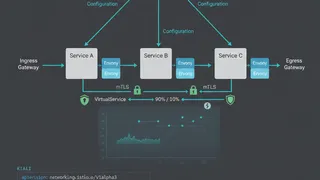 Quiz
QuizIstio: Service Mesh Fundamentals
Master the fundamentals of Service Mesh, traffic routing, and mutual TLS security within a Kubernetes environment.
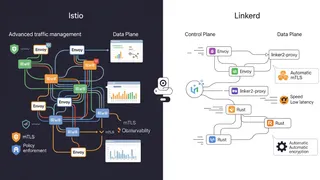 Article
Service Mesh Deep Dive: Istio vs. Linkerd
Trying to figure out service mesh? This article compares Istio and Linkerd on Kubernetes, looking at how they handle traffic, security, and more. Find out which one might be the best fit for you.
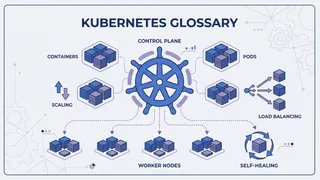 Glossary
Containers & Kubernetes
Essential terms every DevOps engineer should know about containers and Kubernetes.
 Dev tip
Docker Is Eating Your Disk Space (And How PruneMate Fixes It)
Your Docker host is slowly filling up with unused images, orphaned volumes, and stale build cache. Manual cleanup feels risky, and you might accidentally delete the wrong thing. Here's how PruneMate automates Docker maintenance across your home lab with scheduled cleanup, remote host support, and a clean interface that shows exactly what you're deleting before you commit.
You might also enjoy
More posts on similar topics
6 related posts