Docker Compose
Docker Compose reference guide covering services, volumes, networks, ports, environment variables, commands, configurations, and container orchestration best practices.
Docker Compose is a tool for defining and running multi-container Docker applications. It uses a YAML file to configure application services, networks, and volumes. This cheatsheet provides a quick reference for common Docker Compose commands, configuration options, best practices, and troubleshooting tips.
No commands found
Try adjusting your search term
Getting Started
Installation & Setup
Install Docker Compose and verify installation on your system
Install Docker Compose on Linux
Downloads the Docker Compose binary for your system architecture and sets executable permissions
curl -L "https://github.com/docker/compose/releases/latest/download/docker-compose-$(uname -s)-$(uname -m)" -o /usr/local/bin/docker-composechmod +x /usr/local/bin/docker-composedocker-compose --versionDocker Compose version v2.25.0- Requires curl to be installed
- Verify checksum for security
- Use docker compose instead of docker-compose in v2
Verify Docker Compose Installation
Check Docker Compose version and review available commands
docker compose versiondocker compose --helpDocker Compose version v2.25.0, build somethingUsage: docker compose [OPTIONS] COMMAND
Options: --version Show the version and exit -f, --file FILE Specify path to compose file -p, --project-name STRING Set project name- Docker Compose v2 onwards uses 'docker compose' command
- Legacy 'docker-compose' is deprecated
Project Structure & Configuration
Set up a Docker Compose project with proper directory structure
Create Docker Compose Project Directory
Create a basic project structure for Docker Compose with necessary directories
mkdir my-appcd my-apptouch compose.ymlmkdir -p app/srcmkdir -p data$ tree my-app/my-app/├── compose.yml├── app│ └── src└── data- Keep compose.yml at project root
- Use consistent directory naming
Initialize with Example Compose File
Create minimal valid compose.yml and validate with config command
version: '3.9'services: app: image: nginx:latest ports: - "80:80"$ docker compose configname: my-appservices: app: image: 'nginx:latest' ports: - mode: ingress target: 80 published: "80" protocol: tcpversion: '3.9'- Version '3.9' is latest v3 stable
- Always validate configuration
Version & Compatibility
Docker Compose versions and their compatibility requirements
Check Docker Compose and Docker Version
Verify both Docker Engine and Docker Compose versions are installed
docker --versiondocker compose versiondocker compose version --format jsonDocker version 25.0.0, build abcdef12Docker Compose version v2.25.0, build build123{"Version":"v2.25.0","ApiVersion":"1.46","Experimental":false}- Docker Engine 20.10+ required for Compose v2
- Use JSON format for parsing in scripts
Version-Specific Features in Compose File
Use version 3.9+ features like healthcheck for container monitoring
version: '3.9'services: web: image: nginx:latest healthcheck: test: ["CMD", "curl", "-f", "http://localhost"] interval: 30s timeout: 10s$ docker compose up -d[+] Running 1/1 ✔ Container my-app-web-1 Started- Version 3.8+ supports properties
- Version 3.9 is feature-complete for most use cases
Basic Services
Service Definition & Images
Define services using images and configure basic service properties
Define Single Service with Image
Define a service using pre-built image with container naming and restart policy
version: '3.9'services: web: image: nginx:1.24 container_name: my-nginx restart: always$ docker compose up -d[+] Running 1/1 ✔ Container my-nginx Created- Image format: name:tag or name:digest
- container_name overrides auto-generated name
Multiple Services from Different Images
Define multiple interdependent services each using different official images
version: '3.9'services: web: image: nginx:latest container_name: web-server db: image: postgres:15 container_name: database cache: image: redis:7-alpine container_name: redis-cache$ docker compose up -d[+] Running 3/3 ✔ Container web-server Created ✔ Container database Created ✔ Container redis-cache Created- Services communicate via service name automatically
- Alpine variants use less disk space
Service with Image Pull Configuration
Pull image from private registry and always fetch latest version
version: '3.9'services: app: image: myregistry.azurecr.io/myapp:v1.0 pull_policy: always container_name: app-container$ docker compose up[+] Pulling 1/1 ✔ myregistry.azurecr.io/myapp:v1.0 Pulled[+] Running 1/1 ✔ Container app-container Created- pull_policy can be always, never, or missing
- Missing policy (default) only pulls if image not local
Resource Constraints
Limit CPU and memory usage for services
Set Memory and CPU Limits
Set hard limits and soft reservations for container resources
version: '3.9'services: app: image: node:18 deploy: resources: limits: cpus: '0.5' memory: 512M reservations: cpus: '0.25' memory: 256M$ docker compose up -d$ docker statsCONTAINER ID NAME CPU % MEM USAGE / LIMITabc123def456 app-1 0.5% 128M / 512M- Limits prevent container from using more than specified
- Reservations guarantee minimum resources
- Format: 0.5 = 50% of one CPU
Cascading Resource Configuration
Apply different resource constraints to different services
version: '3.9'services: database: image: mysql:8 deploy: resources: limits: cpus: '1.0' memory: 1G cache: image: redis:7 deploy: resources: limits: cpus: '0.5' memory: 256M$ docker compose statsNAME CPU % MEM USAGE / LIMITdatabase 0.8% 512M / 1Gcache 0.2% 45M / 256M- Match resources to service requirements
- Monitor actual usage to adjust limits
Restart Policies
Configure how containers restart on failure
Configure Restart Policy
Set restart policies to keep containers running or retry on failure
version: '3.9'services: web: image: nginx:latest restart: always app: image: node:18 restart: on-failure deploy: restart_policy: condition: on-failure max_attempts: 3 delay: 5s$ docker compose up -d[+] Running 2/2 ✔ Container web-1 Started ✔ Container app-1 Started- always: always restart unless explicitly stopped
- on-failure: restart only if exit code is non-zero
- max_attempts: limit retry count
Restart Policy with Exponential Backoff
Retry with limited attempts and timeout window using deploy configuration
version: '3.9'services: api: image: myapp:latest deploy: restart_policy: condition: on-failure max_attempts: 5 delay: 1s window: 120s$ docker compose logs apiapi-1 | Starting service...api-1 | Service started- window: only count failures within this timeframe
- Prevents infinite restart loops
Ports & Networking
Port Mapping & Exposure
Map container ports to host ports and expose services
Basic Port Mapping
Map host port 8080 to container port 80, and 8443 to 443
version: '3.9'services: web: image: nginx:latest ports: - "8080:80" - "8443:443"$ docker compose up -d$ curl http://localhost:8080<!DOCTYPE html><html><head><title>Welcome to nginx!</title></head>- Format: host:container
- Can specify IP: 127.0.0.1:8080:80
Multiple Services with Port Mapping
Expose multiple services on different ports
version: '3.9'services: web: image: nginx:latest ports: - "80:80" api: image: node:18 ports: - "3000:3000" db: image: postgres:15 ports: - "5432:5432"$ docker compose psNAME IMAGE PORTSweb-1 nginx:latest 0.0.0.0:80->80/tcpapi-1 node:18 0.0.0.0:3000->3000/tcpdb-1 postgres:15 0.0.0.0:5432->5432/tcp- Each service can have multiple port mappings
- Default protocol is tcp, can specify udp
Port Mapping with Protocol Specification
Specify protocol (tcp/udp) and use verbose port syntax
version: '3.9'services: dns: image: coredns:latest ports: - "53:53/udp" - "53:53/tcp" web: image: nginx:latest ports: - target: 80 published: 8080 protocol: tcp$ docker compose psNAME IMAGE PORTSdns-1 coredns:latest 0.0.0.0:53->53/tcp, 0.0.0.0:53->53/udpweb-1 nginx:latest 0.0.0.0:8080->80/tcp- Default protocol is tcp
- Verbose syntax allows more control
Network Configuration
Configure custom networks and manage service connectivity
Define Custom Networks
Define custom networks and assign services to them for isolation
version: '3.9'services: web: image: nginx:latest networks: - frontend api: image: node:18 networks: - frontend - backend db: image: postgres:15 networks: - backendnetworks: frontend: driver: bridge backend: driver: bridge$ docker compose up -d[+] Creating network my-app_frontend[+] Creating network my-app_backend$ docker network lsNETWORK ID NAME DRIVERabc123 my-app_frontend bridgedef456 my-app_backend bridge- Services on same network can communicate via service name
- Services on different networks require linking
External Network Integration
Connect services to external networks created outside Compose
version: '3.9'services: app: image: node:18 networks: - shared-networknetworks: shared-network: external: true name: production-network$ docker compose up -d[+] Running 1/1 ✔ Container app-1 Started$ docker network inspect production-network[ { "Name": "production-network", "Containers": { "abc123...": { "Name": "app-1" } } }]- External networks must exist before docker compose up
- Useful for multi-compose-file deployments
DNS & Service Discovery
Configure DNS and internal service discovery
Service DNS Resolution
Services can discover each other using service name or hostname
version: '3.9'services: web: image: nginx:latest hostname: webserver api: image: node:18 hostname: apiserver$ docker compose exec api curl http://webserver<!DOCTYPE html><html><head><title>Welcome to nginx!</title></head>- Default: service name is used for DNS
- Hostname overrides service name if specified
Custom DNS Servers
Override default DNS servers and search domains
version: '3.9'services: app: image: node:18 dns: - 8.8.8.8 - 8.8.4.4 dns_search: - example.com - internal.local$ docker compose exec app cat /etc/resolv.confnameserver 8.8.8.8nameserver 8.8.4.4search example.com internal.local- Useful for internal DNS or custom resolvers
- Multiple servers provide redundancy
Volumes & Storage
Volume Types & Mounting
Work with named volumes, anonymous volumes, and bind mounts
Named Volumes for Data Persistence
Create named volumes for persistent data that survives container removal
version: '3.9'services: db: image: postgres:15 volumes: - db_data:/var/lib/postgresql/data cache: image: redis:7 volumes: - cache_data:/datavolumes: db_data: cache_data:$ docker compose up -d$ docker volume lsDRIVER VOLUME NAMElocal my-app_db_datalocal my-app_cache_data- Named volumes are managed by Docker
- Data persists when containers are removed
- Can be used across containers
Bind Mounts for Development
Mount local directories into container for live development
version: '3.9'services: app: image: node:18 working_dir: /app volumes: - ./src:/app/src - ./package.json:/app/package.json - ./package-lock.json:/app/package-lock.json ports: - "3000:3000"$ docker compose up -d$ ls /appsrc package.json package-lock.json- Changes on host immediately visible in container
- Suited to development workflows
- Use relative paths for portability
Anonymous Volumes and Read-Only Volumes
Use anonymous volumes, read-only mounts, and shared writable volumes
version: '3.9'services: app: image: node:18 volumes: - /tmp - ./config.json:/app/config.json:ro - shared_data:/shared:rwvolumes: shared_data:- Anonymous volumes are cleaned on down
- ro = read-only, rw = read-write
- :ro prevents accidental modifications
Volume Mount Options
Use long-form volume syntax for granular control
version: '3.9'services: db: image: postgres:15 volumes: - type: volume source: db_data target: /var/lib/postgresql/data volume: nocopy: true - type: bind source: ./init-scripts target: /docker-entrypoint-initdb.d read_only: truevolumes: db_data:$ docker compose up -d$ docker compose exec db ls /var/lib/postgresql/database global pg_hba.conf- nocopy: don't copy volume content from existing data
- read_only: mount as read-only
- More explicit than shorthand
Volume Management & Cleanup
Manage and maintain Docker Compose volumes
List and Inspect Volumes
List volumes created by Compose and inspect their properties
docker compose volume lsdocker volume inspect my-app_db_datadocker volume inspect my-app_db_data --format='{{json .Mountpoint}}'DRIVER VOLUME NAMElocal my-app_db_data
[ { "Name": "my-app_db_data", "Driver": "local", "Mountpoint": "/var/lib/docker/volumes/my-app_db_data/_data" }]- Volumes persist after docker compose down
- Mountpoint shows where data is stored
Clean Up Volumes
Remove volumes when stopping containers or clean unused volumes
docker compose down -vdocker volume rm my-app_db_datadocker volume prune -fRemoving stopped containers...Removing named volumes...Deleted Volumes:my-app_db_data
Deleted Volumes:my-app_cache_data- down -v removes named volumes declared in compose file
- prune removes all unused volumes
- Use force flag to skip confirmation
Environment & Configuration
Environment Variables
Set and manage environment variables for services
Environment Variables in Compose File
Define environment variables directly in compose.yml
version: '3.9'services: app: image: node:18 environment: NODE_ENV: production LOG_LEVEL: debug DATABASE_URL: postgres://user:pass@db:5432/mydb API_PORT: 3000$ docker compose exec app envNODE_ENV=productionLOG_LEVEL=debugDATABASE_URL=postgres://user:pass@db:5432/mydbAPI_PORT=3000- Variables are set when container starts
- Application code reads these variables
Environment Files (.env)
Load environment variables from .env files and reference them in compose
version: '3.9'services: db: image: postgres:15 env_file: - .env.database - .env.common app: image: node:18 env_file: .env environment: NODE_ENV: ${NODE_ENV}$ cat .envNODE_ENV=productionAPI_KEY=sk-12345$ docker compose up -d$ docker compose exec app echo $NODE_ENVproduction- Files are loaded in order, later overrides earlier
- Use ${VAR} syntax to reference variables
- .env in current directory loaded automatically
Variable Substitution and Defaults
Substitute variables with defaults using ${VAR:-default} syntax
version: '3.9'services: web: image: nginx:${NGINX_VERSION:-latest} ports: - "${HOST_PORT:-80}:80" api: image: node:18 environment: DATABASE_HOST: ${POSTGRES_HOST} DATABASE_PORT: ${POSTGRES_PORT:-5432} SECRET_KEY: ${SECRET_KEY}$ NGINX_VERSION=1.24 docker compose up$ docker compose config --resolve-image-digestsversion: '3.9'services: web: image: 'nginx:1.24' ports: - mode: ingress target: 80 published: "80"- :- provides default if variable not set
- Define in .env or export before docker compose
- Use in any field
Per-Service Environment Variables
Set different environment variables for each service with .env files
version: '3.9'services: app: image: node:18 env_file: .env.app environment: NODE_ENV: ${NODE_ENV:-development} db: image: postgres:15 env_file: .env.database environment: POSTGRES_DB: ${DB_NAME:-mydb} POSTGRES_USER: ${DB_USER} POSTGRES_PASSWORD: ${DB_PASSWORD}$ docker compose exec db psql -U ${DB_USER} -d ${DB_NAME}psql (15.1)Type "help" for help.- Each service can have its own .env file
- Can mix env_file and environment directives
Configuration Files & Secrets
Manage configuration files and sensitive data
Mount Configuration Files as Volumes
Mount configuration files into containers as read-only volumes
version: '3.9'services: nginx: image: nginx:latest volumes: - ./nginx.conf:/etc/nginx/nginx.conf:ro - ./conf.d:/etc/nginx/conf.d:ro app: image: node:18 volumes: - ./config/app.json:/app/config/app.json:ro$ docker compose exec nginx cat /etc/nginx/nginx.conf# nginx configuration- :ro makes mount read-only
- Prevents accidental modifications
Use Environment Files for Secrets
Store secrets in separate .env files and load them securely
version: '3.9'services: app: image: node:18 env_file: - .env - .env.secrets environment: DATABASE_PASSWORD: ${DB_PASSWORD} API_KEY: ${API_KEY}$ cat .env.secretsDB_PASSWORD=super_secret_password_123API_KEY=sk-abc123def456- Add .env.secrets to .gitignore
- Keep secrets out of version control
- Consider using Docker secrets for production
Build Configuration
Build from Dockerfile
Build custom images from Dockerfile during compose up
Basic Build Configuration
Build Docker image from Dockerfile in current directory
version: '3.9'services: app: build: . ports: - "3000:3000" environment: NODE_ENV: development$ docker compose build[+] Building 12.3s (15/15) FINISHED => [internal] load build definition from Dockerfile => [stage-0 1/5] FROM node:18 => [stage-0 2/5] WORKDIR /app => [stage-0 3/5] COPY package*.json ./ => [stage-0 4/5] RUN npm ci => [stage-0 5/5] RUN npm run build => exporting to imageSuccessfully tagged my-app-app:latest- build: . uses Dockerfile in current directory
- Image tagged as project_service:latest
Build with Specific Dockerfile and Context
Build from different Dockerfile with custom context and build arguments
version: '3.9'services: app: build: context: ./src dockerfile: Dockerfile.prod args: NODE_ENV: production BUILD_VERSION: 1.0.0 api: build: context: ./api-service dockerfile: Dockerfile$ docker compose build[+] Building 25.1s (20/20) FINISHED => [internal] load build definition from ./src/Dockerfile.prod => [stage-0 1/8] FROM node:18 => Setting build args: NODE_ENV=production, BUILD_VERSION=1.0.0Successfully tagged my-app-app:latest- context: directory with Dockerfile
- dockerfile: specify non-standard Dockerfile name
- args: pass build-time arguments
Multi-Stage Build with Compose
Use multi-stage build to create smaller final images
version: '3.9'services: app: build: context: . dockerfile: Dockerfile.multistage target: runtime args: PYTHON_VERSION: 3.11$ docker compose build[+] Building 15.2s (25/25) FINISHED => [builder 1/8] FROM python:3.11 => [builder 2/8] WORKDIR /build => [builder 3/8] COPY . . => [builder 4/8] RUN pip install -r requirements.txt => [runtime 1/3] FROM python:3.11-slim => [runtime 2/3] COPY --from=builder /build/app /appSuccessfully tagged my-app-app:latest- target: build specific stage
- Copy artifacts from builder stage to reduce size
Build Arguments and Cache
Pass arguments to builds and manage build cache
Build Arguments in Dockerfile
Pass build-time arguments that become available as ARG in Dockerfile
version: '3.9'services: app: build: context: . args: - BUILD_DATE=2026-02-28 - VCS_REF=abc123def456 - VERSION=1.0.0$ docker compose build[+] Building 10.5s (8/8) FINISHED => [internal] load build definition => [stage-0 1/3] FROM node:18 => [stage-0 2/3] RUN echo "Version: 1.0.0" => [stage-0 3/3] RUN echo "Built: 2026-02-28"- Args are passed during build phase only
- Use ARG instruction in Dockerfile
- Environment-specific configuration
Cache Management
Skip Docker layer cache or force rebuilding with fresh images
docker compose build --no-cachedocker compose build --no-cache appdocker compose build --pull$ docker compose build --no-cache[+] Building 30.2s (15/15) FINISHED => [stage-0 1/5] FROM node:18 => [stage-0 2/5] WORKDIR /app => [stage-0 3/5] COPY . . [cached] => [stage-0 4/5] RUN npm ci [not cached]Successfully tagged my-app-app:latest- --no-cache: rebuild all layers
- --pull: always pull base images
- Useful when dependencies change
Advanced Features
Health Checks & Monitoring
Configure health checks to monitor container status
Implement Health Checks
Define health checks to verify container is running correctly
version: '3.9'services: web: image: nginx:latest healthcheck: test: ["CMD", "curl", "-f", "http://localhost"] interval: 30s timeout: 10s retries: 3 start_period: 40s api: image: node:18 healthcheck: test: ["CMD-SHELL", "curl -f http://localhost:3000/health || exit 1"] interval: 30s timeout: 10s retries: 3$ docker compose up -d$ docker compose psNAME IMAGE STATUSweb-1 nginx:latest Up 30s (health: starting)api-1 node:18 Up 25s (health: healthy)- test: command to run (CMD or CMD-SHELL)
- start_period: grace period before health checks
- Exit code 0 = healthy, non-zero = unhealthy
Depends On with Health Checks
Wait for dependent service to pass health check before starting
version: '3.9'services: db: image: postgres:15 healthcheck: test: ["CMD-SHELL", "pg_isready -U postgres"] interval: 10s timeout: 5s retries: 5 app: image: node:18 depends_on: db: condition: service_healthy$ docker compose updb-1 | PostgreSQL accepting connectionsapp-1 | Waiting for service_healthy condition on db- condition: service_healthy waits for passing health check
- Prevents startup order issues
Service Dependencies
Define startup order and dependencies between services
Basic Service Dependencies
Specify that app depends on db and cache services
version: '3.9'services: db: image: postgres:15 cache: image: redis:7 app: image: node:18 depends_on: - db - cache$ docker compose up[+] Running 3/3 ✔ Container pg-1 Started ✔ Container redis-1 Started ✔ Container app-1 Started- Services listed as dependencies start first
- Does not wait for service to be ready, only for container to start
Conditional Dependency with Service Ready
Wait for service to be healthy before starting dependent service
version: '3.9'services: db: image: postgres:15 healthcheck: test: ["CMD-SHELL", "pg_isready -U postgres"] interval: 5s timeout: 5s retries: 5 api: image: node:18 depends_on: db: condition: service_healthy$ docker compose up -ddb-1 | PostgreSQL startedapi-1 waiting for db...api-1 | Connected to database- Requires health check on dependency
- Prevents connection errors at startup
Labels & Metadata
Add metadata labels to containers and services
Add Labels to Services
Attach metadata labels to services for organization and tooling
version: '3.9'services: web: image: nginx:latest labels: com.example.description: "Web server" com.example.version: "1.0" com.example.tier: "frontend" app: image: node:18 labels: com.example.description: "API server" com.example.version: "2.0" com.example.tier: "backend"$ docker inspect my-app-web-1 --format='{{json .Config.Labels}}'{"com.example.description":"Web server","com.example.tier":"frontend","com.example.version":"1.0"}- Use reverse domain notation for label keys
- Can be inspected with docker inspect
- Used by monitoring and orchestration tools
Override Entrypoint & Command
Override default container command and entrypoint
Override Command
Override default CMD with custom commands
version: '3.9'services: app: image: node:18 working_dir: /app command: npm start volumes: - ./app:/app worker: image: node:18 working_dir: /app command: npm run worker volumes: - ./app:/app$ docker compose up -dapp-1 | npm startapp-1 | Server listening on port 3000- command: overrides CMD from Dockerfile
- Each service can have different command
Override Entrypoint
Completely override container entrypoint
version: '3.9'services: app: image: myapp:latest entrypoint: /bin/bash command: -c "npm install && npm start"$ docker compose upapp-1 | /bin/bash -c npm install && npm start- entrypoint: completely replaces ENTRYPOINT from Dockerfile
- Use for different execution paths
Docker Compose Commands
Lifecycle Management (up/down/stop)
Start, stop, and manage container lifecycle
Start Services (docker compose up)
Start services defined in compose file
docker compose updocker compose up -ddocker compose up --builddocker compose up -f compose.yml -f docker-compose.prod.yml[+] Running 3/3 ✔ Container pg-1 Started ✔ Container redis-1 Started ✔ Container app-1 Started- up: creates and starts services
- -d: detached mode (background)
- --build: build before starting
Stop and Remove Services (docker compose down)
Stop services or remove containers, networks, and optionally volumes
docker compose stopdocker compose downdocker compose down -vdocker compose down --rmi allStopping my-app-app-1 ... doneRemoving my-app-app-1 ... doneRemoving network my-app_default- stop: stops containers (can restart)
- down: removes containers, networks
- -v: also remove named volumes
- --rmi all: remove created images
Pause and Resume Services
Pause containers or forcefully kill them
docker compose pausedocker compose unpausedocker compose killPausing my-app-app-1 ... doneUnpausing my-app-app-1 ... doneKilling my-app-app-1 ... done- pause: freezes containers (keeps in memory)
- unpause: resumes paused containers
- kill: sends SIGKILL (force termination)
Execution & Interaction (exec/run/logs)
Run commands in containers and view logs
Execute Commands in Running Container
Run commands in already running containers
docker compose exec app npm testdocker compose exec -u root app apt-get updatedocker compose exec db psql -U postgres -d mydbdocker compose exec -it app /bin/bash> npm test
PASS __tests__/app.test.js App ✓ should start successfully (142ms)
Test Suites: 1 passedTests: 1 passed- -i: interactive
- -t: allocate pseudo-terminal
- -u: run as specific user
Run One-Off Container
Run temporary containers to execute commands
docker compose run app npm installdocker compose run --rm worker node scripts/migrate.jsdocker compose run -e NODE_ENV=test app npm test> npm installadded 150 packages in 45s- run: starts new container for command
- --rm: automatically remove container after exit
- -e: set environment variables
View Container Logs
View output logs from containers
docker compose logsdocker compose logs appdocker compose logs -f appdocker compose logs --tail=100 appdocker compose logs --timestamps appapp-1 | npm startapp-1 | Server listening on port 3000app-1 | GET /api/health 200 12msapp-1 | POST /api/data 201 45ms- -f: follow logs in real-time
- --tail: show last N lines
- --timestamps: add timestamps to logs
Status & Information (ps/config/port)
Check container status and view configurations
List Running Containers (docker compose ps)
List all containers defined in compose file
docker compose psdocker compose ps --alldocker compose ps --format jsondocker compose ps -aNAME IMAGE PORTS STATUSapp-1 node:18 0.0.0.0:3000->3000/tcp Up 2 minutes (healthy)db-1 postgres:15 0.0.0.0:5432->5432/tcp Up 3 minutescache-1 redis:7 6379/tcp Up 2 minutes 45s- Shows running containers by default
- -a: include stopped containers
- --format json: output JSON
View Merged Configuration
Display merged compose configuration from all files
docker compose configdocker compose config --resolve-image-digestsdocker compose config --format jsonname: my-appservices: app: image: 'node:18' ports: - mode: ingress target: 3000 published: "3000" protocol: tcpversion: '3.9'- Shows final resolved configuration
- Useful for debugging variable substitution
- --format json: output as JSON
Get Service Port Mappings
Show public port for specific container port
docker compose port app 3000docker compose port db 5432docker compose port --index=2 app 30000.0.0.0:30000.0.0.0:5432- Useful for discovering mapped ports
- --index: for multiple instances
Build & Push Commands
Build and manage Docker images
Build Services
Build Docker images from specified Dockerfiles
docker compose builddocker compose build appdocker compose build --no-cachedocker compose build --pull[+] Building 12.3s (15/15) FINISHED => [app internal] load build definition from Dockerfile => [app stage-0 1/5] FROM node:18 => [app stage-0 2/5] WORKDIR /app => [app stage-0 3/5] COPY package*.json ./ => [app stage-0 4/5] RUN npm ci => [app stage-0 5/5] RUN npm run build => [app] exporting to imageSuccessfully tagged my-app-app:latest- Builds all services with build context by default
- --no-cache: skip layer cache
- --pull: always update base images
Push Images to Registry
Push images to Docker registry
docker compose pushdocker compose push appdocker compose push myregistry.azurecr.io/myapp:v1.0Pushing app (myregistry.azurecr.io/myapp:v1.0)...The push refers to repository [myregistry.azurecr.io/myapp]abc123: Pusheddef456: Pushedghi789: Pushedv1.0: digest: sha256:1234567890abcdef- Requires image to be built first
- Authenticate to the registry before pushing
Network & Security
Network Modes & Links
Configure network modes and inter-service communication
Service Discovery via Service Name
Services communicate automatically using service names as hostnames
version: '3.9'services: app: image: node:18 environment: DATABASE_URL: postgresql://postgres:5432/mydb postgres: image: postgres:15 environment: POSTGRES_DB: mydb POSTGRES_PASSWORD: password$ docker compose up -d$ docker compose exec app ping postgresPING postgres (172.18.0.2): 56 data bytes64 bytes from 172.18.0.2: seq=0 ttl=64 time=0.123 ms- Service names resolve to container IPs
- Works across custom networks
- Default bridge network
Legacy Service Links
Create DNS aliases for services (legacy feature)
version: '3.9'services: app: image: node:18 links: - postgres:database - redis:cache environment: DATABASE_URL: postgresql://database:5432 postgres: image: postgres:15 redis: image: redis:7$ docker compose exec app cat /etc/hosts127.0.0.1 localhost172.18.0.2 database172.18.0.3 cache- Deprecated in favor of custom networks
- Still works for backwards compatibility
- Not recommended for new projects
User Permissions & Security
Configure user context and security options
Run Services as Specific User
Run containers as specific user instead of root
version: '3.9'services: app: image: node:18 user: "1000:1000" working_dir: /app volumes: - ./src:/app/src worker: image: node:18 user: node working_dir: /app$ docker compose exec app iduid=1000 gid=1000 groups=1000- Format: uid:gid or username
- Improves security and file permissions
- Prevents permission issues with mounted volumes
Security Options
Configure security options and capabilities
version: '3.9'services: app: image: node:18 security_opt: - no-new-privileges:true privileged: image: ubuntu:latest privileged: false cap_add: - NET_ADMIN cap_drop: - ALL$ docker compose exec app iduid=0(root) gid=0(root) groups=0(root)- no-new-privileges: prevent privilege escalation
- CAP_ADD: add specific Linux capabilities
- CAP_DROP: remove capabilities
External Networks & Scaling
Connect to external networks and scale services
Scale Services
Run multiple instances of a service for horizontal scaling
docker compose up -d --scale app=3docker compose up -d --scale worker=5 --scale app=2[+] Running 8/8 ✔ Container app-1 Started ✔ Container app-2 Started ✔ Container app-3 Started ✔ Container worker-1 Started ✔ Container worker-2 Started ✔ Container worker-3 Started ✔ Container worker-4 Started ✔ Container worker-5 Started- --scale service=count
- Each instance gets unique name (app-1, app-2, etc.)
- Use with load balancer for traffic distribution
Connect Multiple Compose Projects
Connect services to external networks shared across projects
version: '3.9'services: app: image: node:18 networks: - monolith - external-networknetworks: monolith: driver: bridge external-network: external: true name: company-network$ docker compose up -d[+] Running 1/1 ✔ Container app-1 Started$ docker network inspect company-network[ { "Containers": { "abc123": {"Name": "app-1"} } }]- External networks must be created beforehand
- Multiple compose files can share networks
- Enables multi-service orchestration
Was this useful?
Continue on this topic
The same subject, covered a different way from the cheatsheet above.
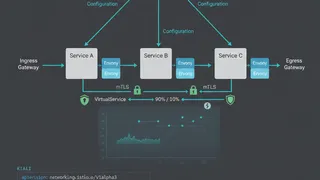 Quiz
QuizIstio: Service Mesh Fundamentals
Master the fundamentals of Service Mesh, traffic routing, and mutual TLS security within a Kubernetes environment.
 Dev tip
Docker Is Eating Your Disk Space (And How PruneMate Fixes It)
Your Docker host is slowly filling up with unused images, orphaned volumes, and stale build cache. Manual cleanup feels risky, and you might accidentally delete the wrong thing. Here's how PruneMate automates Docker maintenance across your home lab with scheduled cleanup, remote host support, and a clean interface that shows exactly what you're deleting before you commit.
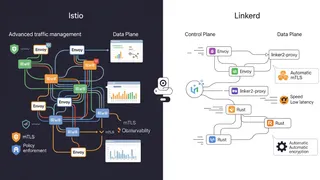 Article
Service Mesh Deep Dive: Istio vs. Linkerd
Trying to figure out service mesh? This article compares Istio and Linkerd on Kubernetes, looking at how they handle traffic, security, and more. Find out which one might be the best fit for you.
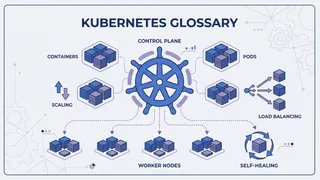 Glossary
Containers & Kubernetes
Essential terms every DevOps engineer should know about containers and Kubernetes.
You might also enjoy
More posts on similar topics
6 related posts