Docker Swarm
Docker Swarm reference guide covering swarm initialization, node management, services, stacks, overlay networking, secrets, configs, rolling updates, and cluster monitoring.
This cheatsheet is a reference for managing Docker Swarm clusters, services, and stacks. It covers the commands and best practices for scaling, updating, and monitoring your swarm applications.
No commands found
Try adjusting your search term
Getting Started
Core concepts and prerequisites for Docker Swarm cluster orchestration.
What is Docker Swarm
Overview of Docker Swarm architecture, covering manager nodes, worker nodes, services, and tasks.
Docker Swarm overview
Docker Swarm turns a group of Docker hosts into a fault-tolerant, self-healing cluster. Manager nodes use the Raft consensus algorithm to maintain cluster state.
# Docker Swarm is Docker's native container orchestration tool.# Key concepts:# - Swarm: A cluster of Docker engines (nodes) managed as one.# - Node: A Docker engine participating in the swarm.# Manager nodes coordinate scheduling and cluster state.# Worker nodes execute tasks dispatched by managers.# - Service: Defines a desired state (image, replicas, ports).# - Task: A running container that is a slot in a service.# - Stack: A group of inter-related services sharing networks/volumes.docker info --format '{{.Swarm.LocalNodeState}}'inactive- A swarm can have multiple manager nodes for high availability; odd numbers (3, 5, 7) are recommended.
- Worker nodes never take part in Raft consensus.
- Requires Docker Engine 1.12+ (swarm mode is built in).
Verify Docker Engine version
Docker Swarm mode is bundled with Docker Engine, so no separate installation is needed.
docker versionClient: Docker Engine - Community Version: 26.0.0Server: Docker Engine - Community Engine: Version: 26.0.0- Swarm mode requires Docker Engine 1.12 or later.
- All nodes in a swarm should run the same or compatible Docker versions.
Required Ports & Firewall Rules
Network ports that must be open between swarm nodes.
Open required swarm ports (Linux / UFW)
These three ports must be reachable between all swarm nodes for the cluster to function correctly.
# TCP 2377 cluster management communications (manager nodes only)sudo ufw allow 2377/tcp
# TCP/UDP 7946 node-to-node communication (overlay network control)sudo ufw allow 7946/tcpsudo ufw allow 7946/udp
# UDP 4789 overlay network data path (VXLAN)sudo ufw allow 4789/udp- Port 2377 only needs to be open on manager nodes, but opening it on all nodes is common practice.
- 4789 uses UDP: make sure your cloud provider/router allows VXLAN traffic.
Swarm Initialization
Commands for creating, joining, leaving, and securing a Docker Swarm cluster.
Initialize a Swarm
Bootstrap the first manager node to create a new swarm.
Initialize swarm on current host
Docker automatically selects the advertise address. Use when the host has a single network interface.
docker swarm initSwarm initialized: current node (abc123def456) is now a manager.
To add a worker to this swarm, run the following command:
docker swarm join --token SWMTKN-1-xxxx... 192.168.1.10:2377
To add a manager to this swarm, run 'docker swarm join-token manager' and follow the instructions.- The join token displayed is the worker token; use `docker swarm join-token manager` for the manager token.
Initialize swarm with explicit advertise address
Specify the IP address that other nodes use to connect to this manager. Required when multiple network interfaces are present.
docker swarm init --advertise-addr 192.168.1.10- `--advertise-addr` can be an IP address or a network interface name (e.g., `eth0`).
- The port defaults to 2377; override with `--advertise-addr 192.168.1.10:2377`.
Initialize swarm with autolock enabled
Autolock encrypts the Raft logs and requires a key to unlock managers after they restart, protecting swarm secrets at rest.
docker swarm init --autolockSwarm initialized: current node (xyz789) is now a manager.
To unlock a swarm manager after it restarts, run the `docker swarm unlock`command and provide the following key:
SWMKEY-1-xxxxxxxxxxxxxxxxxxxxxxxxxxxxxx
Please remember to store this key in a password manager, since without ityou will not be able to restart the manager.- Store the unlock key securely. Losing it means you cannot restart the manager.
- Enable autolock on an existing swarm with `docker swarm update --autolock=true`.
Manage Join Tokens
View, rotate, and use join tokens for adding nodes to the swarm.
Display worker join token
Displays the complete `docker swarm join` command needed to add a new worker node.
docker swarm join-token workerTo add a worker to this swarm, run the following command:
docker swarm join --token SWMTKN-1-xxxx 192.168.1.10:2377Display manager join token
Displays the complete command to add a new manager node.
docker swarm join-token managerRotate join token (invalidate existing)
Invalidates the existing token and generates a new one. Use when a token has been exposed or compromised.
# Rotate worker tokendocker swarm join-token --rotate worker
# Rotate manager tokendocker swarm join-token --rotate manager- Previously issued tokens become invalid immediately after rotation.
- Running containers and joined nodes are not affected by rotation.
Join & Leave Swarm
Add nodes to or remove them from a swarm cluster.
Join a swarm as a worker node
Run on the node you want to add as a worker. Obtain the token from `docker swarm join-token worker` on a manager.
docker swarm join \ --token SWMTKN-1-xxxx \ 192.168.1.10:2377Join a swarm as a manager node
Run on the node you want to promote to manager. Use the manager token from `docker swarm join-token manager`.
docker swarm join \ --token SWMTKN-1-yyyy \ 192.168.1.10:2377- For fault tolerance use 3, 5, or 7 managers (odd number to keep Raft quorum).
Leave the swarm (worker node)
Gracefully removes the current node from the swarm.
docker swarm leaveForce-leave the swarm (manager node)
Forces a manager node to leave, even if it would break quorum. Use with caution in production.
docker swarm leave --force- --force is required on manager nodes; make sure remaining managers still have quorum.
Unlock & Update Swarm
Unlock an autolocked manager and update swarm-wide settings.
Unlock a restarted manager node
Prompts for the unlock key to decrypt the Raft store after a manager node restart when autolock is enabled.
docker swarm unlockEnable autolock on an existing swarm
docker swarm update --autolock=trueUpdate certificate rotation interval
Sets node certificate expiry to 30 days. Docker auto-renews certificates before they expire.
docker swarm update --cert-expiry 720h- Default certificate expiry is 90 days.
Node Management
Inspect, configure, promote, drain, and remove nodes in the swarm cluster.
List & Inspect Nodes
View and query node details within the swarm.
List all nodes in the swarm
The asterisk (*) marks the current node. MANAGER STATUS shows Leader, Reachable, or blank (worker).
docker node lsID HOSTNAME STATUS AVAILABILITY MANAGER STATUS ENGINE VERSIONabc123def456 * node1 Ready Active Leader 26.0.0xyz789ghi012 node2 Ready Active 26.0.0jkl345mno678 node3 Ready Active Reachable 26.0.0Inspect a specific node
Shows full node details including IP address, resources, labels, and status.
# Inspect by node ID or hostnamedocker node inspect node2
# Pretty-formatted outputdocker node inspect --pretty node2
List tasks running on a node
Shows all tasks (containers) currently scheduled on the specified node.
docker node ps node2ID NAME IMAGE NODE DESIRED STATE CURRENT STATEabcd1234 web.1 nginx:alpine node2 Running Running 2 hours agoefgh5678 api.3 node:18 node2 Running Running 1 hour agoList tasks on the current node
Use the alias `self` to refer to the node where the command is run.
docker node ps selfUpdate Node Settings
Change node availability, labels, and roles.
Drain a node (for maintenance)
Tasks are rescheduled on other nodes immediately. The node will no longer receive new tasks.
docker node update --availability drain node2- Drain before performing maintenance (OS updates, Docker upgrades) to avoid downtime.
Pause a node (stop new task scheduling)
Stops new tasks from being scheduled on the node but keeps existing tasks running.
docker node update --availability pause node2Reactivate a node
Returns the node to active status so it can receive new tasks.
docker node update --availability active node2Add a label to a node
Labels are used by placement constraints in service definitions to control where services are scheduled.
docker node update --label-add region=us-east node2docker node update --label-add region=us-east --label-add env=prod node2Remove a label from a node
docker node update --label-rm region node2Promote, Demote & Remove Nodes
Change node roles and remove nodes from the swarm.
Promote a worker to manager
Adds manager responsibilities to a worker node. Use to increase fault tolerance.
docker node promote node2Demote a manager to worker
Removes manager responsibilities while keeping the node in the swarm as a worker.
docker node demote node3- Make sure enough managers remain for quorum before demoting.
Remove a node from the swarm
Permanently removes the node entry from the swarm's node list.
# Node must have left the swarm first (status = Down)docker node rm node2
# Force-remove a node that is still reachabledocker node rm --force node2- The node should run `docker swarm leave` before being removed.
- --force removes the node without waiting for it to acknowledge.
Service Management
Create, inspect, scale, update, rollback, and remove swarm services.
Create a Service
Define and deploy a new replicated or global service.
Create a basic replicated service
Deploys 3 replicas of `nginx:alpine` and publishes port 80 on every swarm node via the routing mesh.
docker service create \ --name web \ --replicas 3 \ --publish published=80,target=80 \ nginx:alpine- The routing mesh routes traffic to any published port on any node to a running replica.
Create a global service (one replica per node)
A global service runs exactly one replica on every active node, which suits monitoring agents and log collectors.
docker service create \ --name log-collector \ --mode global \ fluent/fluentd:v1.16Create service with resource limits
Sets both hard resource limits and soft reservations. Swarm uses reservations for scheduling decisions.
docker service create \ --name api \ --replicas 4 \ --limit-cpu 0.5 \ --limit-memory 256M \ --reserve-cpu 0.25 \ --reserve-memory 128M \ node:18-alpineCreate service with placement constraint
Constrains service placement to nodes matching all specified conditions.
docker service create \ --name db \ --replicas 2 \ --constraint 'node.labels.region==us-east' \ --constraint 'node.role==worker' \ postgres:16-alpine- Use `node.labels.<key>==<value>`, `node.role==manager|worker`, `node.hostname==<name>`.
Create service with environment variables and volume mount
Passes environment variables and attaches a named volume to every task replica.
docker service create \ --name app \ --replicas 2 \ --env NODE_ENV=production \ --env PORT=3000 \ --mount type=volume,source=app-data,target=/data \ --publish published=3000,target=3000 \ myapp:latestCreate service with rolling update policy
Updates 2 replicas at a time with a 15-second delay between batches. Automatically rolls back if more than 10% of updates fail.
docker service create \ --name web \ --replicas 6 \ --update-parallelism 2 \ --update-delay 15s \ --update-failure-action rollback \ --update-max-failure-ratio 0.1 \ nginx:alpineList & Inspect Services
View running services and their detailed configuration.
List all services
REPLICAS shows `running/desired`. A mismatch indicates scheduling or health issues.
docker service lsID NAME MODE REPLICAS IMAGE PORTSabc123def456 web replicated 3/3 nginx:alpine *:80->80/tcpxyz789ghi012 api replicated 4/4 node:18 *:3000->3000/tcpInspect a service (full JSON)
docker service inspect webInspect a service (human-readable)
Shows service configuration in a readable format without raw JSON.
docker service inspect --pretty webID: abc123Name: webService Mode: Replicated Replicas: 3UpdateStatus: State: completedPlacement:UpdateConfig: Parallelism: 2 Delay: 15s On failure: rollbackContainerSpec: Image: nginx:alpineResources:Endpoint Mode: vipPorts: PublishedPort = 80List tasks (containers) for a service
Shows each task, which node it runs on, its current state, and any recent errors.
docker service ps webID NAME IMAGE NODE DESIRED STATE CURRENT STATE ERRORaaa111 web.1 nginx:alpine node1 Running Running 3 hours agobbb222 web.2 nginx:alpine node2 Running Running 3 hours agoccc333 web.3 nginx:alpine node3 Running Running 3 hours agoList tasks including failed/completed history
Shows the full task ID and complete error messages without truncation, useful for debugging failed deployments.
docker service ps --no-trunc webScale Services
Adjust the number of replicas for one or more services.
Scale a single service
Adjusts the desired replica count. Swarm immediately schedules or removes tasks to match.
docker service scale web=5Scale multiple services at once
Scales all listed services in parallel with a single command.
docker service scale web=5 api=8 worker=3- Scaling down removes replicas; Swarm picks which tasks to stop.
- Cannot scale a global-mode service (it always runs one per active node).
Update a Service
Change service configuration, image, replicas, or update policy.
Update service image (rolling update)
Performs a rolling update, replacing old replicas with the new image according to the service's update policy.
docker service update --image nginx:1.25-alpine webUpdate replicas count
docker service update --replicas 6 webAdd an environment variable
docker service update --env-add DEBUG=true webRemove an environment variable
docker service update --env-rm DEBUG webAdd a published port
docker service update --publish-add published=443,target=443 webRemove a published port
docker service update --publish-rm 80 webUpdate resource limits
docker service update \ --limit-cpu 1.0 \ --limit-memory 512M \ apiModify the update policy
docker service update \ --update-parallelism 3 \ --update-delay 30s \ --update-failure-action rollback \ webForce re-deploy all tasks (same image)
Re-creates all tasks even when no configuration change is detected. Useful to pick up rebuilt images using the same tag.
docker service update --force web- --force replaces tasks one at a time, respecting the update policy.
Rollback a Service
Revert a service to its previous configuration after a failed update.
Rollback a service to previous version
Reverts the service to the configuration it had before the most recent `docker service update`.
docker service rollback web- Only one level of rollback is stored, so you cannot roll back further than the previous state.
- Configure automatic rollback with `--update-failure-action rollback` during service creation/update.
Remove Services
Delete one or more services from the swarm.
Remove a single service
Immediately stops all tasks and removes the service definition.
docker service rm web- This is irreversible. All running containers for the service are stopped.
Remove multiple services
docker service rm web api workerStack Management
Deploy and manage multi-service applications defined in Compose files.
Compose File for Swarm
Docker Compose v3 file structure with Swarm-specific deploy keys.
Minimal Compose v3 stack definition
Shows the key `deploy` block available only in Swarm mode. The `build` key is ignored in Swarm, so images must be pre-built.
services: web: image: nginx:alpine ports: - "80:80" deploy: replicas: 3 update_config: parallelism: 1 delay: 10s failure_action: rollback restart_policy: condition: on-failure delay: 5s max_attempts: 3 networks: - frontend
api: image: node:18-alpine environment: NODE_ENV: production deploy: replicas: 2 resources: limits: cpus: '0.5' memory: 256M reservations: cpus: '0.25' memory: 128M placement: constraints: - node.role == worker networks: - frontend - backend
networks: frontend: driver: overlay backend: driver: overlay attachable: true- `docker-compose up` ignores the `deploy` block; it is only used by `docker stack deploy`.
- Secrets and configs are referenced under `secrets:` / `configs:` at the top-level and service level.
Deploy a Stack
Deploy or update a multi-service application to the swarm.
Deploy a stack from a Compose file
Creates services, volumes, and networks defined in the Compose file. Re-running the command updates an existing stack.
docker stack deploy -c compose.yml myappCreating network myapp_frontendCreating network myapp_backendCreating service myapp_webCreating service myapp_apiDeploy using a private registry
Passes the local Docker registry credentials to the swarm so worker nodes can pull images from private registries.
docker login registry.example.comdocker stack deploy -c compose.yml --with-registry-auth myapp- Without `--with-registry-auth`, worker nodes may fail to pull private images.
Deploy from multiple Compose files (merge)
Merges multiple Compose files, with later files overriding earlier ones.
docker stack deploy \ -c compose.yml \ -c docker-compose.prod.yml \ myappManage Stacks
List, inspect, and remove stacks and their resources.
List all stacks
docker stack lsNAME SERVICES ORCHESTRATORmyapp 2 Swarmmonitoring 3 SwarmList services in a stack
docker stack services myappID NAME MODE REPLICAS IMAGEabc123 myapp_web replicated 3/3 nginx:alpinedef456 myapp_api replicated 2/2 node:18-alpineList all tasks in a stack
Shows every container for the stack, across all nodes, with its current state.
docker stack ps myappID NAME IMAGE NODE DESIRED STATE CURRENT STATEaaa111 myapp_web.1 nginx:alpine node1 Running Running 1 hour agobbb222 myapp_web.2 nginx:alpine node2 Running Running 1 hour agoccc333 myapp_web.3 nginx:alpine node3 Running Running 1 hour agoddd444 myapp_api.1 node:18 node2 Running Running 1 hour agoeee555 myapp_api.2 node:18 node3 Running Running 1 hour agoRemove a stack (all services, networks)
Stops and removes all services and networks created by the stack. Named volumes are not removed.
docker stack rm myapp- Named volumes must be removed manually with `docker volume rm`.
Networking
Create and manage overlay networks for service-to-service communication.
Overlay Networks
Multi-host container networks that span the entire swarm cluster.
Create an overlay network
Creates an overlay network spanning all swarm nodes. The `--attachable` flag allows standalone containers (not just services) to connect.
docker network create \ --driver overlay \ --attachable \ my-overlay- Overlay networks are available cluster-wide but only created on nodes running a connected service.
Create an encrypted overlay network
Encrypts data-plane traffic between nodes using AES-GCM in GCM mode. Adds slight overhead but improves security.
docker network create \ --driver overlay \ --opt encrypted \ my-secure-overlay- Control-plane traffic is always encrypted; this flag encrypts data-plane traffic too.
List all networks
docker network lsNETWORK ID NAME DRIVER SCOPEabc123 bridge bridge localdef456 docker_gwbridge bridge localghi789 host host localjkl012 ingress overlay swarmmno345 my-overlay overlay swarmInspect a network
Shows connected services, IP addresses, and network configuration.
docker network inspect my-overlayConnect a service to an additional network
docker service update --network-add my-overlay apiDisconnect a service from a network
docker service update --network-rm my-overlay apiRemove a network
docker network rm my-overlay- A network cannot be removed while services or containers are still connected to it.
Secrets & Configs
Securely manage sensitive data and configuration files distributed to services.
Secrets Management
Store and distribute sensitive data (passwords, API keys, certificates) to swarm services.
Create a secret from stdin
Reads the secret value from stdin (the trailing `-`). Avoids storing secrets in shell history.
printf 'mysecretpassword' | docker secret create db_password -- Never use `echo` (adds a newline); use `printf` or read from a file.
Create a secret from a file
Reads the secret value from the specified file. Useful for certificates, keys, and other binary data.
docker secret create tls_cert ./certs/server.crtdocker secret create tls_key ./certs/server.keyList all secrets
docker secret lsID NAME DRIVER CREATED UPDATEDaaaaabbbbcccc db_password 2 hours ago 2 hours agodddddeeeeffff tls_cert 1 hour ago 1 hour ago- Secret values are never retrievable after creation. Only their metadata is shown.
Inspect a secret
Shows secret metadata (ID, name, labels, timestamps) but never the secret value.
docker secret inspect db_passwordGrant a service access to a secret
The secret is mounted read-only at `/run/secrets/<secret-name>` inside each task container. The app reads the file instead of an env var.
docker service create \ --name db \ --secret db_password \ --env POSTGRES_PASSWORD_FILE=/run/secrets/db_password \ postgres:16-alpine- Mounting as a file is more secure than injecting into an environment variable.
Add a secret to an existing service
docker service update --secret-add db_password apiRemove a secret from a service
docker service update --secret-rm db_password apiDelete a secret
docker secret rm db_password- A secret can only be removed if no running services are using it.
Configs Management
Distribute non-sensitive configuration files to swarm services.
Create a config from a file
Stores the config file content in the swarm's Raft store and distributes it to services.
docker config create nginx_conf ./nginx/nginx.confList all configs
docker config lsInspect a config (view content)
The `Data` field in the inspect output is base64-encoded. Use the format flag to decode it.
docker config inspect nginx_conf# Decode the base64-encoded Data field:docker config inspect --format '{{printf "%s" .Spec.Data}}' nginx_confUse a config in a service
Mounts the config as a read-only file at the specified path inside the container.
docker service create \ --name proxy \ --config source=nginx_conf,target=/etc/nginx/nginx.conf,mode=0440 \ --publish published=80,target=80 \ nginx:alpineDelete a config
docker config rm nginx_confMonitoring & Logging
Observe service health, view logs, and track cluster events.
Service Logs
Stream and filter logs from services and individual tasks.
View logs for a service
docker service logs webFollow (stream) logs in real time
docker service logs -f webShow last N lines with timestamps
docker service logs --tail 100 -t webView logs from a specific task (replica)
Append the replica number to the service name to scope logs to a single task.
docker service logs web.1Follow logs with full details
`--details` includes extra attributes set on the log message (e.g., service name, task ID).
docker service logs -f -t --tail 50 --details webCluster Events
Monitor real-time events from the swarm cluster.
Watch all Docker events
docker system eventsFilter events by service type
docker system events --filter type=serviceFilter events by node type
docker system events --filter type=nodeWatch events since a timestamp
docker system events --since "2026-03-07T00:00:00"Cluster Health & Info
Check overall swarm health and resource usage.
Show swarm status and cluster info
docker info...Swarm: active NodeID: abc123def456 Is Manager: true ClusterID: xyz789 Managers: 3 Nodes: 5...Show disk usage
docker system dfTYPE TOTAL ACTIVE SIZE RECLAIMABLEImages 12 8 2.1GB 450MB (21%)Containers 25 20 180MB 12MB (6%)Local Volumes 8 6 3.2GB 850MB (26%)Build Cache 0 0 0B 0BRemove unused resources
# Remove stopped containers, unused images, volumes, networksdocker system prune -f
# Also remove unused volumesdocker system prune --volumes -f- Run on each node individually. `docker system prune` is not a cluster-wide command.
Rolling Updates & Rollbacks
Perform zero-downtime deployments and recover from failed updates.
Update Strategy Configuration
Set up update parallelism, delay, failure action, and monitoring window.
Full update policy example
- parallelism 2: update 2 replicas at a time - delay 20s: wait 20 seconds between each batch - monitor 30s: wait 30 seconds after each task update before marking it a success - failure-action rollback: automatically revert on failure - max-failure-ratio 0.2: allow up to 20% of tasks to fail before triggering rollback - order start-first: start the new task before stopping the old one (requires spare capacity)
docker service update \ --update-parallelism 2 \ --update-delay 20s \ --update-monitor 30s \ --update-failure-action rollback \ --update-max-failure-ratio 0.2 \ --update-order start-first \ web- `start-first` provides zero-downtime during updates but temporarily increases resource usage.
- `stop-first` (default) stops the old task before starting the new one.
Rollback policy configuration
Defines how a rollback itself is performed, using parameters similar to the update config.
docker service update \ --rollback-parallelism 2 \ --rollback-delay 10s \ --rollback-failure-action pause \ --rollback-monitor 20s \ --rollback-max-failure-ratio 0.1 \ --rollback-order start-first \ webPerform & Monitor Updates
Execute a rolling update and roll back if needed.
Update image with controlled rollout
docker service update \ --image nginx:1.25-alpine \ --update-parallelism 1 \ --update-delay 15s \ webMonitor update progress
# Watch tasks being replacedwatch docker service ps web
# Check the update statedocker service inspect --pretty web | grep -A5 UpdateStatusUpdateStatus: State: updating Started: 3 seconds ago Message: update in progressPause an in-progress update
Halts the rolling update at the current batch. Useful when you observe issues mid-rollout.
docker service update --update-pause webResume a paused update
docker service update --update-resume webManual rollback
Reverts to the previous service spec. Can be issued even if the update has completed.
docker service rollback web- Swarm stores only one previous state (PreviousSpec). You cannot chain multiple rollbacks.
Was this useful?
Continue on this topic
The same subject, covered a different way from the cheatsheet above.
 Quiz
QuizDocker: Containerization Fundamentals
Test your knowledge of Docker fundamentals with a quiz covering containers, images, Dockerfiles, networking, volumes, Docker Compose, and containerization best practices.
 Dev tip
Docker Is Eating Your Disk Space (And How PruneMate Fixes It)
Your Docker host is slowly filling up with unused images, orphaned volumes, and stale build cache. Manual cleanup feels risky, and you might accidentally delete the wrong thing. Here's how PruneMate automates Docker maintenance across your home lab with scheduled cleanup, remote host support, and a clean interface that shows exactly what you're deleting before you commit.
 Article
Becoming an AWS Pro: A Deep Dive into Amazon Elastic Container Service
A look at Amazon Elastic Container Service: how it compares to EC2 and EKS, its common use cases, and the path from on-premises servers to EC2 instances to ECS Fargate.
 Case study
Migrating a Monolith to Kubernetes Without a Big-Bang Cutover
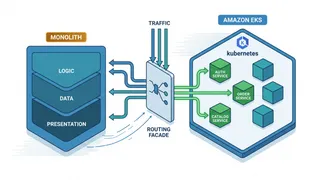
Using the strangler-fig pattern to move a large monolith onto EKS service by service, with a routing facade, gradual traffic shifting, and a rollback at every step.
You might also enjoy
More posts on similar topics
6 related posts