Docker
Docker is a containerization platform for building, shipping, and running applications in isolated environments. This cheatsheet covers the core Docker CLI commands.
Docker is a containerization platform that packages applications with their dependencies into isolated, portable environments called containers. It enables developers to build, ship, and run applications consistently across different systems.
Benefits
- Run the same environment in development, test, and production.
- Applications are isolated from each other and from the host system.
- A containerized application deploys to any system running Docker.
- Containers are lighter than virtual machines and start faster.
- Scale horizontally by running more containers.
Quick start
Install Docker: Follow the installation guide in the Getting Started section.
Run your first container: docker run -d -p 8080:80 nginx:latest
Access the service: Open http://localhost:8080 in your browser.
Common workflows
- Development: Use containers to match production environment locally
- Building Images: Create Dockerfiles and build images for your applications
- Running Services: Run containers with proper networking and storage configuration
- Scaling: Use container orchestration (Docker Swarm or Kubernetes) for production deployments
The sections above cover Docker commands, networking, storage, and best practices for containerized applications.
No commands found
Try adjusting your search term
Getting Started
Fundamental Docker concepts and basic setup for beginners.
What is Docker
Introduction to Docker and containerization concepts.
Docker overview
Docker is a lightweight virtualization platform that uses containerization to isolate applications and their dependencies.
# Docker is a containerization platform that packages applications# with their dependencies into isolated, portable containers.
# Key concepts:# - Image: Blueprint/template for creating containers# - Container: Running instance of an image# - Registry: Repository for storing images (Docker Hub)# - Daemon: Background service running Dockerdocker --versionDocker version 24.0.0, build abcd1234- Containers are more lightweight than virtual machines.
- Docker uses images as templates to create containers.
- All containers run on the same kernel but are isolated from each other.
Docker client-server architecture
Explains the client-server architecture of Docker and how commands flow through the system.
# Docker uses a client-server architecture:# 1. Client: CLI that sends commands to the daemon# 2. Server: Daemon that manages containers and images# 3. Registries: Stores images (public or private)
# Communication flow:# Docker CLI → Docker Daemon → Container Runtime → Containersdocker infoClient: Version: 24.0.0Server: Containers: 3 Running: 1 Images: 15- The Docker daemon must be running for CLI commands to work.
- Multiple clients can connect to one daemon.
Container vs image
Demonstrates the relationship between images and containers with concrete examples.
# Image: Read-only template containing application code and dependencies# - Similar to a class in object-oriented programming# - Built from Dockerfile instructions# - Immutable and portable
# Container: Running instance of an image# - Similar to an object in object-oriented programming# - Has writable layer on top of image# - Each container is isolated with own filesystem, network, processesdocker images && docker psREPOSITORY TAG IMAGE IDubuntu 20.04 1234567
CONTAINER ID IMAGE STATUSabcd1234 ubuntu Up 2 hours- One image can create multiple containers.
- Containers are ephemeral and data is lost when stopped (unless using volumes).
Installation Setup
Installing Docker and verifying the installation.
Install Docker on Linux
Installation steps for Docker on Ubuntu/Debian-based Linux systems.
# Update package managersudo apt-get update
# Install Docker packagesudo apt-get install -y docker.io
# Start Docker daemonsudo systemctl start docker
# Enable Docker to start on bootsudo systemctl enable dockersudo docker --versionDocker version 24.0.0, build abcd1234- Requires Ubuntu 16.04 LTS or newer.
- Using `sudo` is necessary for Docker commands unless configured otherwise.
Post-installation setup
Post-installation configuration to run Docker without sudo and verify the setup.
# Run Docker without sudo (optional)sudo usermod -aG docker $USER
# Apply group membershipnewgrp docker
# Verify installationdocker run hello-worlddocker run hello-worldUnable to find image 'hello-world:latest' locallylatest: Pulling from library/hello-worldStatus: Downloaded newer image for hello-world:latestHello from Docker!- Adding user to docker group allows running without sudo.
- Must logout and login again for group changes to take effect.
Docker Desktop installation (macOS/Windows)
Installation instructions for Docker Desktop on macOS and Windows systems.
# macOS: Install using Homebrewbrew install --cask docker
# Or download from: https://www.docker.com/products/docker-desktop
# Windows: Download Docker Desktop installer from official site# Then run installer and enable WSL 2 integration
# After installation, verifydocker --versiondocker --version && docker run hello-worldDocker version 24.0.0, build abcd1234Hello from Docker!- Docker Desktop includes Docker engine, CLI, and Docker Compose.
- On Windows, Docker Desktop performs best with WSL 2 (Windows Subsystem for Linux 2).
Hello World
Running your first Docker container.
Run hello-world image
Demonstrates the basic workflow of pulling an image and running a container.
docker run hello-worlddocker run hello-worldUnable to find image 'hello-world:latest' locallylatest: Pulling from library/hello-world2db29710123e: Pull completeStatus: Downloaded newer image for hello-world:latest
Hello from Docker!This message shows that your installation appears to be working correctly.- Docker downloads the image from Docker Hub if it's not already present.
- The container runs and exits automatically for hello-world.
Run interactive shell container
Runs an interactive shell in an Ubuntu container, allowing you to explore the container filesystem.
docker run -it ubuntu:22.04 /bin/bashdocker run -it ubuntu:22.04 /bin/bashls -laexittotal 32drwxr-xr-x 1 root root 4096 Jan 10 12:00 .drwxr-xr-x 1 root root 4096 Jan 10 12:00 ..-rwxr-xr-x 1 root root 0 Jan 10 12:00 .dockerenv...- `-it` flags enable interactive terminal access.
- Type `exit` to leave the container.
Run container with custom command
Runs a specific command in the container and then exits.
docker run --name my-python-app python:3.11 python --versiondocker run --name my-python-app python:3.11 python --versionPython 3.11.5- `--name` assigns a friendly name to the container.
- Container exits after command completes.
Build & Images
Creating, managing, and working with Docker images.
Docker Build
Creating Docker images from Dockerfiles.
Basic Docker build
Demonstrates basic Docker image building with tag naming.
# Create a Dockerfilecat > Dockerfile << 'EOF'FROM ubuntu:22.04RUN apt-get update && apt-get install -y curlCOPY . /appWORKDIR /appCMD ["echo", "Hello from Docker!"]EOF
# Build the imagedocker build -t my-app:1.0 .docker build -t my-app:1.0 .Sending build context to Docker daemon 2.048kBStep 1/5 : FROM ubuntu:22.04Step 2/5 : RUN apt-get update && apt-get install -y curlStep 3/5 : COPY . /appStep 4/5 : WORKDIR /appStep 5/5 : CMD ["echo", "Hello from Docker!"]Successfully built abc123def456Successfully tagged my-app:1.0- Build context includes all files in current directory.
- Tag format is `repository:tag` or `registry/repository:tag`.
- Each RUN instruction creates a layer.
Build with build arguments
Demonstrates build-time arguments for customizing image builds.
# Dockerfile with build argumentscat > Dockerfile << 'EOF'FROM python:3.11ARG APP_VERSION=1.0ARG APP_ENV=productionRUN echo "Building version $APP_VERSION for $APP_ENV"COPY . /appWORKDIR /appRUN pip install -r requirements.txtCMD ["python", "app.py"]EOF
# Build with custom argumentsdocker build \ --build-arg APP_VERSION=2.5 \ --build-arg APP_ENV=staging \ -t my-python-app:2.5 .docker build --build-arg APP_VERSION=2.5 -t my-python-app:2.5 .Sending build context to Docker daemonStep 1/7 : FROM python:3.11Step 2/7 : ARG APP_VERSION=1.0Step 3/7 : ARG APP_ENV=productionStep 4/7 : RUN echo "Building version 2.5 for staging"Building version 2.5 for stagingSuccessfully tagged my-python-app:2.5- ARG values can be overridden during build time.
- Build arguments are only available during build, not in running containers.
Multi-stage Docker build
Multi-stage builds reduce final image size by using temporary build stages.
cat > Dockerfile << 'EOF'# Build stageFROM golang:1.21 as builderWORKDIR /appCOPY . .RUN go build -o myapp
# Runtime stageFROM alpine:latestWORKDIR /root/COPY --from=builder /app/myapp .CMD ["./myapp"]EOF
docker build -t go-optimized:latest .docker build -t go-optimized:latest .Step 1/8 : FROM golang:1.21 as builderStep 2/8 : WORKDIR /appStep 3/8 : COPY . .Step 4/8 : RUN go build -o myappStep 5/8 : FROM alpine:latestStep 6/8 : WORKDIR /root/Step 7/8 : COPY --from=builder /app/myapp .Step 8/8 : CMD ["./myapp"]Successfully tagged go-optimized:latest- Only final stage is included in the image.
- Cuts image size for compiled applications, since build tools stay out of the final stage.
Managing Images
Listing, inspecting, and managing Docker images.
List all images
Displays all Docker images and their metadata.
# List all local imagesdocker images
# List with all details including dangling imagesdocker images -adocker imagesREPOSITORY TAG IMAGE ID CREATED SIZEubuntu 22.04 6b038c8a0437 2 weeks ago 77.9MBpython 3.11 abc123def456 2 weeks ago 920MBnginx latest def456abc123 1 week ago 187MBmy-app 1.0 xyz789abc123 3 days ago 250MB- IMAGE ID is the unique identifier for the image.
- SIZE is the uncompressed size of the image.
Inspect image details
Shows detailed JSON metadata about a specific image.
# Get detailed information about an imagedocker inspect ubuntu:22.04
# Get specific information using jqdocker inspect ubuntu:22.04 | jq '.[0].Config.Env'docker inspect ubuntu:22.04[ { "Id": "sha256:6b038c8a043...", "RepoTags": ["ubuntu:22.04"], "Size": 77880000, "Architecture": "amd64", "Config": { "Hostname": "", "Env": ["PATH=/usr/local/sbin:/usr/local/bin:..."] } }]- Output is in JSON format.
- Includes environment variables, exposed ports, and more.
View image history
Displays the build history showing each layer and command.
# Show image build history (layers)docker history my-app:1.0
# Show human-readable formatdocker history --human my-app:1.0docker history my-app:1.0IMAGE CREATED CREATED BY SIZEabc123def456 3 hours ago /bin/sh -c #(nop) CMD ["pytho 0Bdef456abc123 3 hours ago /bin/sh -c pip install -r req 45MBghi789def012 3 hours ago /bin/sh -c #(nop) COPY dir:... 2.5MBpython:3.11 2 weeks ago /bin/sh -c #(nop) CMD ["pyth 0B- Each row represents a layer in the image.
- Helps understand what commands created each layer.
Remove Images
Deleting Docker images and managing disk space.
Remove single image by ID
Removes a Docker image by its ID.
# Remove image by IDdocker rmi abc123def456
# Force remove even if in usedocker rmi -f abc123def456docker rmi abc123def456Untagged: my-app:1.0Deleted: sha256:abc123def456...Deleted: sha256:def456abc123...- Cannot remove image if running containers use it.
- Use `-f` flag to force remove, but may orphan containers.
Remove image by repository name
Removes Docker images by repository and tag name.
# Remove specific image tagdocker rmi ubuntu:22.04
# Remove all tags of repositorydocker rmi ubuntudocker rmi python:3.11Untagged: python:3.11Deleted: sha256:abc123def456...Deleted: sha256:def456abc123...- Remove containers first before removing images they use.
Remove dangling images
Cleans up unused and dangling images to free disk space.
# Find dangling images (untagged, unused layers)docker images -f dangling=true
# Remove all dangling imagesdocker image prune -a
# Remove with confirmationdocker image prune -a --forcedocker image prune -aWARNING! This will remove all images without at least one container associated to them.Are you sure you want to continue? [y/N] yDeleted Images:untagged: old-app:1.0@sha256:...total reclaimed space: 245.3MB- Dangling images have no repository or tag reference.
- This operation is irreversible.
Run & Containers
Creating and running Docker containers with various options.
Docker Run
Creating and starting containers with the run command.
Basic container run
Demonstrates basic run options for different scenarios.
# Run container and keep it runningdocker run -d --name my-web nginx:latest
# Run with interactive terminaldocker run -it ubuntu:22.04 /bin/bash
# Run and remove after exitdocker run --rm python:3.11 python --versiondocker run -d --name my-web nginx:latest1a2b3c4d5e6f7g8h9i0j (container ID)- `-d` runs container in detached (background) mode.
- `-it` allows interactive terminal access.
- `--rm` automatically removes container when it exits.
Run with port mapping and volumes
Maps container ports to host and mounts volumes.
# Map container port to host portdocker run -d -p 8080:80 --name my-web \  -v /var/www/html:/usr/share/nginx/html \  nginx:latest
# Multiple port mappingsdocker run -d -p 80:80 -p 443:443 \ --name my-secure-web nginx:latestdocker run -d -p 8080:80 --name my-web nginx:latestabc123def456ghi789jkl- Format is `-p host_port:container_port`.
- `-v` mounts host directory into container.
- Must use absolute paths for volume mounting.
Run with environment variables and resource limits
Demonstrates environment variables and resource constraints.
# Set environment variablesdocker run -d --name my-app \  -e DATABASE_URL=postgres://db:5432 \  -e APP_ENV=production \  -e LOG_LEVEL=info \  my-app:1.0
# Set resource limitsdocker run -d --name my-limited-app \ -m 512m \ --cpus="0.5" \ my-app:1.0docker run -d -e APP_ENV=production my-app:1.0xyz123abc456def789ghi- `-e` sets environment variables in the container.
- `-m` limits memory in MB or GB.
- `--cpus` limits CPU resources.
Docker Create
Creating containers without starting them immediately.
Create container configuration
Separates container creation from startup for more control.
# Create container without startingdocker create --name my-db \  -e MYSQL_ROOT_PASSWORD=secret \  -p 3306:3306 \  -v db-data:/var/lib/mysql \  mysql:8.0
# Verify it's created but not runningdocker ps -adocker create --name my-db mysql:8.0abc123def456ghi789jkl (container ID)- Container is created but in stopped state.
- Useful for configuring containers before starting.
Create with advanced networking
Creates containers on specific networks for container-to-container communication.
# Create networkdocker network create my-network
# Create container on specific networkdocker create --name web-server \  --network my-network \  --network-alias web \  -p 80:80 \  nginx:latest
# Create another container on same networkdocker create --name app-server \ --network my-network \ my-app:1.0docker create --network my-network --name web-server nginx:latestdef456ghi789jkl123abc- Containers on same network can communicate using container name.
- Network aliases provide DNS resolution within the network.
Create with health check
Creates container with health check for monitoring availability.
# Create with health checkdocker create --name healthy-app \ --health-cmd="curl -f http://localhost:8080/health || exit 1" \ --health-interval=30s \ --health-timeout=10s \ --health-retries=3 \ my-app:1.0docker create --health-cmd="curl localhost:8080" my-app:1.0ghi789jkl123abc456def- Health check runs at specified intervals.
- Docker marks container as unhealthy after retries fail.
Docker Exec
Running commands inside running containers.
Execute command in running container
Executes a command inside a running container without entering shell.
# Execute single commanddocker exec my-web ls -la /var/www/html
# Execute with outputdocker exec my-db mysql -u root -p$MYSQL_ROOT_PASSWORD -e "SHOW DATABASES;"docker exec my-web ls -la /var/www/htmltotal 24drwxr-xr-x 1 root root 4096 Jan 10 12:00 .drwxr-xr-x 1 root root 4096 Jan 10 12:00 ..-rw-r--r-- 1 root root 1234 Jan 10 12:00 index.html- Container must be in running state.
- Useful for quick debugging and inspection.
Interactive shell access
Provides interactive shell access for debugging and exploration.
# Enter interactive shelldocker exec -it my-app /bin/bash
# Once inside, run commands# $ ps aux# $ cat /var/log/app.log# $ exitdocker exec -it my-app /bin/bashidpwduid=0(root) gid=0(root) groups=0(root)/app- `-it` enables interactive terminal mode.
- Type `exit` to leave the shell.
Execute with user and working directory
Demonstrates user, directory, and background execution options.
# Execute as specific userdocker exec -u appuser my-app whoami
# Execute in specific directorydocker exec -w /var/log my-app tail -f app.log
# Execute in backgrounddocker exec -d my-app python script.pydocker exec -u appuser my-app whoamiappuser- `-u` specifies user for command execution.
- `-w` sets working directory for command.
- `-d` runs command in background.
Container Management
Managing container lifecycle, status, and logs.
Start & Stop Containers
Starting, stopping, and restarting containers.
Start and stop containers
Basic container lifecycle operations.
# Stop a running container gracefullydocker stop my-web
# Start a stopped containerdocker start my-web
# Restart a container (stop then start)docker restart my-webdocker stop my-web && docker start my-webmy-webmy-web- `stop` sends SIGTERM and gives the container 10 seconds to shut down.
- `start` restarts stopped container with same configuration.
Stop with timeout and force kill
Advanced stop options including timeout and force kill.
# Stop with custom timeout before killingdocker stop -t 30 my-web
# Force kill container immediatelydocker kill my-web
# Kill all running containersdocker kill $(docker ps -q)docker stop -t 30 my-webmy-web- `-t` specifies seconds to wait before killing (default 10).
- `kill` sends SIGKILL immediately, no graceful shutdown.
Pause and unpause containers
Temporarily pause container processes without stopping container.
# Pause all processes in containerdocker pause my-app
# Resume paused containerdocker unpause my-app
# Check pause statusdocker inspect -f '{{.State.Paused}}' my-appdocker pause my-app && docker unpause my-appmy-appmy-app- Paused containers still consume memory.
- Useful for resource management without full stop.
List Containers
Listing and filtering containers.
List running containers
Lists Docker containers with various output options.
# List running containersdocker ps
# List all containers (running and stopped)docker ps -a
# List only container IDsdocker ps -qdocker psCONTAINER ID IMAGE COMMAND CREATED STATUS PORTSabc123def456 nginx:latest "nginx..." 2 hours ago Up 2 hours 0.0.0.0:8080->80/tcpdef456ghi789 mysql:8.0 "docker..." 1 hour ago Up 1 hour 3306/tcp- Default `ps` shows only running containers.
- `-a` includes stopped containers.
- `-q` shows only IDs for scripting.
Filter containers by status and labels
Advanced filtering options for container queries.
# Filter by statusdocker ps -a -f status=exiteddocker ps -a -f status=running
# Filter by labeldocker ps -f label=environment=production
# Filter by imagedocker ps -f ancestor=nginx:latestdocker ps -a -f status=exitedCONTAINER ID IMAGE STATUSxyz123abc456 ubuntu:20.04 Exited (0)ghi789jkl012 python:3.11 Exited (1)- Multiple filters can be combined with `-f`.
- Labels must be set when creating containers.
Custom output formatting
Custom formatting options for better readability.
# Show custom columnsdocker ps --format "table {{.Names}}\t{{.Status}}\t{{.Ports}}"
# JSON formatdocker ps --format json
# Simple list of namesdocker ps --no-trunc --format "{{.Names}}"docker ps --format "table {{.Names}}\t{{.Status}}"NAMES STATUSmy-web Up 2 hoursmy-db Up 1 hour- `--format` accepts template variables.
- Useful for scripting and automation.
Docker Logs
Viewing and monitoring container logs.
View container logs
Displays container output and logs.
# View all logsdocker logs my-web
# View last 50 linesdocker logs --tail 50 my-web
# View logs with timestampsdocker logs -t my-webdocker logs my-web/docker-entrypoint.sh: /docker-entrypoint.d/ is not empty, will attempt to start nginx/docker-entrypoint.sh: Looking for shell scripts in /docker-entrypoint.d/2025-01-10T12:00:00.123Z [notice] starting server...2025-01-10T12:00:00.456Z [notice] listen() to 0.0.0.0:80- Logs are from container's stdout and stderr.
- Can view logs even after container stops.
Follow logs in real-time
Real-time log streaming for monitoring container activity.
# Stream logs in real-time (like tail -f)docker logs -f my-web
# Stream with timestampsdocker logs -f -t my-web
# Stream last 10 lines with followdocker logs --tail 10 -f my-web# Press Ctrl+C to exitdocker logs -f my-web2025-01-10T12:00:05.123Z GET / HTTP/1.1 2002025-01-10T12:00:06.456Z GET /api/users HTTP/1.1 2002025-01-10T12:00:07.789Z GET /style.css HTTP/1.1 304(continue streaming...)- `-f` follows log output continuously.
- Press Ctrl+C to stop streaming.
Filter and search logs
Filters and searches logs for specific patterns.
# Show logs since specific timedocker logs --since 2025-01-10T12:00:00 my-web
# Show logs from last hourdocker logs --since 1h my-web
# Search for specific patternsdocker logs my-web | grep ERRORdocker logs my-web | grep -i exceptiondocker logs my-web | grep ERROR2025-01-10T12:00:15.123Z [ERROR] Connection timeout2025-01-10T12:00:30.456Z [ERROR] Database unavailable- `--since` accepts timestamps or duration.
- Pipe the output to grep for more specific searches.
Networking & Volumes
Container networking, port mapping, and persistent storage.
Port Mapping & Networking
Managing ports, networks, and container communication.
Port mapping
Maps container ports to host for external access.
# Map single portdocker run -d -p 8080:80 --name my-web nginx:latest
# Map multiple portsdocker run -d -p 80:80 -p 443:443 -p 3000:3000 my-app:1.0
# Map to specific host interfacedocker run -d -p 127.0.0.1:8080:80 my-web
# Dynamic port mapping (OS assigns port)docker run -d -P nginx:latestdocker run -d -p 8080:80 nginx:latestabc123def456ghi789jkl- Format: `-p host_port:container_port`.
- `-P` auto-assigns high ports above 32768.
- Access locally: `http://localhost:8080`.
Docker networks and container linking
Creates custom networks for container-to-container communication.
# Create custom bridge networkdocker network create my-app-network
# Run containers on networkdocker run -d --name web \  --network my-app-network \  -p 8080:80 \  nginx:latest
docker run -d --name db \  --network my-app-network \  -e MYSQL_ROOT_PASSWORD=secret \  mysql:8.0
# Containers can communicate using namesdocker exec web curl http://db:3306docker network create my-app-networkabc123def456ghi789jklmnopq- Containers on same network can communicate using names.
- Better than deprecated `--link` option.
Inspect and manage networks
Manages and inspects Docker networks.
# List networksdocker network ls
# Inspect network detailsdocker network inspect my-app-network
# Connect container to networkdocker network connect my-app-network container-name
# Disconnect from networkdocker network disconnect my-app-network container-namedocker network lsNETWORK ID NAME DRIVER SCOPEabc123def456 bridge bridge localdef456ghi789 host host localghi789jkl012 none null localjkl012mno345 my-app-network bridge local- bridge: Default, isolated network.
- host: Uses host network.
- none: No networking.
Docker Volumes
Volume management for persistent data storage.
Create and manage volumes
Creates and manages named volumes for persistent storage.
# Create named volumedocker volume create db-data
# List volumesdocker volume ls
# Inspect volumedocker volume inspect db-data
# Remove volumedocker volume rm db-datadocker volume create db-datadb-data- Named volumes are stored on host at `/var/lib/docker/volumes/`.
- Volumes persist even when containers are removed.
Mount volumes in containers
Mounts volumes and bind mounts in containers.
# Mount named volumedocker run -d -v db-data:/var/lib/mysql \  --name my-db mysql:8.0
# Bind mount from host directorydocker run -d -v /data/app:/app \  --name my-app my-app:1.0
# Read-only mountdocker run -d -v db-data:/data:ro \ --name web-app my-web:1.0docker run -d -v db-data:/var/lib/mysql mysql:8.0xyz123abc456def789ghi- Format: `-v volume_name:/container_path`.
- Use absolute paths for bind mounts.
- Add `:ro` for read-only mount.
Share data between containers
Uses volumes to share data between multiple containers.
# Create shared volumedocker volume create shared-data
# Container 1 writes to volumedocker run -d -v shared-data:/data \  --name writer my-writer:1.0
# Container 2 reads from same volumedocker run -d -v shared-data:/shared \  --name reader my-reader:1.0
# Verify data is shareddocker exec writer sh -c "echo 'shared data' > /data/file.txt"docker exec reader cat /shared/file.txtdocker volume create shared-datashared-data- Multiple containers can mount same volume.
- Useful for shared configuration and data.
Cleanup & System
Removing containers, cleaning unused resources, and system management.
Container & Image Cleanup
Removing containers and managing disk space.
Remove containers
Removes Docker containers to free resources.
# Remove stopped containerdocker rm container-name
# Remove running container (force)docker rm -f container-name
# Remove multiple containersdocker rm container1 container2 container3
# Remove all stopped containersdocker container prunedocker rm stopped-containerstopped-container- Use `-f` to force remove running containers.
- Cannot remove without -f if container is running.
Prune system resources
Full cleanup of unused Docker resources.
# Remove dangling images, containers, volumes, networksdocker system prune
# Also remove unused images (not just dangling)docker system prune -a
# Include volumes in cleanupdocker system prune -a --volumesdocker system prune -aWARNING! This will remove: - all stopped containers - all networks not used by at least one container - all dangling images - all build cache
Total reclaimed space: 2.5GB- `prune` is irreversible; review what will be removed.
- Use `-a` to remove all unused images.
Cleanup specific resources
Targeted cleanup of specific resource types.
# Remove dangling images onlydocker image prune
# Remove unused volumesdocker volume prune
# Stop all containers and remove themdocker stop $(docker ps -q)docker rm $(docker ps -a -q)
# Remove images matching patterndocker rmi $(docker images | grep 'old-app' | awk '{print $3}')docker image pruneWARNING! This will remove all dangling images.Total reclaimed space: 512MB- Can be more selective than system prune.
- Useful for specific cleanup scenarios.
System Management
Monitoring Docker system health and resource usage.
Monitor Docker disk usage
Shows Docker's resource consumption and disk usage.
# Show Docker disk usagedocker system df
# Show detailed infodocker system df -v
# Show system informationdocker system infodocker system dfTYPE TOTAL ACTIVE SIZE RECLAIMABLEImages 15 3 2.5GB 1.8GBContainers 8 2 256MB 200MBLocal Volumes 12 4 512MB 100MB- TOTAL: Total count of resources.
- ACTIVE: Currently in use.
- RECLAIMABLE: Space that could be freed.
Monitor container statistics
Shows real-time resource usage for running containers.
# Show container resource usagedocker stats
# Show stats for specific containersdocker stats my-web my-db
# Show without streaming (one snapshot)docker stats --no-streamdocker stats --no-streamCONTAINER CPU % MEM USAGE MEM % NET I/Omy-web 0.25% 45MB 5% 12MB/8MBmy-db 2.15% 185MB 18% 150MB/120MB- CPU %, Memory, Network I/O statistics.
- Useful for identifying resource hogs.
Get system events
Monitors Docker system events in real-time.
# Show system events in real-timedocker system events
# Filter events for containersdocker system events --filter type=container
# Filter for specific containerdocker system events --filter container=my-webdocker system events --filter type=container2025-01-10T12:00:15.123Z container create abc123def4562025-01-10T12:00:16.456Z container start abc123def4562025-01-10T12:00:45.789Z container stop abc123def456- Events include create, start, stop, delete, etc.
- Filter by type (container, image, volume, etc.).
Was this useful?
Continue on this topic
The same subject, covered a different way from the cheatsheet above.
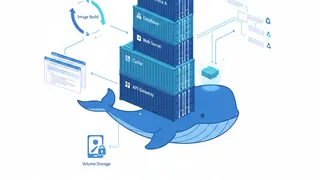 Quiz
QuizDocker: Containerization Fundamentals
Test your knowledge of Docker fundamentals with a quiz covering containers, images, Dockerfiles, networking, volumes, Docker Compose, and containerization best practices.
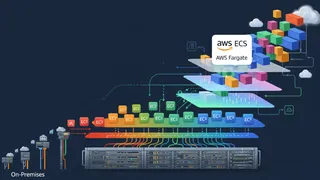 Article
Becoming an AWS Pro: A Deep Dive into Amazon Elastic Container Service
A look at Amazon Elastic Container Service: how it compares to EC2 and EKS, its common use cases, and the path from on-premises servers to EC2 instances to ECS Fargate.
 Dev tip
Docker Is Eating Your Disk Space (And How PruneMate Fixes It)
Your Docker host is slowly filling up with unused images, orphaned volumes, and stale build cache. Manual cleanup feels risky, and you might accidentally delete the wrong thing. Here's how PruneMate automates Docker maintenance across your home lab with scheduled cleanup, remote host support, and a clean interface that shows exactly what you're deleting before you commit.
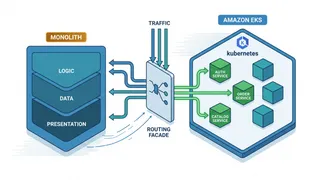 Case study
Migrating a Monolith to Kubernetes Without a Big-Bang Cutover
Using the strangler-fig pattern to move a large monolith onto EKS service by service, with a routing facade, gradual traffic shifting, and a rollback at every step.
You might also enjoy
More posts on similar topics
6 related posts