Screen
GNU Screen is a terminal multiplexer for managing multiple terminal sessions, windows, and panes within a single screen. It covers commands for session and window management, and for splitting.
Getting started
GNU Screen is a terminal multiplexer that gives you:
- Sessions: Full terminal environments that persist even if you disconnect
- Windows: Multiple terminals (tabs) within a single session
- Splits: Horizontal and vertical screen divisions for side-by-side work
- Copy/Paste: Built-in text selection and clipboard management
- Automation: Scripts to auto-setup complex terminal layouts
Start your first screen session:
screen -S developmentThen detach with Ctrl+A d and reattach from anywhere:
screen -r developmentKey concepts
Sessions: Independent workspaces that continue running even if you disconnect. Useful for long-running server processes and preserving work state.
Windows: Tabs within a session. Each window is a full terminal shell with independent directory and command history.
Splits: Horizontal regions within a window. Allows side-by-side terminals without creating new windows (though for complex panes, tmux may be better).
Copy Mode: Special mode for selecting and copying text from the scrollback buffer for pasting later.
Essential keybindings
All keybindings use the prefix key Ctrl+A (abbreviated as C-a):
Session management
C-a d- Detach from session (background)C-a D D- Detach and logoutC-a q- Exit screen
Windows
C-a c- Create new windowC-a n/C-a p- Next/previous windowC-a [0-9]- Jump to window numberC-a w- List all windowsC-a k- Kill current windowC-a A- Rename window
Splits and regions
C-a S- Split horizontally (regions)C-a |- Split vertically (newer versions)C-a Tab- Switch to next regionC-a X- Remove current regionC-a Q- Remove all regions
Copy and paste
C-a [- Enter copy/scroll modeSpace- Start selection (in copy mode)Enter- Copy selection (in copy mode)C-a ]- Paste copied textC-a =- Show paste buffers
Common Screen setup
Install and create your configuration file ~/.screenrc:
# ~/.screenrc - Essential configuration# Increase scrollback historydefscrollback 10000
# Enable 256-color terminalterm screen-256color
# Don't show startup messagestartup_message off
# Enable visual bell for notificationsvbell on
# Automatically detach on connection lossautodetach on
# Useful custom bindingsbind h select -1bind l select +1bind - split -hbind _ split -v
Load the config:
screen -c ~/.screenrcBuilding a development session
Create a complete development environment automatically:
#!/bin/bash# dev-session.sh - Create development environment
SESSION="dev"screen -S "$SESSION" -d -m
# Create editor windowscreen -S "$SESSION" -X new-window -t "editor"screen -S "$SESSION" -p "editor" -X send-keys "cd ~/myproject && vim" Enter
# Create server windowscreen -S "$SESSION" -X new-window -t "server"screen -S "$SESSION" -p "server" -X send-keys "cd ~/myproject && npm start" Enter
# Create test windowscreen -S "$SESSION" -X new-window -t "test"screen -S "$SESSION" -p "test" -X send-keys "cd ~/myproject && npm test" Enter
# Attach and startscreen -r "$SESSION"
Run it anytime: bash dev-session.sh
Tips for productivity
- Use Named Sessions:
screen -S projectnameis easier to remember than numbered sessions - Name Your Windows: Use
C-a Ato name windows (editor, server, monitor) - Detach Don’t Exit: Always use
C-a dto detach, notexit, so session persists - Create Session Templates: Save setup scripts for recurring project types
- Organize by Project: One session per project with windows for different tasks
- Use Splits for Monitoring: Split regions work well for watching logs while you work
- Enable Scrollback: Set
defscrollback 10000in ~/.screenrc for adequate history - Combine with SSH: Screen keeps long-running remote tasks alive over SSH
Quick reference: session lifecycle
# Create sessionscreen -S mywork
# Inside screen - work normally, then detachCtrl+A d
# Check sessionsscreen -ls
# Reattach to sessionscreen -r mywork
# Kill session when donescreen -S mywork -X quit
Screen vs Tmux
Screen is better for:
- Simplicity and a smaller learning curve
- Systems where tmux isn’t available
- Simple split layouts (left/right only)
- Older servers that predate tmux
Tmux is better for:
- Complex pane management
- Modern development workflows
- Extensive plugin ecosystem
- Latest terminal features
Resources
- Official GNU Screen Manual: https://www.gnu.org/software/screen/
- Linux Manual Page: https://linux.die.net/man/1/screen
- Practical Screen Tutorial: https://www.rackaid.com/blog/linux-screen-tutorial-and-how-to/
No commands found
Try adjusting your search term
Getting Started
Start using screen and learn basic concepts
Installation and Basics
Install screen and understand what it does
Install Screen on Linux
Installs GNU Screen terminal multiplexer and verifies the installation.
# On Debian/Ubuntusudo apt-get install screen
# On RedHat/CentOS/Fedorasudo yum install screen
# On macOS with Homebrewbrew install screen
# Verify installationscreen --versionscreen --versionScreen version 4.09.00 (GNU) 23-Oct-22- Most Linux distributions include screen by default
- Screen is lightweight and available on almost all Unix-like systems
- No special permissions required to run screen
Start Screen without a session name
Launches Screen and shows running sessions.
# Start a basic screen sessionscreen
# Start screen with UTF-8 supportscreen -U
# Start and list existing sessionsscreen -lsscreen -lsThere is a screen on: 12345.pts-0.myhost (Attached)- Creates a numbered session (starts from 0)
- -U flag enables UTF-8 character support
- Attached status indicates active session
Understanding Screen Concepts
Learn the hierarchical structure of screen
Understanding screen session and window hierarchy
Screen organizes your work into sessions containing multiple numbered windows.
Session (development)├── Window 0 (shell)├── Window 1 (editor)├── Window 2 (build)└── Window 3 (testing)screen -ls developmentThere are screens on: 12345.development (Attached)- One session can contain many windows (like terminal tabs)
- Unlike tmux, screen does not have panes (but can split horizontally)
- Each window maintains its own shell environment and history
Check current screen setup
View information about your current screen session and windows.
# Inside screen session - show infoCtrl+A i
# List all windows in current sessionCtrl+A w
# Show current window numberCtrl+A Nscreen -version && echo 'Screen ready'Screen version 4.09.00 && Screen ready- Ctrl+A is the default command prefix in screen
- Window list shows all open windows with their numbers and names
- Most operations inside screen use Ctrl+A prefix
Creating Your First Session
Create and manage your first screen session
Create a named screen session
Creates a named screen session (with -S) that's easier to remember and reattach to.
# Create a new named sessionscreen -S mywork
# Create session and execute commandscreen -S development -d -m "bash -c 'echo Starting development'"
# Create session in detached modescreen -S build -dscreen -S test -d[screen created]- -S flag specifies the session name
- -d flag starts session detached (in background)
- -m flag allows starting with a command
- Named sessions are easier to recall than numbered ones
Attach to a session
List all sessions and attach to the one you want to work with.
# List all available sessionsscreen -ls
# Attach to a specific sessionscreen -r mywork
# Attach if already attached, multi-displayscreen -x mywork
# Force reattach if neededscreen -r -d myworkscreen -lsThere are screens on: 12345.mywork (Detached) 12346.development (Attached)- -r attaches to a detached session
- -x allows multiple users to view same session
- -d flag forces detach of other connections
Session Management
Work with multiple screen sessions
Create and Attach Sessions
Create new sessions and attach to existing ones
Create multiple independent sessions
Create multiple independent screen sessions for different projects or tasks.
# Create session for developmentscreen -S dev -d
# Create session for serversscreen -S servers -d
# Create session for testingscreen -S test -d
# List all created sessionsscreen -lsscreen -S workspace -d && screen -lsThere is a screen on: 99999.workspace (Detached)- Each session is completely independent
- Sessions continue running even if you disconnect
- Useful for long-running processes and server management
Attach and detach from sessions
Attach to your most recent session and navigate between windows.
# Attach to an existing sessionscreen -r dev
# Inside screen, detach with:# Ctrl+A d (press Ctrl+A, release, then press D)
# Switch between windows in a session# Ctrl+A [0-9] to jump to window number# Ctrl+A n for next window# Ctrl+A p for previous windowscreen -r[attached to session]- Detaching preserves your session, and everything keeps running
- Ctrl+A is the command prefix for all screen operations
- You can reattach to any detached session later
List and Monitor Sessions
View and manage all running sessions
List all screen sessions with details
View all running screen sessions and their attachment status.
# List all active sessionsscreen -ls
# Get more detailed session infoscreen -ls | grep -E '^\s+[0-9]'
# Check a specific sessionscreen -ls mywork
# List with additional statsps aux | grep SCREENscreen -lsThere are screens on: 12345.dev (Attached) 12346.servers (Detached) 12347.testing (Detached)3 Sockets in /run/screen/S-user.- Attached means session is currently being viewed in a terminal
- Detached sessions continue running in the background
- Shows number of sockets (connection points) to session
Monitor and manage session processes
Monitor active processes and send commands to sessions remotely.
# Inside screen - show window list infoCtrl+A w
# Show last 30 lines activityCtrl+A g
# Display current screen sizeecho $LINES x $COLUMNS
# Kill a session from outsidescreen -S mywork -X quit
# Send command to detached sessionscreen -S mywork -X send-keys "ls -la" Enterscreen -S worker -X send-keys "echo hello" Enterhello- -X allows sending commands to sessions without attaching
- send-keys can execute commands in detached sessions
- Useful for automation and monitoring
Kill and Destroy Sessions
Terminate sessions and clean up resources
Properly terminate screen sessions
Terminate screen sessions cleanly or forcefully when needed.
# Kill session from outsidescreen -S mywork -X quit
# Inside screen, exit shell to kill sessionexit
# Inside screen, use Ctrl+A k to kill current windowCtrl+A k
# Force kill a stuck sessionkill -9 $(pgrep -f 'SCREEN.*mywork')
# Clean up all dead sessionsscreen -wipescreen -S temp -d && screen -S temp -X quit && screen -lsNo Sockets found.- exit command closes the shell and ends the session cleanly
- Ctrl+A k kills only current window, not entire session
- -X quit is cleanest remote termination method
- kill -9 should be last resort for stuck sessions
Handle zombie and dead sessions
Clean up dead or orphaned screen sessions.
# List sessions including dead onesscreen -ls
# Remove dead sessionsscreen -wipe
# Clear out orphaned screen processeskillall -v screen
# Verify cleanupscreen -lsscreen -wipe[dead sessions removed]- Dead sessions occur when session crashes or terminal closes abruptly
- screen -wipe removes dead sessions automatically
- Only use killall screen if absolutely necessary
Window Management
Create and navigate multiple windows within a session
Create and Switch Windows
Create new windows and navigate between them
Create new windows in a session
Create multiple windows within a screen session for different tasks.
# Inside screen - create new windowCtrl+A c
# Create window with a specific shell commandCtrl+A :screen -t "editor" vim
# Create window and name itCtrl+A :title editor
# Create numbered window sequencefor i in {1..5}; do screen -S dev -X new-window -t dev:$idoneecho "Use Ctrl+A c inside screen to create windows"Use Ctrl+A c inside screen to create windows- Each window is independent with its own shell
- Window numbering starts at 0 by default
- Windows can have friendly names for easy identification
- -t flag specifies window title during creation
Switch between windows efficiently
Navigate quickly between windows using keyboard shortcuts.
# Jump to window by number (0-9)Ctrl+A 0  # Jump to window 0Ctrl+A 1  # Jump to window 1Ctrl+A 2  # Jump to window 2
# Move to next/previous windowCtrl+A n  # Next windowCtrl+A p  # Previous window
# Switch to last active windowCtrl+A Ctrl+A
# List all windowsCtrl+A wecho "Inside screen session use Ctrl+A w to see all windows"Inside screen session use Ctrl+A w to see all windows- Ctrl+A w shows visual list of all windows
- Ctrl+A Ctrl+A toggles between last two windows
- Direct number access (Ctrl+A 0-9) is fastest for frequent windows
Manage and Close Windows
Rename, close, and organize windows
Rename and manage windows
Rename windows to organize and identify them clearly.
# Rename current window (inside screen)Ctrl+A A
# Change window title in command modeCtrl+A :title newname
# Rename from shell (outside screen)screen -S mywork -p number -X title newname
# Move window to different positionCtrl+A :number positionecho "Press Ctrl+A A inside screen to rename current window"Press Ctrl+A A inside screen to rename current window- Ctrl+A A opens rename prompt in current window
- window names help identify purpose at a glance
- Can set window titles programmatically
Close windows and manage cleanup
Close and remove windows when no longer needed.
# Kill current window (inside screen)Ctrl+A k
# Close window with confirmationCtrl+A K
# Exit shell in window (closes window)exit
# Remove specific window from shellscreen -S mywork -p 2 -X kill
# List and close all windows except currentCtrl+A :killallecho "Use Ctrl+A k to kill current window"Use Ctrl+A k to kill current window- Ctrl+A k kills window immediately
- Ctrl+A K asks for confirmation before killing
- exit command also closes the window
Splitting Screens
Split windows horizontally and vertically
Horizontal and Vertical Splits
Split windows in different directions
Create screen splits
Create horizontal and vertical splits in screen windows.
# Split horizontally (top/bottom)Ctrl+A S
# Split vertically (left/right)Ctrl+A |
# Create complex layoutsCtrl+A S      # First split - creates top regionCtrl+A Tab    # Move to new regionCtrl+A c      # Create window in top regionCtrl+A S      # Split again
# Remove current splitCtrl+A Xecho "Use Ctrl+A S for horizontal, Ctrl+A | for vertical"Use Ctrl+A S for horizontal, Ctrl+A | for vertical- Horizontal split creates top/bottom regions
- Vertical split creates left/right regions (in newer screens)
- Each split region can display different windows
- Vertical split may not work in older screen versions
Manage complex split layouts
Create and manage multiple grouped split regions.
# Split the window in halfCtrl+A S
# Switch to bottom regionCtrl+A Tab
# Create another window in bottomCtrl+A c
# Split bottom region verticallyCtrl+A |
# Navigate to each regionCtrl+A Tab  # Cycle through regions
# Remove current regionCtrl+A Xecho "Layouts: press Tab to cycle through split regions"Layouts: press Tab to cycle through split regions- Each split region is independent
- Tab cycles through different regions
- Better than tmux for simple side-by-side use cases
Remove and Reset Splits
Clear splits and reset layouts
Remove and reset split regions
Clean up and remove screen splits when needed.
# Remove current regionCtrl+A X
# Remove all splits (show single region)Ctrl+A Q
# Close all regions except currentCtrl+A :only
# Reset layout to defaultCtrl+A :layout resetecho "Ctrl+A X to remove current region, Q to remove all"Ctrl+A X to remove current region, Q to remove all- Ctrl+A X removes only current region
- Ctrl+A Q removes all splits in window
- Windows are preserved even when splits removed
Save and restore layouts
Save and restore frequently used split configurations.
# Save current layout (named layout)Ctrl+A :layout save workname
# List saved layoutsCtrl+A :layout list
# Restore saved layoutCtrl+A :layout load workname
# Switch between layoutsCtrl+A :layout select worknameecho "Layout save/restore requires configuration"Layout save/restore requires configuration- Layout save feature available in screen 4.01+
- Useful for repeating complex split setups
- Saves time in daily workflows
Copy/Paste and Scrolling
Copy text and navigate scrollback buffer
Copy Mode and Paste
Copy text from screen and paste it back
Enter copy mode and select text
Enter copy mode to select and copy text from screen history.
# Enter copy/scroll modeCtrl+A [
# Move cursor in copy mode- Use arrow keys to navigate- Space to start selection- Enter to copy selection- Or use G to go to bottom
# Exit copy mode without copyingEscape
# Navigate in copy modeh j k l (vim style - if configured)b (back word)f (forward word)echo "Press Ctrl+A [ to enter copy mode"Press Ctrl+A [ to enter copy mode- Copy mode shows scrollback buffer
- Can mark and copy multiple times without exiting
- Text stays in screen clipboard for pasting
Paste text and manage buffers
Paste previously copied text and manage multiple buffers.
# Paste last copied textCtrl+A ]
# Show available paste buffersCtrl+A =
# Paste from specific bufferCtrl+A :paste buffer_name
# Copy directly from commandecho "text" | Ctrl+A [echo "Use Ctrl+A ] to paste copied text"Use Ctrl+A ] to paste copied text- Ctrl+A ] pastes last copied selection
- Multiple buffers allow you to save different text snippets
- Clipboard is separate from system clipboard
Scrollback and Buffer Management
Navigate history and manage scrollback buffers
Navigate scrollback buffer
Navigate and search through terminal history.
# Enter scrollback (scroll up in history)Ctrl+A [
# Scroll up in historyPage Up  or  B
# Scroll down in historyPage Down  or  F
# Go to top of bufferg      (go to top)G      (go to bottom)
# Search in scrollback/pattern (forward search)?pattern (backward search)n (next match)echo "Ctrl+A [ enters scrollback mode"Ctrl+A [ enters scrollback mode- Scrollback allows viewing past output
- Search helps find specific text in history
- Default scrollback is usually 100-1000 lines
Adjust scrollback buffer size
Configure and manage scrollback buffer size.
# In ~/.screenrc - increase historydefscrollback 10000
# View current buffer sizeCtrl+A i
# Clear scrollback bufferCtrl+A C  (clears screen but not buffer)
# Set buffer per-sessionscreen -S work -X scrollback 5000echo "Edit ~/.screenrc to set defscrollback"Edit ~/.screenrc to set defscrollback- Larger buffers use more memory
- 10000 lines is good default for most work
- Per-window scrollback available in newer screen
Advanced Commands
Advanced screen configuration and automation
Configuration and Keybindings
Configure screen with ~/.screenrc
Create essential ~/.screenrc configuration
Configure screen with common settings in ~/.screenrc.
# ~/.screenrc example# Increase scrollback bufferdefscrollback 10000
# Set terminal typeterm screen-256color
# Enable 256 colorstermcapeinfo xterm-256color 'Co#256:AB=\E[48;5;%dm:AF=\E[38;5;%dm'
# Disable startup messagestartup_message off
# Set default window titleshelltitle '$ |bash'
# Automatically detach on hangupautodetach on
# Enable visual bellvbell on
# Set the command characterescape ^Aacat ~/.screenrc | head -15defscrollback 10000term screen-256colorstartup_message off- ~/.screenrc is sourced when screen starts
- Settings apply to all new screen sessions
- Changes require restarting screen to take effect
- Some settings can be overridden per-session
Custom keybindings configuration
Create custom keybindings matching your preferred workflow.
# ~/.screenrc - custom keybindings# Create new window (override default)bind c new-window
# Vim-style navigationbind h select -1bind l select +1bind j prevbind k next
# Alt+number for windowsbind '^[1' select 1bind '^[2' select 2bind '^[3' select 3
# Custom split bindingsbind | split -vbind - split
# Reload configbind r source ~/.screenrc 'Reload complete'echo "Add bindings to ~/.screenrc"Add bindings to ~/.screenrc- Control characters use format ^X (Ctrl+X)
- Meta (Alt) characters use format ^[
- Test new bindings before making permanent
Automation and Scripting
Automate screen with shell commands and scripts
Automate session creation with scripts
Automate screen session setup with shell scripts.
#!/bin/bash# Create automated development environmentSESSION="dev"
# Create session with first windowscreen -S "$SESSION" -d -m
# Create and name windowsscreen -S "$SESSION" -X new-window -t "editor"screen -S "$SESSION" -X new-window -t "build"screen -S "$SESSION" -X new-window -t "monitor"
# Send initial commandsscreen -S "$SESSION" -p "editor" -X send-keys "vim" Enterscreen -S "$SESSION" -p "build" -X send-keys "cd ~/project" Enter
# Attach to sessionscreen -r "$SESSION"echo "Script automates session setup"Script automates session setup- -p option specifies target window
- send-keys sends keystrokes to session
- Can chain multiple commands in script
- Useful for standardizing team workflows
Send commands to running session
Send commands to active or background sessions remotely.
# Send commands to unnamed sessionscreen -S mysession -X send-keys "ls -la" Enter
# Send to specific windowscreen -S mysession -p 2 -X send-keys "npm test" Enter
# Send without Enter (for typing)screen -S dev -X send-keys "git status"
# Run monitoring command#!/bin/bashwhile true; do screen -S monitor -X send-keys "clear" Enter date | screen -S monitor -X send-keys - sleep 10doneecho "Use -X send-keys for automation"Use -X send-keys for automation- Useful for deployment and monitoring automation
- Can integrate with cron for scheduled tasks
- Combine with pipes for complex workflows
Tips and Tricks
Best practices and productivity tips
Best Practices and Workflows
Recommended patterns for effective screen usage
Organize projects into sessions
Organize work into sessions by project with task-specific windows.
# Create sessions for different projectsscreen -S frontend -dscreen -S backend -dscreen -S devops -d
# Each session contains logical windows# frontend sessionscreen -S frontend -X new-window -t "editor"screen -S frontend -X new-window -t "dev-server"screen -S frontend -X new-window -t "tests"
# backend sessionscreen -S backend -X new-window -t "api"screen -S backend -X new-window -t "database"screen -S backend -X new-window -t "logs"
# List all project sessionsscreen -ls | grep -E '(frontend|backend|devops)'echo "Use sessions for projects, windows for tasks"Use sessions for projects, windows for tasks- Sessions isolate different projects
- Windows organize tasks within a project
- Easy to switch context without losing state
- Works well for polyglot development
Monitor multiple servers from one session
Monitor multiple systems from one session with separate windows.
# Create monitoring sessionscreen -S servers -d
# Create windows for each serverfor server in web db cache load; do  screen -S servers -X new-window -t "$server"  screen -S servers -p "$server" -X send-keys \    "ssh user@${server}.example.com" Enterdone
# Create summary windowscreen -S servers -X new-window -t "summary"
# Monitor all with watch commandscreen -S servers -p summary -X send-keys \ "watch -n 5 'for s in web db cache load; do echo $s; ssh user@${s} uptime; done'" Enterecho "Use same session for related monitoring"Use same session for related monitoring- One session per environment reduces context switching
- Windows allow monitoring different aspects
- Good for sysadmin and DevOps workflows
Common Workflows
Ready-to-use patterns for typical tasks
Web development workflow
Create a standardized web development environment.
#!/bin/bash# Web development setupSESSION="web"screen -S "$SESSION" -d -m
# Window 0: Code editorscreen -S "$SESSION" -X new-window -t "editor"screen -S "$SESSION" -p "editor" -X send-keys "cd ~/projects/myapp && vim" Enter
# Window 1: Dev serverscreen -S "$SESSION" -X new-window -t "server"screen -S "$SESSION" -p "server" -X send-keys "cd ~/projects/myapp && npm start" Enter
# Window 2: Testsscreen -S "$SESSION" -X new-window -t "test"screen -S "$SESSION" -p "test" -X send-keys "cd ~/projects/myapp && npm test" Enter
# Window 3: Git/shellscreen -S "$SESSION" -X new-window -t "shell"screen -S "$SESSION" -p "shell" -X send-keys "cd ~/projects/myapp && bash" Enter
# Attach to sessionscreen -r "$SESSION"echo "Save as startup script for web projects"Save as startup script for web projects- Saves time on setup for new projects
- Keeps window organization consistent
- Easy to extend with more tools
System administration quick reference
Organize server management tasks with splits.
# Quick reference for sysadmins# Session per environment:screen -S prod   # Production monitoringscreen -S staging  # Staging environmentscreen -S dev    # Development/testing
# In each session, split regions for:# - Top: Monitoring (top, htop, watch)# - Bottom-left: Logs (tail -f logfile)# - Bottom-right: Services (systemctl commands)
# Workflow in session:Ctrl+A S           # Split horizontallyCtrl+A c           # Create window in topCtrl+A Tab         # Move to bottomCtrl+A |           # Split verticallyCtrl+A c           # Create window bottom-leftCtrl+A Tab         # Move bottom-rightCtrl+A c           # Create window bottom-right
# Load baseline services in backgroundscreen -d -m "systemctl status"echo "Sysadmin can leverage splits for complex monitoring"Sysadmin can leverage splits for complex monitoring- Splits allow monitoring multiple aspects simultaneously
- Useful for complex troubleshooting
- Saves window switching time during incidents
Was this useful?
Continue on this topic
The same subject, covered a different way from the cheatsheet above.
 Article
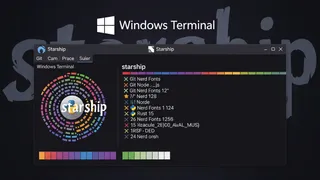
Customization Windows Terminal With Starship
How to customize Windows Terminal with Starship. Windows Terminal is a modern, fast terminal application for users of command-line tools and shells like Command Prompt, PowerShell, and WSL.
 Quiz
QuizPowerShell: Windows Scripting Fundamentals
Test your knowledge of PowerShell fundamentals with a quiz covering cmdlets, pipelines, objects, variables, execution policies, functions, scripting best practices, and Windows automation.
 Article
VIM Cheat Sheet
VIM is a highly configurable text editor available on most Linux distributions. Ideal for editing files via the command line, its modal design offers distinct modes for various tasks. This cheat sheet provides a quick reference for VIM's essential commands and features.
 Article
10+ Secret Git Commands That Will Save Hours Every Week
Discover 10+ secret Git commands that will save hours every week! Learn advanced Git techniques for undoing mistakes, managing commits, automating workflows, and optimizing repositories. Perfect for DevOps and GitHub users.
You might also enjoy
More posts on similar topics
6 related posts