Cron
Cron is a time-based job scheduler in Unix/Linux for running scripts or commands periodically. Covers crontab syntax, scheduling patterns, and management commands.
Quick reference
Field layout
Min Hour Day Month Weekday Command * * * * * /path/to/command
┬ ┬ ┬ ┬ ┬ │ │ │ │ └───── Weekday (0=Sunday, 6=Saturday) │ │ │ └────────── Month (1-12) │ │ └─────────────── Day (1-31) │ └──────────────────── Hour (0-23) └───────────────────────── Minute (0-59)Operators
| Operator | Name | Example | Description |
|---|---|---|---|
* | Any | * * * * * | Every minute |
, | List | 0,30 * * * * | Minutes 0 and 30 |
- | Range | 9-17 * * * * | 9 AM to 5 PM |
/ | Step | */15 * * * * | Every 15 minutes |
Special strings
| String | Frequency | Equivalent |
|---|---|---|
@reboot | Run at startup | N/A |
@hourly | Every hour | 0 * * * * |
@daily | Every day | 0 0 * * * |
@weekly | Every week | 0 0 * * 0 |
@monthly | Every month | 0 0 1 * * |
@yearly | Every year | 0 0 1 1 * |
Common patterns
| Pattern | Meaning |
|---|---|
0 * * * * | Every hour |
*/15 * * * * | Every 15 minutes |
0 0 * * * | Daily at midnight |
0 9 * * 1-5 | 9 AM on weekdays |
0 0 * * 0 | Sunday at midnight |
0 0 1 * * | 1st of month at midnight |
Essential commands
crontab -e              # Edit current user's crontabcrontab -l              # List crontab jobscrontab -r              # Delete current user's crontabcrontab -u username -e  # Edit user's crontab (root)crontab -u username -l  # List user's crontab (root)
# System-wide schedulingls /etc/cron.{hourly,daily,weekly,monthly}/cat /etc/crontab
Crontab management
Install from file
crontab /path/to/crontab.txt # Replace entire crontabcrontab -l > backup.txt # Backup before changesSystem logs
# Debian/Ubuntujournalctl -u cron -f             # Follow cron logsgrep CRON /var/log/syslog         # Historical logs
# CentOS/RHELtail -f /var/log/cron             # Follow cron logs
Environment setup
Always add at top of crontab file:
SHELL=/bin/bashPATH=/usr/local/sbin:/usr/local/bin:/usr/sbin:/usr/bin:/sbin:/binHOME=/home/usernameLOGNAME=usernameMAILTO=admin@example.comResources
- Official Crontab Manual
- Crontab Guru, a visual cron expression explainer
- Linux Cron Documentation
No commands found
Try adjusting your search term
Getting Started
Learn what cron is and understand the basics of job scheduling
What is Cron
What cron is and what it can schedule
Install and verify cron daemon
Install and verify cron daemon is running on the system to enable job scheduling.
# On Debian/Ubuntusudo apt-get install cron
# On CentOS/RHELsudo yum install cronie
# Start cron daemonsudo systemctl start cron
# Enable cron to start on bootsudo systemctl enable cron
# Verify cron is runningsudo systemctl status cronsystemctl status cron | grep ActiveActive: active (running) since Fri 2025-02-28 10:00:00 UTC; 2 days ago- Cron is usually pre-installed on Linux systems
- The daemon must be running for scheduled jobs to execute
- Use systemctl on modern systems (systemd)
- On older systems, use service cron start
Basic cron concepts and use cases
Cron executes scheduled scripts and commands automatically according to specified schedules.
# Cron runs in the background as a daemon# Jobs are stored in crontab (cron table)# Each user can have their own crontab file# System-wide cron jobs are stored in /etc/cron.d/# Cron uses local system time
# Create a simple backup scriptcat > backup.sh << 'EOF'#!/bin/bashtar -czf /backups/backup-$(date +%Y%m%d).tar.gz /home/user/documents/EOF
chmod +x backup.sh
# Schedule it to run daily at 2 AMecho "0 2 * * * /home/user/backup.sh" | crontab -crontab -l | head -10 2 * * * /home/user/backup.sh- Each user has separate crontab access and permissions
- Root user can schedule system-wide critical tasks
- Cron jobs inherit the user's environment settings
- Jobs run in background without user interaction
Cron vs other scheduling methods
Cron is the standard daemon for recurring tasks, complemented by other tools for specific use cases.
# Cron - recurring scheduled jobs (system daemon)# Good for: regular backups, log rotation, cleanup tasksecho "0 0 * * * /scripts/daily-cleanup.sh" | crontab -
# At - run job once at specific time (requires atd daemon)# Good for: one-time future tasksecho "backup.sh" | at 2:00 AM tomorrow
# Systemd timers - modern alternative to cron# Good for: system services with dependencies# Uses .timer and .service files
# Background processes - shell jobs# Good for: background execution in current session only./long-running-script.sh &which cron/usr/sbin/cron- Cron persists across reboots
- At command requires atd daemon
- Systemd timers are modern systemd-based alternative
- Background processes (&) only run while shell session active
Crontab Basics
Crontab file structure and how to edit it safely
View and understand crontab file structure
Crontab displays and manages the cron schedule for the current user.
# View current user's crontabcrontab -l
# View another user's crontab (requires root)sudo crontab -l -u username
# View system-wide crontabcat /etc/crontab
# View all cron directoriesls -la /etc/cron.* 2>/dev/null
# Check user crontab files locationls -la /var/spool/cron/crontabs/crontab -l 2>/dev/null || echo "No crontab for current user"# DO NOT EDIT THIS FILE - edit the master and reinstall.# (Cron version -- $Id: crontab.c,v 2.13 1994/01/17 03:20:47 vixie Exp $)0 2 * * * /home/user/backup.sh- Each user has their own crontab file in /var/spool/cron/crontabs/
- System crontabs are in /etc/cron.d/ and /etc/crontab
- Always use crontab command to edit, not text editor directly
- crontab -l shows current schedule
Account-specific cron directories
System-wide cron directories allow scheduling tasks for all users without individual crontab management.
# View daily scheduled jobs (run at 6:25 AM)ls -la /etc/cron.daily/
# View hourly scheduled jobs (run at 17 minutes past each hour)ls -la /etc/cron.hourly/
# View weekly scheduled jobsls -la /etc/cron.weekly/
# View monthly scheduled jobsls -la /etc/cron.monthly/
# Add custom script to daily executionsudo cp myscript.sh /etc/cron.daily/sudo chmod 755 /etc/cron.daily/myscript.shls /etc/cron.d/ 2>/dev/null | head -5anacronpopularity-contestrun-parts- Scripts in cron.daily/ run once daily
- Scripts must be executable (chmod +x)
- No file extensions needed in cron directories
- Suited to system-wide maintenance tasks
Core Concepts
How time-based scheduling and job execution work
Understand cron timing and timezone
Cron uses the system's time zone, so verify correct time zone configuration for accurate scheduling.
# Cron uses system time# Check system time and timezonedatetimedatectlcat /etc/timezone
# View system clockhwclock --show
# Update timezone if neededsudo timedatectl set-timezone America/New_York
# Important: Change timezone, then update cron times# Cron doesn't automatically adjust for timezone changesdate && timedatectl | grep "Time zone"Fri Feb 28 15:30:45 UTC 2025 Time zone: UTC (UTC, +0000)- Cron respects system time zone
- If system time changes, all future jobs recalculate
- DST changes don't auto-adjust cron times
- Use timedatectl or tzconfig to manage time zone
Cron job execution environment
Cron jobs run with limited environment, so always use absolute paths and set variables explicitly.
# Cron job runs with minimal environment# Create a script to test environmentcat > test-env.sh << 'EOF'#!/bin/bash{  echo "=== Cron Job Environment ==="  echo "User: $(whoami)"  echo "Home: $HOME"  echo "Shell: $SHELL"  echo "PATH: $PATH"  echo "PWD: $PWD"} >> /tmp/cron-env.logEOF
# Add to crontabecho "* * * * * /path/to/test-env.sh" | crontab -
# Check log after a minutecat /tmp/cron-env.logecho "Remember: Cron has minimal environment"Remember: Cron has minimal environment- Cron doesn't load shell profile (.bashrc, .bash_profile)
- Home directory may not be set
- PATH is set to /usr/bin:/bin
- Use absolute paths for all scripts and commands
- Set environment variables at top of crontab if needed
Crontab Syntax
Learn the complete crontab syntax and field descriptions
Field Format and Layout
The five fields that define a cron schedule
Crontab field structure diagram
The crontab uses five time fields followed by the command to execute, with specific value ranges.
# CRON SYNTAX DIAGRAMMin Hour Day Month Weekday Command* * * * * /path/to/command
┬ ┬ ┬ ┬ ┬│ │ │ │ └─ Weekday (0=Sunday, 1=Monday, ..., 6=Saturday)│ │ │ └────── Month (1=January, 2=February, ..., 12=December)│ │ └─────────── Day (1-31, specific day of month)│ └──────────────── Hour (0-23, 24-hour format)└───────────────────── Minute (0-59, at this minute)
# FIELD RANGES AND ALLOWED VALUES:Field Range Description──────────────────────────────────────────Minute 0-59 Minute of the hourHour 0-23 Hour of the day (24-hour format)Day 1-31 Day of the monthMonth 1-12 Month (Jan=1, Dec=12)Weekday 0-7 Day of week (0 & 7 = Sunday, 6 = Saturday)echo "Crontab format: MIN HOUR DAY MONTH WEEKDAY COMMAND"Crontab format: MIN HOUR DAY MONTH WEEKDAY COMMAND- All fields are space-separated
- Asterisk (*) means "any value"
- Fields can contain numbers, ranges, lists, or special operators
- Whitespace must separate each field and command
Common field values reference
Common field values help you understand and construct cron schedules quickly.
# MINUTE (0-59)0        - At minute 0 (top of hour)15       - At minute 15 (quarter past)*/5      - Every 5 minutes0,30     - At minutes 0 and 30 (twice per hour)
# HOUR (0-23)0        - At midnight (12 AM)12       - At noon (12 PM)13       - At 1 PM*/4      - Every 4 hours9-17     - Business hours (9 AM to 5 PM)
# DAY (1-31)1        - First day of month15       - Fifteenth day of month*/2      - Every 2 days1-7      - First week of month
# MONTH (1-12)1        - January12       - December*/3      - Every 3 months (Jan, Apr, Jul, Oct)6-8      - June, July, August (summer)
# WEEKDAY (0-7, where 0 and 7 = Sunday)0 - Sunday1 - Monday5 - Friday6 - Saturday1-5 - Monday through Friday (weekdays)crontab -l | grep "^[^#]" | head -1 || echo "No scheduled jobs"No scheduled jobs- Remember AM/PM: hours 0-23 (0=midnight, 12=noon, 23=11PM)
- Days and months are 1-based (not 0-based like programming)
- Weekday: 0 and 7 both represent Sunday
Operators and Syntax
Cron operators for building scheduling patterns
Cron operators reference
Cron operators allow flexible scheduling patterns using standard mathematical and listing syntax.
# CRON OPERATORS
OPERATOR | MEANING | EXAMPLE | EXPLANATION──────────┼────────────────────┼──────────────────────┼──────────────────────────* | Any value | * * * * * | Every minute of every day, | Value separator | 0,30 * * * * | At 0 and 30 minutes (twice hourly)- | Range of values | 9-17 * * * * | Every minute from 9 AM to 5 PM/ | Step values | */15 * * * * | Every 15 minutesL | Last | L * * * | Last day of month (some systems)W | Weekday | 15W * * * | Nearest weekday to 15th (some systems)# | Nth occurrence | * * * * 1#2 | Second Monday (some systems)
# IMPORTANT NOTES:- L and W operators are NOT standard POSIX cron- They may only work in some cron implementations- Stick to *, , , -, / operators for portabilityecho "Standard operators: * , - /"Standard operators: * , - /- Always use standard operators (* , - /) for maximum compatibility
- Values in ranges and lists must be valid for the field
- Spaces not allowed within field values (no spaces around , or -)
Practical operator examples
Combinations of operators create complex but precise scheduling patterns for real-world needs.
# ASTERISK (*) - Match any value0 * * * *           # Every hour at minute 0* * * * *           # Every minute of every day
# COMMA (,) - List specific values0 8,12,17 * * *     # At 8 AM, 12 PM (noon), and 5 PM0 0 1,15 * *        # First and 15th day of month at midnight0 0 * * 0,6         # Sunday and Saturday at midnight
# DASH (-) - Range of values0 9-17 * * *        # Every hour from 9 AM to 5 PM30 9-17 * * 1-5     # 30 minutes past hour, 9 AM-5 PM, Mon-Fri0 0 1-7 * *         # First week of month at midnight
# SLASH (/) - Step values / intervals*/30 * * * *        # Every 30 minutes*/5 9-17 * * *      # Every 5 minutes during business hours0 */6 * * *         # Every 6 hours starting at midnight0 0 * * */2         # Every 2 days starting from Sunday
# COMBINATIONS*/15 9-17 * * 1-5 # Every 15 min, 9-5pm, weekdays0 8-18 * * 1-5 # Every hour 8-6pm, Mon-Friecho "0 9-17 * * 1-5 /path/to/script.sh" | crontab -- Steps (/) count from the field's minimum value
- */5 in minutes = every 5 minutes (0, 5, 10, 15, ...)
- 5-55/5 in minutes = 5, 10, 15, 20, ..., 55
Syntax Validation and Examples
Validate your crontab syntax and learn from examples
Validate crontab syntax before installing
Always validate syntax before installing crontabs to prevent silent job failures.
# Method 1: Use crontab with -i flag to testcrontab -e   # Opens editor, validates on save
# Method 2: Write to temp file, then testcat > new_cron.txt << 'EOF'0 2 * * * /usr/local/bin/backup.sh0 0 * * 0 /usr/local/bin/weekly-report.shEOF
# Method 3: Online cron expression tester# Visit: https://crontab.guru/# Paste expression and see explanation
# Method 4: Manual validation checklist# - Check all 5 fields present (space-separated)# - Minute: 0-59, Hour: 0-23, Day: 1-31# - Month: 1-12, Weekday: 0-7 (0 and 7 = Sunday)# - Use only valid operators: * , - /# - No invalid value combinations
# Install validated crontabcrontab new_cron.txtecho "0 2 * * * /home/user/backup.sh" | grep -E "^[0-9,*/-]+ [0-9,*/-]+ [0-9,*/-]+ [0-9,*/-]+ [0-9,*/-]+"0 2 * * * /home/user/backup.sh- Invalid crontab syntax won't raise errors in some systems
- Use crontab -e in editor mode for immediate validation feedback
- crontab.guru spells out what a schedule expression means
Full examples with explanations
Complete examples cover most common scheduling needs and can be adapted for your use cases.
# Run every minute (test only!)* * * * * /path/to/command
# Run every hour at minute 0 (top of hour)0 * * * * /path/to/command
# Run every 15 minutes*/15 * * * * /path/to/command
# Run at 2 AM every day0 2 * * * /path/to/backup.sh
# Run at 2:30 AM every day30 2 * * * /path/to/backup.sh
# Run every 6 hours (midnight, 6am, noon, 6pm)0 */6 * * * /path/to/maintenance.sh
# Run at 9 AM and 5 PM, Monday to Friday0 9,17 * * 1-5 /path/to/report.sh
# Run on the 1st and 15th day of every month at midnight0 0 1,15 * * /path/to/billing.sh
# Run every Sunday at 3 AM0 3 * * 0 /path/to/weekly-task.sh
# Run every other hour on weekdays0 */2 * * 1-5 /path/to/frequent-job.sh
# Run at 10, 20, 30, 40, 50 minutes every hour10,20,30,40,50 * * * * /path/to/commandecho "Examples loaded - use crontab.guru to visualize"Examples loaded - use crontab.guru to visualize- Always test script manually before scheduling
- Use absolute paths for all commands
- Redirect output to log files for monitoring
- Document all scheduled jobs in crontab
Special Strings
Use predefined scheduling shortcuts for common intervals
'@' Symbols (At Strings)
Special shortcuts for commonly used scheduling intervals
Special string reference and usage
Special strings provide readable shortcuts for standard scheduling patterns.
# SPECIAL @ STRINGS - Shortcuts for Common Schedules
SPECIAL STRING | EQUIVALENT CRON | DESCRIPTION────────────────┼───────────────────┼─────────────────────────────────@reboot | N/A | Run once, at startup (reboot)@hourly | 0 * * * * | Run once every hour at minute 0@daily | 0 0 * * * | Run once every day at midnight@midnight | 0 0 * * * | Run once at midnight (same as @daily)@weekly | 0 0 * * 0 | Run once weekly on Sunday at midnight@monthly | 0 0 1 * * | Run once monthly on 1st day at midnight@yearly | 0 0 1 1 * | Run once yearly on Jan 1st at midnight@annually | 0 0 1 1 * | Alias for @yearly
# ADVANTAGES OF SPECIAL STRINGS:- More readable than cron time expressions- Less prone to syntax errors- Perfect for standard scheduling intervals- Supported by all modern cron implementationsecho "@daily /home/user/backup.sh" | crontab -- @reboot runs at system startup (not a specific time)
- @midnight and @daily are equivalent
- All other @strings have specific times (see equivalent column)
Using special strings in crontab
Special strings make crontab files more maintainable and easier to understand.
# Create crontab with special stringscat > cron_schedule.txt << 'EOF'# System maintenance tasks@reboot /usr/local/bin/system-init.sh
# Log rotation (every hour)@hourly /usr/sbin/logrotate /etc/logrotate.conf
# Database backup (daily at midnight)@daily /home/user/backup-database.sh
# Weekly report (Sunday at midnight)@weekly /home/user/generate-report.sh
# Monthly archive (1st of month at midnight)@monthly /home/user/archive-old-files.sh
# Yearly audit (Jan 1st at midnight)@yearly /home/user/annual-audit.shEOF
# Install the crontabcrontab cron_schedule.txt
# Verify installationcrontab -lcrontab -l 2>/dev/null | grep "@" | head -3@reboot /usr/local/bin/system-init.sh@hourly /usr/sbin/logrotate /etc/logrotate.conf@daily /home/user/backup-database.sh- Mix special strings and normal cron syntax in same crontab
- Special strings are more readable for standard intervals
- Use regular cron syntax for non-standard schedules
Special Variables and Environment
Set environment variables and use predefined variables in crontab
Set environment variables in crontab
Environment variables must be set in crontab since cron doesn't load shell profiles.
# Setting variables in crontab filecat > crontab_with_env.txt << 'EOF'# Environment variables for all jobs in this crontabSHELL=/bin/bashPATH=/usr/local/sbin:/usr/local/bin:/usr/sbin:/usr/bin:/sbin:/binHOME=/home/usernameLOGNAME=usernameMAILTO=admin@example.com
# Optional: disable mail on successful execution# CRONENV=prod
# Now define jobs that use these variables0 2 * * * /home/username/scripts/backup.sh >> $HOME/logs/backup.log 2>&1
# Or with explicit paths@daily /usr/local/bin/cleanup.sh >> /home/username/cron.log 2>&1EOF
# Install crontabcrontab crontab_with_env.txt
# View installed crontabcrontab -lecho "Variables set at top of crontab file"Variables set at top of crontab file- Set variables at the top of crontab file
- MAILTO controls email notifications (set empty to disable)
- HOME and PATH are especially important
- SHELL specifies which shell to use (/bin/bash, not /bin/sh)
Common environment gotchas and solutions
Testing with minimal environment reveals issues that will occur in cron jobs.
# GOTCHA 1: PATH not set correctly# This FAILS - command not found* * * * * mycommand
# This WORKS - absolute path* * * * * /usr/bin/mycommand
# Or set PATH at top of crontabPATH=/usr/local/bin:/usr/bin:/bin* * * * * mycommand

# GOTCHA 2: HOME directory not set# This FAILS if script uses ~* * * * * ~/scripts/backup.sh
# This WORKS - explicit path* * * * * /home/username/scripts/backup.sh
# Or set HOME in crontabHOME=/home/username* * * * * ~/scripts/backup.sh

# GOTCHA 3: Environment variables from .bashrc not loaded# This FAILS - NO_COLOR not set* * * * * /usr/bin/command
# This WORKS - source .bashrc first* * * * * source ~/.bashrc; /usr/bin/command
# Better: set needed variables in crontabNO_COLOR=1* * * * * /usr/bin/commandecho "Always test with: env -i bash -c 'your command'"Always test with: env -i bash -c 'your command'- Test cron jobs with: env -i bash -c 'your script'
- This simulates minimal cron environment
- Or use: /usr/bin/env -L bash -c 'your script'
- Always use absolute paths and set necessary variables
Scheduling Patterns
Real-world scheduling patterns and examples
Common Scheduling Patterns
Practical patterns for typical system administration tasks
Business hours and working day schedules
Business schedule patterns align jobs with working hours.
# Run during business hours (9 AM to 5 PM, Monday-Friday)0 9-17 * * 1-5 /path/to/business-task.sh
# Run at start of business day (9 AM, weekdays)0 9 * * 1-5 /path/to/daily-standup.sh
# Run at end of business day (5 PM, weekdays)0 17 * * 1-5 /path/to/eod-report.sh
# Run every 2 hours during business hours0 9,11,13,15,17 * * 1-5 /path/to/interim-check.sh
# Run every 30 minutes during business hours*/30 9-17 * * 1-5 /path/to/frequent-task.sh
# Run weekday evenings (6 PM - 11 PM)0 18-23 * * 1-5 /path/to/evening-task.sh
# Run weekend task (Saturday and Sunday)0 10 * * 0,6 /path/to/weekend-task.shecho "0 9-17 * * 1-5 command" | crontab -- Hour 9-17 means 9 AM through 5 PM
- 1-5 for Monday through Friday
- 0,6 for Saturday and Sunday
- Adjust based on actual working hours and time zone
Backup and maintenance schedules
Backup schedules should stagger to avoid resource contention and database locks.
# Full backup every Sunday at 2 AM0 2 * * 0 /path/to/full-backup.sh
# Incremental backup daily at 3 AM0 3 * * * /path/to/incremental-backup.sh
# Database backup every 6 hours0 */6 * * * /path/to/db-backup.sh
# Log rotation daily at midnight0 0 * * * /usr/sbin/logrotate /etc/logrotate.conf
# Weekly maintenance (Sunday 4 AM)0 4 * * 0 /path/to/weekly-maintenance.sh
# Monthly housekeeping (1st of month, 1 AM)0 1 1 * * /path/to/monthly-cleanup.sh
# Quarterly archive (Jan 1, Apr 1, Jul 1, Oct 1 at 2 AM)0 2 1 1,4,7,10 * /path/to/quarterly-archive.sh
# Yearly audit (Jan 1 at 3 AM)0 3 1 1 * /path/to/annual-audit.shecho "0 2 * * 0 /path/to/backup.sh" | crontab -- Schedule backups during low-usage hours
- Incremental backups can be more frequent than full backups
- Rotate old backups to manage storage
- Monitor backup success with logging and alerts
Monitoring and notification schedules
Monitoring jobs run frequently but should be optimized to minimize overhead.
# Health check every 5 minutes*/5 * * * * /path/to/health-check.sh
# Monitor system every 10 minutes (all day)*/10 * * * * /path/to/system-monitor.sh
# Check disk space every hour0 * * * * /path/to/check-disk.sh
# Send daily report at 9 AM (weekdays)0 9 * * 1-5 /path/to/daily-report.sh | mail -s "Daily Report" admin@example.com
# Weekly status report (Monday 8 AM)0 8 * * 1 /path/to/weekly-status.sh | mail -s "Weekly Status" team@example.com
# Monitor critical service (every 15 minutes, 24/7)*/15 * * * * /path/to/critical-service-check.sh
# Alert on failures (every 30 minutes if previous check failed)*/30 * * * * if [ -f /tmp/service-down ]; then /path/to/alert.sh; fiecho "*/5 * * * * /path/to/check.sh" | crontab -- Balance frequency with resource usage
- Use lock files to prevent overlapping runs
- Log all monitoring results
- Set alerts for critical failures
Advanced Scheduling Patterns
Complex scheduling for specific needs
Staggered and load-balanced schedules
Staggered patterns distribute resource-intensive tasks across time to maintain system performance.
# Stagger backups across multiple servers# Server 1: runs at :000 2 * * * /path/to/backup.sh
# Server 2: runs at :1515 2 * * * /path/to/backup.sh
# Server 3: runs at :3030 2 * * * /path/to/backup.sh
# Server 4: runs at :4545 2 * * * /path/to/backup.sh

# Load balanced hourly jobs (4 servers, evenly distributed)# Server 1: run at :000 * * * * /path/to/hourly-job.sh
# Server 2: run at :1515 * * * * /path/to/hourly-job.sh
# Server 3: run at :3030 * * * * /path/to/hourly-job.sh
# Server 4: run at :4545 * * * * /path/to/hourly-job.sh

# Rotate tasks across different times# Task A: Monday, Wednesday, Friday0 2 * * 1,3,5 /path/to/task-a.sh
# Task B: Tuesday, Thursday0 2 * * 2,4 /path/to/task-b.sh
# Task C: Sunday and Saturday0 2 * * 0,6 /path/to/task-c.shecho "Staggered schedules prevent resource bottlenecks"Staggered schedules prevent resource bottlenecks- Stagger when running same task on multiple servers
- Distribute load across minutes if possible
- Consider time zone differences across servers
- Monitor system resources during peak schedule times
Conditional and wrapper-based scheduling
Conditional patterns stop a failed or overlapping run from cascading.
# Run only if previous job completed (using lock file)*/5 * * * * [ ! -f /tmp/long-job.lock ] && /path/to/frequent-job.sh
# Run with fallback if primary command fails0 2 * * * /path/to/primary-backup.sh || /path/to/fallback-backup.sh
# Run with dependency check0 * * * * [ -x /usr/bin/rsync ] && /path/to/rsync-backup.sh
# Run only on specific conditions (e.g., low load)*/10 * * * * [ $(uptime | awk -F'average:' '{print $2}' | awk '{print $1}' | cut -d. -f1) -lt 2 ] && /path/to/async-task.sh
# Run with timeout to prevent hanging0 2 * * * timeout 300 /path/to/backup.sh || echo "Backup timed out!"
# Run with retry logic (wrapper script)0 * * * * /path/to/retry-wrapper.sh 3 /path/to/unreliable-command.sh
# Run with output capture and error handling0 2 * * * { /path/to/backup.sh 2>&1 [ $? -eq 0 ] && echo "Success" || echo "Failed" | mail -s "Backup Error" admin@example.com}echo "[ ! -f /tmp/lock ] && /path/to/command.sh"- Use lock files to prevent overlapping executions
- Always capture errors and log results
- Use timeout for commands that might hang
- Test complex schedules thoroughly before deployment
Crontab Management
Edit, view, backup, and manage crontab files
Editing and Installing Crontabs
Methods to safely edit and install crontab files
Edit crontab using the interactive editor
The -e flag opens an interactive editor with validation on save for safe editing.
# Edit current user's crontabcrontab -e
# Edit another user's crontab (requires root)sudo crontab -e -u username
# Specify which editor to useEDITOR=vim crontab -eEDITOR=nano crontab -eEDITOR=emacs crontab -e
# Change default editor permanentlyexport EDITOR=vimecho 'export EDITOR=vim' >> ~/.bashrc
# View crontab before saving (in editor)# Editor opens temp file - make changes and save# Cron validates syntax when file is saved# If syntax is invalid, you'll be asked to re-edit or discard
# Backup current crontab before editingcrontab -l > crontab.backupcrontab -e # Make changes safelyecho "crontab -e to edit interactively"crontab -e to edit interactively- crontab -e is the recommended method (validates syntax)
- Default editor determined by EDITOR or VISUAL env var
- Any syntax errors prevent installation
- Always backup before making changes
Install crontab from file
Install crontab files for programmatic configuration and automation.
# Create a crontab filecat > my_crontab << 'EOF'SHELL=/bin/bashPATH=/usr/local/sbin:/usr/local/bin:/usr/sbin:/usr/binHOME=/home/user
# Example jobs0 2 * * * /home/user/backup.sh0 0 * * 0 /home/user/weekly-task.shEOF
# Install it as current user's crontabcrontab my_crontab
# Install for another user (requires root)sudo crontab -u username my_crontab
# Replace existing crontabcrontab my_crontab  # This overwrites current crontab
# Add to existing crontab (append instead of replace)crontab -l > current_crontab.txtcat additional_jobs.txt >> current_crontab.txtcrontab current_crontab.txt
# Verify installationcrontab -lecho "0 2 * * * /path/to/job.sh" > cron.txt && crontab cron.txt- crontab <file> replaces entire crontab
- crontab is read entirely before installation
- Syntax errors prevent installation completely
- Always backup before installing new crontab
List, Delete, and Manage Crontabs
View and remove scheduled jobs
View and manage crontab entries
List commands show scheduled jobs without opening editor.
# List current user's crontabcrontab -l
# List another user's crontab (requires root)sudo crontab -l -u username
# Count number of cron jobscrontab -l | grep -c "^[^#]"
# List non-comment lines onlycrontab -l | grep "^[^#]"
# Find specific jobcrontab -l | grep "backup"
# List all system crontabssudo cat /etc/crontab
# List all user crontabs in /var/spool/cronsudo ls -la /var/spool/cron/crontabs/
# View specific user's crontab filesudo cat /var/spool/cron/crontabs/usernamecrontab -l 2>/dev/null | head -5# Comments start with #0 2 * * * /home/user/backup.sh- crontab -l shows current user's crontab
- grep filters output to show specific jobs
- Lines starting with
- System-wide crontabs are in /etc/cron.d/ and /etc/crontab
Delete and remove crontabs
Safe removal techniques preserve other jobs while removing only what's needed.
# DANGER: Remove entire crontab for current usercrontab -r
# DANGER: Remove entire crontab for specific user (requires root)sudo crontab -r -u username
# Safe way: backup first, then removecrontab -l > crontab.backupcrontab -r
# Remove specific job without deleting all jobscrontab -l | grep -v "pattern-to-remove" | crontab -# Example: remove backup job, keep otherscrontab -l | grep -v "backup" | crontab -
# Remove all jobs but keep environment variablescrontab -l | grep "^[A-Z]" | crontab -
# Disable job by commenting it (safer than deleting)crontab -e  # Then add # at start of line
# Remove from system-wide cronsudo rm /etc/cron.d/jobnamesudo rm /etc/cron.daily/myscriptcrontab -l | grep -v "backup" | crontab -- Always backup before removing with crontab -r
- Use grep to filter and remove specific jobs safely
- Commenting is safer than deleting for temporary disabling
- System crontabs require root access to modify
Advanced Crontab Techniques
Backup, restore, and automate crontab management
Backup and restore crontabs
Backups and version control make a bad crontab recoverable.
# Backup current crontab before changescrontab -l > ~/crontab.backup.$(date +%Y%m%d)
# Backup all user crontabs (requires root)sudo for user in $(cut -f1 -d: /etc/passwd); do  crontab -l -u "$user" > /backups/crontab_$user.backup 2>/dev/nulldone
# Restore from backupcrontab ~/crontab.backup.20250228
# Compare current with backupdiff <(crontab -l) <(cat ~/crontab.backup.20250228)
# Version control crontabcrontab -l > crontab.txtgit add crontab.txtgit commit -m "Update crontab: add daily backup job"
# Deploy crontab from version controlgit pullcrontab crontab.txtcrontab -l > crontab.backup.$(date +%Y%m%d)- Timestamp backups with date for tracking changes
- Keep backups in version control for history
- Test restored crontabs before deploying to production
- Document all changes in commit messages
Script jobs with logging and error handling
Reliable scripts include logging, error handling, and notifications for production use.
# Create robust cron script with loggingcat > /usr/local/bin/cron-backup.sh << 'EOF'#!/bin/bashset -e  # Exit on error
# ConfigurationBACKUP_DIR="/backups"LOG_FILE="/var/log/backup.log"DATE=$(date '+%Y-%m-%d %H:%M:%S')HOSTNAME=$(hostname)
# Log functionlog() {  echo "[${DATE}] ${HOSTNAME}: $1" >> "${LOG_FILE}"}
# Error handlingerror_exit() {  log "ERROR: $1"  echo "ERROR: $1" | mail -s "Backup Failed on ${HOSTNAME}" admin@example.com  exit 1}
# Create backuplog "Starting backup..."tar -czf "${BACKUP_DIR}/backup-$(date +%Y%m%d).tar.gz" /home || error_exit "Backup failed"log "Backup completed successfully"
# Cleanup old backups (keep 7 days)find "${BACKUP_DIR}" -name "backup-*.tar.gz" -mtime +7 -delete
log "Cleanup completed"EOF
chmod +x /usr/local/bin/cron-backup.sh
# Add to crontab with loggingcrontab -e# Add: 0 2 * * * /usr/local/bin/cron-backup.sh >> /var/log/cron.log 2>&1chmod +x /usr/local/bin/cron-backup.sh- Always include error handling (set -e, exit codes)
- Log to file for auditing and debugging
- Send error notifications to admin
- Use absolute paths for all commands
- Test scripts thoroughly before scheduling
Advanced Scheduling
Advanced cron features and optimization techniques
Ranges, Steps, and Lists
Complex scheduling with ranges, steps, and value lists
Using ranges and step values
Ranges and steps create flexible scheduling patterns for complex intervals.
# RANGES (using -)# Run every minute from 9 AM to 5 PM* 9-17 * * * /path/to/command
# Run on weekdays (Monday-Friday)0 0 * * 1-5 /path/to/command
# Run first 7 days of each month0 0 1-7 * * /path/to/command
# Run June, July, August only0 0 * 6-8 * /path/to/command
# STEPS/INTERVALS (using /)# Every 5 minutes*/5 * * * * /path/to/command
# Every 2 hours0 */2 * * * /path/to/command
# Every 3 days0 0 */3 * * /path/to/command
# Every second month (Jan, Mar, May, Jul, Sep, Nov)0 0 1 */2 * /path/to/command
# Every 15 minutes between 9-17 (9:00, 9:15, 9:30, ..., 17:00)*/15 9-17 * * * /path/to/command
# Every 4 hours starting at 2 AM (2, 6, 10, 14, 18, 22)0 2-23/4 * * * /path/to/command
# STEP WITH RANGE# Start at minute 10, every 15 minutes (10, 25, 40, 55)10-59/15 * * * * /path/to/command
# Start at hour 8, every 3 hours (8, 11, 14, 17, 20, 23)0 8-23/3 * * * /path/to/command
# Every 2 days starting from day 1 (1, 3, 5, 7, ...)0 0 1-31/2 * * /path/to/commandecho "*/5 * * * * = every 5 minutes"*/5 * * * * = every 5 minutes- Ranges use hyphen: min-max
- Steps use slash: */interval or min-max/interval
- Steps count from field minimum (minutes from 0)
- Ranges and steps can combine in one field
Using lists and comma-separated values
Lists (comma-separated values) specify exact times and dates for flexible scheduling.
# RUN AT SPECIFIC HOURS# Run at 8 AM, 12 PM (noon), and 5 PM0 8,12,17 * * * /path/to/command
# Run at 6 AM and 6 PM0 6,18 * * * /path/to/command
# Run at :00, :15, :30, :45 (every 15 minutes)0,15,30,45 * * * * /path/to/command

# RUN ON SPECIFIC DAYS OF WEEK# Run Monday, Wednesday, Friday0 0 * * 1,3,5 /path/to/command
# Run Saturday, Sunday, Monday0 0 * * 6,0,1 /path/to/command

# RUN ON SPECIFIC DATES# Run on 1st, 10th, 20th of month0 0 1,10,20 * * /path/to/command
# Run on 15th and last day of month (1st of next)# Note: This is tricky - need separate job for last day0 0 15 * * /path/to/command0 0 1 * * [ "$(date +\%d)" != "01" ] && /path/to/command

# RUN IN SPECIFIC MONTHS# Run in January, April, July, October0 0 1 1,4,7,10 * /path/to/command
# Run in summer (June, July, August)0 0 * 6,7,8 * /path/to/command

# COMBINED LISTS AND RANGES# Run on specific hours and specific days0 8,14,20 * * 1-5 /path/to/command
# Run at multiple times on multiple days0,30 9,12,15 * * 1-5 /path/to/commandecho "0 8,12,17 * * * /path/to/command"0 8,12,17 * * * /path/to/command- Separators are commas with no spaces
- List all values individually: 1,2,3 (not 1-3 in list form)
- Can combine lists with ranges: 1,3-5,7 (equals 1,3,4,5,7)
- Lists work for all fields: minutes, hours, days, months, weekdays
Environment and Optimization
Environment variables, best practices, and performance optimization
Set the full environment in crontab
Setting the environment explicitly makes scripts behave the same under cron as in a shell.
# COMPLETE CRONTAB WITH ENVIRONMENT SETUPcat > crontab_optimized << 'EOF'# ============================================# ENVIRONMENT CONFIGURATION# ============================================
# Shell to use (bash, not sh)SHELL=/bin/bashBASH_ENV=/home/username/.bashrc
# PATH (critical for command discovery)PATH=/usr/local/sbin:/usr/local/bin:/usr/sbin:/usr/bin:/sbin:/bin
# Home directory (some scripts use~)HOME=/home/username
# Current userLOGNAME=usernameUSER=username
# Mail configuration (empty = no mail, valid email = send notifications)MAILTO=admin@example.com
# Language and localeLANG=en_US.UTF-8LC_ALL=en_US.UTF-8
# Optional: Application-specific variablesAPP_ENV=productionNODE_ENV=productionDEBUG=0
# ============================================# SCHEDULED JOBS# ============================================
# System maintenance@reboot /usr/local/bin/system-init.sh >> /var/log/cron-init.log 2>&1
# Backups0 2 * * * /home/username/scripts/backup.sh >> /var/log/backup.log 2>&1
# Database maintenance0 3 * * 0 /home/username/scripts/db-maintenance.sh >> /var/log/db-maint.log 2>&1
# Log rotation0 0 * * * /usr/sbin/logrotate /etc/logrotate.conf >> /var/log/logrotate.log 2>&1EOF
crontab crontab_optimizedecho "SHELL=/bin/bash PATH=... HOME=..."SHELL=/bin/bash PATH=... HOME=...- Set variables at top of crontab file
- SHELL should be /bin/bash, not /bin/sh
- PATH matters, so list every directory holding a command you call
- MAILTO controls email notifications
Performance optimization and load management
Staggering jobs prevents load spikes and keeps performance steady.
# PERFORMANCE CONSIDERATIONS
# 1. Stagger resource-intensive jobs# Don't run everything at midnight0 1 * * * /path/to/job1.sh    # 1 AM0 2 * * * /path/to/job2.sh    # 2 AM0 3 * * * /path/to/job3.sh    # 3 AM0 4 * * * /path/to/job4.sh    # 4 AM

# 2. Add random delay for distributed jobs# Useful when same job runs on many servers0 2 * * * sleep $((RANDOM \% 600)) && /path/to/backup.sh

# 3. Limit job concurrency with lock files# Use wrapper script to prevent overlapping*/5 * * * * /path/to/locked-job-wrapper.sh /path/to/actual-job.sh

# 4. Use -nice to lower priority for background jobs0 2 * * * nice -n 19 /path/to/low-priority-job.sh

# 5. Monitor system before running expensive tasks*/10 * * * * [ $(uptime | awk -F'load average:' '{print $2}' | awk '{print $1}' | cut -d. -f1) -lt 8 ] && /path/to/compute-intensive.sh

# 6. Redirect output to avoid mail daemon overhead0 2 * * * /path/to/job.sh > /dev/null 2>&1  # Discard output0 2 * * * /path/to/job.sh >> /var/log/jobs.log 2>&1  # Log to file

# 7. Break large jobs into smaller pieces# Process in batches instead of all at once0 2 * * * /path/to/process-batch.sh 10 3 * * * /path/to/process-batch.sh 20 4 * * * /path/to/process-batch.sh 3echo "Stagger jobs to prevent resource bottlenecks"Stagger jobs to prevent resource bottlenecks- Stagger heavy workloads across multiple hours
- Monitor system load before running resource-intensive jobs
- Limit concurrency with lock files to prevent overlapping
- Use nice for background tasks
- Log output to files instead of relying on mail
Tips & Troubleshooting
Best practices, common issues, and debugging cron jobs
Best Practices
Essential practices for reliable cron job scheduling
Production-ready cron job checklist
These practices make job execution reliable and failures easier to debug.
# PRODUCTION CRON JOB REQUIREMENTS CHECKLIST
# ✓ 1. Use absolute paths for all commands# BAD:* * * * * backup.sh
# GOOD:* * * * * /usr/local/bin/backup.sh

# ✓ 2. Set working directory explicitly* * * * * cd /home/user && /usr/local/bin/backup.sh# OR* * * * * /usr/local/bin/backup.sh -d /var/data

# ✓ 3. Log output to files (not relying on mail)# BAD:0 2 * * * /path/to/backup.sh
# GOOD:0 2 * * * /path/to/backup.sh >> /var/log/backup.log 2>&1

# ✓ 4. Capture exit codes for debugging# GOOD:0 2 * * * {  /path/to/backup.sh  EXIT_CODE=$?  echo "Backup completed with exit code: $EXIT_CODE" >> /var/log/backup.log  [ $EXIT_CODE -ne 0 ] && echo "Backup failed!" | mail -s "Alert" admin@example.com} 2>&1 | tee -a /var/log/backup.log

# ✓ 5. Include timestamp in logs# BAD:0 2 * * * /path/to/backup.sh >> /var/log/backup.log 2>&1
# GOOD:0 2 * * * echo "[$(date '+%Y-%m-%d %H:%M:%S')] Starting backup" >> /var/log/backup.log && /path/to/backup.sh >> /var/log/backup.log 2>&1

# ✓ 6. Protect against overlapping runs# Use lock file pattern:*/5 * * * * /path/to/locked-wrapper.sh /path/to/actual-job.sh

# ✓ 7. Document all cron jobs in crontab# GOOD crontab:# Daily backup at 2 AM0 2 * * * /path/to/backup.sh >> /var/log/backup.log 2>&1
# Weekly report (Sunday, 8 AM)0 8 * * 0 /path/to/weekly-report.sh >> /var/log/reports.log 2>&1
# Verify cron was actually installed correctlycrontab -lcrontab -l | head -10# Backup jobs0 2 * * * /path/to/backup.sh >> /var/log/backup.log 2>&1- Always test scripts manually before scheduling
- Include comments explaining purpose and frequency
- Log with timestamps for easier analysis
- Implement error handling and notifications
- Review logs regularly for job failures
Error handling and debugging strategies
Solid error handling prevents cascading failures and aids in debugging.
# ROBUST SCRIPT WITH ERROR HANDLINGcat > /usr/local/bin/robust-backup.sh << 'EOF'#!/bin/bashset -eEu  # Exit on error, undefined vars, pipe errorsshopt -s pipefail
# ConfigurationBACKUP_DIR="/backups"LOG_FILE="/var/log/backup.log"LOCK_FILE="/tmp/backup.lock"MAX_RUNTIME=3600  # 1 hour
# Logging functionlog() {  echo "[$(date '+%Y-%m-%d %H:%M:%S')] $*" >> "$LOG_FILE"}
# Error handlererror_exit() {  local line_no=$1  local exit_code=$2  log "ERROR at line $line_no (exit code: $exit_code)"  rm -f "$LOCK_FILE"  echo "Backup failed at line $line_no" | mail -s "Backup ERROR" admin@example.com  exit 1}
# Cleanup on exittrap 'error_exit ${LINENO} $?' ERR
# Prevent concurrent runsif [ -f "$LOCK_FILE" ]; then  log "Previous backup still running (lock file exists)"  exit 1fitouch "$LOCK_FILE"trap 'rm -f "$LOCK_FILE"' EXIT
# Main backup logiclog "Backup started"tar -czf "$BACKUP_DIR/backup-$(date +%Y%m%d_%H%M%S).tar.gz" /home/user/ || {  log "Backup creation failed"  exit 1}
# Cleanup old backupsfind "$BACKUP_DIR" -name "backup-*.tar.gz" -mtime +7 -deletelog "Backup completed successfully"EOF
chmod +x /usr/local/bin/robust-backup.sh
# Add to crontabecho "0 2 * * * timeout 4000 /usr/local/bin/robust-backup.sh" | crontab -chmod +x /usr/local/bin/robust-backup.sh- Use set -e, -E, -u, -o pipefail for strict error handling
- Implement trap handlers for cleanup
- Always remove lock files on exit
- Log detailed error information
- Send notifications for critical failures
Debugging Common Issues
Troubleshoot and fix common cron problems
Common cron problems and solutions
Systematic checking helps identify the root cause of cron job failures.
# PROBLEM 1: Job never executes# Symptoms: Scheduled time passes, nothing happens# Solutions:
# Check 1: Cron daemon is runningsystemctl status cron
# Check 2: Verify crontab is installedcrontab -l
# Check 3: Verify system time (jobs scheduled for past times won't run)datetimedatectl
# Check 4: Check cron logs (varies by system)# On Debian/Ubuntu:grep CRON /var/log/syslog | tail -20# On CentOS/RHEL:tail -f /var/log/cron
# Check 5: Verify file permissions (user must have read permission)ls -la /var/spool/cron/crontabs/username
# Check 6: Verify user has cron accesscat /etc/cron.allow      # If exists, user must be listedcat /etc/cron.deny       # If exists, user must NOT be listed

# PROBLEM 2: Job runs but doesn't work (environment issues)# Symptoms: Manual execution works, cron execution fails# Solutions:
# Create test script to check environmentcat > test-env.sh << 'TESTEOF'#!/bin/bash{  echo "User: $(whoami)"  echo "Home: $HOME"  echo "Path: $PATH"  echo "Shell: $SHELL"  echo "PWD: $PWD"  which python3  python3 --version} > /tmp/cron-env-test.log 2>&1TESTEOF
# Schedule itecho "* * * * * /path/to/test-env.sh" | crontab -# Wait a minute, then check:cat /tmp/cron-env-test.log
# Fix: Set environment variables in crontabcrontab -e# Add at top:# SHELL=/bin/bash# PATH=/usr/local/bin:/usr/bin:/bin# HOME=/home/username

# PROBLEM 3: Permission denied errors# Symptoms: Cron log shows "Permission denied"# Solutions:
# Check script permissionsls -la /path/to/script.sh# Fix: Make executablechmod +x /path/to/script.sh
# Check user permissions for target filesls -la /var/log/backup.log# Fix: Change permissions or ownershipsudo chown username /var/log/backup.log

# PROBLEM 4: Command not found in cron# Symptoms: Works manually, "command not found" in cron# Solutions:
# Use ABSOLUTE PATHS# BAD:* * * * * backup.sh# GOOD:* * * * * /home/user/backup.sh
# Or use full path with which:which backup.sh  # Returns: /usr/local/bin/backup.sh* * * * * /usr/local/bin/backup.sh

# PROBLEM 5: Job runs at wrong time# Symptoms: Job runs at unexpected time# Solutions:
# Check system time zonedatetimedatectl# Verify cron schedule with crontab.guru
# Remember: DST changes affect cron times# If changed timezone, reboot may be neededsudo rebootsystemctl status cron && echo "Cron daemon is running"Active: active (running) since Fri 2025-02-28 10:00:00 UTCCron daemon is running- Start with basic checks: daemon running, crontab installed
- Check both syslog and /var/log/cron
- Test with minimal environment: env -i bash -c 'command'
- Always use absolute paths
- Set environment variables in crontab
Monitoring and logging cron jobs
Regular log monitoring helps identify issues early and verify job execution.
# SETUP MONITORING FOR CRON JOBS
# 1. View cron logs (system-wide)# On Debian/Ubuntu (older):grep CRON /var/log/syslog | tail -50
# On Debian/Ubuntu (modern with journald):journalctl -u cron --since "2 hours ago"
# On CentOS/RHEL:tail -100 /var/log/cron
# 2. Monitor cron log in real-timejournalctl -u cron -f  # Follow modetail -f /var/log/cron

# 3. Filter cron logs by userjournalctl -u cron | grep usernamegrep "username" /var/log/cron

# 4. Check for failed jobs in last 24 hoursjournalctl -u cron -S "24 hours ago" | grep -i "error\|fail\|exit"

# 5. Count job executions per hourgrep "username" /var/log/cron | cut -d: -f1-3 | sort | uniq -c

# 6. Verify job last execution timestat /path/to/output/file  # Check modification timels -la /path/to/output/file

# 7. Create wrapper script with comprehensive loggingcat > /usr/local/bin/logging-wrapper.sh << 'EOF'#!/bin/bashSCRIPT="$1"LOG_DIR="/var/log/cron-jobs"LOG_FILE="$LOG_DIR/$(basename "$SCRIPT" .sh).log"
mkdir -p "$LOG_DIR"
{  echo "========================================"  echo "Started: $(date '+%Y-%m-%d %H:%M:%S')"  echo "User: $(whoami)"  echo "Command: $SCRIPT"  echo "========================================"
  "$SCRIPT"  EXIT_CODE=$?
  echo "========================================"  echo "Completed: $(date '+%Y-%m-%d %H:%M:%S')"  echo "Exit code: $EXIT_CODE"  echo "========================================"
  [ $EXIT_CODE -ne 0 ] && echo "FAILED: $SCRIPT" || echo "SUCCESS: $SCRIPT"} >> "$LOG_FILE" 2>&1
exit $EXIT_CODEEOF
chmod +x /usr/local/bin/logging-wrapper.sh
# Use in crontab:# 0 2 * * * /usr/local/bin/logging-wrapper.sh /path/to/backup.shjournalctl -u cron --since "1 hour ago" | tail -20Feb 28 14:05:01 hostname CRON[12345]: (username) CMD (/path/to/backup.sh)Feb 28 14:05:05 hostname CRON[12345]: (username) CMDEND (/path/to/backup.sh)- Check both journalctl (systemd) and /var/log/cron
- Create wrapper scripts for detailed logging
- Monitor log files for errors and patterns
- Archive and rotate logs to manage disk space
- Set up alerts for failed jobs using grep and mail
Was this useful?
Continue on this topic
The same subject, covered a different way from the cheatsheet above.
 Quiz
QuizBash: Shell Scripting Fundamentals
Test your knowledge of Bash scripting fundamentals with a quiz covering variables, conditionals, loops, functions, I/O redirection, special parameters, and shell scripting best practices.
 Code snippet
Essential Bash Variables for Every Script
Master the most useful Bash special parameters and environment variables. Learn how to use $0, $?, $@, $UID, $EUID, and XDG variables to write more reliable and portable scripts.
 Glossary
Linux Server Administration
Essential terms every Linux system administrator and DevOps engineer should know.
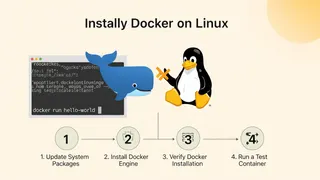 Article
How To Install Docker On Linux In 4 Easy Steps
A step-by-step guide to installing Docker on Linux in 4 steps, from updating the package index to running your first Docker container.
You might also enjoy
More posts on similar topics
6 related posts