Netcat
Complete netcat reference covering TCP/UDP connections, file transfers, server testing, port scanning, banner grabbing, and network troubleshooting with practical examples
This netcat cheatsheet covers TCP/UDP connections, file transfers, port scanning, banner grabbing, and advanced network operations.
No commands found
Try adjusting your search term
Getting Started
Introduction to netcat and its capabilities for network operations
What is Netcat
Netcat and its role in network operations and diagnostics
Install and verify netcat installation
Netcat (nc) is available on most Linux systems and comes in different variants. The OpenBSD version is commonly used and recommended for security.
# On Debian/Ubuntu systemssudo apt-get updatesudo apt-get install netcat-openbsd
# Alternative: Traditional netcatsudo apt-get install netcat
# On CentOS/RHEL systemssudo yum install nc
# On Fedora systemssudo dnf install nc
# Verify installationwhich ncnc -h 2>&1 | head -3which nc && echo "Netcat is installed"/bin/ncNetcat is installed- Multiple netcat implementations exist (GNU, OpenBSD, BusyBox)
- netcat-openbsd is the most secure and widely used variant
- Some systems have nc as a symlink to other utilities
- Verify the version with nc -h or man nc
Netcat overview and capabilities
Netcat handles different network operations through its flags.
# Netcat provides:# - TCP/UDP client and server functionality# - Port scanning and service testing# - Banner grabbing and service detection# - File transfer and bidirectional communication# - Network proxy and tunnel functionality# - Debugging and troubleshooting capabilities
# Netcat is called "the Swiss Army knife" of networking# It reads and writes data across TCP and UDP networks# Can run as a listening server or connecting client
# Basic usage pattern:# Client: nc [options] hostname port# Server: nc -l [options] portecho "Netcat is ready for network operations"nc -h 2>&1 | grep -E "^\s+-" | head -8-4 Use IPv4-6 Use IPv6-l Listen mode-u UDP mode (default is TCP)-v Verbose output-z Scan mode (no I/O)-e program Program to exec- Each flag can be combined with others for advanced operations
- Use -h to see all available options (varies by implementation)
- Netcat output depends on the specific variant installed
- Combine with other tools for broader network diagnostics
Netcat vs Alternatives
Compare netcat with other networking tools for different use cases
Netcat vs telnet and curl comparison
Netcat is a specialized tool for low-level network operations, complementary to higher-level tools like curl or wget.
# Netcat advantages over telnet:# - More versatile (handles UDP, scanning)# - Better for binary data transfer# - Supports more protocols and operations# - More secure implementation
# Netcat advantages over curl:# - Lower-level network operations# - No automatic protocol interpretation# - Better for binary protocols# - Lightweight and portable
# Use netcat when you need:# - Raw network communication# - Port scanning and banner grabbing# - File transfer over network# - Custom protocol testing# - Network debugging and diagnostics
echo "Netcat is ideal for network diagnostics and debugging"echo "Netcat capabilities:"echo "- TCP/UDP connections"echo "- Port scanning"echo "- File transfers"echo "- Server/Client mode"Netcat capabilities:- TCP/UDP connections- Port scanning- File transfers- Server/Client mode- Netcat is better for debugging and protocol testing
- Use curl for HTTP operations with automatic handling
- Use telnet only if nc is unavailable
- Combine tools for more complete network diagnostics
When to use netcat in your workflow
Netcat covers the network administration tasks that need direct network control and raw data access.
# Netcat use cases:
# 1. Network diagnostics - test connectivity and services# 2. Protocol development - test custom protocols# 3. File transfers - quick data movement between hosts# 4. Service testing - verify server configuration# 5. Network debugging - deep-level packet inspection# 6. Security testing - port scanning and service detection
# Typical workflow:# 1. Use netcat to test basic connectivity# 2. Use nc -zv to scan ports# 3. Use nc to transfer files# 4. Use netcat for custom protocol testing# 5. Use nc with pipes for data processing
echo "Netcat is essential for network professionals"echo "Use netcat for low-level network diagnostics and testing"Use netcat for low-level network diagnostics and testing- Learn netcat to complement higher-level tools
- Understand both client and server modes
- Practice port scanning and banner grabbing
- Master file transfer techniques
Basic Connections
TCP and UDP client-server connections with netcat
TCP Client Connections
Create TCP client connections to remote servers
Connect to remote TCP servers and interact
TCP connections with netcat allow you to interact with network services at the protocol level, useful for testing server responses.
# Basic TCP connection to a servernc hostname port
# Connect to localhost on port 8080nc localhost 8080
# Connect with timeout (5 seconds)nc -w 5 example.com 80
# Verbose connection (show what's happening)nc -v example.com 22
# Send data and close connectionecho "Hello Server" | nc hostname port
# Connect with specific local portnc -p 8888 example.com 80# Example: Connect to SSH service and see bannertimeout 2 nc -v localhost 22 2>&1 | head -3Ncat: Version 7.93Ncat: Connected to 127.0.0.1:22.SSH-2.0-OpenSSH_8.2p1 Ubuntu 4ubuntu0.5- TCP guarantees delivery of data in order
- Default protocol is TCP if -u is not specified
- -w flag sets timeout for connection
- Use echo with pipe to send single-line data
Interactive TCP communication
Interactive communication lets you manually test server protocols and see how services respond to requests.
# Interactive connection (type commands after connecting)# nc hostname port# Then type your input and press Enter
# Simple telnet replacementnc example.com 23
# Connect to web server and send HTTP request# nc example.com 80# GET / HTTP/1.1# Host: example.com# (blank line and Ctrl+D)
# Connect and auto-close after 3 secondsnc -w 3 example.com 80
# Set timeout without closing automaticallync -N example.com 80# Example: Test HTTP server response(echo -e "GET / HTTP/1.1\r\nHost: localhost\r\nConnection: close\r\n\r\n"; sleep 1) | nc localhost 80 | head -10HTTP/1.1 200 OKServer: Apache/2.4.41Date: Fri, 28 Feb 2025 10:00:00 GMTContent-Type: text/htmlConnection: close- \r\n is needed for proper HTTP headers
- Use Ctrl+C to exit interactive mode
- -N closes connection after EOF
- Useful for protocol development and testing
TCP Listen Server
Create TCP listening servers with netcat
Start listening server and accept connections
TCP listening servers accept incoming connections and can receive data from clients, enabling bidirectional communication.
# Start listening server on port 8888nc -l 8888
# Listen on specific IP and portnc -l localhost 8888
# Listen in verbose modenc -l -v 8888
# Listen only once (accept one connection then exit)nc -l 8888
# Set verbosity for debuggingnc -l -vv 8888
# Listen on IPv6nc -6 -l 8888# Start listening server in background(nc -l 9999 > /tmp/received.txt &) &sleep 1# Connect and send dataecho "Test message" | nc localhost 9999sleep 1cat /tmp/received.txtkillall nc 2>/dev/nullTest message- -l flag puts netcat in listening mode
- Default is localhost, specify IP for all interfaces
- Server continues running until manually stopped
- Can handle multiple connections with separate processes
Interactive server with multiple connections
Multiple connections can be handled by running netcat in a loop or using process management for more complex scenarios.
# Listen and handle multiple connections# Use in a loop to accept new connectionswhile true; do nc -l 8888; done
# Listen and log all input to filenc -l 8888 >> /tmp/nc.log
# Listen and echo input back to clientmkfifo /tmp/fifonc -l 8888 < /tmp/fifo | tee /tmp/fifo > /dev/null
# Listen with timeouttimeout 30 nc -l 8888
# Listen and execute command for each connectionwhile true; do nc -l 8888 -e /bin/bash; done# Start server in background(nc -l 9998 | tee /tmp/server.log &) &SERVER_PID=$!sleep 1# Connect client and send messageecho "Server message" | nc localhost 9998sleep 1kill $SERVER_PID 2>/dev/nullcat /tmp/server.logServer message- Always clean up with killall nc or process termination
- Use pipes to process incoming data
- Use tee to log and pass data simultaneously
- Consider connection limits and resource usage
Protocol Options
Work with different network protocols and connection types
UDP Connections
Use UDP protocol for fast, connectionless communication
UDP client and server communication
UDP provides connectionless communication, faster than TCP but without delivery guarantees. Useful for streaming and DNS testing.
# UDP client to send dataecho "UDP Message" | nc -u hostname 5000
# UDP listening servernc -u -l 5000
# UDP with verbose outputnc -u -v localhost 5000
# UDP timeout on clientecho "Test" | nc -u -w 2 localhost 5353
# Send multiple UDP messages(echo "Message 1"; sleep 1; echo "Message 2") | nc -u localhost 5000
# UDP with specific source IPecho "Data" | nc -u -s 192.168.1.100 8.8.8.8 53# Test DNS server with UDP on port 53(nc -u -l 5353 | tee /tmp/udp_data.txt &) &UDP_PID=$!sleep 1echo "UDP Test" | nc -u localhost 5353sleep 1kill $UDP_PID 2>/dev/nullcat /tmp/udp_data.txtUDP Test- UDP has no connection state, data is sent immediately
- Messages may arrive out of order or be lost
- No acknowledgment of delivery
- Use for time-sensitive data or broadcasts
UDP DNS query and service testing
UDP communication is connectionless and useful for testing services like DNS, NTP, and SNMP that use UDP.
# Test DNS resolution (requires dig or nslookup usually)# But can send raw UDP to DNS serverecho "Test" | nc -u 8.8.8.8 53
# Listen for incoming UDP messagesnc -u -l -v 5353
# Send UDP broadcast (if supported)# echo "broadcast message" | nc -u -b 192.168.1.255 5000
# Create UDP echo server (receives and echoes back)mkfifo /tmp/fifo(cat /tmp/fifo | nc -u -l 5000 > /tmp/fifo &)
# Send UDP with specific source portecho "Data" | nc -u -p 5555 localhost 5000
# Test UDP with multiple serversfor server in 8.8.8.8 1.1.1.1; do echo "Test" | timeout 1 nc -u $server 53done# Start UDP listener(nc -u -l 5354 > /tmp/udp_msg.txt &) &PID=$!sleep 1# Send UDP messageecho "UDP Communication Test" | nc -u localhost 5354sleep 1kill $PID 2>/dev/nullcat /tmp/udp_msg.txtUDP Communication Test- UDP packets may not arrive or may arrive out of order
- No connection setup or teardown overhead
- Faster than TCP for single messages
- Better for real-time applications
IPv6 Connections
Work with IPv6 addresses and dual-stack networking
IPv6 client and server connections
Netcat works over both IPv4 and IPv6, selected with explicit flags.
# Connect to IPv6 servernc -6 ::1 8080
# Connect to IPv6 address with zone IDnc -6 fe80::1%eth0 8080
# Listen on IPv6 addressnc -6 -l ::1 8080
# Listen on all IPv6 interfacesnc -6 -l :: 8080
# Specify both IPv4 and IPv6nc -4 localhost 8080  # IPv4nc -6 localhost 8080  # IPv6
# Force IPv4 onlync -4 -l 0.0.0.0 8080
# Force IPv6 onlync -6 -l :: 8080# Check if IPv6 is availablenc -6 -z -w 1 ::1 22 2>&1 && echo "IPv6 available" || echo "IPv6 not available"IPv6 available- Use -4 to force IPv4, -6 to force IPv6
- Default behavior depends on system configuration
- IPv6 literals need brackets in URLs [::1]:8080
- Zone ID (%) is used for link-local addresses
Dual-stack server and IPv6 testing
IPv6 and IPv4 run side by side on dual-stack hosts. Test both address families when a service has to answer on either.
# Listen on both IPv4 and IPv6 (requires separate instances)nc -4 -l 0.0.0.0 8080 &nc -6 -l :: 8080 &
# Listen on IPv6 only (may accept IPv4 mapped)nc -6 -l :: 8080
# Test both IPv4 and IPv6 connectivityecho "IPv4 Test" | nc -4 -w 1 127.0.0.1 8080echo "IPv6 Test" | nc -6 -w 1 ::1 8080
# Convert IPv4-mapped IPv6 address# ::ffff:192.0.2.1 is IPv4 192.0.2.1 mapped as IPv6
# Scan IPv6 portsnc -6 -z -w 1 ::1 22 2>&1# Test IPv6 loopback(nc -6 -l ::1 8890 > /tmp/ipv6_test.txt &) &PID=$!sleep 1echo "IPv6 Protocol Test" | nc -6 -w 1 ::1 8890sleep 1kill $PID 2>/dev/nullcat /tmp/ipv6_test.txtIPv6 Protocol Test- IPv6 and IPv4 can coexist on same host
- Some services support dual-stack (both protocols)
- Link-local addresses require zone ID
- IPv4-mapped IPv6 addresses start with ::ffff:
Data Transfer
Transfer files and data across networks with netcat
File Transfer
Send files between machines using netcat
Transfer files between machines
Netcat transfers files by piping stdin and stdout, for both text and binary data.
# Send file from client to server# On receiving end (server):nc -l 8888 > received_file.txt
# On sending end (client):cat file.txt | nc hostname 8888
# Send file with progress informationcat large_file.iso | pv | nc hostname 8888
# Receive file and savenc -l 8888 < file.txt
# Transfer binary filescat binary.bin | nc hostname 8888nc -l 8888 > binary.bin
# Keep server listening for multiple fileswhile true; do nc -l 8888 > file_$(date +%s).txt; done# Create test file and transferecho "Test file content" > /tmp/test_send.txt(nc -l 9997 > /tmp/test_receive.txt &) &PID=$!sleep 1cat /tmp/test_send.txt | nc localhost 9997sleep 1kill $PID 2>/dev/nullecho "Received: $(cat /tmp/test_receive.txt)"Received: Test file content- Use pv for progress visualization
- Tar can compress folders before transfer
- Encryption should be added for sensitive data
- Large files may need timeouts
Directory and compressed data transfer
Complex data transfers can be achieved by combining tar with netcat, allowing compression and directory transfer.
# Transfer entire directory as tar archive# Receiving end:nc -l 8888 | tar xz -C /destination/
# Sending end:tar czf - /source/directory | nc hostname 8888
# Transfer with progress using pvtar czf - /source | pv | nc hostname 8888
# Receive and decompress simultaneouslync -l 8888 | tar xzf - -C /path/
# Transfer with MD5 verificationtar czf - /source | nc hostname 8888 &md5sum /source > /tmp/source.md5
# Receive side:nc -l 8888 | tar xzf - && md5sum -c /tmp/source.md5
# Transfer exclude patternstar czf - --exclude='.git' --exclude='node_modules' . | nc hostname 8888# Create test directory and transfermkdir -p /tmp/test_dir/subdirecho "file1" > /tmp/test_dir/file1.txtecho "file2" > /tmp/test_dir/subdir/file2.txt(nc -l 9996 | tar xz -C /tmp/ &) &PID=$!sleep 1tar czf - -C /tmp test_dir | nc localhost 9996sleep 2kill $PID 2>/dev/nullfind /tmp/test_dir -type f/tmp/test_dir/file1.txt/tmp/test_dir/subdir/file2.txt- Always use compression for bandwidth efficiency
- Coordinate sender and receiver timing
- Use tar for directory structures
- Consider checksums for data integrity
Bidirectional Communication
Enable two-way data exchange between netcat client and server
Interactive bidirectional chat
Bidirectional communication allows real-time interaction between client and server, enabling chat and command systems.
# Simple chat system using netcat
# Terminal 1 - Server (listening)nc -l 5555
# Terminal 2 - Client (connecting)nc localhost 5555
# Both can now type and receive messages# Type in one terminal, see in other
# With pipes for automation# Server listening and respondingmkfifo /tmp/chat_innc -l 5555 < /tmp/chat_in | tee /tmp/chat_out
# Client sending and receiving{ echo "Hello"; cat /tmp/chat_out; } | nc server 5555
# Named pipe chat servermkfifo /tmp/fifocat /tmp/fifo | nc -l 5555 | tee /tmp/fifo# Demonstrate bidirectional with pipesmkfifo /tmp/fifo_in /tmp/fifo_out 2>/dev/null || true(nc -l 8891 < /tmp/fifo_in > /tmp/fifo_out &) &PID=$!sleep 1(echo "Message 1"; sleep 0.5; echo "Message 2") | nc localhost 8891 | tee /tmp/bc_log.txtsleep 1kill $PID 2>/dev/nullcat /tmp/bc_log.txtMessage 1Message 2- Both sides can send and receive simultaneously
- Use pipes and FIFOs for complex interactions
- Useful for testing interactive services
- Maintain proper connection management
Relay and proxy communication
Relay and proxy functionality allows netcat to act as an intermediary, forwarding and logging network traffic.
# Create relay between two connections# Listen on one port, forward to another
# Method 1: Simple relay with teenc -l 5556 | tee /tmp/relay_log.txt | nc remote_host 5000
# Method 2: Bidirectional relay with pipesmkfifo /tmp/relay_in /tmp/relay_outcat /tmp/relay_in | nc -l 5556 > /tmp/relay_outcat /tmp/relay_out | nc remote_host 5000 > /tmp/relay_in
# Method 3: Socat alternative (if available)# socat TCP-LISTEN:5556 TCP:remote_host:5000
# Method 4: Transparent relay with loggingwhile true; do  nc -l 5556 | tee -a relay.log | nc server.example.com 5000done
# Bidirectional pipe relay{ cat; echo; } | nc localhost 5000# Create simple relay test(nc -l 8892 | tee /tmp/relay_test.log &) &RELAY_PID=$!sleep 1echo "Relay Test Message" | nc localhost 8892sleep 1kill $RELAY_PID 2>/dev/nullcat /tmp/relay_test.logRelay Test Message- Create FIFOs for managing data flow
- Use tee for logging while forwarding
- Monitor both directions simultaneously
- Useful for debugging and network analysis
Port Scanning & Discovery
Scan ports and discover network services with netcat
Port Scanning
Identify open ports on networked systems
Basic port scanning techniques
Port scanning with -z flag tests connectivity without sending data, useful for discovering available services.
# Scan single portnc -zv localhost 22
# Scan port rangenc -zv localhost 1-1024
# Scan with timeoutnc -zv -w 1 localhost 1-65535
# Scan specific ports onlync -zv localhost 22 80 443
# Scan with connection timeouttimeout 10 bash -c 'nc -zv localhost 1-1024'
# Scan and redirect outputnc -zv localhost 1-65535 2>&1 | grep succeeded
# Quiet mode (no output)nc -zv localhost 80 > /dev/null 2>&1 && echo "Port open" || echo "Port closed"# Scan for common ports on localhostnc -zv -w 1 localhost 22 80 443 3306 5432 8080 2>&1 | grep -E "succeeded|timed out"Connection to localhost 22 port 22 [tcp/ssh] succeeded!Connection to localhost 80 port 80 [tcp/http] timed out (tried 1 time).Connection to localhost 443 port 443 [tcp/https] timed out (tried 1 time).- -z flag enables scan mode (no I/O)
- -v enables verbose output to show results
- -w sets timeout for each connection attempt
- Scanning many ports can be time-consuming
Efficient port scanning with filtering
Filtering and looping enable systematic port discovery across multiple ports and hosts.
# Scan and show only open portsnc -zv localhost 1-1024 2>&1 | grep succeeded
# Scan with fast timeoutnc -zv -w 1 localhost 1-65535 2>&1 | grep succeeded
# Scan remote hostnc -zv example.com 1-1024 2>&1 | grep succeeded
# Create a loop for scanning multiple hostsfor host in 192.168.1.{1..10}; do  nc -zv -w 1 $host 22 2>&1 | grep succeededdone
# Scan and save results to filenc -zv localhost 1-65535 2>&1 | grep succeeded | tee /tmp/open_ports.txt
# Complex scan with statisticsfor port in 22 80 443 3306 5432 8080 9000; do  timeout 1 nc -zv localhost $port 2>&1 | grep succeeded && echo "Open: $port"done
# Background scan with process countnc -zv -w 1 localhost 1-1024 > /tmp/scan.log 2>&1 &waitgrep succeeded /tmp/scan.log | wc -l# Quick scan of common portsfor port in 22 80 443 8080; do timeout 1 nc -zv localhost $port 2>&1 | grep succeeded && echo "Port $port: OPEN"doneConnection to localhost 22 port 22 [tcp/ssh] succeeded!Port 22: OPEN- Always use timeout to prevent hanging
- Grep for "succeeded" to find open ports
- Scanning remote hosts requires network access
- Consider using nmap for production scanning
Banner Grabbing & Service Detection
Grab service banners for version identification
Grab service banners and identify versions
Banner grabbing reveals service type and version, useful for security assessment and troubleshooting.
# Grab SSH bannernc -v localhost 22
# Grab HTTP bannerecho "" | nc -v localhost 80
# Connect and send newline for banner(echo; sleep 1) | nc -v hostname 3306
# Grab with timeouttimeout 2 nc -v localhost 21
# Get banner and disconnect(sleep 1; echo "quit") | nc -v hostname 25
# Grab SMTP bannertimeout 2 nc localhost 25
# Get FTP bannertimeout 2 nc localhost 21
# HTTP banner with request(echo -e "HEAD / HTTP/1.1\r\nHost: localhost\r\nConnection: close\r\n\r\n"; sleep 1) | nc localhost 80# Get SSH banner from localhosttimeout 2 nc -v localhost 22 2>&1 | head -1SSH-2.0-OpenSSH_8.2p1 Ubuntu 4ubuntu0.5- SSH sends banner on connection
- HTTP requires proper request format
- Some services require commands before responding
- Timeout prevents hanging on non-responsive services
Automated service detection
Automated banner grabbing across multiple ports identifies services for network reconnaissance.
# Scan and grab banners from open portsfor port in 21 22 25 53 80 443 3306 5432 8080; do  echo "Port $port:"  timeout 1 nc -v localhost $port 2>&1 | head -2  echo "---"done
# Create service detection script#!/bin/bashfor ip in $(seq 1 254); do  host="192.168.1.$ip"  timeout 1 nc -z -v $host 22 2>&1 | grep succeeded && \  timeout 1 nc -v $host 22 2>&1 | head -1done
# Grab all banners from targetfor port in $(seq 1 65535); do  timeout 0.1 nc -v localhost $port 2>&1 | grep -i "succeeded\|version\|ssh\|http" && echo "Port: $port"done
# Parallel banner grabbing with GNU parallelseq 1 1024 | parallel "timeout 1 nc -v localhost {} 2>&1" | grep -i version# Simple service detection on common portsfor port in 22 25 80 3306; do banner=$(timeout 1 nc -v localhost $port 2>&1 | head -1) if [ -n "$banner" ]; then echo "Port $port: $banner" fidonePort 22: SSH-2.0-OpenSSH_8.2p1 Ubuntu 4ubuntu0.5- Create service detection scripts for network audits
- Use parallel processing for faster scanning
- Always have permission before scanning
- Document findings for security analysis
- Be respectful of network resources
Advanced Usage
Advanced netcat techniques for complex network operations
Proxy and Tunneling
Use netcat for proxying and creating network tunnels
Create network proxies and tunnels
Netcat can create network proxies by relaying connections between endpoints, useful for traffic inspection and routing.
# Simple TCP proxy/tunnelnc -l 8080 | nc target.example.com 80 &
# Bidirectional proxy using mkfifomkfifo /tmp/proxy_in /tmp/proxy_outcat /tmp/proxy_in | nc target 8080 | tee /tmp/proxy_out &cat /tmp/proxy_out | nc -l 8000 > /tmp/proxy_in
# Transparent relaywhile true; do nc -l 3000 | nc backend_server 3000; done
# HTTP proxy to backendnc -l 8000 | nc internal.example.com 8080
# Tunnel SSH connection through proxync -X connect -x proxy.example.com:8080 target 22
# SOCKS proxy (if supported)nc -X socks5 -x localhost:1080 target 80
# Persistent tunnel in background(while true; do nc -l 9000 | nc remote 9001; done) &# Create simple proxy between ports(nc -l 8003 | nc localhost 22 &) &PROXY_PID=$!sleep 1timeout 1 nc -v localhost 8003 2>&1 | head -2kill $PROXY_PID 2>/dev/nullConnection to localhost 8003 port 8003 [tcp/*] succeeded!SSH-2.0-OpenSSH_8.2p1 Ubuntu 4ubuntu0.5- Use named pipes (mkfifo) for bidirectional proxies
- Proxies can add latency and affect performance
- Logging can help understand traffic flow
- Consider security when proxying sensitive data
Advanced tunneling scenarios
Advanced tunneling combines netcat with compression, encryption, and multi-hop routing for complex network scenarios.
# Create encrypted tunnel with SSH# Forward local 8888 to remote port 3306 through SSHssh -L 8888:localhost:3306 user@remote &nc localhost 8888  # Now connects to remote MySQL
# Reverse tunnel (remote connects to local)ssh -R 8080:localhost:8000 user@remote
# Multi-hop tunnel# Via: Local -> Proxy1 -> Proxy2 -> Targetnc -x proxy1:3128 -X connect -x proxy2:3128 target 80
# Tunnel with compressionnc -l 8000 | gzip | nc server 9000
# Persistent SSH tunnel for multiple connectionsssh -N -f -L 8000:target:80 user@proxy
# Use netcat with tar for secure file transfertar czf - /files | nc tunnel 9000
# Create persistent tunnel connection poolfor i in {1..5}; do (while true; do nc -l 8000 | nc target 8000; done) &done# Create compression tunnel test(nc -l 8004 | gunzip > /tmp/tunnel_out.txt &) &TUNNEL_PID=$!sleep 1echo "Tunnel Test Data" | gzip | nc localhost 8004sleep 1kill $TUNNEL_PID 2>/dev/nullcat /tmp/tunnel_out.txtTunnel Test Data- Always secure sensitive tunnels with encryption
- Monitor tunnel performance and bandwidth
- Implement timeout and error handling
- Document tunnel topology for maintenance
Troubleshooting & Telnet Replacement
Use netcat for network troubleshooting and telnet replacement
Network troubleshooting and connectivity testing
Netcat tests connectivity and debugs protocols without the overhead of a full telnet client.
# Test basic TCP connectivity (telnet replacement)nc -v example.com 80
# Check if port responds (telnet replacement with timeout)nc -zv -w 5 example.com 443
# Test connectivity with specific source IPnc -s 192.168.1.100 example.com 80
# Debug connection issuesnc -vvv example.com 80  # Extra verbose
# Test with packet tracingstrace -e openat,connect nc -v example.com 80
# Check DNS resolution and connectivitync -v $(dig +short example.com | head -1) 80
# Test with different TCP optionsnc -T noDelay example.com 80
# Trace connection pathtraceroute example.com && nc -v example.com 80# Test SSH connectivitytimeout 2 nc -vz localhost 22echo "Exit Code: $?"Connection to localhost port 22 [tcp/ssh] succeeded!Exit Code: 0- -zv combination is fastest for simple connectivity checks
- Use multiple -v flags for extra verbosity in debugging
- -w timeout prevents hanging on unreachable hosts
- Check exit codes for scripting
Protocol testing and service validation
Protocol testing with netcat allows direct interaction with services and validation of protocol compliance.
# Test HTTP server response(echo -e "GET / HTTP/1.1\r\nHost: localhost\r\nConnection: close\r\n\r\n"; sleep 1) | nc localhost 80
# Test SMTP server(sleep 1; echo "QUIT") | nc localhost 25 | head -5
# Test FTP server(echo "QUIT") | nc localhost 21
# Test custom protocolecho "COMMAND arg1 arg2" | nc server.example.com 9000
# Validate server response formattimeout 2 nc -v localhost 3306 2>&1 | od -c | head -5
# Test keep-alive behavior(echo "PING"; sleep 5; echo "PING") | nc server 5000
# Build protocol conversation step by step(  echo "USER username"  sleep 0.5  echo "PASS password"  sleep 0.5  echo "QUIT") | nc -v server.example.com 21
# Capture and analyze server responsesnc -v server 80 > response.txt 2>&1# Test simple HTTP server response(echo -e "GET / HTTP/1.0\r\nHost: localhost\r\n\r\n"; sleep 1) | nc localhost 80 | head -3HTTP/1.0 200 OKServer: SimpleHTTP/0.6 Python/3.8.10Date: Fri, 28 Feb 2025 10:00:00 GMT- \r\n is required for HTTP headers
- Some protocols require specific command sequences
- Use od -c to analyze binary responses
- Log interactions for documentation
Was this useful?
Continue on this topic
The same subject, covered a different way from the cheatsheet above.
 Quiz
QuizLinux: System Administration Fundamentals
Test your knowledge of Linux fundamentals with a quiz covering essential commands, file system navigation, permissions, process management, package managers, and Linux administration best practices.
 Code snippet
Essential Bash Variables for Every Script
Master the most useful Bash special parameters and environment variables. Learn how to use $0, $?, $@, $UID, $EUID, and XDG variables to write more reliable and portable scripts.
 Glossary
Linux Server Administration
Essential terms every Linux system administrator and DevOps engineer should know.
 Article
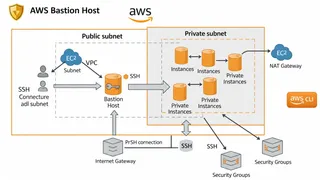
How To Setup Bastion Host on AWS using AWS CLI
In this post, we will learn the best practices of setting up a Bastion Host on AWS using the AWS CLI for secure and remote access to EC2 instances within a Virtual Private Cloud (VPC). We will guide you through creating a VPC, subnets, internet gateway, and configuring the Bastion Host with the appropriate permissions. This post is intended for those who are familiar with AWS and have some basic knowledge of networking and SSH.
You might also enjoy
More posts on similar topics
6 related posts