Chmod
Complete chmod reference with numeric and symbolic permissions, special bits, directory permissions, and practical examples for managing file access
Complete chmod reference covering file permissions, recursive changes with -v and -c, reference mode, logical operators, batch operations, practical examples, and security best practices for Linux file management.
No commands found
Try adjusting your search term
Getting Started
Introduction to chmod and permission fundamentals
What is Chmod
Chmod and file permissions in Unix-like systems
Chmod overview and permissions concept
File permissions are displayed in ls -l output. The first 10 characters show type and permissions (rwxrwxrwx format).
# Chmod stands for: change mode# Used to change file and directory permissions
# Basic syntax: chmod [options] mode file# Where mode can be:#   - Octal notation: 755 (4 digits maximum)#   - Symbolic notation: u+x, g-w, o=rx
# Permission components:# user (u), group (g), other (o), all (a)# read (r=4), write (w=2), execute (x=1)
# Key features:# - Change owner/group/other permissions# - Apply to files and directories# - Recursive modification with -R# - Special bits: setuid (4), setgid (2), sticky (1)ls -la /tmp/testfile.txt 2>/dev/null || touch /tmp/testfile.txt && ls -la /tmp/testfile.txt-rw-r--r-- 1 user group 0 Feb 28 10:00 /tmp/testfile.txt- First character indicates file type (- for file, d for directory, l for link)
- Next 9 characters are permissions: 3 for user, 3 for group, 3 for other
- Read files before changing permissions
- Test changes on non-critical files first
Understanding permission string format
The stat command displays permissions in both octal (644) and symbolic (-rw-r--r--) formats.
# Permission string format: -rwxrwxrwx# Position 1: File type (- = file, d = directory, l = link, etc.)# Positions 2-4: User (owner) permissions# Positions 5-7: Group permissions# Positions 8-10: Other permissions
# r (read) = 4# w (write) = 2# x (execute) = 1
# Examples:# -rw-r--r-- = file, user: rw (6), group: r (4), other: r (4) = 644# drwxr-xr-x = dir, user: rwx (7), group: rx (5), other: rx (5) = 755# -rwx------ = file, user: rwx (7), group: none (0), other: none (0) = 700stat -c "%a %A %n" /tmp/testfile.txt644 -rw-r--r-- /tmp/testfile.txt- Octal notation is more concise for scripts
- Symbolic notation is more readable for humans
- Both formats accomplish the same result
- 644 is common for files, 755 for directories
Installation and Setup
Verifying chmod availability and getting started
Verify chmod installation
Chmod is a POSIX standard utility, always available on Unix-like systems at /bin/chmod or /usr/bin/chmod.
# Check if chmod is installedwhich chmod
# Display chmod version (man page)chmod --version 2>/dev/null || man chmod | head -20
# Show chmod helpman chmod | head -30
# Quick helpchmod --help 2>/dev/null | head -20which chmod/bin/chmod- Chmod is pre-installed on all Linux and Unix systems
- Part of coreutils package
- Available in POSIX-compliant systems
- No additional installation needed
Access chmod man pages for detailed reference
The help and man pages provide full chmod reference documentation and usage examples.
# Read full chmod manualman chmod
# View specific sectionsman chmod | grep -A 10 "DESCRIPTION"
# Search for specific permissionman chmod | grep -i "setuid"
# View examplesman chmod | grep -A 5 "EXAMPLES"chmod --help 2>&1 | head -15Usage: chmod [OPTION]... MODE[,MODE]... FILE... or: chmod [OPTION]... OCTAL-MODE FILE... or: chmod [OPTION]... --reference=RFILE FILE...Change the mode of each FILE to MODE.-c, --changes like -v but report only when a change is made-f, --silent, --quiet suppress most error messages-v, --verbose output a diagnostic for every file processed-R, --recursive change files and directories recursively--reference=RFILE use RFILE's mode instead of MODE values- Man pages contain complete descriptions of all options
- Help flag varies between GNU and BSD versions
- Man page is most authoritative reference
- Online documentation available at man7.org
Basic Permissions
Octal and symbolic notation for file permissions
Octal Notation
Using numerical octal format for specifying permissions
Understanding octal notation basics
Chmod 644 sets owner read+write, group read, other read permissions (6+4+4=644).
# Octal notation uses 3-4 digits# Each digit represents a category:# Position 1 (optional): Special bits (setuid=4, setgid=2, sticky=1)# Position 2: User/Owner permissions# Position 3: Group permissions# Position 4: Other permissions
# Each permission has a value:# r (read) = 4# w (write) = 2# x (execute) = 1
# Examples of octal modes:# 644 = rw-r--r-- (file: owner rw, group r, other r)# 755 = rwxr-xr-x (directory: owner rwx, group rx, other rx)# 700 = rwx------ (private: only owner can access)# 777 = rwxrwxrwx (full: all can read/write/execute)touch /tmp/testfile.txt && chmod 644 /tmp/testfile.txt && ls -l /tmp/testfile.txt-rw-r--r-- 1 user group 0 Feb 28 10:00 /tmp/testfile.txt- 644 is standard for regular files
- 755 is standard for directories
- 600 is for private files only owner can access
- 777 is rarely needed and less secure
Common octal permission modes
Different octal modes produce different permission strings. 644 allows owner write, 755 allows execution, 700 restricts access to owner.
# Commonly used octal modes:
# 755: rwxr-xr-x (directories, executables)# Owner: full access, Group/Other: read and execute only
# 644: rw-r--r-- (regular files)# Owner: read and write, Group/Other: read only
# 700: rwx------ (private - owner only)# Only owner has all permissions
# 600: rw------- (private file - owner only)# Owner read/write, no access for group/other
# 775: rwxrwxr-x (group-writable)# Owner/Group have full access, other read/execute
# 666: rw-rw-rw- (all can read/write)# All users can read and write (uncommon, less secure)
# 444: r--r--r-- (read-only for all)# All users can read, none can write/executecd /tmp && touch file_644 file_755 file_700 && chmod 644 file_644 && chmod 755 file_755 && chmod 700 file_700ls -la file_* | awk '{print $1, $9}'-rw-r--r-- file_644-rwxr-xr-x file_755-rwx------ file_700- 644 and 755 are most commonly used
- 700 for sensitive files (private keys, config)
- 775 for collaborative team files
- 666 and 777 rarely used due to security concerns
Symbolic Notation
Using symbolic format (u/g/o/a ±= rwxXst) for permissions
Understanding symbolic notation syntax
u+x adds execute permission for the user. Starting from 644 (-rw-r--r--), it becomes 744 (-rwxr--r--).
# Symbolic notation syntax: [ugoa]*([-+=][perms...]...)# Who: u=user, g=group, o=other, a=all (default)# Operator: + (add), - (remove), = (set exactly)# Permissions: r (read), w (write), x (execute)#            : X (execute if already executable)#            : s (setuid/setgid), t (sticky)
# Examples:# u+x Add execute for user# g-w Remove write from group# o= Remove all permissions from other# a+r Add read for all# u+x,g+x Multiple changes in one command# g=r Set group to read-only# a= Remove all permissions for all userstouch /tmp/sym_test.txt && chmod u+x /tmp/sym_test.txt && ls -l /tmp/sym_test.txt-rwxr--r-- 1 user group 0 Feb 28 10:00 /tmp/sym_test.txt- Symbolic notation builds on existing permissions
- Use + to add, - to remove, = to set exactly
- Easier to remember than octal for common changes
- More readable in scripts and documentation
Common symbolic notation examples
u+w,g+w adds write permission for both user and group. Multiple changes are separated by commas.
# Add write permission for userchmod u+w file.txt
# Remove execute from allchmod a-x file.sh
# Set group to read-onlychmod g=r file.txt
# Add execute if already readablechmod u+X file.txt
# Remove all permissions except user readchmod a-rwx,u+r file.txt
# Make readable by allchmod a+r file.txt
# Make directory traversable by groupchmod g+x directory
# Make file non-writable by anyonechmod a-w file.txt
# Give user all, group read/execute, other nothingchmod u=rwx,g=rx,o= file.txttouch /tmp/sym_demo.txt && chmod 644 /tmp/sym_demo.txtecho "Before: $(ls -l /tmp/sym_demo.txt | awk '{print $1}')"chmod u+w,g+w /tmp/sym_demo.txtecho "After: $(ls -l /tmp/sym_demo.txt | awk '{print $1}')"Before: -rw-r--r--After: -rw-rw-r--- Chain multiple changes with commas
- No spaces between changes
- More readable than octal for humans
- Better for documenting intent in scripts
Understanding rwx Permissions
Detailed explanation of read, write, and execute permissions
Read permission (r) explained
Read permission (444) allows viewing file contents but prevents modification or execution.
# Read permission (r) = 4# For files: Allows reading/viewing file contents# For directories: Allows listing directory contents with ls
# File with read permission:# Can: cat, less, grep, copy the file# Cannot: run/execute file, modify file
# Directory with read permission:# Can: list files with ls# Cannot: enter directory (cd), access files# Note: Need execute for directory access
# Example:# r--r--r-- (444)# File is readable by all, not writabletouch /tmp/read_test.txt && echo "test content" > /tmp/read_test.txt && chmod 444 /tmp/read_test.txtecho "=== File status (r--r--r--) ===" && ls -l /tmp/read_test.txtecho "=== Can read file ===" && cat /tmp/read_test.txt=== File status (r--r--r--) ===-r--r--r-- 1 user group 12 Feb 28 10:00 /tmp/read_test.txt=== Can read file ===test content- Read is required to view file or list directory
- For directories, read alone doesn't allow cd
- For files, read doesn't allow execution
- Read-only files cannot be deleted by non-owners
Write permission (w) explained
Write permission (666) allows modification of file contents. Without it, the file is read-only.
# Write permission (w) = 2# For files: Allows modifying/deleting file contents# For directories: Allows creating/deleting files in directory
# File with write permission:# Can: modify, overwrite, append, truncate file# Cannot: if no read, cannot see current contents
# Directory with write permission:# Can: create new files, delete existing files# Can: rename files, modify directory contents# Note: Still needs execute to access files in it
# Example:# -w--w--w- (222)# All users can write/modifytouch /tmp/write_test.txt && chmod 644 /tmp/write_test.txt && echo "original" > /tmp/write_test.txtecho "=== Start content ===" && cat /tmp/write_test.txtchmod 666 /tmp/write_test.txt && echo "modified" >> /tmp/write_test.txtecho "=== After chmod 666 and write ===" && cat /tmp/write_test.txt=== Start content ===original=== After chmod 666 and write ===originalmodified- Write requires modify/delete permission
- Write on file allows content changes
- Write on directory allows creating/deleting files
- Owner can delete own file even without write on it, as long as the directory is writable
Execute permission (x) explained
Execute permission on directories (755) allows entering and accessing the directory. For files, it allows execution.
# Execute permission (x) = 1# For files: Allows running/executing file (scripts, binaries)# For directories: Allows entering directory (cd), accessing files/subdirs
# File with execute permission:# Can: run if it's a script or binary# Still needs read to execute scripts (interpreter needs to read)
# Directory with execute permission:# Can: cd into directory, access contents# Core permission needed for directory access# Note: Still needs read to list, execute to access
# Example:# rwxr-xr-x (755) - directory mode# Allows owner full, group/other can view and accessmkdir -p /tmp/exec_test && chmod 755 /tmp/exec_test && touch /tmp/exec_test/file.txtecho "=== Directory with execute (755) ===" && ls -ld /tmp/exec_testecho "=== Can access directory and list contents ===" && ls /tmp/exec_test=== Directory with execute (755) ===drwxr-xr-x 2 user group 4096 Feb 28 10:00 /tmp/exec_test=== Can access directory and list contents ===file.txt- Execute on directory = can cd into it
- Execute on file = can run it (if read also present for scripts)
- Directories typically get 755, files 644 or 755
- Execute bit essential for directory traversal
User/Group/Other Permissions
Managing permissions for owner, group, and other users
User Permissions
Setting and managing owner/user permissions
Setting user-only permissions
Chmod 600 (u=rw,g=,o=) allows owner read and write, no access for group or other.
# Set permissions for owner/user only# u=rwx (user has all permissions, group/other have none)
# Common user-only patterns:# u=rwx,g=,o= or 700 - owner full access only# u=rw (read/write for owner)# u+x (add execute for owner)# u-w (remove write from owner)
# Examples:chmod u=rwx file.sh # owner full accesschmod 700 private.key # private file - owner onlychmod u+x script.sh # make script executable by ownerchmod u-w readonly.txt # make file read-only for ownertouch /tmp/user_perm.txt && chmod 600 /tmp/user_perm.txt && ls -l /tmp/user_perm.txt-rw------- 1 user group 0 Feb 28 10:00 /tmp/user_perm.txt- 600 is appropriate for sensitive files
- 700 for directories only owner can access
- User permissions are inherited by file creator
- Owner can change permissions only on own files (unless root)
Adding and removing user permissions
User permissions can be modified individually. u+x adds execute, u-r removes read from the owner.
# Add execute permission for userchmod u+x file.sh
# Remove write permission for userchmod u-w file.txt
# Add read and executechmod u+rx file
# Remove all user permissionschmod u= file.txt
# Reset user to basic read/writechmod u=rw file.txt
# Add write back to userchmod u+w file.txttouch /tmp/user_mod.txt && chmod 644 /tmp/user_mod.txtecho "Initial: $(ls -l /tmp/user_mod.txt | awk '{print $1}')"chmod u+x /tmp/user_mod.txtecho "After u+x: $(ls -l /tmp/user_mod.txt | awk '{print $1}')"chmod u-r /tmp/user_mod.txtecho "After u-r: $(ls -l /tmp/user_mod.txt | awk '{print $1}')"Initial: -rw-r--r--After u+x: -rwxr--r--After u-r: --wxr--r--- Changes are additive with +, subtractive with -
- = sets exactly what you specify
- Other permissions unchanged unless specified
- Always verify with ls -l after changes
Group Permissions
Managing group permissions for shared files
Setting group permissions
Chmod 640 (u=rw,g=r,o=) allows owner read/write and group read, no access for others.
# Set permissions for group members# g=rx (group can read and execute)# g+w (add write for group)# g-x (remove execute from group)
# Common group patterns:# g=r (group read-only)# g=rx (group read and execute - typical for directories)# g=rw (group read and write - for shared files)# g= (remove all group permissions)
# Examples:chmod g=r file.txt # group read-onlychmod g+w file.txt # add write for groupchmod g-x directory # remove execute from groupchmod g= file.txt # remove all group permissionstouch /tmp/group_perm.txt && chmod 640 /tmp/group_perm.txt && ls -l /tmp/group_perm.txt-rw-r----- 1 user group 0 Feb 28 10:00 /tmp/group_perm.txt- 640 is common for files shared with group
- 750 is common for directories shared with group
- Group must include relevant users
- More restrictive than world-readable
- Good for team collaboration
Collaborative file sharing with group permissions
g+w adds write permission for the group. This allows group members to modify the file.
# File shared with group, readable and writable by all group memberschmod g+rw file.txt
# Directory shared with group, all can access and add fileschmod g+rw directory/chmod g+x directory/
# Make group permissions match userchmod g=u file.txt
# Remove write from groupchmod g-w file.txt
# Set standard collaboration modechmod g=rx directory/
# Add group permissions without changing otherschmod g+w file.txttouch /tmp/collab.txt && chmod 644 /tmp/collab.txtecho "Initial: $(ls -l /tmp/collab.txt | awk '{print $1}')"chmod g+w /tmp/collab.txtecho "After g+w: $(ls -l /tmp/collab.txt | awk '{print $1}')"Initial: -rw-r--r--After g+w: -rw-rw-r--- g+w enables group write access
- Useful for shared project files
- Verify group membership with id command
- Set before sharing with team members
Other Permissions
Managing permissions for all other users
Setting permissions for others
Chmod 600 removes all permissions from group and other. Only the owner can access the file.
# Set permissions for other/world users# o=r (other can only read)# o+x (add execute for other - allow others to access)# o= (remove all permissions from other/world)
# Common patterns:# o= (completely private, except user/group)# o=r (world readable)# o=rx (world readable and executable - common for web)# o+r (add read for others)
# Examples:chmod o=r file.txt # world readable onlychmod o= file.txt # private, no world accesschmod o+r file.txt # add read for otherschmod o-r file.txt # remove read from otherstouch /tmp/other_perm.txt && echo "content" > /tmp/other_perm.txt && chmod 600 /tmp/other_perm.txt && ls -l /tmp/other_perm.txt-rw------- 1 user group 0 Feb 28 10:00 /tmp/other_perm.txt- 600 is for completely private files
- Others have no access at all
- Appropriate for sensitive data
- Prevents accidental exposure
World-readable and accessible files
o+r adds read permission for others. The file becomes world-readable (644).
# Make file world-readablechmod o+r file.txt
# Make directory world-accessible with readable contentschmod o+rx directory/
# Make web content accessiblechmod o=rx script.sh
# Add world-accessible readchmod a+r file.txt (adds read for all: user, group, other)
# Remove world access entirelychmod o= file.txt
# World-readable, user/group writablechmod 664 file.txttouch /tmp/world.txt && chmod 640 /tmp/world.txtecho "Initial: $(ls -l /tmp/world.txt | awk '{print $1}')"chmod o+r /tmp/world.txtecho "After o+r: $(ls -l /tmp/world.txt | awk '{print $1}')"Initial: -rw-r-----After o+r: -rw-r--r--- o+r makes file readable by any user
- Useful for public files and web content
- Be careful with sensitive data
- Web files typically need o=r or o=rx
All Permissions (a)
Managing permissions for all users at once
Setting permissions for all users
a+r adds read permission for all users. Starting from 700, it becomes 744 (rwxr--r--).
# Set permissions for all users (user, group, other)# a=r (read-only for everyone)# a=rx (read and execute for everyone)# a+r (add read for all)# a-w (remove write from all)# a= (remove all permissions - be careful!)
# Common patterns:# a=r (world readable, no write/execute)# a=rx (world readable and executable)# a-w (remove write from everyone)# a+r (add read for everyone)
# Examples:chmod a+r file.txt # readable by allchmod a-w file.txt # no one can writechmod a+x file.sh # executable by allchmod a= file.txt # remove all permissionstouch /tmp/all_perm.txt && chmod 700 /tmp/all_perm.txtecho "Initial: $(ls -l /tmp/all_perm.txt | awk '{print $1}')"chmod a+r /tmp/all_perm.txtecho "After a+r: $(ls -l /tmp/all_perm.txt | awk '{print $1}')"Initial: -rwx------After a+r: -rwxr--r--- a= without modification removes all permissions (be careful!)
- a is the default when no user is specified, while u+x affects the user only
- a+r adds read for user, group, and other
- a-w removes write from all three categories
Batch permission changes for all users
a-w removes write from all users. a=r sets all users to read-only permission.
# Add read for all userschmod a+r file.txt
# Remove write from allchmod a-w file.txt
# Make fully public readable/executablechmod a+rx directory/
# Remove all permissions (make inaccessible)chmod a= file.txt
# Set standard read-onlychmod a=r file.txt
# Set standard read and execute for allchmod a=rx script.sh
# Remove execute from all (no one can run)chmod a-x file.shtouch /tmp/batch.txt && chmod 644 /tmp/batch.txtecho "Initial: $(ls -l /tmp/batch.txt | awk '{print $1}')"chmod a-w /tmp/batch.txtecho "After a-w: $(ls -l /tmp/batch.txt | awk '{print $1}')"chmod a=r /tmp/batch.txtecho "After a=r: $(ls -l /tmp/batch.txt | awk '{print $1}')"Initial: -rw-r--r--After a-w: -r--r--r--After a=r: -r--r--r--- a+r and a-w are quick ways to set permissions for everyone
- a= is dangerous and rarely used
- Prefer specific u/g/o for clarity
- a is useful for quick batch changes
Operators
Chmod operators for modifying permissions
Adding Permissions
Adding permissions with the + operator
Adding permissions with + operator
The + operator adds permissions incrementally. Each chmod command adds without removing existing permissions.
# Add permissions with + operator# Syntax: chmod [ugoa]+[rwxXst] file
# Examples:chmod u+r file.txt      # add read for userchmod u+w file.txt      # add write for userchmod u+x file.txt      # add execute for userchmod g+r file.txt      # add read for groupchmod o+x directory/    # add execute for otherchmod a+r file.txt      # add read for all
# Multiple permissions at once:chmod u+rwx file.txt # add read, write, execute for userchmod g+rx file.txt # add read and execute for groupchmod a+x script.sh # add execute for alltouch /tmp/add_test.txt && chmod 000 /tmp/add_test.txtecho "Initial: $(ls -l /tmp/add_test.txt | awk '{print $1}')"chmod u+r /tmp/add_test.txtecho "After u+r: $(ls -l /tmp/add_test.txt | awk '{print $1}')"chmod u+w /tmp/add_test.txtecho "After u+w: $(ls -l /tmp/add_test.txt | awk '{print $1}')"Initial: ----------After u+r: -r--------After u+w: -rw-------- + adds permissions without affecting other bits
- Can add multiple at once (u+rwx)
- Non-destructive, existing permissions are retained
- Use it for incremental permission changes
Combining multiple additions in one command
Multiple additions with + can be combined with commas. User permissions unchanged, group and other now have read.
# Add multiple permissions in one commandchmod u+rwx,g+rx,o+r file.txt
# Make executable by all without changing other bitschmod a+x script.sh
# Add read and write for user and groupchmod u+rw,g+rw file.txt
# Add write for group and otherchmod g+w,o+w file.txt
# Add execute for user onlychmod u+x file.sh
# Add read for group and otherchmod g+r,o+r file.txttouch /tmp/multi_add.txt && chmod 600 /tmp/multi_add.txtecho "Initial: $(ls -l /tmp/multi_add.txt | awk '{print $1}')"chmod g+r,o+r /tmp/multi_add.txtecho "After g+r,o+r: $(ls -l /tmp/multi_add.txt | awk '{print $1}')"Initial: -rw-------After g+r,o+r: -rw-r--r--- Use commas to separate multiple operations
- Each part is applied in sequence
- Previous permissions are preserved
- Sets several permission categories in one command
Removing Permissions
Removing permissions with the - operator
Removing permissions with - operator
The - operator removes specific permissions. Files progress from 777 to 770 to 555.
# Remove permissions with - operator# Syntax: chmod [ugoa]-[rwxXst] file
# Examples:chmod u-r file.txt      # remove read from userchmod u-w file.txt      # remove write from userchmod u-x file.txt      # remove execute from userchmod g-w file.txt      # remove write from groupchmod o-r file.txt      # remove read from otherchmod a-x script.sh     # remove execute from all
# Multiple permissions at once:chmod u-rwx file.txt # remove all from userchmod g-rx file.txt # remove read and execute from groupchmod a-w file.txt # remove write from alltouch /tmp/rem_test.txt && chmod 777 /tmp/rem_test.txtecho "Initial: $(ls -l /tmp/rem_test.txt | awk '{print $1}')"chmod o-r /tmp/rem_test.txtecho "After o-r: $(ls -l /tmp/rem_test.txt | awk '{print $1}')"chmod a-w /tmp/rem_test.txtecho "After a-w: $(ls -l /tmp/rem_test.txt | awk '{print $1}')"Initial: -rwxrwxrwxAfter o-r: -rwxrwx---After a-w: -r-xr-x---- removes permissions without affecting other bits
- Can remove multiple at once (u-rwx)
- Non-destructive, other permissions are retained
- Use it for revoking specific access
Revoking access and tightening security
Removing permissions progressively tightens access. File goes from 644 to 600 to 400.
# Remove write permission from insecure fileschmod a-w file.txt
# Revoke group write accesschmod g-w file.txt
# Remove other's read accesschmod o-r file.txt
# Remove all permissions from otherchmod o-rwx file.txt
# Remove write for user and groupchmod u-w,g-w file.txt
# Revoke execute from scriptchmod a-x script.sh
# Remove group and other access entirelychmod go-rwx file.txt (same as chmod u=rwx file.txt)touch /tmp/secure.txt && chmod 644 /tmp/secure.txtecho "Initial: $(ls -l /tmp/secure.txt | awk '{print $1}')"chmod g-r,o-r /tmp/secure.txtecho "After g-r,o-r: $(ls -l /tmp/secure.txt | awk '{print $1}')"chmod a-w /tmp/secure.txtecho "After a-w: $(ls -l /tmp/secure.txt | awk '{print $1}')"Initial: -rw-r--r--After g-r,o-r: -rw-------After a-w: -r--------- Useful for security hardening
- Removes only specified permissions
- Other permissions preserved
- Good practice for preventing accidental modifications
Setting Exact Permissions
Setting permissions to exact state with = operator
Setting exact permissions with = operator
The = operator sets exact permissions for specified category. Unspecified categories retain existing permissions.
# Set exact permissions with = operator# Syntax: chmod [ugoa]=[rwxXst] file# Note: = sets ONLY what you specify, removes everything else
# Examples:chmod u=rwx file.txt     # user has rwx, nothing elsechmod g=r file.txt       # group has r, nothing elsechmod o= file.txt        # other has nothingchmod a=r file.txt       # all have r only, no w or x
# Setting entire perms:chmod u=rwx,g=rx,o=rx directory/ # sets 755chmod u=rw,g=r,o=r file.txt # sets 644chmod u=rwx,g=,o= file.txt # sets 700touch /tmp/set_test.txt && chmod 777 /tmp/set_test.txtecho "Initial: $(ls -l /tmp/set_test.txt | awk '{print $1}')"chmod u=rw /tmp/set_test.txtecho "After u=rw: $(ls -l /tmp/set_test.txt | awk '{print $1}')"chmod g=r,o= /tmp/set_test.txtecho "After g=r,o=: $(ls -l /tmp/set_test.txt | awk '{print $1}')"Initial: -rwxrwxrwxAfter u=rw: -rw-rwxrwxAfter g=r,o=: -rw-r------ = completely resets specified user/group/other
- Unmodified categories keep their permissions
- More destructive than + or -
- Useful for setting standard modes
Setting standard permission modes
Setting u=rw,g=r,o=r creates standard 644 permissions. User gets read/write, group and other get read only.
# Set standard 644 (file) permissionschmod u=rw,g=r,o=r file.txt
# Set standard 755 (directory) permissionschmod u=rwx,g=rx,o=rx directory/
# Set private 600 permissionschmod u=rw,g=,o= private.key
# Set private directory 700chmod u=rwx,g=,o= private_dir/
# Set collaborative 770chmod u=rwx,g=rwx,o= shared.txt
# Set read-only for allchmod u=r,g=r,o=r readonly.txt
# Set execute for allchmod u=x,g=x,o=x execute.shtouch /tmp/std_644.txt && chmod u=rw,g=r,o=r /tmp/std_644.txt && ls -l /tmp/std_644.txt | awk '{print $1}'-rw-r--r--- Useful for enforcing standard modes
- More verbose than octal but clearer intent
- Equivalent to octal chmod 644
- Good for documentation and scripts
Multiple Changes
Combining multiple permission changes in one command
Chaining multiple permission changes
Multiple changes separated by commas are applied sequentially. One command sets user=rw, group=r, other nothing.
# Combine multiple changes with commas# Syntax: chmod change1,change2,change3 file
# Examples:chmod u+rx,g+r,o-rw file.txt    # add user rx, add group r, remove other rwchmod u=rw,g=r,o=r file.txt     # set user rw, group r, other r (644)chmod a+r,a-w file.txt          # add read for all, remove write from allchmod u+x,g+x,o+x file.sh       # make executable for all
# Complex multi-step changes:chmod g-w,o-x file.txt          # revoke group write and other executechmod u-rwx,g-rwx,o-rwx file.txt # remove all permissions
# Setting up standard modes in one go:chmod u=rwx,g=rx,o=rx script.sh # set 755 for executablechmod u=rw,g=,o= secrets.key # set 600 for private keytouch /tmp/multi_change.txt && chmod 777 /tmp/multi_change.txtecho "Initial: $(ls -l /tmp/multi_change.txt | awk '{print $1}')"chmod u=rw,g=r,o= /tmp/multi_change.txtecho "After multi-change: $(ls -l /tmp/multi_change.txt | awk '{print $1}')"Initial: -rwxrwxrwxAfter multi-change: -rw-r------ Comma-separated changes applied left to right
- No spaces allowed around commas
- More efficient than multiple chmod commands
- Useful in scripts for atomicity
Real-world permission setup scenarios
Multiple changes in one command set up config (private), script (executable), and data (readable).
# Setup web server script (700 but user only)chmod u=rwx,g=,o= /etc/init.d/myserver
# Setup configuration file (owner only rw)chmod u=rw,g=,o= /etc/myapp/config
# Setup log file (owner rw, group r)chmod u=rw,g=r,o= /var/log/myapp.log
# Setup public html (all can read)chmod u=rw,g=r,o=r /var/www/html/index.html
# Setup shared directory (team collaboration)chmod u=rwx,g=rwx,o=rx /home/team/shared/
# Setup sensitive data (owner only)chmod u=r,g=,o= ~/.ssh/id_rsa
# Setup executable script (owner rwx, group/other rx)chmod u=rwx,g=rx,o=rx /usr/local/bin/myscriptmkdir -p /tmp/setup_demo && touch /tmp/setup_demo/{config,script,data}chmod u=rw,g=,o= /tmp/setup_demo/configchmod u=rwx,g=rx,o= /tmp/setup_demo/scriptchmod u=rw,g=r,o=r /tmp/setup_demo/datals -l /tmp/setup_demo/total 0-rw------- 1 user group 0 Feb 28 10:00 config-rwxr-x--- 1 user group 0 Feb 28 10:00 script-rw-r--r-- 1 user group 0 Feb 28 10:00 data- Combines multiple chmod operations into single command
- More efficient than separate chmod calls
- Atomicity helps in scripts and batch operations
- Clear intention with multiple changes
Special Permissions
Setuid, setgid, and the sticky bit
Setuid Bit
The setuid special permission and how to apply it
Understanding setuid bit
The 's' in the user execute position indicates setuid is set. The file executes with owner's permissions.
# Setuid (Set User ID) bit = 4000# When set on executable file:# - File executes with owner's permissions, not executor's# - Only valid on executable files (not directories)# - Shown as 's' in user execute position (rwsr-xr-x)
# In octal notation:# First digit: 4 = setuid# chmod 4755 = -rwsr-xr-x (setuid + rwxr-xr-x)# chmod 4750 = -rwsr-x--- (setuid + rwxr-x---)
# Symbolic notation:# chmod u+s file.sh     # add setuid bit# chmod u-s file.sh     # remove setuid bit
# Use cases:# - Password utilities (passwd, sudo)# - System maintenance tools# - Allows unprivileged users to temporarily gain elevated accesstouch /tmp/suid_test.sh && chmod 755 /tmp/suid_test.sh && chmod u+s /tmp/suid_test.shls -l /tmp/suid_test.sh-rwsr-xr-x 1 user group 0 Feb 28 10:00 /tmp/suid_test.sh- Setuid shown as 's' replacing 'x' if execute present, 'S' if not
- Dangerous on frequently-used files
- Never use setuid on shell scripts if possible
- Binary (compiled) programs are safer with setuid
Setting and viewing setuid bits
Chmod 4755 sets setuid (4) plus standard executable permissions (755). The 's' indicates setuid presence.
# Add setuid bitchmod u+s /usr/bin/somecommandchmod 4755 /usr/bin/somecommand
# Remove setuid bitchmod u-s /usr/bin/somecommandchmod 755 /usr/bin/somecommand
# Verify setuid is setls -l /usr/bin/somecommand  # look for 's' in position 3stat /usr/bin/somecommand
# View files with setuid setfind /usr/bin -perm -4000
# View as 4-digit octalstat -c "%a %A %n" /usr/bin/somecommandtouch /tmp/su_demo && chmod 4755 /tmp/su_demo && ls -l /tmp/su_demo && stat -c "%a %A" /tmp/su_demo-rwsr-xr-x 1 user group 0 Feb 28 10:00 /tmp/su_demo4755 -rwsr-xr-x- 4755 = setuid(4) + rwxr-xr-x(755)
- Octal notation clearly shows setuid with leading 4
- ls shows 's' in user execute position
- stat shows full 4-digit octal including special bits
Setgid Bit
The setgid special permission and how to apply it
Understanding setgid bit
The 's' in the group execute position indicates setgid is set on the directory. Files created inherit group ownership.
# Setgid (Set Group ID) bit = 2000# When set on executable file:# - File executes with owner's group permissions# When set on directory:# - New files created inherit directory's group, not creator's# - Enables collaborative directories# - Shown as 's' in group execute position (rwxr-sr-x)
# In octal notation:# First digit: 2 = setgid# chmod 2755 = -rwxr-sr-x (setgid + rwxr-xr-x)# chmod 2770 = -rwxrws--- (setgid + rwxrwx---)
# Symbolic notation:# chmod g+s directory/   # add setgid on directory# chmod g+s file.sh      # add setgid on file
# Use cases:# - Collaborative directories (inherit group ownership)# - Shared project folders# - Group-based permissionsmkdir -p /tmp/setgid_test && chmod 2755 /tmp/setgid_test && ls -ld /tmp/setgid_testdrwxr-sr-x 2 user group 4096 Feb 28 10:00 /tmp/setgid_test- Setgid on directory: new files inherit directory's group
- Setgid on file: executes with owner's group
- Shown as 's' in group execute position
- Used for collaborative directories
Using setgid for collaborative directories
Chmod 2770 sets setgid (2) plus rwxrwx--- (770). Files created inherit directory's group.
# Create group-shared directory with setgidmkdir /home/team/sharedchmod g+w /home/team/sharedchmod g+s /home/team/shared
# Verify new files inherit grouptouch /home/team/shared/newfile.txtls -l /home/team/shared/newfile.txt# File will have group ownership of 'team' instead of user's primary group
# Set permissions for collaborative workchmod 2770 /home/team/shared
# Files created match directory groupchmod g+s directory/ # symbolic methodchmod 2755 directory/ # octal equivalent for rwxr-sr-xmkdir -p /tmp/collab && chmod 2770 /tmp/collab && ls -ld /tmp/collabdrwxrws--- 2 user group 4096 Feb 28 10:00 /tmp/collab- 2770 = setgid(2) + rwxrwx---(770)
- Enables group-based collaboration
- New files automatically group-owned
- Useful for team projects
Sticky Bit
The sticky bit special permission and how to apply it
Understanding sticky bit
The 't' in the other execute position indicates sticky bit is set. Only file owners can delete their files.
# Sticky bit = 1000# When set on directory:# - Only owner (or root) can delete own files# - Prevents users from deleting others' files# - Shown as 't' in other execute position (rwxrwxrwt)# - NOT valid on regular files (ignored)
# In octal notation:# First digit: 1 = sticky# chmod 1777 = rwxrwxrwt (sticky + rwxrwxrwx)# chmod 1755 = rwxr-xr-t (sticky + rwxr-xr-x)
# Symbolic notation:# chmod o+t directory/   # add sticky bit on directory# chmod o-t directory/   # remove sticky bit
# Use cases:# - /tmp and /var/tmp (prevent users deleting others' files)# - Shared directories needing file protection# - Collaborative spaces where only owners delete own filesmkdir -p /tmp/sticky_test && chmod 1777 /tmp/sticky_test && ls -ld /tmp/sticky_testdrwxrwxrwt 2 user group 4096 Feb 28 10:00 /tmp/sticky_test- Sticky bit shown as 't' in other execute position
- Lowercase 't' if execute present, uppercase 'T' if not
- Typically combined with 777 on shared directories
- Needed for shared temp directories
Setting and verifying sticky bit
First directory (777) shows 'x' in other; second (1777) shows 't'. Only in second can non-owners not delete others' files.
# Set sticky bit on shared directorychmod o+t /tmp/sharedchmod 1777 /tmp/shared
# Verify sticky is setls -ld /tmp/shared    # look for 't' in position 10stat /tmp/shared
# View as 4-digit octalstat -c "%a %A %n" /tmp/shared
# Remove sticky bitchmod o-t /tmp/shared
# Find directories with sticky bitfind /tmp -perm -1000 -type d
# Compare: with and without stickychmod 777 /tmp/test1 # 0777chmod 1777 /tmp/test2 # 1777 (sticky)ls -ld /tmp/test1 /tmp/test2mkdir -p /tmp/sticky1 /tmp/sticky2 && chmod 777 /tmp/sticky1 && chmod 1777 /tmp/sticky2ls -ld /tmp/sticky1 /tmp/sticky2drwxrwxrwx 2 user group 4096 Feb 28 10:00 /tmp/sticky1drwxrwxrwt 2 user group 4096 Feb 28 10:00 /tmp/sticky2- 1777 = sticky(1) + rwxrwxrwx(777)
- 't' indicates sticky bit protection
- Standard for /tmp directories
- Prevents accidental file deletion
Recursive Operations
Applying chmod recursively to directories and contents
Recursive Changes
Using -R flag for recursive permission changes
Basic recursive permission changes
chmod -R 644 applies 644 permissions to all files in the directory tree. All files show -rw-r--r--.
# Recursive chmod with -R flag# Syntax: chmod -R mode directory
# Apply permissions to all contents of directorychmod -R 755 /path/to/directory
# Make all files executable recursivelychmod -R u+x /path/to/directory
# Remove write from all files recursivelychmod -R a-w /path/to/directory
# Set permissions for all subdirectorieschmod -R 700 /path/to/private/
# Recursive examples:chmod -R 644 ./myproject/ # all files 644chmod -R u+r ./myproject/ # add read for allchmod -R o-rwx ./myproject/ # remove other accessmkdir -p /tmp/recursivetest/{dir1,dir2} && touch /tmp/recursivetest/{file1.txt,dir1/file2.txt,dir2/file3.txt}chmod -R 644 /tmp/recursivetest && find /tmp/recursivetest -type f -exec ls -l {} \; | awk '{print $1}'-rw-r--r---rw-r--r---rw-r--r--- -R recursively applies to all contents
- Applied to files AND directories
- May result in inaccessible directories (need x for traversal)
- Use with caution on important directories
Recursive permission setup for projects
Using find with type filter correctly sets files to 644 and directories to 755 separately.
# Setup project directory structure# Directories need rwx for access# Files typically 644, directories 755
# Make all files readablechmod -R u+r,g+r,o+r ./project/
# Make all files non-writable except ownerchmod -R u-w,g-w,o-w ./project/chmod -R u+w ./project/
# Make all directories executablefind ./project/ -type d -exec chmod 755 {} \;
# Alternative: single recursive that might lock you outchmod -R 644 ./project/  # DANGER: directories become inaccessible!
# Better approach: handle files and directories separatelyfind ./project/ -type f -exec chmod 644 {} \;find ./project/ -type d -exec chmod 755 {} \;mkdir -p /tmp/proj/{src,docs} && touch /tmp/proj/{README.md,src/main.py,docs/guide.md}find /tmp/proj -type f -exec chmod 644 {} \;find /tmp/proj -type d -exec chmod 755 {} \;find /tmp/proj -type f -o -type d | xargs ls -ld | awk '{print $1, $NF}'-rw-r--r-- /tmp/proj/README.md-rw-r--r-- /tmp/proj/src/main.py-rw-r--r-- /tmp/proj/docs/guide.mddrwxr-xr-x /tmp/projdrwxr-xr-x /tmp/proj/srcdrwxr-xr-x /tmp/proj/docs- -R applies to everything; often too broad
- Use find to differentiate files and directories
- Files typically 644, directories 755
- Prevents locking yourself out of directories
Following Symlinks
Handling symbolic links in recursive operations
Understanding symlink permission behavior
Symlink shows lrwxrwxrwx (always 777). The target file shows actual permissions.
# Basic symlink behavior:# chmod follows symlinks by default# Changes the target file, not the symlink
# Symlink permissions are mostly ignored# Only the target's permissions matter
# Recursive with symlinks:# -R will follow directory symlinks (DANGER: can create loops!)# Use -H flag to avoid following symlinks# Use -L flag to follow all symlinks
# Examples:chmod -R 755 /path/  # may follow symlinkschmod -H 755 /path/  # don't follow symlinks
# Check symlink statusls -l file_link    # shows -> target
# Change target through symlinkchmod 600 file_link # changes target, not symlinktouch /tmp/target.txt && ln -s /tmp/target.txt /tmp/link_to_targetchmod 644 /tmp/target.txt && ls -l /tmp/target.txt /tmp/link_to_target-rw-r--r-- 1 user group 0 Feb 28 10:00 /tmp/target.txtlrwxrwxrwx 1 user group 15 Feb 28 10:00 /tmp/link_to_target -> /tmp/target.txt- Symlinks always show 777 permissions
- Changing permissions through symlink changes target
- Symlink permissions cannot be changed on most systems
- Recursive follows symlinks (potential infinite loop risk)
Avoiding symlink issues in recursive operations
Using find with -not -type l excludes symlinks from the operation. Regular file is chmod'd, symlinks unchanged.
# Option 1: Skip symlinks entirelyfind /path -type f -not -type l -exec chmod 644 {} \;
# Option 2: Use find with maxdepth to avoid deep recursionfind /path -maxdepth 3 -type f -exec chmod 644 {} \;
# Option 3: List symlinks before recursive operationfind /path -type l -o -type L
# Typical safe approach:# Use find to exclude symlinksfind /path -type f ! -type l -exec chmod 644 {} \;find /path -type d ! -type l -exec chmod 755 {} \;
# Alternative: using ls to identify symlinksls -la /path | grep "^l"mkdir -p /tmp/safe_test && touch /tmp/safe_test/file.txt && ln -s /tmp/safe_test/file.txt /tmp/safe_test/link.txtfind /tmp/safe_test -type f -not -type l -exec chmod 644 {} \;ls -la /tmp/safe_test/total 8-rw-r--r-- 1 user group 0 Feb 28 10:00 file.txtlrwxrwxrwx 1 user group 15 Feb 28 10:00 link.txt -> /tmp/safe_test/file.txt- find -not -type l excludes symlinks
- Prevents accidental modifications through symlinks
- Safe approach for recursive operations
- Recommended for production scripts
Recursive with Options
Combining recursive with verbose and other options
Verbose recursive operations
Chmod -Rc shows only items that were actually changed. With -v, all items would be listed.
# -R: Recursive (required)# -v: Verbose (show all changes)# -c: Changes only (show only changed items)# -f: Force/quiet (suppress errors)
# Common combinations:# chmod -R -v 755 dir/   # recursive + verbose# chmod -Rv 755 dir/     # combined flags (same as above)# chmod -Rc 755 dir/     # recursive + changes only
# Examples:chmod -Rv 644 ./myfiles/ # show all changeschmod -Rc 755 ./project/ # show only what changedchmod -Rf 755 ./dir/ # force, suppress errorschmod -Rvc 644 ./src/ | head -20 # verbose + limit outputmkdir -p /tmp/verb_test && touch /tmp/verb_test/{f1.txt,f2.txt,f3.txt}chmod -Rc 644 /tmp/verb_test 2>&1 | head -5mode of '/tmp/verb_test/f1.txt' changed from 0644 to 0644- -Rv shows all files processed
- -Rc shows only files that had permission changes
- -Rf suppresses error messages
- Useful for scripts and large operations
Tracking recursive changes with verbose and logging
-Rc lists only items with actual permission changes. Output can be captured for audit trails.
# Log all changes madechmod -Rv 755 /path/to/dir > chmod_log.txt 2>&1
# Count changes madechmod -Rc 644 /path/to/dir | wc -l
# Show changes with timestampsdate && chmod -Rc 755 /path/to/dir && date
# Audit changes after recursive chmodchmod -Rc 700 /path/ > changes.logcat changes.log | head -20cat changes.log | tail -5
# Compare sizes before and afterdu -sh /path/before && chmod -R 755 /path/ && du -sh /path/aftermkdir -p /tmp/log_test && touch /tmp/log_test/{a,b,c}.txtchmod -Rc 755 /tmp/log_test 2>&1 | head -3mode of '/tmp/log_test/a.txt' changed from 0644 to 0755mode of '/tmp/log_test/b.txt' changed from 0644 to 0755mode of '/tmp/log_test/c.txt' changed from 0644 to 0755- -Rc useful for audit logging
- Can redirect output to file for documentation
- Combine with wc -l to count changes
- Good for tracking configuration changes
Advanced Usage
Advanced chmod techniques and options
Reference Mode
Using --reference flag to copy permissions from another file
Copy permissions from reference file
chmod --reference copies exact permissions from template to target file without specifying numeric mode.
# Copy permissions from one file to another# Syntax: chmod --reference=source_file target_file
# Examples:chmod --reference=/etc/passwd /tmp/myconfchmod --reference=template.txt *.txt
# Use cases:# - Match file permissions to template# - Standardize permissions across files# - Copy permissions without knowing exact mode
# Combined with find:find . -name "*.log" -exec chmod --reference=template.log {} \;
# Verify same permissionsstat -c "%a %A" template.txtstat -c "%a %A" newfile.txttouch /tmp/template && touch /tmp/testfile && chmod 650 /tmp/templatechmod --reference=/tmp/template /tmp/testfileecho "Template: $(ls -l /tmp/template | awk '{print $1}')"echo "File: $(ls -l /tmp/testfile | awk '{print $1}')"Template: -rw-r-x---File: -rw-r-x---- Useful for matching permissions across files
- No need to know exact permissions of reference
- Template file must exist and be accessible
- Works with any file permissions
Batch applying template permissions with reference
Using chmod --reference in a loop applies template permissions to multiple files.
# Create template file with desired permissionstouch standard_templatechmod 644 standard_template
# Apply to all files in directoryfor file in *.txt; do  chmod --reference=standard_template "$file"done
# Using find to apply templatefind . -type f -name "*.log" -exec chmod --reference=/etc/syslog.conf {} \;
# Verify all have same permissionsfind . -type f -exec ls -l {} \; | awk '{print $1}' | sort | uniqmkdir -p /tmp/batch_ref && touch /tmp/batch_ref/template /tmp/batch_ref/{f1,f2,f3}.txtchmod 700 /tmp/batch_ref/templatefor f in /tmp/batch_ref/*.txt; do chmod --reference=/tmp/batch_ref/template "$f"; donels -l /tmp/batch_ref/*.txt | awk '{print $1}'-rwx-------rwx-------rwx------- Useful for batch operations
- Template-based consistency
- Works with find and loops
- No need to calculate modes manually
Logical Operators
Logical operators in permission expressions
Combining permissions with logical operators
Multiple changes with commas are applied sequentially. Result is rw-r----- (640 permissions).
# Comma-separated list of changes all applied# chmod u+rwx,g+rx,o-rwx file
# All changes are processed in sequence# Each builds on previous result
# Examples:chmod u+rw,g+r,o=r file.txt       # set specific permschmod a+r,u+w file.txt            # add read all, add write userchmod u-w,g-w,o-w file.txt        # remove write from allchmod u=rwx,g=rx,o= directory/    # set 750 permissions
# Order matters for clarity, usually:# 1. User changes# 2. Group changes# 3. Other changestouch /tmp/logic_test && chmod 000 /tmp/logic_testchmod u+rw,g+r,o= /tmp/logic_test && ls -l /tmp/logic_test | awk '{print $1}'-rw-r------ Comma separates multiple changes
- No spaces around comma
- Changes applied left to right
- Each change builds on previous result
Complex permission expressions
Complex expression sets user with setuid+rwx, group read, other nothing. Resulting in 4540.
# Build complex permissions in single commandchmod u=rwx,g=rx,o= script.sh          # 750: user full, group rx, other none
# Add and remove in same commandchmod a+r,a-x file.txt                  # add read all, remove execute all
# Different operations for different userschmod u+w,g-w,o-rwx file.txt            # user add write, group rem write, other none
# Combining with special bitschmod u+rws,g+rx,o= program.sh          # setuid + rwx for user, rx for group
# Security hardening in one commandchmod u-x,g-rwx,o-rwx file.txt # remove execute user, all from group/othertouch /tmp/complex && chmod 777 /tmp/complexchmod u+rws,g+r,o= /tmp/complex && ls -l /tmp/complex | awk '{print $1}'-rwsr------ Multiple operations enable complex setups
- Setuid/setgid/sticky in complex expressions
- Single command atomic operation
- More readable than octal for complex requirements
Batch Operations
Applying chmod to many files in one pass
Batch chmod using find and xargs
find selects only *.txt files and chmod applies 600 to them. c.py remains unchanged.
# Using find to locate and chmod filesfind /path -type f -exec chmod 644 {} \;
# Using find with xargs (more efficient)find /path -type f -print0 | xargs -0 chmod 644
# Separate files and directoriesfind /path -type f -exec chmod 644 {} \;find /path -type d -exec chmod 755 {} \;
# Limited depth searchfind /path -maxdepth 2 -type f -exec chmod 644 {} \;
# Specific file patternsfind /path -name "*.txt" -exec chmod 644 {} \;find /path -name "*.sh" -exec chmod 755 {} \;mkdir -p /tmp/batch && touch /tmp/batch/{a.txt,b.txt,c.py}find /tmp/batch -name "*.txt" -exec chmod 600 {} \;ls -l /tmp/batch | awk '{print $1, $NF}'total 0-rw------- a.txt-rw------- b.txt-rw-r--r-- c.py- find is precise for selecting files
- -exec runs chmod on each found file
- xargs is more efficient for large lists
- maxdepth prevents deep recursion if desired
Advanced batch operations with patterns
Different file types get different permissions using separate find commands with name patterns.
# Apply different permissions based on file typesfind . -type f -name "*.sh" -exec chmod 755 {} \;find . -type f -name "*.py" -exec chmod 755 {} \;find . -type f -name "*.conf" -exec chmod 640 {} \;
# Batch operations with conditionsfind . -type f -size +1M -exec chmod 444 {} \;  # large files read-only
# Complex find with chmodfind . -perm 777 -exec chmod 755 {} \;          # change overly permissive
# Using -newer for recent filesfind . -type f -newer lastmod -exec chmod 644 {} \;
# Batch with progress reportingfind . -type f | wc -l # count firstfind . -type f -print0 | xargs -0 chmod 644mkdir -p /tmp/advanced_batch && touch /tmp/advanced_batch/{script.sh,config.conf,data.txt}chmod 777 /tmp/advanced_batch/*find /tmp/advanced_batch -name "*.sh" -exec chmod 755 {} \;find /tmp/advanced_batch -name "*.conf" -exec chmod 640 {} \;ls -l /tmp/advanced_batch | awk '{print $1, $NF}'total 0-rw-r----- config.conf-rw-r--r-- data.txt-rwxr-xr-x script.sh- Chaining find commands handles different file types
- Efficient for maintaining consistent permissions
- Can add conditions for selective application
- Scripts/binaries get 755, configs 640, data 644
Practical Examples
Real-world chmod scenarios and practical use cases
Real-World Scenarios
Common practical chmod use cases
Securing SSH key files
SSH keys require specific permissions: directory 700, private key 600, public key 644.
# SSH keys must be private and non-world-readablechmod 600 ~/.ssh/id_rsa           # private key readable only by ownerchmod 644 ~/.ssh/id_rsa.pub       # public key can be read by anyonechmod 700 ~/.ssh/                 # SSH directory owner only
# Set correct permissions on new SSH directorymkdir ~/.sshchmod 700 ~/.ssh
# Keys from others must be protectedchmod 600 ~/.ssh/authorized_keys  # control access to account
# Fix common SSH permission issueschmod 755 ~/ # home directory accessiblechmod 700 ~/.ssh # SSH directory privatechmod 600 ~/.ssh/id_rsa # private key securemkdir -p /tmp/ssh_test/.ssh && touch /tmp/ssh_test/.ssh/{id_rsa,id_rsa.pub}chmod 700 /tmp/ssh_test/.ssh && chmod 600 /tmp/ssh_test/.ssh/id_rsa && chmod 644 /tmp/ssh_test/.ssh/id_rsa.publs -la /tmp/ssh_test/.ssh/total 8drwx------ 2 user group 4096 Feb 28 10:00 .dr-xr-xr-x 3 user group 4096 Feb 28 10:00 ..-rw------- 1 user group 0 Feb 28 10:00 id_rsa-rw-r--r-- 1 user group 0 Feb 28 10:00 id_rsa.pub- SSH refuses if .ssh is not 700
- Private keys must be 600
- Public keys can be 644
- Home directory typically 755
- SSH refuses keys with looser modes
Web server file permissions
Web files typically use 644 (readable by all, writable by owner) with 755 directories for traversal.
# Web server files and directories# htdocs/html files readable by everyone, writable only by ownerchmod 644 /var/www/html/*.html    # HTML fileschmod 644 /var/www/html/*.css     # CSS fileschmod 644 /var/www/html/*.js      # JavaScriptchmod 755 /var/www/html/          # directory must be traversable
# Server-side scripts (PHP, Python, etc.)chmod 644 /var/www/html/*.php     # script file readable by serverchmod 644 /var/www/cgi-bin/*      # CGI scripts
# Upload directories (writable by server)chmod 755 /var/www/html/uploads/  # directory writablechmod 755 /var/www/html/tmp/      # temp directory
# Configuration files (private)chmod 600 /var/www/html/config.php # config securechmod 600 /var/www/html/.env # environment filemkdir -p /tmp/webroot && touch /tmp/webroot/{index.html,style.css,config.php}chmod 755 /tmp/webroot && chmod 644 /tmp/webroot/{index.html,style.css} && chmod 600 /tmp/webroot/config.phpls -la /tmp/webroot/ | tail -+4 | awk '{print $1, $NF}'-rw-r--r-- config.php-rw-r--r-- index.html-rw-r--r-- style.css- HTML/CSS/JS files: 644
- Directories: 755
- Config files: 600
- Owner must be restorable (usually root or app user)
Configuration and system files
Configuration files (644), executables (755), and logs (640-650) have different permission requirements.
# System configuration fileschmod 644 /etc/passwd                     # readable by all, root writechmod 640 /etc/shadow                     # readable by root/group onlychmod 644 /etc/hosts                      # readable by allchmod 644 /etc/hostname                   # readable by all
# System scripts and binarieschmod 755 /usr/local/bin/myscript         # executable by allchmod 755 /etc/init.d/myservice           # service script executable
# Log fileschmod 640 /var/log/myapp.log              # readable by owner/groupchmod 755 /var/log/                       # directory traversable
# Application data fileschmod 640 /var/lib/myapp/database.db # readable by appchmod 750 /var/lib/myapp/ # directory for group accessmkdir -p /tmp/sysconfig && touch /tmp/sysconfig/{config.ini,script.sh,app.log}chmod 644 /tmp/sysconfig/config.ini && chmod 755 /tmp/sysconfig/script.sh && chmod 640 /tmp/sysconfig/app.logls -l /tmp/sysconfig | tail -+4 | awk '{print $1, $NF}'-rw-r----- app.log-rw-r--r-- config.ini-rwxr-xr-x script.sh- Config files typically 644 or 640
- Scripts/binaries 755
- Log files 640-650
- Sensitive files 600
Security Best Practices
Security implications and best practices for file permissions
Principle of least privilege
Secure permissions (600) restrict to owner only. Insecure (666) allows anyone to modify the file.
# Use minimum permissions necessary# Start restrictive, add permissions as needed
# Private files: start with 600chmod 600 sensitive.txt      # only owner can read/write
# Read-only files: use 444chmod 444 readonly.conf      # no one can modify
# Executable only by owner: use 700chmod 700 admin-only.sh      # only owner can execute
# Shared group files: use 640 not 644chmod 640 shared.log         # group can read, others cannot
# Public files: use 644 minimumchmod 644 public.html        # all can read, none can write
# Never use 777 or 666# Avoid: chmod 777 file.txt    # INSECURE: all can do everything# Avoid: chmod 666 file.txt    # INSECURE: all can modify
# Audit tool:# Find overly permissive filesfind / -perm -002 -type f # world-writablefind / -perm -020 -type f # group-writabletouch /tmp/sec_test && chmod 600 /tmp/sec_testecho "=== Secure (600) ===" && ls -l /tmp/sec_testchmod 666 /tmp/sec_test 2>/dev/null || trueecho "=== Insecure (666) ===" && ls -l /tmp/sec_test=== Secure (600) ===-rw------- 1 user group 0 Feb 28 10:00 /tmp/sec_test=== Insecure (666) ===-rw-rw-rw- 1 user group 0 Feb 28 10:00 /tmp/sec_test- 600 is secure, 644 for public reading
- 666 is dangerous for any file
- 777 very rarely justified
- Audit regularly for over-permissive files
Preventing common security mistakes
Security improves from 644 (world-readable) to 600 (owner-only). Sensitive data must be 600.
# WRONG: Making config world-readable# chmod 644 /etc/myapp/db.conf    # database password exposed!
# RIGHT: Keep config privatechmod 600 /etc/myapp/db.conf      # only application can read
# WRONG: Making .ssh directory accessible# chmod 755 ~/.ssh                 # allows SSH hijacking!
# RIGHT: Keep SSH directory privatechmod 700 ~/.ssh                   # only owner can access
# WRONG: Making shell scripts world-writable# chmod 777 /usr/local/bin/script  # anyone can modify!
# RIGHT: Script executable but not modifiablechmod 755 /usr/local/bin/script    # all can execute, owner writes
# WRONG: Making sensitive data world-readable# chmod 644 ~/.aws/credentials     # exposes AWS access!
# RIGHT: Keep credentials privatechmod 600 ~/.aws/credentials       # only owner can read
# Audit for problems:find ~ -perm -0077 # files with group/other accessfind ~ -type f -perm /022 # group/other writabletouch /tmp/mistake && chmod 666 /tmp/mistake 2>&1 | head -1 || chmod 644 /tmp/mistakeecho "Insecure: $(ls -l /tmp/mistake | awk '{print $1}')"chmod 600 /tmp/mistakeecho "Secure: $(ls -l /tmp/mistake | awk '{print $1}')"Insecure: -rw-r--r--Secure: -rw-------- Database configs: 600
- SSH directories: 700, keys: 600
- Credentials: 600
- Regular audit prevents exposure
Was this useful?
Continue on this topic
The same subject, covered a different way from the cheatsheet above.
 Quiz
QuizLinux: System Administration Fundamentals
Test your knowledge of Linux fundamentals with a quiz covering essential commands, file system navigation, permissions, process management, package managers, and Linux administration best practices.
 Code snippet
Essential Bash Variables for Every Script
Master the most useful Bash special parameters and environment variables. Learn how to use $0, $?, $@, $UID, $EUID, and XDG variables to write more reliable and portable scripts.
 Glossary
Linux Server Administration
Essential terms every Linux system administrator and DevOps engineer should know.
 Article
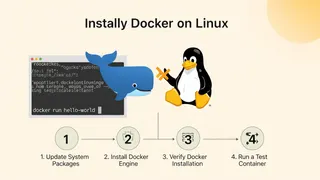
How To Install Docker On Linux In 4 Easy Steps
A step-by-step guide to installing Docker on Linux in 4 steps, from updating the package index to running your first Docker container.
You might also enjoy
More posts on similar topics
6 related posts