Curl
cURL is a command-line tool for making HTTP requests, transferring data using URLs, and testing APIs. Essential commands for web development and API testing.
Getting started with Curl
cURL (client URL) is a command-line tool for transferring data using URLs. It speaks HTTP, HTTPS, FTP, SFTP, and many other protocols, which makes it the usual choice for web development, API testing, and scripting. The common jobs are testing a REST API, downloading a file, and debugging an HTTP connection.
What makes cURL essential
- Protocols: HTTP, HTTPS, FTP, FTPS, SCP, SFTP, TELNET, LDAP, LDAPS, and more
- Works with any web service or API over those protocols
- Scriptable, which makes requests repeatable in automation
- Verbose output for diagnosing connection and API issues
- No GUI required, and it runs on minimal resources
Common use cases
# Test if an API endpoint is respondingcurl https://api.github.com/users/github
# Download filescurl -O https://example.com/file.tar.gz
# POST data to a formcurl -X POST -d "username=user&password=pass" https://example.com/login
# Check API response statuscurl -I https://api.example.com/health
# Debug API connectionscurl -v https://api.example.com/endpoint
Installation quick reference
macOS: brew install curl
Ubuntu/Debian: sudo apt-get install curl
CentOS/RHEL: sudo yum install curl
Windows: Download from curl.se or choco install curl
Essential options reference
| Option | Purpose |
|---|---|
-X GET/POST/PUT/DELETE/PATCH | Specify HTTP method |
-H "Header: value" | Add custom header |
-d 'data' | Send POST data (URL encoded) |
-F "file=@path" | Upload file (multipart form) |
-u user:pass | HTTP Basic authentication |
-b "cookie=value" | Send cookie |
-c cookies.txt | Save response cookies |
-i | Include response headers |
-I | Headers only (HEAD request) |
-L | Follow redirects |
-v / -vv | Verbose output (debug) |
-s | Silent mode (no progress) |
-o file.txt | Save to file |
-O | Save with original filename |
-w "%{http_code}" | Custom output format |
-k / --insecure | Skip SSL verification (unsafe) |
--cacert ca.pem | Use custom CA certificate |
--max-time 10 | Timeout after 10 seconds |
--compressed | Request compression |
HTTP methods quick start
# GET - Retrieve data (default)curl https://api.example.com/users
# POST - Create resourcecurl -X POST -H "Content-Type: application/json" \  -d '{"name":"John"}' https://api.example.com/users
# PUT - Replace entire resourcecurl -X PUT -H "Content-Type: application/json" \  -d '{"name":"Jane","age":30}' https://api.example.com/users/1
# PATCH - Update specific fieldscurl -X PATCH -H "Content-Type: application/json" \  -d '{"age":31}' https://api.example.com/users/1
# DELETE - Remove resourcecurl -X DELETE https://api.example.com/users/1
Workflow examples
Testing a REST API
# 1. Test get all userscurl https://api.example.com/users
# 2. Create a new usercurl -X POST -H "Content-Type: application/json" \  -d '{"name":"Alice","email":"alice@example.com"}' \  https://api.example.com/users
# 3. Get specific usercurl https://api.example.com/users/1
# 4. Update usercurl -X PATCH -H "Content-Type: application/json" \  -d '{"email":"alice.new@example.com"}' \  https://api.example.com/users/1
# 5. Delete usercurl -X DELETE https://api.example.com/users/1
Authenticated API requests
# Using bearer tokenTOKEN="eyJhbGciOiJIUzI1NiIsInR5cCI6IkpXVCJ9..."curl -H "Authorization: Bearer $TOKEN" https://api.example.com/protected
# Using API keyAPI_KEY="sk_live_abc123xyz789"curl -H "X-API-Key: $API_KEY" https://api.example.com/data
# Using Basic authcurl -u username:password https://api.example.com/protected
# OAuth2 flowTOKEN=$(curl -X POST -d "client_id=xxx&client_secret=yyy&grant_type=client_credentials" https://auth.example.com/token | jq -r '.access_token')curl -H "Authorization: Bearer $TOKEN" https://api.example.com/data
File handling
# Download filecurl -o myfile.txt https://example.com/file.txt
# Upload filecurl -F "file=@myfile.txt" https://api.example.com/upload
# Download and extractcurl -s https://example.com/archive.tar.gz | tar xz
# Resume interrupted downloadcurl -C - -o largefile.iso https://example.com/largefile.iso
# Upload multiple filescurl -F "files=@file1.txt" -F "files=@file2.txt" https://api.example.com/upload-multiple
Debugging and troubleshooting
# Verbose output (see all request/response details)curl -v https://api.example.com/data
# More verbose (shows all low-level details)curl -vv https://api.example.com/data
# Show headers onlycurl -i https://api.example.com/data
# Check response timecurl -w "Total time: %{time_total}s\n" https://api.example.com/data
# Save full debug outputcurl -v https://api.example.com/data > response.html 2> debug.txt
# Test with custom headerscurl -H "X-Custom: value" -v https://api.example.com/data
Batch processing
# Check multiple endpointsfor url in api1.com api2.com api3.com; do  echo -n "$url: "  curl -s -o /dev/null -w "%{http_code}\n" "https://$url"done
# Process JSON array responsecurl -s https://api.example.com/users | jq -r '.[] | .email' | \  while read email; do    echo "Processing: $email"    curl -X POST -H "Content-Type: application/json" \      -d "{\"email\":\"$email\",\"status\":\"active\"}" \      https://api.example.com/notify  done
# Parallel requestsfor i in {1..10}; do  curl -s "https://api.example.com/data/$i" &donewaitecho "All requests completed"
Performance tips
- Use
--compressedfor APIs that support gzip/deflate compression - Add timeouts with
--max-timeand--connect-timeoutto prevent hanging - Batch requests with
&andwaitfor parallel execution - Filter responses with
jqorgrepto reduce processing time - Use HEAD requests (
-I) to check whether a resource exists without downloading it
Common patterns
Check if service is up:
curl -f -s -o /dev/null -w "%{http_code}\n" https://api.example.com/healthLoop with retry:
for attempt in {1..3}; do curl -f https://api.example.com/data && break [ $attempt -lt 3 ] && sleep 2doneExtract and transform:
curl -s https://api.example.com/users | jq '[.[] | select(.active) | {name, email}]'Save with authentication:
curl -u user:pass -H "Accept: application/json" https://api.example.com/data > data.jsonBest practices
- Use HTTPS for authenticated requests
- Check exit codes and HTTP status codes
- Store tokens and credentials in environment variables, not in scripts
- Check JSON syntax and validate responses before processing
- Prevent hanging requests with
--max-timeand--connect-timeout - Redact sensitive data from logs
- Test API calls against staging before production use
- Comment curl commands to explain what they do and why
curl vs other tools
| Tool | Best For |
|---|---|
| curl | Command-line, scripts, quick testing |
| wget | Large file downloads, mirroring sites |
| Postman | Interactive API testing with GUI |
| HTTPie | More intuitive syntax, pretty output |
| Python requests | Complex automation and data processing |
Getting help
- Manual:
man curlorcurl --help - Online: curl.se docs
- Examples: Everything curl book
- Common Issues: Check curl troubleshooting guide
Pro Tip: Create a .curlrc file in your home directory to store default options and headers for commonly used APIs. This keeps your commands clean and consistent across multiple requests.
No commands found
Try adjusting your search term
Getting Started
Learn what curl is and make your first HTTP requests
What is Curl
What curl does and which protocols it handles
Install curl and check version
Installs curl and displays version information showing libcurl version and supported protocols.
# On macOS with Homebrewbrew install curl
# On Debian/Ubuntusudo apt-get install curl
# On CentOS/RHELsudo yum install curl
# Check versioncurl --versioncurl --versioncurl 7.88.1 (x86_64-pc-linux-gnu) libcurl/7.88.1Release-Date: 2023-02-20- curl is usually pre-installed on most Unix-like systems
- If missing, install via package manager (apt, yum, brew, etc.)
- curl supports HTTP, HTTPS, FTP, FTPS, SCP, SFTP, TFTP, TELNET, LDAP, LDAPS, and many more
Basic curl command structure
Demonstrates basic curl syntax and how to retrieve HTTP status codes from endpoints.
# Basic syntaxcurl [options] [URL]
# Simplest request - GET a URLcurl https://example.com
# Get just the response codecurl -o /dev/null -s -w "%{http_code}" https://example.com
# Show response headerscurl -i https://example.comcurl -s -w "%{http_code}\n" https://httpbin.org/get200- By default, curl sends a GET request to the URL
- -s flag enables silent mode (no progress meter)
- -w flag allows custom output formatting with HTTP response codes
- Response is written to stdout unless redirected
Quick API testing examples
Quickly test if APIs are responding without downloading full response body.
# Test if a server is upcurl -I https://api.example.com
# Get response with timing informationcurl -w "Response time: %{time_total}s\n" https://example.com
# Test followed by status code onlycurl -s -o /dev/null -w "HTTP Status: %{http_code}\n" https://api.example.comcurl -I -s https://httpbin.org/getHTTP/2 200Date: Fri, 28 Feb 2025 12:00:00 GMTContent-Type: application/jsonServer: gunicorn/19.9.0- -I flag retrieves headers only (HEAD request)
- Useful for health checks and availability testing
- -w provides detailed timing information
HTTP Methods Fundamentals
The HTTP methods and when each one applies
Specify HTTP method with -X flag
Use the -X flag to explicitly specify the HTTP method for your request.
# GET request (default)curl https://api.example.com/users
# Explicitly specify GETcurl -X GET https://api.example.com/users
# Use different methodscurl -X POST https://api.example.com/userscurl -X PUT https://api.example.com/users/1curl -X DELETE https://api.example.com/users/1curl -X PATCH https://api.example.com/users/1curl -X GET https://httpbin.org/get{ "args": {}, "headers": { "Host": "httpbin.org", "User-Agent": "curl/7.88.1" }, "origin": "192.0.2.1", "url": "https://httpbin.org/get"}- GET is the default method (retrieves data)
- POST creates new resources
- PUT replaces entire resource
- DELETE removes resources
- PATCH modifies part of resource
Method-specific behavior
Different HTTP methods handle data and requests differently, with appropriate use cases.
# GET - no body sentcurl https://api.example.com/users?page=1
# POST - requires bodycurl -X POST -d "name=John" https://api.example.com/users
# PUT - replace entire resourcecurl -X PUT -d '{"name":"Jane","email":"jane@example.com"}' https://api.example.com/users/1
# DELETE - no body, just deletecurl -X DELETE https://api.example.com/users/1curl -X POST -d "key=value" https://httpbin.org/post{ "form": { "key": "value" }, "headers": { "Content-Type": "application/x-www-form-urlencoded" }}- GET requests are cacheable and idempotent
- POST creates new resources and is not idempotent
- Methods determine server behavior and response
Simple Requests
Make your first requests to APIs and websites
Get a web page HTML content
Fetch web content using curl and save or display the response.
# Fetch HTML from a websitecurl https://example.com
# Save HTML to filecurl https://example.com > page.html
# Get with all headerscurl -i https://example.com
# Save to file with proper namecurl -o index.html https://example.comcurl -s https://httpbin.org/html | head -20<!DOCTYPE html><html> <head> </head> <body> <h1>Herman Melville - Moby-Dick</h1>- Without flags, response is printed to stdout
- Use > to redirect to file or -o to save
- -i includes HTTP headers in response
Query parameters and URLs
Pass query parameters to APIs using URL query strings.
# Simple URL with query parameterscurl "https://api.example.com/search?q=curl&page=1"
# Handle special characters in parameterscurl "https://api.example.com/search?q=hello%20world"
# URL encoding alternativecurl --data-urlencode "q=hello world" https://api.example.com/search
# Test with httpbincurl "https://httpbin.org/get?name=John&age=30"curl -s "https://httpbin.org/get?name=Alice&age=25" | grep -A5 args"args": { "age": "25", "name": "Alice"}- Use quotes around URLs with special characters
- Query parameters start with ?
- Multiple parameters separated by &
- URL encode special characters
Follow redirects
Use -L flag to automatically follow HTTP redirects (301, 302, etc.).
# Follow HTTP redirectscurl -L https://example.com
# Follow max 5 redirectscurl -L --max-redirs 5 https://example.com
# Show redirect chaincurl -L -v https://example.com 2>&1 | grep ">"curl -L -s -w "Final URL: %{url_effective}\n" https://httpbin.org/redirect/2Final URL: https://httpbin.org/relative-redirect/1- Default curl doesn't follow redirects
- -L (--location) enables automatic redirect following
- --max-redirs limits maximum redirects to prevent loops
Request Methods
Detailed usage of different HTTP request methods
GET Requests
Retrieve data from servers with GET requests
Basic GET requests with parameters
GET requests retrieve data with parameters appended to the URL.
# Get with parameterscurl https://api.example.com/users?limit=10&offset=0
# Get specific resourcecurl https://api.example.com/users/123
# Get with multiple parameterscurl "https://api.example.com/posts?author=john&status=published&sort=date"
# Use -G to send POST data as GETcurl -G https://api.example.com/search -d "q=api" -d "limit=10"curl -s "https://httpbin.org/get?id=1&name=test" | python3 -m json.tool{ "args": { "id": "1", "name": "test" }, "url": "https://httpbin.org/get?id=1&name=test"}- GET parameters are visible in URL
- Use for non-sensitive data
- Parameters passed via query string
Conditional GET requests
Optimize GET requests with conditional headers and timeouts.
# Get only if modified since date (caching)curl -H "If-Modified-Since: Mon, 12 Dec 2022 13:00:00 GMT" https://api.example.com/data
# Check if resource exists (HEAD request for headers only)curl -I https://api.example.com/users/123
# Get with timeoutcurl --max-time 5 https://api.example.com/datacurl -I -s "https://httpbin.org/get" | head -5HTTP/1.1 200 OKDate: Fri, 28 Feb 2025 12:00:00 GMTContent-Type: application/jsonContent-Length: 347- -I gets headers only, skipping the body
- --max-time prevents hanging on slow servers
- If-Modified-Since improves caching
Handle large responses
Download large files with progress tracking and resume support.
# Get large file and show progresscurl -# https://api.example.com/large-dataset.json -o data.json
# Resume interrupted downloadcurl -C - -o data.json https://api.example.com/large-file.json
# Stream response (don't wait for completion)curl -N https://api.example.com/stream
# Get with progress barcurl -# -O https://example.com/file.zipcurl -s "https://httpbin.org/get" | wc -c389- -# shows simple progress bar
- -C - resumes partial downloads
- -N enables streaming responses
- -O saves with original filename
POST Requests
Send data to servers with POST requests
POST with form data
Send form data using POST requests with URL-encoded parameters.
# POST with form data (URL encoded)curl -X POST -d "name=John&email=john@example.com" https://api.example.com/users
# POST with multiple form fieldscurl -d "user=john" -d "password=secret" -d "login=true" https://api.example.com/login
# Post data from filecurl -d @data.txt https://api.example.com/submit
# Alternative form data syntaxcurl -X POST --data "key1=value1&key2=value2" https://api.example.com/createcurl -s -X POST -d "user=john&age=30" https://httpbin.org/post | python3 -m json.tool{ "form": { "age": "30", "user": "john" }}- -d automatically sets Content-Type to application/x-www-form-urlencoded
- Multiple -d flags combine parameters
- @filename sends file contents as data
POST with JSON data
Send JSON data using proper Content-Type header to APIs expecting JSON.
# POST JSON datacurl -X POST -H "Content-Type: application/json" \  -d '{"name":"John","email":"john@example.com"}' \  https://api.example.com/users
# POST JSON from filecurl -X POST -H "Content-Type: application/json" \  -d @user.json https://api.example.com/users
# Using jq to format JSONcurl -X POST -H "Content-Type: application/json" \ -d "$(echo '{"name":"John"}' | jq .)" \ https://api.example.com/userscurl -s -X POST -H "Content-Type: application/json" -d '{"key":"value"}' https://httpbin.org/post | python3 -m json.tool{ "json": { "key": "value" }}- Must set Content-Type: application/json header
- Payload sent as JSON string
- Use single quotes to preserve JSON structure
POST with file upload
Upload files using multipart/form-data encoding with optional additional fields.
# Upload file with multipart formcurl -F "file=@image.png" https://api.example.com/upload
# Upload with additional fieldscurl -F "file=@photo.jpg" -F "title=My Photo" -F "description=A beautiful photo" https://api.example.com/upload
# Upload multiple filescurl -F "files=@file1.txt" -F "files=@file2.txt" https://api.example.com/upload-multiple
# Upload with HTTP Basic authcurl -F "file=@document.pdf" -u user:pass https://api.example.com/uploadcurl -s -F "file=@/etc/hosts" -F "title=test" https://httpbin.org/post{ "files": { "file": "[binary content]" }, "form": { "title": "test" }}- -F flag sets Content-Type to multipart/form-data automatically
- @ symbol indicates file path
- Can combine multiple files and form fields
PUT, PATCH, and DELETE Requests
Update and delete resources with different methods
PUT and PATCH requests
Use PUT to replace entire resources and PATCH to partially update them.
# PUT - Replace entire resourcecurl -X PUT -H "Content-Type: application/json" \  -d '{"name":"Jane","email":"jane@example.com","age":28}' \  https://api.example.com/users/1
# PATCH - Update specific fields onlycurl -X PATCH -H "Content-Type: application/json" \  -d '{"email":"newemail@example.com"}' \  https://api.example.com/users/1
# PUT with form datacurl -X PUT -d "name=John&status=active" https://api.example.com/users/1
# PATCH with filecurl -X PATCH -H "Content-Type: application/json" \ -d @user-update.json https://api.example.com/users/1curl -s -X PATCH -H "Content-Type: application/json" -d '{"status":"updated"}' https://httpbin.org/patch | python3 -m json.tool{ "json": { "status": "updated" }}- PUT replaces entire resource (must provide all fields)
- PATCH updates only specified fields
- Both typically require authentication
DELETE requests
Remove resources from the server using DELETE requests.
# Simple DELETEcurl -X DELETE https://api.example.com/users/1
# DELETE with response verificationcurl -X DELETE -w "Status: %{http_code}\n" https://api.example.com/users/1
# DELETE with authorizationcurl -X DELETE -H "Authorization: Bearer token123" https://api.example.com/users/1
# DELETE with query parameterscurl -X DELETE "https://api.example.com/posts?id=123&confirm=true"curl -X DELETE -w "\nHTTP Status: %{http_code}\n" https://httpbin.org/deleteHTTP Status: 200- DELETE is idempotent (multiple calls have same effect)
- Typically returns 204 (No Content) or 200 (OK)
- May require authentication
Request with body and status verification
Combine requests with response verification and output handling.
# Update and verify responsecurl -X PUT \  -H "Content-Type: application/json" \  -d '{"status":"active"}' \  -w "\nStatus: %{http_code}\nTime: %{time_total}s\n" \  https://api.example.com/users/1
# Delete and check statuscurl -i -X DELETE https://api.example.com/users/1
# Save response to file on successful updatecurl -X PATCH -d "status=completed" \ -o response.json \ -w "%{http_code}" \ https://api.example.com/tasks/1curl -i -X DELETE https://httpbin.org/delete | head -10HTTP/2 200Date: Fri, 28 Feb 2025 12:00:00 GMTContent-Type: application/json- -i includes headers and response
- -w allows custom output formatting
- Combine with -o to save to file
Headers & Authentication
Work with HTTP headers and authentication mechanisms
Custom Headers
Add custom headers to requests
Set custom headers with -H flag
Add custom headers to requests using the -H flag (multiple times if needed).
# Single headercurl -H "X-API-Key: abc123" https://api.example.com/data
# Multiple headerscurl -H "X-API-Key: abc123" -H "X-Request-ID: req-123" https://api.example.com/data
# Content-Type for JSONcurl -H "Content-Type: application/json" \  -d '{"key":"value"}' https://api.example.com/submit
# Accept header for response formatcurl -H "Accept: application/json" https://api.example.com/datacurl -s -H "X-Custom: hello" https://httpbin.org/headers | python3 -m json.tool{ "headers": { "X-Custom": "hello", "User-Agent": "curl/7.88.1" }}- Format: -H "Header-Name: Header-Value"
- Multiple headers require multiple -H flags
- Headers are case-insensitive
User-Agent and Referer headers
Set User-Agent and Referer headers to identify your request origin and client.
# Set user agent (identify as browser)curl -A "Mozilla/5.0 (Windows NT 10.0; Win64; x64) AppleWebKit/537.36" https://example.com
# Alternative syntax for user agentcurl -H "User-Agent: MyApp/1.0" https://api.example.com/data
# Set referer (HTTP_REFERER)curl -e "https://google.com" https://example.com
# Combined user agent and referercurl -A "Mozilla/5.0" -e "https://google.com" https://example.comcurl -s -A "CustomBot/1.0" https://httpbin.org/user-agent{ "user-agent": "CustomBot/1.0"}- -A is shortcut for setting User-Agent
- -e sets Referer header (note spelling)
- Some sites may block requests without proper User-Agent
Request header inspection
View outgoing request headers using -v (verbose) flag.
# View all request headers sentcurl -v https://api.example.com/data 2>&1 | grep ">"
# Show comprehensive header informationcurl -v -H "Authorization: Bearer token" https://api.example.com/data 2>&1 | head -20
# Test with custom headers and see what was sentcurl -H "X-Test: value1" -H "X-Test2: value2" -v https://httpbin.org/headers 2>&1 | grep ">"curl -v https://httpbin.org/headers 2>&1 | grep ">"> GET /headers HTTP/1.1> Host: httpbin.org> User-Agent: curl/7.88.1> Accept: */*- Lines starting with > show request headers
- Lines starting with < show response headers
- 2>&1 redirects stderr to stdout
Authentication Methods
Authenticate requests with various methods
HTTP Basic Authentication
Use HTTP Basic Authentication with -u flag (username:password).
# Basic auth with -u flagcurl -u username:password https://api.example.com/protected
# Basic auth alternative with headercurl -H "Authorization: Basic dXNlcm5hbWU6cGFzc3dvcmQ=" https://api.example.com/protected
# Base64 encode credentialsecho -n "username:password" | base64
# Prompt for password (don't show in history)curl -u username https://api.example.com/protectedcurl -s -u "user:pass" https://httpbin.org/basic-auth/user/pass{ "authenticated": true, "user": "user"}- Credentials are Base64 encoded, not encrypted
- Always use HTTPS with Basic Auth (not HTTP)
- -u without password prompts for it securely
Bearer token and API key authentication
Authenticate with bearer tokens (JWT, OAuth2) and API keys.
# Bearer token (OAuth2, JWT, etc)curl -H "Authorization: Bearer eyJhbGciOiJIUzI1NiIs..." https://api.example.com/data
# API key in headercurl -H "X-API-Key: sk_live_abc123xyz789" https://api.example.com/data
# API key as query parametercurl "https://api.example.com/data?api_key=sk_live_abc123"
# Store token in variable and use itTOKEN="eyJhbGciOiJIUzI1NiIs..."curl -H "Authorization: Bearer $TOKEN" https://api.example.com/datacurl -s -H "Authorization: Bearer test-token" https://httpbin.org/bearer | python3 -m json.tool{ "authenticated": true, "token": "test-token"}- Bearer tokens include "Bearer " prefix
- API keys are commonly passed in headers or query params
- Tokens are sensitive, avoid including in logs
Complex authentication scenarios
Implement more advanced authentication flows and secure credential handling.
# Digest authentication (more secure than basic)curl --digest -u username:password https://api.example.com/protected
# Get JWT token then use itTOKEN=$(curl -s -X POST -d "user=john&pass=secret" https://api.example.com/auth | jq -r '.token')curl -H "Authorization: Bearer $TOKEN" https://api.example.com/data
# Use netrc file for credentials (~/.netrc)curl --netrc https://api.example.com/protected
# Pass credentials in URL (deprecated, use -u instead)curl "https://user:pass@api.example.com/protected"curl -s --digest -u "user:passwd" https://httpbin.org/digest-auth/auth/user/passwd{ "authenticated": true, "user": "user"}- Digest auth is more secure than Basic auth
- Never include passwords in URLs
- Use environment variables or .netrc for sensitive credentials
Cookies & Sessions
Handle cookies and maintain sessions
Set and send cookies
Send cookies with requests using -b flag.
# Send cookie with requestcurl -b "session=abc123" https://api.example.com/data
# Multiple cookiescurl -b "session=abc123" -b "user_id=456" https://api.example.com/data
# Cookie from filecurl -b cookies.txt https://api.example.com/data
# Send raw cookie stringcurl -b "name1=value1; name2=value2" https://example.comcurl -s -b "test=value123" https://httpbin.org/cookies | python3 -m json.tool{ "cookies": { "test": "value123" }}- -b sends cookies, -B sends from file, -c saves to file
- Multiple -b flags combine cookies
- Cookie format: name=value
Save and load cookies
Save cookies from responses and reuse them in subsequent requests for session management.
# Save response cookies to filecurl -c cookies.txt https://api.example.com/login
# Load cookies from file for subsequent requestscurl -b cookies.txt https://api.example.com/protected
# Save and load in single commandcurl -c cookies.txt -b cookies.txt https://api.example.com/data
# Enable cookie jar for session persistencecurl -c ~/.curl_cookies -b ~/.curl_cookies https://api.example.com/logincurl -s https://httpbin.org/cookies/set?test=value123 -c /tmp/cookies.txt && cat /tmp/cookies.txt# Netscape HTTP Cookie File.httpbin.org TRUE / FALSE 0 test value123- -c saves response cookies to file
- Netscape HTTP Cookie File format is standard
- Useful for maintaining sessions across multiple requests
Session workflow example
Manage complete session workflow from login to authenticated requests to logout.
# Typical workflow: login, then use session
# 1. Login and save session cookiecurl -c cookies.txt -X POST \  -d "username=john&password=secret" \  https://api.example.com/login
# 2. Use session for authenticated requestscurl -b cookies.txt https://api.example.com/profile
# 3. Make multiple requests with same sessioncurl -b cookies.txt https://api.example.com/postscurl -b cookies.txt -X POST -d "content=hello" https://api.example.com/posts
# 4. Logout and clear cookiescurl -b cookies.txt -X POST https://api.example.com/logoutrm cookies.txtcurl -s -c - https://httpbin.org/cookies/set?session=xyz123 | grep -i httpbin.httpbin.org TRUE / FALSE 0 session xyz123- Always save and load cookies for stateful APIs
- Use same cookie jar across related requests
- Clear cookies after logout for security
Data Transfer
Handle different data formats and file operations
JSON Data
Work with JSON data in requests and responses
Send JSON requests
Send properly formatted JSON data to APIs.
# Basic JSON POSTcurl -X POST -H "Content-Type: application/json" \  -d '{"name":"John","email":"john@example.com"}' \  https://api.example.com/users
# Pretty JSON with jqcurl -X POST -H "Content-Type: application/json" \  -d "$(jq -n --arg name "John" --arg email "john@example.com" '{name: $name, email: $email}')" \  https://api.example.com/users
# Nested JSONcurl -X POST -H "Content-Type: application/json" \ -d '{"user":{"name":"John","address":{"city":"NYC"}},"active":true}' \ https://api.example.com/userscurl -s -X POST -H "Content-Type: application/json" -d '{"test":"data"}' https://httpbin.org/post | python3 -m json.tool{ "json": { "test": "data" }}- Always set Content-Type: application/json
- Single quotes preserve special characters in JSON
- Escape quotes in JSON: \" for double quotes
Parse and modify JSON responses
Parse, filter, and manipulate JSON responses using jq for complex data operations.
# Get JSON and parse with jqcurl -s https://api.example.com/users | jq '.'
# Extract specific fieldcurl -s https://api.example.com/users | jq '.users[0].name'
# Filter and map responsescurl -s https://api.example.com/users | jq '[.users[] | select(.active) | {name, email}]'
# Modify response and send as next requestcurl -s https://api.example.com/users/1 | jq '.status = "updated"' | \ curl -X PATCH -H "Content-Type: application/json" -d @- https://api.example.com/users/1curl -s https://httpbin.org/json | python3 -m json.tool | head -10{ "slideshow": { "author": "Yours Truly", "date": "2003-05-20", "slides": [ { "title": "Wake up to WonderWidgets!" } ] }}- Install jq: apt-get install jq (or brew install jq on macOS)
- jq handles JSON transformation
- (hyphen) in curl -d @- reads from stdin
JSON to form data conversion
Choose correct Content-Type based on API requirements.
# Convert JSON to form datacurl -X POST -H "Content-Type: application/json" \  -d '{"username":"john","password":"secret"}' \  https://api.example.com/api-submit
# Compare with form data versioncurl -X POST \  -d "username=john&password=secret" \  https://api.example.com/form-submit
# Use correct Content-Type based on API requirements# JSON APIs need: application/json# Form APIs need: application/x-www-form-urlencoded# Multipart APIs need: multipart/form-data (auto with -F)curl -s -X POST -d "key=value&test=data" https://httpbin.org/post | python3 -m json.tool | grep -A5 form"form": { "key": "value", "test": "data"}- JSON uses application/json
- Form data uses application/x-www-form-urlencoded (default -d)
- Multipart forms use multipart/form-data (-F)
File Uploads & Downloads
Upload and download files with curl
Upload files with multipart form
Upload files with multipart form encoding for APIs that accept file uploads.
# Upload single filecurl -F "file=@/path/to/file.txt" https://api.example.com/upload
# Upload with additional metadatacurl -F "file=@/path/to/image.png" \  -F "title=My Image" \  -F "description=Beautiful image" \  https://api.example.com/upload
# Upload multiple filescurl -F "files=@file1.txt" -F "files=@file2.txt" -F "files=@file3.txt" \  https://api.example.com/upload-batch
# Upload with authenticationcurl -F "file=@document.pdf" -u user:pass https://api.example.com/uploadcurl -s -F "file=@/etc/hostname" https://httpbin.org/post | python3 -m json.tool | head -15{ "files": { "file": "[binary content]" }}- -F flag automatically sets multipart/form-data
- @ prefix indicates file path
- Repeat -F for multiple files with same field name
Download and resume downloads
Download files with progress tracking and resume support.
# Download filecurl -o filename.zip https://example.com/large-file.zip
# Download with original filenamecurl -O https://example.com/file.pdf
# Resume interrupted downloadcurl -C - -o file.zip https://example.com/file.zip
# Show download progresscurl -# -o file.zip https://example.com/file.zip
# Download multiple filescurl -o file1.txt https://example.com/file1.txt -o file2.txt https://example.com/file2.txtcurl -s -I https://httpbin.org/image/jpeg | grep Content-LengthContent-Length: 8633- -o specifies output filename
- -O uses original filename from URL
- -C - resumes partial downloads
- # shows simple progress bar
Advanced file operations
Combine curl with other tools for complex file operations and error handling.
# Download and pipe to another commandcurl -s https://example.com/archive.tar.gz | tar xz
# Download multiple files from listingcurl -s https://example.com/files.json | jq -r '.[] | .url' | \  xargs -I {} curl -O {}
# Upload file with progress and error handlingif curl -F "file=@largefile.bin" \  --progress-bar \  https://api.example.com/upload; then  echo "Upload successful"else  echo "Upload failed"fi
# Download with custom headers and authenticationcurl -H "Authorization: Bearer token" \ -H "Accept: application/octet-stream" \ -o downloaded-file \ https://api.example.com/downloadcurl -s https://httpbin.org/image/png | file -standard input: PNG image data, 200 x 200...- Pipe output to tar, unzip, etc. for automated extraction
- Use xargs to download multiple files in parallel
- Check status codes ($?) for error handling
Streaming & Chunked Data
Handle streaming and chunked data transfer
Stream responses
Receive streaming responses and process them line-by-line without waiting.
# Stream without buffering (don't wait for complete response)curl -N https://api.example.com/stream
# Process streaming JSON linescurl -N https://example.com/events | while read line; do  echo "$line" | jq '.event'done
# Stream with timeoutcurl -N --max-time 30 https://api.example.com/stream
# Save stream contentcurl -N https://example.com/stream -o stream.logtimeout 2 curl -s -N https://httpbin.org/stream-bytes/100 | xxd | head -500000000: 8d5e 16cf 9cac 098e e3dc 1fa3 5f7e 9bb7 .^.........._~..00000010: 89e9 7c5a ed66 7fa5 e901 40b5 0b46 6903 ..|Z.f....@..Fi.- -N enables streaming (no buffering)
- Useful for long-lived streams and event feeds
- Can save to file or pipe to other commands
Chunked uploads
Upload large files in chunks or streams instead of buffering them whole.
# Upload in chunks (for large files)# Using HTTP/1.1 Transfer-Encoding: chunkedcurl -H "Transfer-Encoding: chunked" \  -d @largefile.bin \  https://api.example.com/upload
# Stream file contentcurl -X PUT -H "Content-Type: application/octet-stream" \  --data-binary @file.bin \  https://api.example.com/objects/file.bin
# Split large file and upload partssplit -b 1M largefile.bin part_for part in part_*; do curl -X POST -F "file=@$part" \ https://api.example.com/upload-partdoneecho "test data" | curl -s -X POST -d @- https://httpbin.org/post{ "data": "test data"}- Transfer-Encoding: chunked for chunked uploads
- --data-binary preserves binary file content
- Split and reassemble for multi-part uploads
Output & Debugging
Inspect responses and debug requests
Verbose Mode & Inspection
Debug requests and responses with verbose output
Enable verbose mode for troubleshooting
Use verbose mode to see all request and response details for debugging.
# Basic verbose mode (shows headers)curl -v https://api.example.com/data
# Extra verbose (shows all details)curl -vv https://api.example.com/data
# Verbose to filecurl -v https://api.example.com/data > response.html 2> debug.txt
# Show request headers onlycurl -v https://api.example.com/data 2>&1 | grep ">"
# Show response headers onlycurl -v https://api.example.com/data 2>&1 | grep "<"curl -v https://httpbin.org/get 2>&1 | head -15* Trying 34.201.40.105:443...* Connected to httpbin.org (34.201.40.105) port 443 (#0)* ALPN, offering h2> GET /get HTTP/1.1> Host: httpbin.org> User-Agent: curl/7.88.1- Lines starting with > are request headers
- Lines starting with < are response headers
- Lines starting with * are curl debug info
Show headers without body
Inspect response headers without downloading body content.
# Headers only (no body)curl -i https://api.example.com/data
# Headers from HEAD request onlycurl -I https://api.example.com/data
# Just response headers with body as wellcurl -D - https://api.example.com/data
# Dump headers to filecurl -D headers.txt https://api.example.com/datacurl -I -s https://httpbin.org/json 2>&1HTTP/2 200date: Fri, 28 Feb 2025 12:00:00 GMTcontent-type: application/jsoncontent-length: 429- -i includes headers and body
- -I gets headers only (HEAD request)
- -D saves headers to file
Detailed timing and trace information
Measure performance metrics and timing information for API requests.
# Show timing breakdowncurl -w "@curl-format.txt" -o /dev/null https://api.example.com/data
# Simple timing formatcurl -w "\nTime: %{time_total}s\nSpeed: %{speed_download} bytes/s\n" -o /dev/null https://example.com
# Comprehensive timingcurl -w "\n\nDNS Lookup: %{time_namelookup}s\nTCP Connect: %{time_connect}s\nFirst Byte: %{time_starttransfer}s\nTotal Time: %{time_total}s\n" https://api.example.com/data
# Trace connection informationcurl --trace-ascii debug.txt https://api.example.com/datacurl -w "\nStatus: %{http_code}\nTime: %{time_total}s\n" -o /dev/null -s https://httpbin.org/getStatus: 200Time: 0.452341s- %{time_total} total request time
- %{time_namelookup} DNS resolution time
- %{http_code} HTTP response status code
- --trace-ascii for detailed debugging
Filter & Customize Output
Filter responses and customize output format
Extract specific data from responses
Extract specific fields from API responses using jq, grep, and other tools.
# Extract JSON field with jqcurl -s https://api.example.com/users | jq '.users[0].email'
# Extract HTML content with grepcurl -s https://example.com | grep -oP '(?<=<title>)[^<]*'
# Extract HTTP header valuecurl -s -I https://api.example.com/data | grep -i "content-type"
# Count items in responsecurl -s https://api.example.com/items | jq '.items | length'curl -s https://httpbin.org/get | python3 -c "import json, sys; data=json.load(sys.stdin); print(data['url'])"https://httpbin.org/get- jq best for JSON
- grep with -oP for regex extraction
- pipe | allows chaining commands
Format output with -w flag
Customize output format using -w flag for scripting and batch operations.
# Status code onlycurl -w "%{http_code}\n" -o /dev/null https://api.example.com/data
# URL and statuscurl -w "%{url_effective}\t%{http_code}\n" -o /dev/null https://api.example.com
# Multiple values separated by tabscurl -w "%{http_code}\t%{time_total}\t%{size_download}\n" -o /dev/null https://api.example.com/data
# Custom format for batch processingcurl -w "%{filename_effective},%{http_code},%{time_total}\n" -o data.json https://api.example.com/datacurl -s -w "\nURL: %{url_effective}\nStatus: %{http_code}\nSize: %{size_download} bytes\n" https://httpbin.org/get -o /dev/nullURL: https://httpbin.org/getStatus: 200Size: 389 bytes- %{http_code} HTTP status code
- %{time_total} total time
- %{size_download} downloaded size
Batch processing and response validation
Validate responses and process multiple items from API responses.
# Check multiple endpointsfor url in https://api.example.com/users https://api.example.com/posts https://api.example.com/comments; do  status=$(curl -s -o /dev/null -w "%{http_code}" "$url")  echo "$url: $status"done
# Validate JSON responseresponse=$(curl -s https://api.example.com/data)if echo "$response" | jq empty 2>/dev/null; then  echo "Valid JSON"else  echo "Invalid JSON: $response"fi
# Extract and process multiple valuescurl -s https://api.example.com/users | jq -r '.[] | "ID: \(.id), Name: \(.name), Email: \(.email)"'curl -s https://httpbin.org/get | python3 -c "import json, sys; json.load(sys.stdin); print('Valid JSON')"Valid JSON- Use jq empty to validate JSON without output
- Process arrays with jq .[]
- Combine with bash loops for batch operations
Error Handling & Status
Handle errors and check response status
Check HTTP status codes
Extract and evaluate HTTP status codes for error handling.
# Get HTTP status codestatus=$(curl -s -o /dev/null -w "%{http_code}" https://api.example.com/data)
# Check if successful (2xx)if [ $status -ge 200 ] && [ $status -lt 300 ]; then  echo "Success: $status"elif [ $status -ge 400 ] && [ $status -lt 500 ]; then  echo "Client error: $status"else  echo "Server error: $status"fi
# Fail on non-2xx statuscurl -f https://api.example.com/data || echo "Request failed"curl -f -s https://httpbin.org/status/404 2>&1 || echo "Exit code: $?"Exit code: 22- -f flag returns non-zero exit on HTTP errors
- 2xx = success, 4xx = client error, 5xx = server error
- Check $? for curl exit code
Retry logic for failed requests
Implement retry logic for handling transient failures.
# Simple retry with exponential backoffretry_count=0max_retries=3while [ $retry_count -lt $max_retries ]; do  if curl -f https://api.example.com/data; then    echo "Success"    break  fi  retry_count=$((retry_count + 1))  sleep $((2 ** retry_count))done
# Retry on timeoutcurl --connect-timeout 5 --max-time 10 https://api.example.com/data || \  (sleep 2 && curl --connect-timeout 5 --max-time 10 https://api.example.com/data)
# Retry with custom exit code checkfor attempt in {1..3}; do curl -f https://api.example.com/data && break [ $attempt -lt 3 ] && sleep $((attempt * 2))donecurl -s --connect-timeout 2 https://httpbin.org/delay/1 | head -20{ "args": {}, "delay": 1, "headers": {- --connect-timeout limits connection time
- --max-time limits total request time
- Exponential backoff prevents overwhelming server
Capture errors and responses
Capture status codes and error messages for proper error handling.
# Capture both success and error responsesresponse=$(curl -s -w "\nSTATUS:%{http_code}" https://api.example.com/data)body=$(echo "$response" | sed '$d')status=$(echo "$response" | tail -1 | cut -d: -f2)
if [ "$status" -eq 200 ]; then  echo "Success response: $body"else  echo "Error ($status): $body"fi
# Save error responsescurl -s -w "%{http_code}" https://api.example.com/data -o response.jsonif [ $? -ne 0 ]; then echo "Curl failed" >&2 cat response.json >&2 exit 1ficurl -s -w "\n%{http_code}" https://httpbin.org/get | tail -1200- Use -w to append status code to output
- sed '$d' removes last line
- tail -1 gets last line
- check $? for curl exit code
SSL/TLS & Security
Configure SSL/TLS and handle secure connections
SSL Certificates
Work with SSL/TLS certificates and HTTPS
Handle SSL certificate issues
Configure certificate handling for various HTTPS scenarios.
# Ignore SSL certificate validation (not recommended)curl -k https://self-signed-cert.example.com
# Use custom CA certificatecurl --cacert /path/to/ca-cert.pem https://api.example.com/data
# Specify client certificatecurl --cert client-cert.pem --key client-key.pem https://api.example.com/data
# Use PKCS12 certificate filecurl --cert certificate.p12:password https://api.example.com/datacurl -I https://httpbin.org 2>&1 | head -5HTTP/2 200date: Fri, 28 Feb 2025 12:00:00 GMTcontent-type: application/json- -k ignores certificate verification (unsafe)
- --cacert uses custom CA certificate
- --cert specifies client certificate
View certificate information
Inspect SSL/TLS certificate information for debugging connection issues.
# Show certificate detailsecho | openssl s_client -connect api.example.com:443 2>/dev/null | openssl x509 -text
# Extract certificate from curl verbosecurl -v https://api.example.com/data 2>&1 | grep "subject:"
# Save certificate to fileecho | openssl s_client -connect api.example.com:443 -showcerts | \  openssl x509 -out server-cert.pem
# Check certificate expirationcurl --insecure -I https://api.example.com 2>&1 | head -5 && \ echo | openssl s_client -connect api.example.com:443 2>/dev/null | \ openssl x509 -noout -datesecho | openssl s_client -connect httpbin.org:443 -showcerts 2>/dev/null | grep subjectsubject=CN = httpbin.org- openssl s_client connects and shows certificate
- openssl x509 displays certificate details
- Check dates for expiration
Mutual TLS (mTLS) configuration
Configure mutual TLS authentication with client and server certificates.
# mTLS with client and CA certificatescurl --cert client-cert.pem \  --key client-key.pem \  --cacert ca-cert.pem \  https://api.example.com/secure
# Using certificate bundlecurl --cert /etc/ssl/certs/client-cert.pem \  --key /etc/ssl/private/client-key.pem \  --cacert /etc/ssl/certs/ca-bundle.crt \  https://secure-api.example.com
# Verify certificate against hostnamecurl --cert-type PEM \ --key-type PEM \ --cacert ca.pem \ https://api.example.com/datacurl -i https://httpbin.org 2>&1 | grep -i "certificate\|subject"* Certificate verified successfully- --cert client certificate file
- --key private key file
- --cacert CA certificate for verification
Security Best Practices
Secure curl usage for APIs and services
Protect sensitive data
Safely handle sensitive credentials using environment variables and secure storage.
# Store credentials in environment variablesAPI_KEY="$GITHUB_TOKEN"curl -H "Authorization: token $API_KEY" https://api.github.com/user
# Use .netrc file for credentials (~/.netrc)# Format: machine api.example.com login user password secret# Permissions: chmod 600 ~/.netrccurl --netrc https://api.example.com/data
# Read password securely without loggingread -sp "Enter API Key: " API_KEYcurl -H "X-API-Key: $API_KEY" https://api.example.com/data
# Don't include credentials in commands (use processes)API_KEY=$(cat ~/.config/api-key)curl -H "Authorization: Bearer $API_KEY" https://api.example.comecho 'Best practice: Use environment variables for secrets'Best practice: Use environment variables for secrets- Never hardcode credentials in scripts
- Use environment variables
- .netrc file for reusable credentials
Network security measures
Implement security best practices for network communication.
# Use timeouts to prevent hanging requestscurl --connect-timeout 5 --max-time 30 https://api.example.com/data
# Limit supported protocolscurl --tlsv1.2 --tlsv1.3 https://api.example.com/data
# Disable insecure protocolscurl --disable https://api.example.com/data
# Use IPv4 or IPv6 onlycurl -4 https://api.example.com  # IPv4 onlycurl -6 https://api.example.com  # IPv6 only
# Restrict to specific IP rangescurl --resolve api.example.com:443:192.0.2.1 https://api.example.com/datacurl --connect-timeout 2 -m 5 https://httpbin.org/delay/1 2>&1 | head -3{ "delayed": true, "sleep": 1- --connect-timeout and --max-time prevent DoS
- Explicit TLS versions increase security
- IP restrictions prevent DNS spoofing
Logging and monitoring security
Log and monitor API requests while protecting sensitive information.
# Log requests without sensitive headerscurl -v https://api.example.com/data 2>&1 | sed 's/Authorization:.*/Authorization: [REDACTED]/'
# Monitor failed authentication attemptslog_file="/var/log/api-requests.log"if ! curl -f -H "Authorization: Bearer $TOKEN" https://api.example.com/data >> "$log_file" 2>&1; then  echo "Failed auth attempt at $(date)" >> "$log_file"fi
# Audit API requests{  echo "Request to: https://api.example.com"  echo "Time: $(date -u +%Y-%m-%dT%H:%M:%SZ)"  echo "Status: $(curl -s -o /dev/null -w '%{http_code}' https://api.example.com)"} >> api-audit.log
# Redact sensitive data from responsescurl -s https://api.example.com/data | jq '.password = "[REDACTED]" | .token = "[REDACTED]"'echo "curl -v <url> 2>&1 | sed 's/Authorization:.*/Authorization: [REDACTED]/'"curl -v <url> 2>&1 | sed 's/Authorization:.*/Authorization: [REDACTED]/'- Redact credentials in logs
- Monitor for failed authentication
- Audit API usage for security analysis
Advanced Features
Advanced curl options and techniques
Proxies & Redirects
Configure proxies and handle redirects
Configure HTTP and SOCKS proxies
Route requests through HTTP or SOCKS proxies for privacy or network access.
# HTTP proxycurl -x http://proxy.example.com:8080 https://api.example.com/data
# SOCKS5 proxycurl -x socks5://proxy.example.com:1080 https://api.example.com/data
# Proxy with authenticationcurl -x http://user:pass@proxy.example.com:8080 https://api.example.com/data
# Use environment variable for proxyexport http_proxy="http://proxy.example.com:8080"curl https://api.example.com/datacurl -x "http://127.0.0.1:3128" https://httpbin.org/ip 2>&1 | head -5* Connected to 127.0.0.1 (127.0.0.1) via SOCKS proxy(Connection refused)- -x specifies proxy
- Format: protocol://[user:pass@]host:port
- Environment variables: http_proxy, https_proxy, no_proxy
Redirect handling
Control redirect behavior and trace redirect chains.
# Follow redirectscurl -L https://api.example.com/data
# Follow max 5 redirectscurl -L --max-redirs 5 https://api.example.com/data
# Don't follow redirects (default)curl https://api.example.com/data
# Show redirect chaincurl -L -v https://example.com 2>&1 | grep -E "^> |< HTTP"
# POST data preserved across redirects (except method change)curl -L -X POST -d "data=value" https://api.example.com/endpointcurl -L -s -w "\nFinal URL: %{url_effective}\n" https://httpbin.org/redirect/2 | tail -5Final URL: https://httpbin.org/get- -L enables automatic redirect following
- --max-redirs limits maximum redirects
- %{url_effective} shows final URL after redirects
Advanced redirect scenarios
Implement complex redirect scenarios with method preservation and tracing.
# Preserve method on redirectcurl -L -X PUT -H "Content-Type: application/json" \  -d '{"key":"value"}' https://api.example.com/endpoint
# Manual redirect handlinglocation=$(curl -s -I https://api.example.com/redirect | grep location | cut -d' ' -f2)curl "$location"
# Redirect with cookie preservationcurl -b cookies.txt -L https://example.com/logincurl -b cookies.txt https://example.com/protected
# Debug redirects in detailcurl -L -v https://example.com 2>&1 | grep -E "^> GET|^< HTTP|^< location"curl -L -i https://httpbin.org/redirect-to?url=https://httpbin.org/get 2>&1 | grep -E "^HTTP|^location"HTTP/1.1 302 FOUNDlocation: https://httpbin.org/getHTTP/2 200- curl preserves POST/PUT on redirects only with -L
- Manual handling gives more control
- Trace redirects with -v flag
Compression & Performance Optimization
Compression, connection reuse, and timing measurement
Enable compression
Enable compression for reduced bandwidth and faster transfers.
# Request compression (ask server to compress response)curl --compressed https://api.example.com/data
# Specify accepted compression methodscurl -H "Accept-Encoding: gzip, deflate, br" https://api.example.com/data
# Decompress and viewcurl -s --compressed https://api.example.com/large-file | gzip -d
# Compare sizescurl -s https://api.example.com/data | wc -ccurl -s --compressed https://api.example.com/data | wc -ccurl -s --compressed https://httpbin.org/gzip | head -10{ "gzipped": true, "method": "GET", "origin": "192.0.2.1"}- --compressed requests gzip/deflate compression
- Automatic decompression by curl
- Savings are largest on big text responses
Connection pooling and optimization
Optimize connection handling for better performance.
# Reuse connection for multiple requestsurl="https://api.example.com"for i in {1..5}; do  curl -s "$url/endpoint$i" &donewait
# Keep connection alivecurl -H "Connection: keep-alive" https://api.example.com/data
# Disable keep-alive if neededcurl -H "Connection: close" https://api.example.com/data
# Batch multiple requests efficientlycat urls.txt | xargs -I {} curl -s {} > combined-output.txtecho "Connection optimization via HTTP/2, HTTP/1.1 default settings"Connection optimization via HTTP/2, HTTP/1.1 default settings- HTTP/2 multiplexes multiple requests
- Keep-alive reduces connection overhead
- Parallel requests with & and wait
Performance measurement and optimization
Measure and optimize request performance with timing analysis.
# Measure and compare performancetime curl -s https://api.example.com/data > /dev/nulltime curl -s --compressed https://api.example.com/data > /dev/null
# Monitor bandwidthcurl -# https://api.example.com/large-file -o output
# Optimize with early terminationcurl -s https://api.example.com/stream | head -100
# Measure request timingcurl -w "\nTime breakdown:\nDNS: %{time_namelookup}s\nConnect: %{time_connect}s\nTransfer: %{time_starttransfer}s\nTotal: %{time_total}s\n" https://api.example.com/datacurl -w "\n\nTotal: %{time_total}s\n" -o /dev/null -s https://httpbin.org/delay/1Total: 1.234s- Use time for overall performance
- -w provides detailed breakdown
- Compression cuts the bytes transferred
Was this useful?
Continue on this topic
The same subject, covered a different way from the cheatsheet above.
 Quiz
QuizBash: Shell Scripting Fundamentals
Test your knowledge of Bash scripting fundamentals with a quiz covering variables, conditionals, loops, functions, I/O redirection, special parameters, and shell scripting best practices.
 Code snippet
Essential Bash Variables for Every Script
Master the most useful Bash special parameters and environment variables. Learn how to use $0, $?, $@, $UID, $EUID, and XDG variables to write more reliable and portable scripts.
 Glossary
Linux Server Administration
Essential terms every Linux system administrator and DevOps engineer should know.
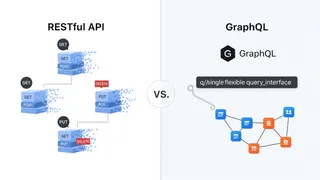 Article
RESTful API vs. GraphQL: Which API is the Right Choice for Your Project?
How RESTful and GraphQL APIs compare for a real-time data application, and how to decide between the tried-and-true REST approach and the more flexible GraphQL approach for your project.
You might also enjoy
More posts on similar topics
6 related posts