Markdown
Markdown is a lightweight markup language designed for creating formatted text using a simple, readable syntax. It's widely used for documentation, READMEs, blogs, and content creation across the web.
Markdown is a lightweight markup language for writing formatted content with a simple, readable syntax. It was created for writing on the web, and is now used in documentation, blogs, and note-taking apps.
The sections below cover Markdown syntax, formatting options, and practical examples.
No commands found
Try adjusting your search term
Getting Started
Fundamental Markdown concepts and basic syntax for beginners.
Basic Syntax
Introduction to Markdown file format and basic structure.
Simple Markdown file
Demonstrates a basic Markdown file with headings, paragraphs, and inline formatting.
# My First Markdown File
This is a paragraph of plain text that will be rendered as normal text.
You can use **bold** and *italic* text easily.- Markdown files typically use .md or .mdx extensions.
- Plain text is rendered as-is, with newlines creating paragraphs.
Markdown file with structure
Shows hierarchical document structure using different heading levels.
# Main Title## Chapter One### Section 1.1
This section introduces the topic.
Key points:- First point- Second point- Use consistent heading levels for better document organization.
- Markdown is ideal for documentation and content-first writing.
Headers
Create document headers and section titles using H1 through H6.
Hash-style headers
Hash symbols create heading levels from H1 to H6.
# Heading 1## Heading 2### Heading 3#### Heading 4##### Heading 5###### Heading 6- More hashes = smaller heading.
- Space after hash is required in most Markdown parsers.
Underline-style headers
Underlines with equals or dashes create H1 and H2 headers.
Heading 1=========
Heading 2---------- Underline method only supports H1 and H2.
- Less commonly used than hash syntax.
Headers with special characters
Headers can include special characters like &, ?, and numbers.
# Getting Started with APIs## Installation & Configuration### FAQ: Common Questions- Special characters are preserved in headers.
- Headers are often converted to URL-friendly slugs for links.
Emphasis and Formatting
Apply bold, italic, strikethrough, and inline code formatting.
Bold and italic text
Different ways to apply bold and italic emphasis to text.
This is **bold text**.This is *italic text*.This is ***bold and italic text***.This is __underscored bold__.This is _underscored italic_.- Asterisks (*) and underscores (_) both work for emphasis.
- **bold** and __bold__ are equivalent.
Strikethrough and inline code
Strikethrough and backticks for inline code formatting.
This is ~~strikethrough text~~.Use `inline code` for functions and variables.The `console.log()` function outputs to the terminal.- Strikethrough uses double tildes (~~).
- Backticks (``) preserve text formatting exactly.
Combined emphasis
Combining multiple emphasis styles in the same text.
**Bold text with `code` inside*****Italic and bold with `code`*****This is ~~important~~ no longer important**- Nesting emphasis works well for describing code and features.
- Keep combined emphasis readable and meaningful.
Lists and Nesting
Create ordered and unordered lists with proper nesting and indentation.
Unordered Lists
Create bullet-point lists using -, *, or + symbols.
Simple unordered list
Basic unordered lists with three different bullet styles.
- First item- Second item- Third item
* Alternative bullet style* Another item+ Yet another style- All three symbols (-, *, +) are equivalent.
- Consistency within a document is recommended.
Nested unordered list
Multi-level nested list demonstrating indentation structure.
- Parent item 1 - Child item 1.1 - Child item 1.2 - Grandchild item 1.2.1- Parent item 2 - Child item 2.1- Indent with 2-4 spaces for each nesting level.
- Most parsers accept 2-space indentation.
List with multiple items
Categorized nested list structure with multiple levels.
- JavaScript - Frameworks: React, Vue, Angular - Libraries: D3, Three.js- Python - Frameworks: Django, Flask - Libraries: NumPy, Pandas- Well-structured lists are easier to read and understand.
Ordered Lists
Create numbered lists with 1., 2., 3. syntax.
Simple numbered list
Basic ordered list with numeric sequence.
1. First step2. Second step3. Third step4. Fourth step- Numbers don't need to be sequential in source (1, 1, 1 renders as 1, 2, 3).
- Using correct numbers helps readability in the source.
Nested numbered and mixed lists
Nested ordered list with mixed bullet points and numbers.
1. Installation 1. Download the package 2. Extract the archive 3. Run setup2. Configuration - Set environment variables - Update config file - Verify settings3. Verification 1. Run tests 2. Check output- Mix ordered and unordered lists at different nesting levels.
- Indentation determines the nesting relationship.
Ordered list with code and formatted text
Numbered list items with inline code and bold formatting.
1. **Install** the package: `npm install markdown-parser`2. **Import** in your file: `const md = require('markdown-parser')`3. **Parse** your content with `md.parse(content)`- Lists items can contain inline formatting.
Task Lists
Create checkbox lists with [ ] and [x] for task tracking.
Simple task list
Task list with unchecked and checked items.
- [ ] Learn Markdown basics- [ ] Create first document- [x] Review formatting options- Space between brackets is required: `[ ]` not `[]`.
- Checked items use lowercase 'x': `[x]`.
Nested task list with sub-tasks
Hierarchical task list with parent and sub-tasks.
- [ ] Project setup - [x] Create repository - [ ] Initialize package.json - [ ] Install dependencies- [ ] Development - [ ] Write functions - [ ] Write tests- [x] Documentation complete- Task lists are supported by GitHub, GitLab, and many Markdown renderers.
- They're useful for project planning and issue tracking.
Task list with descriptions
Task list with formatted descriptions and inline code.
- [x] **Setup** - Install all required packages- [ ] **Development** - Write core functionality - [ ] `auth.js` - User authentication - [ ] `database.js` - Database operations- [ ] **Testing** - Write and run test suite- [ ] **Documentation** - Update README files- Combine task lists with formatting for clarity.
Links and Images
Create hyperlinks and embed images using inline and reference syntax.
Inline Links
Create links using [text](url) syntax with optional titles.
Basic inline links
Simple inline links with descriptive anchor text.
[Visit OpenAI](https://openai.com)[GitHub Profile](https://github.com)[Documentation](https://example.com/docs)- Link text must be descriptive, not "click here".
- URLs must include protocol (http:// or https://).
Links with title attribute
Links with title attributes that display on hover.
[Visit OpenAI](https://openai.com "OpenAI Official Site")[Python Docs](https://docs.python.org "Python Documentation")- Title is optional and uses double quotes.
- Titles add context about where the link goes.
Links within text
Inline links embedded within paragraph text.
For more information, check the [official documentation](https://docs.example.com).Learn [JavaScript](https://developer.mozilla.org/en-US/docs/Web/JavaScript) from authoritative sources.- Links can be placed mid-sentence naturally.
Reference Links
Create reusable links using [text][ref] and [ref]: url syntax.
Basic reference-style links
Reference-style links defined separately from content.
This is [a link][ref1] and [another link][ref2].
[ref1]: https://example.com[ref2]: https://example.org- Reference definitions can appear anywhere in the document.
- Usually placed at the end for better readability.
Reference links with multiple definitions
Multiple reference links with clear definitions.
[Visit][home] our site or check [documentation][docs].Learn about [pricing][pricing].
[home]: https://example.com[docs]: https://docs.example.com[pricing]: https://example.com/pricing- Reference links reduce duplication in long documents.
Implicit reference links
Reference links where text and reference are identical.
Visit [GitHub] for version control.Check [Stack Overflow] for answers.
[GitHub]: https://github.com[Stack Overflow]: https://stackoverflow.com- Implicit references simplify the syntax.
Images
Embed images using  syntax with optional titles.
Basic image syntax
Inline images with alt text and paths.
- Alt text is required for accessibility.
- URLs can be absolute or relative.
Images with title attribute
Images with title attributes for additional context.
- Titles display on hover in web browsers.
Reference-style images
Reference-style image embedding with definitions.
![Markdown][logo]![Another Image][img2]
[logo]: https://markdown-guide.readthedocs.io/_images/markdown-mark.svg "Markdown Logo"[img2]: ./images/banner.png- Reference images work like reference links.
Code and Quotes
Format code blocks and blockquotes for documentation and references.
Inline Code
Wrap code references in backticks for inline formatting.
Basic inline code
Inline code snippets for functions and method names.
Use the `console.log()` function to print output.The `Array.map()` method transforms arrays.Call `myFunction()` to execute your code.- Backticks must match (one on each side).
- Code within backticks is rendered as-is.
Inline code with special characters
Inline code with operators and special characters.
The spread operator `...args` unpacks iterables.Access object properties with `obj.key` or `obj['key']`.Use the `${}` template literal syntax.- Special characters are preserved exactly in backticks.
Inline code in lists and emphasis
Inline code combined with lists and emphasis.
- Use `const` instead of `var` for better scoping- The **`Array.prototype.filter()`** method is efficient- Store result in `const result = data.map(x => x * 2)`- Code can be emphasized or nested in other structures.
Code Blocks
Create multi-line code blocks using indentation or fences.
Fenced code block with language
Fenced code block with JavaScript syntax highlighting.
```javascriptfunction greet(name) { console.log(`Hello, ${name}!`);}
greet('World');```- Language identifier enables syntax highlighting.
- Triple backticks (```) fence the code block.
Python code block
Fenced code block with Python syntax highlighting.
```pythondef fibonacci(n): if n <= 1: return n return fibonacci(n-1) + fibonacci(n-2)
print(fibonacci(10))```- Language identifiers vary by parser but common ones include python, javascript, etc.
Code block without syntax highlighting
Fenced code block without language specification.
```Plain text outputNo syntax highlightingJust displayed as-is```- Useful for output, logs, or plain text.
Blockquotes
Create blockquotes using > prefix for quotes and references.
Simple blockquote
Basic blockquote with multiple lines.
> Markdown is a simple way to format text.> It supports various text styles and structures.- Use > for each line or once at the beginning of a paragraph.
Blockquote with formatting
Blockquote with bold text, code, and multiple paragraphs.
> **Important:** Always validate user input before processing.>> Use `input.trim()` and check length requirements.- Blockquotes can contain formatted text and code.
Nested blockquotes
Multi-level nested blockquotes.
> This is the first level quote.>> > This is a nested quote.> > It's indented further.>> Back to the first level.- Nesting is created by adding additional > symbols.
Tables and Horizontal Rules
Create data tables and visual separators using Markdown syntax.
Tables
Format tabular data using pipes and dashes.
Basic table
Simple table with three columns and header row.
| Name | Age | City ||--------|-----|-----------|| Alice | 28 | New York || Bob | 32 | San Diego || Carol | 25 | Boston |- Pipes (|) separate columns.
- Dashes (---) create the separator row.
Table with alignment
Table with left, center, and right alignment.
| Left | Center | Right ||:--------|:-------:|--------:|| Aligned | Center | Aligned || Left | Centered| Right |- Left colon (:---) aligns left.
- Both colons (:---:) centers.
- Right colon (---:) aligns right.
Table with formatted content
Table with code and formatted text in cells.
| Function | Description | Example ||----------|-------------|---------|| `map()` | Transforms arrays | `[1,2,3].map(x => x*2)` || `filter()` | **Filters** items | `arr.filter(x => x > 5)` || `reduce()` | Combines *all* items | `arr.reduce((a,b) => a+b)` |- Tables can contain inline formatting like code and emphasis.
Table Formatting
Apply formatting options within table cells.
Table with emphasis and code
Table with bold, code, italic, and symbols.
| Feature | Status | Notes ||---------|--------|-------|| **Login** | ✓ | Uses `OAuth2` || Single Sign-On | In Progress | *Coming soon* || Multi-Factor Auth | ✗ | Planned for Q2 |- Mix formatting styles within cells as needed.
Table with links and images alt text
Table with hyperlinks in cells.
| Technology | Link | Active ||------------|------|--------|| [React](https://react.dev) | Official Docs | Yes || [Vue](https://vuejs.org) | Vue.js Site | Yes || Angular | [Docs](https://angular.io) | In Maintenance |- Links work within table cells.
Complex table layout
Complex API documentation table.
| API Endpoint | Method | Required Parameters | Response ||--------------|--------|---------------------|----------|| `/api/users` | GET | `None` | `User[]` || `/api/users` | POST | `name`, `email` | `User` || `/api/users/:id` | PUT | `id`, `updates` | `User` || `/api/users/:id` | DELETE | `id` | `{ success: boolean }` |- Tables work well for API documentation.
Horizontal Rules
Create visual separators using horizontal line syntax.
Different horizontal rule styles
Three different styles of horizontal rules.
First section content.
---
Second section with dashes.
***
Third section with asterisks.
___
Fourth section with underscores.- All three (---, ***, ___) produce the same visual separators.
Horizontal rules in document structure
Horizontal rules separating document sections.
# Main Document
Introduction paragraph.
---
## Section 1
Content for section 1.
---
## Section 2
Content for section 2.- Rules provide visual breaks between content areas.
Minimal horizontal rule syntax
Simple horizontal rule separator.
Content above.
---
Content below.- Requires at least three characters and blank lines above/below.
Advanced Features
Learn escaping, HTML integration, and Markdown best practices.
Escaping
Escape special characters to display them literally.
Escaping special characters
Backslash escapes prevent Markdown interpretation.
\# Not a heading\* Not italic \*\[Not a link\](https://example.com)\`Not inline code\`- Backslash (\\) escapes the following character.
- Common escaped characters: #, *, {, }, [, ], |, \
Escaping symbols in text
Escaped dollar signs, operators, and symbols.
This costs \$50, not $50.Use \+ to concatenate, not +.The \& symbol is ampersand.C\+\+ is a programming language.- Most symbols need escaping only in specific Markdown contexts.
Escaping in code and tables
Escaping characters in table cells.
| Character | Escaped | Purpose ||-----------|---------|---------|| \* | \\\* | Asterisk || \[ | \\\[ | Bracket || \\ | \\\\ | Backslash |- Escaping in code blocks and tables follows Markdown rules.
HTML and Raw Content
Embed HTML and raw content within Markdown documents.
Inline HTML tags
Inline HTML elements mixed with Markdown text.
This is <mark>highlighted text</mark> using HTML.Use <small>small text</small> for footnotes.Create <span style="color:red">colored text</span> with HTML.- Most Markdown renderers support basic HTML tags.
- Use HTML for formatting Markdown doesn't support.
HTML entities and special characters
HTML entities for special symbols.
Copyright © 2024Registered ® TrademarkEm dash — separates thoughtsLeft arrow ← navigate back- Entities are useful for symbols not on keyboard.
HTML block elements
Block-level HTML with embedded Markdown.
<div style="border: 1px solid #ccc; padding: 10px;">This is a custom box with HTML.Markdown formatting still works **inside**.</div>- Most renderers support Markdown inside block HTML.
Best Practices
Write clean, readable, and accessible Markdown documents.
Well-structured Markdown document
Consistent document structure with clear hierarchy.
# Project Documentation
## OverviewA brief description of the project.
## InstallationSteps to install and setup.
## UsageExamples of how to use the project.
## ContributingGuidelines for contributing.- Use consistent heading levels throughout.
- Organize logically with clear sections.
Accessible Markdown with proper alt text
Markdown with accessibility considerations.
# User Guide

**Bold** for important terms, not just styling.Code examples use backticks: `const x = 5`.
- Use lists for multiple items- Each item is clear and concise- Organized logically- Always include alt text for images.
- Use semantic formatting (bold, italic for meaning).
CommonMark compliant Markdown
CommonMark compliant Markdown document.
# Introduction
This document follows CommonMark standards.
```python# Code blocks use language identifiersdef hello(): print("Hello, World!")```
[Links](https://example.com) are explicit
---
**Final thoughts** on Markdown compliance.- CommonMark is the standard for portable Markdown.
Was this useful?
Continue on this topic
The same subject, covered a different way from the cheatsheet above.
 Quiz
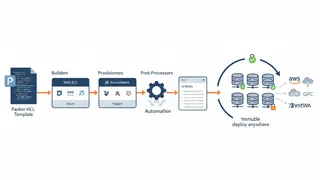
QuizPacker: Infrastructure Image Building Fundamentals
Master automated machine image creation with this quiz on Packer builders, provisioners, and HCL templates.
 Article
Scaling Up, Staying Strong: Hands-On AWS CloudFormation Techniques for Building Resilient and Scalable Systems
Building resilient and scalable systems matters for businesses that need to meet growing demand and maintain high availability. This article covers how AWS CloudFormation, an infrastructure as code tool, helps you build resilient and scalable systems with a hands-on approach.
 Article
Best Practices for Infrastructure Automation in a Cloud Native AWS Environment
Best practices for infrastructure automation in a cloud native AWS environment, covering security and compliance, CI/CD pipelines, monitoring and auto scaling, performance optimization, and cost management.
 Article
Orchestrating Infrastructure with Terraform
Terraform lets you create and manage infrastructure across multiple cloud providers by writing declarative configuration files. This post covers how Terraform provisions AWS resources, from execution plans to state management and reusable modules.
You might also enjoy
More posts on similar topics
6 related posts