VS Code
Complete VS Code keyboard shortcuts reference including command palette, navigation, editing, debugging, multicursor operations, and advanced features for macOS and Windows/Linux
A quick reference for Visual Studio Code: keyboard shortcuts, editor features, and working habits for editing and navigation.
No commands found
Try adjusting your search term
Sidebars & Views
Access and control VS Code sidebars and view panels
Toggle Sidebars and Panels
Show and hide explorer, search, debug, and source control panels
Toggle primary sidebar
Toggle the primary sidebar visibility to gain more editor space. Sidebar reopens when toggled again.
// Toggle Primary Sidebar (Explorer, Search, Debug, Extensions, SCM)// macOS: ⌘B// Windows/Linux: Ctrl+B
// Sidebars in VS Code:// - Explorer (⇧⌘E): File tree navigation// - Search (⇧⌘F): Search across files// - Debug (⇧⌘D): Debug controls and breakpoints// - Extensions (⇧⌘X): Install and manage extensions// - SCM (⇧^G on Mac, Ctrl+Shift+G on Windows): Git/version control
// Toggling gives more editor space when not needed// Sidebar state is remembered when reopened- Toggle it off when you need the full editor width
- Individual panels show different views
- Sidebar width is adjustable
- Can open multiple sidebars simultaneously
Open specific sidebar views
Direct keyboard shortcuts to jump to specific sidebar views without navigating through tabs.
// Open Specific Sidebar Views:
// Explorer View - browse and open files// macOS: ⇧⌘E// Windows/Linux: Ctrl+Shift+E
// Search View - find in files// macOS: ⇧⌘F// Windows/Linux: Ctrl+Shift+F
// Debug View - manage breakpoints and debugging// macOS: ⇧⌘D// Windows/Linux: Ctrl+Shift+D
// Source Control View - git operations// macOS: ⇧^G (Shift+Control+G)// Windows/Linux: Ctrl+Shift+G
// Extensions View - browse and install extensions// macOS: ⇧⌘X// Windows/Linux: Ctrl+Shift+X
// Each opens sidebar to that specific panel- Faster than clicking sidebar icons
- Automatically focuses the sidebar
- Repeated press toggles sidebar closed
- Each view maintains its scroll position
Bottom Panel and Terminal
Manage the bottom panel for terminal, problems, debug console
Toggle bottom panel
Toggle the bottom panel to show/hide terminal and diagnostic information, giving more vertical editor space.
// Toggle Bottom Panel (Terminal, Problems, Output, Debug Console)// macOS: ⌘J// Windows/Linux: Ctrl+J
// Bottom panel contains:// - Terminal: Run commands and scripts// - Problems: Linter/compiler errors and warnings// - Output: Extension and language server messages// - Debug Console: Debugger output and REPL
// Panel tabs appear at bottom when open// Click tabs to switch between different panels// Panel height is adjustable by dragging top border- Terminal persists when panel is hidden
- Multiple terminal tabs supported
- Problem panel shows all errors/warnings across workspace
- Commonly toggled during focused editing
Open terminal
Quickly open the integrated terminal within VS Code instead of switching to external terminal application.
// Open Integrated Terminal// macOS: ^` (Control+Backtick)// Windows/Linux: Ctrl+`
// The terminal:// - Runs in VS Code's bottom panel// - Uses your default shell (bash, zsh, PowerShell)// - Maintains current working directory context// - Supports multiple terminal instances
// Terminal shortcuts:// - Create new terminal: Ctrl+Shift+` (Cmd+Shift+` on Mac)// - Switch terminals: Alt+arrow keys// - Kill terminal: Ctrl+Shift+W (Cmd+Shift+W on Mac)- Terminal is part of VS Code workflow
- Support for multiple tabs in terminal
- Remembers last directory and text
- Can split terminals side-by-side
Editor Management
Manage splits, tabs, and editor groups
Split Editors
Open files side-by-side in split view
Split editor horizontally
Split the editor horizontally to view and edit two files side-by-side, useful for comparing implementations or referencing code.
// Split Editor Horizontally (side by side)// macOS: ⌘\// Windows/Linux: Ctrl+\
// Creates a new editor group to the right// - Current file stays in left group// - New empty group appears on right// - Drag tabs between groups to move files// - Close group by closing all tabs in it
// You can create multiple splits:// - Up to 4 editor groups (2x2 grid)// - Use keyboard shortcuts to focus each group// - Drag files between groups- Can create multiple splits for complex workflows
- Resize splits by dragging dividers
- Each group maintains independent scroll position
- Recommended for comparing related files
Navigate between editor groups
Navigate focus between multiple editor groups when using split editors for organized code comparison.
// Navigate Between Editor Groups:
// Focus left group// macOS: ⌘K ⌘← (⌘K then ⌘←)// Windows/Linux: Ctrl+K Ctrl+←
// Focus right group// macOS: ⌘K ⌘→ (⌘K then ⌘→)// Windows/Linux: Ctrl+K Ctrl+→
// Focus up group// macOS: ⌘K ⌘↑// Windows/Linux: Ctrl+K Ctrl+↑
// Focus down group// macOS: ⌘K ⌘↓// Windows/Linux: Ctrl+K Ctrl+↓
// Method: Press Ctrl+K, release, then press arrow- Ctrl+K is the group focus modifier key
- Release Ctrl+K before pressing the arrow key
- Tab order follows physical layout (left, right, up, down)
- Focus determines where new files open
Zen Mode
Full-screen editing with minimal UI
Toggle Zen mode
Enter distraction-free editing mode showing only your code, useful for focused work on complex problems.
// Zen Mode - Distraction-free full-screen editing// macOS: ⌘K Z (⌘K then Z)// Windows/Linux: Ctrl+K Z
// Zen mode hides:// - Sidebars// - Bottom panel// - Status bar (optional)// - Activity bar// - Tab bar (optional)// - Breadcrumbs (optional)
// Perfect for:// - Focused writing of long functions// - Deep code review sessions// - Presentations or live coding// - Minimizing distractions during debugging
// Exit Zen mode:// - Press Ctrl+K Z again (or ⌘K Z on Mac)// - Press Escape- Preserves window layout when exiting
- Can configure what gets hidden in settings
- Toggling again exits immediately
- Often used for live coding presentations
Close unmodified tabs
Quickly close unedited tabs to reduce clutter and keep your workspace organized.
// Close Unmodified Tabs and Groups
// Close unmodified tabs in current group// macOS: ⌘K U// Windows/Linux: Ctrl+K U
// Close all tabs in current group// macOS: ⌘K W// Windows/Linux: Ctrl+K W
// Close all editor groups// macOS: ⌘K ⌘W// Windows/Linux: Ctrl+K Ctrl+W
// Useful for cleanup and organization// Only closes tabs with no unsaved changes- Prevents accidental closing of modified files
- Only affects current editor group
- Useful after large refactoring sessions
Text Editing
Core editing shortcuts for text manipulation
Line Operations
Cut, copy, paste, and manipulate lines
Cut, copy, and paste
Basic editing operations. Cut and copy without selection manipulate entire lines automatically.
// Cut, Copy, and Paste Operations:
// Cut line (removes and copies)// macOS: ⌘X// Windows/Linux: Ctrl+X
// Copy line (copies without removing)// macOS: ⌘C// Windows/Linux: Ctrl+C
// Paste// macOS: ⌘V// Windows/Linux: Ctrl+V
// Note: Works on current line even without selection// Cut/copy with no selection operates on entire line// Pasting multiple lines inserts them as separate lines- No need to select entire line for cut/copy
- Cursor position determines which line
- Works with multiple selections
- Clipboard shared with system
Delete and duplicate lines
Line manipulation shortcuts that act on the current line without an explicit selection.
// Delete Lines// macOS: ⌘⇧K// Windows/Linux: Ctrl+Shift+K
// Deletes current line or selected lines// More efficient than select+delete// Cursor stays at same position
// Duplicate Line Down// macOS: ⌥⇧↓ (Option+Shift+Down)// Windows/Linux: Ctrl+Shift+D
// Creates copy of line below current line// Useful for:// - Creating similar code patterns// - Testing variations// - Quick scaffolding
// Move Line Up/Down// macOS: ⌥↑ / ⌥↓ (Option+Up/Down)// Windows/Linux: Alt+Up / Alt+Down
// Moves current line up or down// Works with multiple selected lines- Delete line doesn't copy to clipboard
- Duplicate line doesn't affect cursor column
- Move line preserves indentation
- Works with multiple selected lines
Find & Replace
Search and replace text in files and workspace
Find and Replace
Basic find and replace operations in current file
Find text in current file
Search for text within current file with highlighting and count of matches found.
// Find in Current File// macOS: ⌘F// Windows/Linux: Ctrl+F
// Opens find dialog at top of editor// Features:// - Type text to search// - Highlights all matches in file// - Shows match count// - Navigate with arrow buttons or Enter// - Close with Escape
// Find Options:// - Match Case (⌥⌘C): Case-sensitive matching// - Match Whole Word (⌥⌘W): Only whole words// - Use Regular Expression (⌥⌘R): Pattern matching
// Navigation:// - Enter or down arrow: next match// - Shift+Enter: previous match- Matches are highlighted in the editor
- Current match has different highlighting
- Find dialog is non-modal; you can still edit
- Search results update as you type
Find and replace in current file
Search and replace text in current file with options for exact and pattern-based matching.
// Find and Replace in Current File// macOS: ⌥⌘F// Windows/Linux: Ctrl+H
// Opens find and replace dialog// First field: text to find// Second field: replacement text
// Replace Options:// - Replace (⌘⇧1): Replace current match// - Replace All (⌘⌥⇧Enter): All matches at once// - Regular expressions: Enable for pattern replacement
// Example regex replace:// Find: console\.log\((.*)\)// Replace: console.warn($1)// This changes all console.log to console.warn
// Common use cases:// - Rename variables across file// - Update import statements// - Fix formatting issues- Replace All is dangerous; preview changes first
- Can use regex with capture groups ($1, $2, etc.)
- Undo works on all replacements
- Case sensitivity and whole word options available
Find in Files and Workspace
Search across multiple files in workspace
Find in all files
Search for text across entire workspace showing results grouped by file and line number.
// Find in All Files (Workspace Search)// macOS: ⇧⌘F// Windows/Linux: Ctrl+Shift+F
// Opens Find in Files panel// Features:// - Searches entire workspace// - Shows results by file// - Expandable file results// - Click result to open file// - Shows line number and match
// Scope Options:// - Search in: Select folders to include// - Exclude from: Specify patterns to skip// - Default excludes: node_modules, .git, etc.
// Search across project:// - Type search term// - Results grouped by file// - Results count at top// - Click file to open and navigate- Results are interactive; click to open file
- Can filter results by file pattern
- Respects .gitignore automatically
- Useful for finding all usages of a function
Replace in all files
Search and replace across entire workspace, useful for large refactoring operations.
// Replace in All Files// macOS: ⇧⌘H// Windows/Linux: Ctrl+Shift+H
// Opens Find and Replace in Files panel// Works like Find & Replace but across workspace
// Features:// - Replace single occurrence// - Replace all in file// - Replace all in workspace// - Shows files that will be changed// - Undo operates globally
// Warning: Replace All changes many files// Use Replace Current first to verify// Can undo entire operation if needed
// Regex support:// - Enable Use Regular Expression// - Use capture groups in replacement// - Particularly useful with multiple files- Shows preview of what will change
- Can exclude files from search before replacing
- Reaches every matching file, so check the preview first
- Undo works after replacing all files
Debugging
Debug code using breakpoints and stepping
Debug Control and Breakpoints
Start, stop, and control program execution
Start and stop debugging
Control program execution while debugging to find and fix issues.
// Start Debugging// Key: F5
// Starts debugger using launch configuration// Pauses at first breakpoint// Opens Debug panel on left sidebar
// Stop Debugging// Key: Shift+F5
// Terminates debug session// Returns to normal editing mode// Clears all breakpoints (false; they remain)
// Restart Debugging// Key: Shift+Ctrl+F5 (or Cmd+Shift+F5 on Mac)
// Restarts current debug session// Useful when testing changes// Faster than stop and start
// Pause/Resume// Click pause button or press F5 when running// Pause stops execution at current line// Resume continues from pause point- Requires debug configuration in launch.json
- F5 continues if paused; pauses if running
- Debug variables available in Debug Console
- Can modify variables during debugging
Set and toggle breakpoints
Set breakpoints to pause execution at specific points for inspection and debugging.
// Toggle Breakpoint// Key: F9
// On current line: sets breakpoint (breaks execution)// On existing breakpoint: removes it// Shows red dot on line number// Useful for testing specific code paths
// Conditional Breakpoint// Right-click on line number and select "Add Conditional Breakpoint"// Express condition that line must satisfy to break// Example: i > 100 (breaks when i > 100)// Useful for skipping many iterations
// Logpoint (Log Without Breaking)// Right-click on line number and select "Add Logpoint"// Message logged to console without breaking execution// Useful for tracing values without stopping// Example: "Current value: {value}"
// Breakpoint Widgets:// - View all breakpoints in Debug panel// - Enable/disable without removing// - Click to navigate to breakpoint location- Red dot indicates active breakpoint
- Gray dot indicates disabled breakpoint
- Conditional breakpoints have orange dot
- Logpoints have yellow dot
- All breakpoints shown in Debug panel
Debug Stepping
Step through code line by line
Step through code execution
Navigate through code execution line by line or function by function to trace program behavior.
// Step Over (Execute Line, Don't Enter Functions)// Key: F10
// Executes current line completely// If line calls function, executes entire function// Moves to next line in current function// Best for skipping internal function details
// Step Into (Enter Function Calls)// Key: F11
// Steps into function calls on current line// Pauses at first line inside function// Allows detailed inspection of function// Use multiple times to dive deeper
// Step Out (Exit Current Function)// Key: Shift+F11
// Executes rest of current function// Pauses at return point in calling function// Useful when already inside wrong function// Brings you back up call stack
// Continue (Run to Next Breakpoint)// Press F5 while paused// Resumes execution// Runs until next breakpoint or end- Step Over best for high-level understanding
- Step Into for inspecting function details
- Green arrow shows next line to execute
- Call stack shown in Debug panel
- Variables update after each step
Debug console and variable inspection
Inspect program state and evaluate expressions while debugging to understand variable values and behavior.
// Debug Console// Key: Shift+Ctrl+Y (or Cmd+Shift+Y on Mac)
// Shows program output and allows REPL// Type expressions to evaluate while paused// View console.log() output here
// Variables View (Debug Sidebar)// Shows variables in current scope// Local variables: scoped to current function// Global variables: workspace-wide variables// Expand objects to inspect properties
// Watch Expressions// Add custom expressions to watch// Right-click variable and "Add to Watch"// Or add expression manually to Watch panel// Updates after each step
// Hover Over Variables// Mouse over variable in editor while paused// Shows current value in tooltip// Works for object properties too// Useful while reading code- Debug Console supports JavaScript/TypeScript REPL
- Variables panel refreshes after each step
- Watch expressions help when tracking several values at once
- Hover tooltip appears immediately while paused
Multi-Cursor & Selection
Edit multiple locations simultaneously
Multi-Cursor Editing
Add cursors at multiple positions and edit simultaneously
Add cursor above and below
Create multiple cursors to edit several lines in parallel instead of repeating the same edit.
// Add Cursor Below// macOS: ⌥⌘↓// Windows/Linux: Ctrl+Alt+Down
// Creates new cursor on next line at same column// Repeated presses add more cursors below// Useful for parallel editing of multiple lines// All cursors type/edit simultaneously
// Add Cursor Above// macOS: ⌥⌘↑// Windows/Linux: Ctrl+Alt+Up
// Creates new cursor on previous line at same column// Works upward from current position// Useful for editing multiple similar lines together
// Example use case:// const name = "John";// const age = 30;// const city = "NYC";
// Add cursors at start of each line// Edit all variable names simultaneously- Each cursor operates independently but simultaneously
- All cursors visible as thin vertical lines
- Escape key to clear all but one cursor
- Well suited to editing structured data
Multi-cursor with selection
Select all occurrences of word at once and edit all simultaneously, faster than find and replace for simple cases.
// Select All Occurrences// macOS: ⌘⇧L (not standard, need to enable)// Windows/Linux: Ctrl+Shift+L
// Adds cursor at each occurrence of selected text// Selects the text at each cursor// Allows bulk renaming or editing
// Alternative: Ctrl+D for incremental selection// macOS: ⌘D// Windows/Linux: Ctrl+D
// Each press:// 1. Selects current word// 2. Adds next occurrence// 3. Continues until all selected
// Example workflow:// 1. Select a word (double-click or Ctrl+D)// 2. Press Ctrl+Shift+L to select all// 3. Type replacement text// 4. All instances updated simultaneously- Much faster than traditional find/replace
- No need for regex or dialog
- Good for renaming a variable in one pass
- Escape to clear selection
Advanced Features
Go to definition, references, and code actions
Go to Definition and References
Navigate to function and variable definitions
Go to definition
Jump directly to function and variable definitions without searching through the codebase.
// Go To Definition// Key: F12
// Opens file and scrolls to function/variable definition// Requires language server support// Works for:// - User-defined functions// - Class methods// - Variable declarations// - Imported definitions
// Peek Definition// macOS: ⌥F12// Windows/Linux: Ctrl+Alt+F12
// Shows definition in inline preview// Doesn't open new file// Shows code without navigating// Press Escape to close preview
// Back Navigation// macOS: ⌃- (Control+Minus/Dash)// Windows/Linux: Ctrl+Alt+Left
// Goes back to previous location// Maintains navigation history// Useful after multiple jumps- Requires TypeScript/JavaScript language server
- Works with other languages that have language servers
- Peek definition is non-intrusive
- Works across files and modules
Find all references
Locate all places where a function or variable is used, useful for understanding code dependencies and impact of changes.
// Go To References// Key: Shift+F12
// Shows all places where function/variable is used// Opens References panel// Lists all usages across codebase// Click to navigate to each usage
// Peek References// Right-click on symbol > "Peek References"// Shows references in inline view// Similar to Peek Definition// Close with Escape
// Find All References (Command Palette)// Command: "Go to All References"// Shows references in split view// More detailed than Peek References
// Use cases:// - Find where function is called// - Check variable usage before renaming// - Understand code dependencies// - Locate dead code- Shift+F12 opens dedicated References panel
- Can filter results by type (read/write/declare)
- Worth running before a refactor
- Results grouped by file
Code Actions and Quick Fixes
Apply automatic fixes and refactoring suggestions
Quick fix and code actions
Automatically apply fixes and refactoring suggestions offered by VS Code's language servers and extensions.
// Quick Fix// macOS: ⌘.// Windows/Linux: Ctrl+.
// Shows available fixes for error/warning at cursor// Common fixes include:// - Import missing module// - Add missing parameter// - Create missing variable// - Generate method stub// - Format code
// Trigger automatically:// Light bulb icon appears when fixes available// Click bulb or use Ctrl+. shortcut// Select fix from menu
// Available for:// - Syntax errors with solutions// - Linter/formatter suggestions// - Language-specific refactoring// - Extension-provided actions
// Common fixes:// - "Add missing import" - automatic import// - "Generate method" - stub out function// - "Fix capitalization" - correct case// - "Convert var to let" - modernize code- Light bulb appears when actions available
- Shortcut varies by platform
- Many fixes require extensions
- TypeScript provides extensive fixes
Refactoring with code actions
Perform refactoring transformations like extracting functions and variables automatically.
// Refactoring Actions// Use Ctrl+. (Cmd+. on Mac) on selection
// Available refactorings (TypeScript/JavaScript):// - Extract Variable: Extract expression to variable// - Extract Function: Extract lines to new function// - Extract Interface: Extract type to interface// - Move Statements: Move code block to different location// - Rename Symbol: Rename with occurrences updated// - Generate getter/setter: Create property accessors// - Convert to async: Convert function to async/await// - Add/remove braces: Formatting changes
// Example: Extract Variable// Highlight: calculateTotal(price * quantity + tax)// Quick Fix > Extract Variable// Creates: const extracted = price * quantity + tax;
// Example: Extract Function// Select multiple lines// Quick Fix > Extract to Function// Creates function with extracted code- Refactoring availability depends on language
- TypeScript has the widest range of refactorings
- Most refactoring requires text selection first
- Changes typically can be undone easily
Extension Management
Install, manage and configure VS Code extensions
Installing and Managing Extensions
Add and configure extensions to extend VS Code functionality
Open extensions view
Access the Extensions Marketplace to discover and install extensions for additional functionality.
// Open Extensions Sidebar// macOS: ⇧⌘X// Windows/Linux: Ctrl+Shift+X
// Shows VS Code Extensions Marketplace// Features:// - Search for extensions by name// - Shows ratings and downloads// - Install with single click// - View extension details and reviews// - See installed extensions
// Install Extension:// 1. Click Extensions icon in sidebar// 2. Search for extension name// 3. Click Install button// 4. Wait for installation (usually instant)// 5. May need reload for activation
// Manage Installed Extensions:// - Disable: Turn off without uninstalling// - Uninstall: Remove completely// - Settings: Configure extension options// - Show in Marketplace: View extension page- Most extensions install instantly
- Some require window reload
- Extensions can be workspace-specific
- Disabled extensions don't affect performance
Configure extensions and settings
Configure extension settings and choose the productivity extensions that fit your workflow.
// Extension Settings// Extended settings for installed extensions appear in:// - Settings > Extensions section// - Right-click extension > Extension Settings// - Edit in settings.json
// Common Extension Types:// - Language Support: Syntax highlighting, IntelliSense// - Formatters: Code formatting and beautification// - Linters: Code quality and style checking// - Debuggers: Language-specific debugging// - Themes: Visual appearance customization// - Keybindings: Alternative keyboard layouts// - Snippets: Code templates and shortcuts
// Recommended Essential Extensions:// - Language Support: TypeScript, Python, Go, Rust// - Formatters: Prettier, Pylint// - Linters: ESLint, Pylint// - Version Control: GitHub, GitLens// - Debug: Debugger for Chrome, Python// - Productivity: REST Client, Thunder Client// - Snippets: Popular languages have snippet packs
// Performance:// - Disable unused extensions// - Check extension page for performance notes// - Some extensions slow startup- Extensions can be disabled per workspace
- Many extensions auto-detect project type
- Check extension ratings and reviews before installing
- Popular extensions are well-maintained
Was this useful?
Continue on this topic
The same subject, covered a different way from the cheatsheet above.
 Article
Dotfiles: A Git-Based Strategy for Configuration Management
A Git-based strategy for managing your dotfiles with a bare repository, so your configuration files stay synchronized and secure across every machine you use.
 Quiz
QuizGo: Programming Fundamentals & Concurrency
Go runs much of the cloud-native toolchain. Test your knowledge on Go syntax, types, and concurrency patterns.
 Code snippet
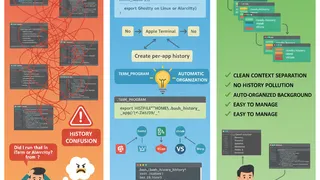
Per-App Shell History for Bash
Keep your Bash history organized across different terminal applications. This snippet automatically creates separate history files for each terminal emulator you use.
 Dev tip
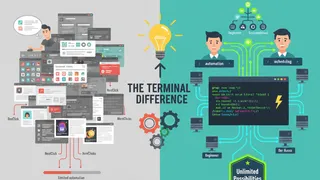
7 Reasons Learning the Linux Terminal is Worth It (Even for Beginners)
Seven concrete reasons the Linux terminal is worth learning: commands are easier to remember than they look, text beats clicking through GUI menus, commands stay stable across versions, and scripts can automate what a GUI cannot.
You might also enjoy
More posts on similar topics
6 related posts