Vim
Vim is a highly configurable text editor built to make creating and changing any kind of text very efficient. It is included as "vi" with most UNIX systems.
Vim is a highly configurable text editor built to make creating and changing any kind of text very efficient. It is included as “vi” with most UNIX systems.
The sections below cover Vim commands, shortcuts, and examples.
No commands found
Try adjusting your search term
Getting Started
Fundamental Vim concepts including modes, exiting, and opening files.
Modes
Vim operates in several modes. Knowing which mode you are in determines what every keystroke does.
Entering Insert mode
These keys transition from Normal mode to Insert mode at various cursor positions.
i " Insert before cursora " Insert after cursoro " Open new line below and enter Insert modeO " Open new line above and enter Insert modeI " Insert at beginning of lineA " Insert at end of line- Press Esc at any time to return to Normal mode.
- i and a are the most commonly used: i inserts before cursor, a inserts after.
Entering Visual mode
Visual mode lets you select text for operations like copy, delete, or indent.
v " Character-wise Visual modeV " Line-wise Visual modeCtrl-V " Block-wise Visual mode- Use V to select entire lines quickly.
- Ctrl-V handles column editing.
Entering Command-line mode
Command-line mode is where you execute Ex commands, search, and filter text.
: " Enter Command-line mode/ " Enter search forward? " Enter search backward- Press Esc or Ctrl-C to cancel and return to Normal mode.
- Use Tab for command completion in Command-line mode.
Exiting
How to save files and exit Vim.
Save and quit
These commands write the buffer to disk and/or close Vim.
:w " Save (write) the file:q " Quit (fails if unsaved changes):wq " Save and quit:x " Save and quit (only writes if changes exist)ZZ " Save and quit (Normal mode shortcut)- :x and ZZ only write if the buffer has been modified, preserving file timestamps.
- :wq always writes, even if no changes were made.
Quit without saving
Force-quit commands discard unsaved changes. Use with caution.
:q! " Quit without saving (force quit)ZQ " Quit without saving (Normal mode shortcut):qa! " Quit all windows without saving- The ! modifier forces the operation, bypassing safety checks.
- :qa! is useful when you have multiple buffers/windows open.
Save all and quit
Multi-buffer save and quit commands for working with several files at once.
:wa " Save all modified buffers:wqa " Save all buffers and quit:xa " Save all modified buffers and quit- :wa saves all buffers but keeps Vim open.
- :wqa and :xa close Vim after saving everything.
Opening Files
Different ways to open files in Vim from the command line.
Basic file opening
Open files directly from the shell with optional line or pattern positioning.
vim file.txt " Open a filevim +42 file.txt " Open file at line 42vim +/pattern file.txt " Open file at first match of pattern- The + flag accepts any Ex command to run after opening.
- Use vim + file.txt to open at the last line.
Opening multiple files
Open multiple files in different layouts directly from the command line.
vim file1.txt file2.txt " Open in buffers (:bn to switch)vim -O file1.txt file2.txt " Open in vertical splitsvim -o file1.txt file2.txt " Open in horizontal splitsvim -p file1.txt file2.txt " Open in tabs- Use -O for side-by-side editing of related files.
- Use -p for tab-based workflow.
Opening files from within Vim
Open additional files without leaving Vim using Ex commands.
:e file.txt " Edit a file in current window:sp file.txt " Open in horizontal split:vsp file.txt " Open in vertical split:tabe file.txt " Open in new tab- :e replaces the current buffer; use :bn to go back.
- Tab-complete file paths with Tab in command mode.
Editing
Commands for inserting, copying, pasting, and transforming text.
Inserting Text
Various ways to enter Insert mode and begin typing.
Basic insert commands
Each command enters Insert mode at a different position relative to the cursor or line.
i " Insert before cursorI " Insert at beginning of linea " Append after cursorA " Append at end of lineo " Open new line belowO " Open new line above- A is especially useful for adding content to the end of a line.
- o and O are preferred over pressing Enter manually.
Substitute and replace
These commands combine deletion with entering Insert or Replace mode.
s " Delete character under cursor and enter Insert modeS " Delete entire line and enter Insert modeC " Delete from cursor to end of line and enter Insert moder " Replace single character (stays in Normal mode)R " Enter Replace mode (overwrite characters)- s is equivalent to cl (change one character).
- R is useful for fixed-width editing or overwriting text in place.
Clipboard Operations
Deleting, yanking (copying), and putting (pasting) text.
Delete and yank commands
Delete commands cut text into a register. Yank commands copy without deleting.
x " Delete character under cursorX " Delete character before cursordd " Delete (cut) entire lineD " Delete from cursor to end of lineyy " Yank (copy) entire lineY " Yank entire line (same as yy)d{motion} " Delete text covered by motion (e.g., dw, d$)y{motion} " Yank text covered by motion (e.g., yw, y$)- Deleted text is stored in the unnamed register and can be pasted with p.
- Use d$ or D to delete from cursor to end of line.
Put (paste) and system clipboard
Put commands paste text from registers. The + and * registers access the system clipboard.
p " Put (paste) after cursorP " Put (paste) before cursor"+y " Yank to system clipboard"+p " Paste from system clipboard"*y " Yank to primary selection (X11)"*p " Paste from primary selection (X11)- Vim must be compiled with +clipboard for system clipboard support.
- On macOS, + and * registers behave the same.
Undo and Redo
Undoing and redoing changes in Vim.
Basic undo and redo
Vim maintains an undo tree that allows undoing and redoing changes.
u " Undo last changeCtrl-R " Redo last undone changeU " Undo all changes on current line5u " Undo last 5 changes- Vim has unlimited undo by default (limited only by memory).
- U (uppercase) undoes all changes on the current line since last entering it.
Undo branches and persistence
Vim tracks undo as a tree, not just a linear stack. Use time-based undo to revert by duration.
:undolist " Show undo branchesg- " Go to older text stateg+ " Go to newer text state:earlier 10m " Go to state 10 minutes ago:later 5m " Go to state 5 minutes from undo point:set undofile " Enable persistent undo across sessions- :earlier and :later accept time units like s, m, h.
- Enable undofile in your vimrc for persistent undo history.
Find and Replace
Search and replace text using substitute commands.
Basic substitution
The substitute command is one of the most-used editing tools in Vim.
:s/old/new/ " Replace first 'old' on current line:s/old/new/g " Replace all 'old' on current line:%s/old/new/g " Replace all 'old' in entire file:%s/old/new/gc " Replace all with confirmation- The g flag means global (all occurrences on a line).
- The c flag prompts for confirmation at each match.
Advanced substitution
Advanced substitution with ranges, flags, and regex word boundaries.
:5,20s/old/new/g " Replace in lines 5 through 20:'<,'>s/old/new/g " Replace in visual selection:%s/old/new/gi " Case-insensitive replace:%s/\<word\>/new/g " Replace whole word only:%s/pattern//gn " Count matches without replacing- Use \< and \> for word boundaries in Vim regex.
- The n flag counts matches without performing replacement.
Operators and Text Objects
Combining operators with motions and text objects for precise editing.
Operators
Operators perform actions on text defined by a motion or text object.
Common operators with motions
The operator + motion pattern is the foundation of Vim editing: {operator}{motion}.
dw " Delete from cursor to next wordd$ " Delete from cursor to end of linecw " Change word (delete and enter Insert mode)c$ " Change from cursor to end of lineyip " Yank inner paragraph>> " Indent current line right<< " Indent current line left== " Auto-indent current line- Double an operator to apply it to the whole line (dd, yy, cc, >>).
- Operators can be prefixed with a count: 3dd deletes 3 lines.
Case and filter operators
Case operators change letter casing. The filter operator (!) pipes text through external commands.
gUw " Uppercase from cursor to end of wordguw " Lowercase from cursor to end of wordg~~ " Toggle case of entire lineg~w " Toggle case of wordgUU " Uppercase entire lineguu " Lowercase entire line!}sort " Filter paragraph through external sort command- g~ toggles case, gU uppercases, gu lowercases.
- The ! operator pipes text through external tools.
Text Objects
Text objects define regions of text for operators to act upon.
Word, sentence, and paragraph objects
i = inner (just the content), a = around (content plus surrounding whitespace/delimiters).
ciw " Change inner wordcaw " Change a word (including surrounding space)dis " Delete inner sentencedap " Delete a paragraph (including trailing blank line)yip " Yank inner paragraph- ciw is one of the most commonly used text objects for replacing a word.
- dap is useful for removing entire paragraphs cleanly.
Delimiter-based text objects
Delimiter text objects work with quotes, brackets, parentheses, and HTML/XML tags.
ci" " Change inside double quotesca" " Change around double quotes (including quotes)di( " Delete inside parenthesesda( " Delete around parentheses (including parens)ci{ " Change inside curly bracesdit " Delete inside HTML/XML tagscat " Change around tags (including the tags)ci[ " Change inside square brackets- These work regardless of cursor position within the delimiters.
- Equivalent pairs: ci( = ci), ci{ = ci}, ci[ = ci].
Repeating
Repeating commands and building efficient editing workflows.
Dot command and repetition
The dot command (.) repeats the last change.
. " Repeat last change; " Repeat last f/F/t/T search, " Repeat last f/F/t/T in reverse3dd " Delete 3 lines5j " Move down 5 lines2yy " Yank 2 lines4>> " Indent 4 lines- Design your edits to be repeatable with dot (e.g., use ciw over individual character edits).
- Number prefixes work with almost all commands.
Effective dot command usage
Combine search (n) with dot (.) for a manual find-and-replace workflow.
/word " Search for 'word'ciwreplace " Change word to 'replace'n " Jump to next occurrence. " Repeat the changen " Jump to next. " Repeat again- This pattern gives you control over each replacement, unlike :%s.
- Use n to skip an occurrence, . to replace it.
Visual Mode
Selecting and operating on text visually.
Visual Selection
Entering Visual mode and selecting text.
Visual mode types
Visual mode provides a way to select text before applying an operator.
v " Enter character-wise Visual modeV " Enter line-wise Visual modeCtrl-V " Enter block-wise Visual modegv " Reselect last visual selectiono " Move to other end of selectionO " Move to other corner of block selection- Use o to adjust the other end of the selection without starting over.
- gv reselects the same area after an operation.
Extending selections
Combine entering Visual mode with text objects or motions to select specific regions.
viw " Select inner wordvip " Select inner paragraphvi" " Select inside quotesvi( " Select inside parenthesesvit " Select inside tagsV5j " Select current line and 5 lines below- In Visual mode, any motion extends the selection.
- Text objects in Visual mode select the entire object.
Visual Operations
Operations you can perform on visually selected text.
Common visual operations
After making a visual selection, apply an operator to act on the selected text.
d " Delete selectionx " Delete selection (same as d)y " Yank (copy) selectionc " Change selection (delete and enter Insert)> " Indent selection right< " Indent selection left= " Auto-indent selectionJ " Join selected lines- These operations exit Visual mode after execution.
- Use gv to reselect if you need to apply another operation.
Case and formatting operations
Visual mode allows case changes, formatting, and running Ex commands on selected lines.
~ " Toggle case of selectionU " Uppercase selectionu " Lowercase selectiongq " Format/rewrap selected text: " Enter command mode for selection (adds '<,'>)- Pressing : in Visual mode automatically adds the range '<,'>.
- gq reformats text to the textwidth setting.
Visual Block
Block-wise visual selection for column editing.
Block selection and editing
Block Visual mode enables column-oriented editing across multiple lines simultaneously.
Ctrl-V " Enter block visual modeI{text}Esc " Insert text before block on all linesA{text}Esc " Append text after block on all linesr{char} " Replace all characters in block with {char}c{text}Esc " Change block content on all linesd " Delete the block- After pressing I or A, text appears on the first line only; it applies to all lines after pressing Esc.
- Block mode suits editing tabular data or adding prefixes.
Practical block editing example
Practical examples of using block visual mode for commenting and uncommenting code.
" Add comment prefix to lines 5-15:5G " Go to line 5Ctrl-V " Enter block visual10j " Extend selection 10 lines downI# Esc " Insert '# ' at start of each line
" Remove first 2 characters from lines:Ctrl-V " Enter block visual10j " Select 10 linesll " Extend 2 columns rightd " Delete the block- This technique works well for adding/removing comment characters.
- Use $ in block selection to extend to end of each line regardless of length.
Windows and Tabs
Managing multiple views, windows, tabs, and buffers.
Split Windows
Splitting the Vim window for side-by-side editing.
Creating and navigating splits
Splits let you view and edit multiple files or different parts of the same file.
:sp " Horizontal split (same file):sp file " Horizontal split with file:vsp " Vertical split (same file):vsp file " Vertical split with fileCtrl-W s " Horizontal split (same as :sp)Ctrl-W v " Vertical split (same as :vsp)Ctrl-W w " Cycle through windowsCtrl-W h " Move to window leftCtrl-W j " Move to window belowCtrl-W k " Move to window aboveCtrl-W l " Move to window right- Ctrl-W is the window command prefix for all window operations.
- Use Ctrl-W w to cycle quickly between two windows.
Resizing and closing windows
Resize and manage window layout. Prefix resize commands with a count for larger adjustments.
Ctrl-W = " Equalize window sizesCtrl-W _ " Maximize current window heightCtrl-W | " Maximize current window widthCtrl-W + " Increase height by 1 lineCtrl-W - " Decrease height by 1 lineCtrl-W > " Increase width by 1 columnCtrl-W < " Decrease width by 1 columnCtrl-W q " Close current window:only " Close all windows except current- Use 10 Ctrl-W + to increase height by 10 lines.
- Ctrl-W = is useful after creating/closing splits to rebalance.
Tab Pages
Using tab pages for organizing multiple files.
Creating and managing tabs
Tabs in Vim are layouts that can each contain multiple windows/splits.
:tabnew " Open a new empty tab:tabe file " Open file in a new tab:tabclose " Close current tab:tabonly " Close all other tabs:tabs " List all tabs- Vim tabs are different from tabs in other editors. Each tab can contain multiple windows.
- Use :tabe with a file path to quickly open files in new tabs.
Navigating between tabs
Navigate between tabs using Normal mode shortcuts or Ex commands.
gt " Go to next tabgT " Go to previous tab3gt " Go to tab 3:tabfirst " Go to first tab:tablast " Go to last tab:tabmove 0 " Move current tab to first position:tabmove " Move current tab to last position- gt and gT are the fastest way to switch tabs.
- Tab numbers are 1-indexed in Vim.
Buffers
Managing buffers for efficient multi-file editing.
Listing and switching buffers
Buffers represent open files in memory. You can switch between them without closing any.
:ls " List all buffers:buffers " List all buffers (same as :ls):bn " Go to next buffer:bp " Go to previous buffer:b name " Switch to buffer by partial name:b 3 " Switch to buffer number 3:b# " Switch to alternate (last used) buffer- :b with partial name matching allows quick buffer switching.
- Ctrl-^ or :b# toggles between the current and last buffer.
Buffer management
Manage buffer lifecycle and apply commands across multiple buffers.
:bd " Delete (close) current buffer:bd 3 " Delete buffer number 3:bd file.txt " Delete buffer by name:set hidden " Allow switching buffers without saving:%bd " Delete all buffers:bufdo cmd " Execute command in all buffers- set hidden in your vimrc allows switching buffers with unsaved changes.
- :bufdo runs one command across every buffer (e.g., :bufdo %s/old/new/ge).
Advanced Features
Advanced Vim features for power users.
Macros
Recording and replaying sequences of commands.
Recording and playing macros
Macros record a sequence of keystrokes and replay them. They are stored in registers (a-z).
qa " Start recording macro into register 'a'q " Stop recording@a " Play macro stored in register 'a'@@ " Replay the last executed macro5@a " Play macro 'a' five times- The bottom of the screen shows 'recording @a' while recording.
- Macros can include any Normal mode commands, motions, and operators.
Practical macro example
A practical macro that wraps each line in quotes and adds a trailing comma.
" Convert a list of words to quoted, comma-separated:" apple -> 'apple'," banana -> 'banana'," cherry -> 'cherry',
qa " Start recording to register aI'Esc " Insert quote at startA',Esc " Append quote and comma at endj0 " Move to start of next lineq " Stop recording2@a " Apply to next 2 lines- End macros with j0 to position for the next line, making them repeatable.
- Use a large count (e.g., 999@a) to apply a macro to all remaining lines.
Registers
Named storage areas for text, macros, and special values.
Using named registers
Named registers (a-z) let you store multiple pieces of text independently.
"ay " Yank into register 'a'"ap " Paste from register 'a'"Ay " Append to register 'a' (uppercase):reg " View all register contents:reg a " View contents of register 'a'- Uppercase register name (A-Z) appends to the register instead of overwriting.
- Registers are shared between yank, delete, and macro operations.
Special registers
Special registers hold system clipboard, last search, last command, and other special values.
"0p " Paste last yanked text (not deleted)"+y " Yank to system clipboard"+p " Paste from system clipboard"_d " Delete to black hole register (truly delete)"/ " Last search pattern register": " Last command register". " Last inserted text register"% " Current filename register- "0 always holds the last yank, even after deleting (which goes to "1-"9).
- "_ is the black hole register: text deleted into it is truly gone.
Folds
Folding and unfolding sections of code or text.
Managing folds
Folds hide sections of text, making large files easier to navigate.
zo " Open fold under cursorzO " Open fold under cursor recursivelyzc " Close fold under cursorzC " Close fold under cursor recursivelyza " Toggle fold under cursorzA " Toggle fold under cursor recursivelyzM " Close all folds in documentzR " Open all folds in document- za is the most convenient for toggling individual folds.
- zM and zR are useful for getting an overview or seeing all content.
Creating folds
Create folds manually or configure automatic folding by indent, syntax, or other methods.
zf{motion} " Create a fold over motionzf5j " Create fold over next 5 lines:3,10fold " Create fold from line 3 to 10zd " Delete fold under cursorzE " Delete all folds in window:set foldmethod=indent " Fold by indentation:set foldmethod=syntax " Fold by syntax:set foldmethod=manual " Manual fold creation- Manual folds require foldmethod=manual.
- For code, foldmethod=syntax or foldmethod=indent are most useful.
Spell Checking
Built-in spell checking in Vim.
Spell check commands
Vim has built-in spell checking that highlights misspelled words and offers corrections.
:set spell " Enable spell checking:set nospell " Disable spell checking:set spelllang=en_us " Set spell language]s " Jump to next misspelled word[s " Jump to previous misspelled wordz= " Show spelling suggestionszg " Add word to spell file (good word)zw " Mark word as incorrect (wrong word)zug " Undo zg (remove from spell file)- Misspelled words are highlighted based on your colorscheme.
- Use ]s and [s to quickly navigate between spelling errors.
Spell checking workflow
A typical workflow for spell-checking a document using Vim.
:set spell " Turn on spell check]s " Go to first errorz= " See suggestions, pick number1z= " Accept first suggestion directly]s " Go to next errorzg " Add technical term to dictionary- 1z= accepts the first suggestion without showing the menu.
- Use zg liberally for technical terms and proper nouns.
Command-Line Tricks
Ex commands and external command integration.
External commands and filters
Vim integrates with the shell, letting you run commands and pipe text through filters.
:!ls " Run external command:!python % " Run current file with Python:r !date " Insert output of date command:r !curl -s URL " Insert content from URL:.!tr a-z A-Z " Filter current line through trCtrl-R Ctrl-W " Insert word under cursor in command line- % in Ex commands refers to the current filename.
- :r inserts command output below the cursor.
Normal and global commands
:norm runs Normal mode commands on lines. :g (global) runs commands on matching lines.
:norm A; " Append semicolon to current line:%norm A; " Append semicolon to all lines:g/pattern/d " Delete all lines matching pattern:v/pattern/d " Delete all lines NOT matching pattern:g/TODO/norm O " Add blank line above every TODO:. " Repeat last Ex command- :g/pattern/command runs a command on every matching line.
- :v is the inverse of :g, matching lines that do NOT contain the pattern.
Options and Settings
Common Vim options for customizing your editing environment.
Display and search settings
Configure how Vim displays content and handles searching.
:set number " Show line numbers:set relativenumber " Show relative line numbers:set cursorline " Highlight current line:set hlsearch " Highlight search matches:set incsearch " Show matches while typing:set ignorecase " Case-insensitive search:set smartcase " Case-sensitive if uppercase present:set nowrap " Disable line wrapping- Combine ignorecase with smartcase so a capital letter in the pattern makes the search case-sensitive.
- Toggle any boolean option with :set option! (e.g., :set number!).
Indentation and tab settings
Configure how Vim handles indentation, tabs, and whitespace display.
:set expandtab " Use spaces instead of tabs:set tabstop=4 " Display width of tab character:set shiftwidth=4 " Number of spaces for auto-indent:set softtabstop=4 " Spaces per Tab keypress:set autoindent " Copy indent from current line:set smartindent " Smart auto-indenting for C-like code:set list " Show invisible characters:set listchars=tab:>-,trail:. " Define how to show invisibles- Always set all four tab-related options together for consistency.
- Use :retab to convert existing tabs to spaces (or vice versa).
Redirection and Pipes
Piping text to and from external commands.
Filtering and piping
Vim can pipe buffer content to shell commands and read results back.
:w !cmd " Pipe buffer content to external command:r !cmd " Read command output into buffer:%!sort " Sort all lines in the file:%!sort -u " Sort and remove duplicates:'<,'>!sort " Sort selected lines:%!python -m json.tool " Format JSON- :w !cmd writes to stdin of cmd, not to a file named !cmd.
- :%!cmd replaces the entire buffer with the command output.
Clipboard and advanced piping
Use external tools for clipboard operations and advanced text processing.
:w !pbcopy " Copy buffer to macOS clipboard:r !pbpaste " Paste from macOS clipboard:w !xclip -sel clip " Copy to clipboard on Linux:w !wl-copy " Copy to clipboard on Wayland:%!column -t " Align text into columns:%!awk '{print $2}' " Extract second field of every line- Choose the clipboard command based on your operating system.
- Combine with visual selection for operating on specific regions.
Was this useful?
Continue on this topic
The same subject, covered a different way from the cheatsheet above.
 Article
VIM Cheat Sheet
VIM is a highly configurable text editor available on most Linux distributions. Ideal for editing files via the command line, its modal design offers distinct modes for various tasks. This cheat sheet provides a quick reference for VIM's essential commands and features.
 Code snippet
Per-App Shell History for Bash
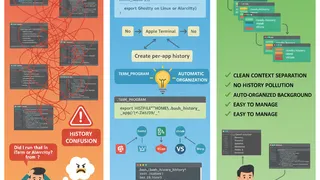
Keep your Bash history organized across different terminal applications. This snippet automatically creates separate history files for each terminal emulator you use.
 Dev tip
7 Reasons Learning the Linux Terminal is Worth It (Even for Beginners)
Seven concrete reasons the Linux terminal is worth learning: commands are easier to remember than they look, text beats clicking through GUI menus, commands stay stable across versions, and scripts can automate what a GUI cannot.
 Article
Customization Windows Terminal With Starship
How to customize Windows Terminal with Starship. Windows Terminal is a modern, fast terminal application for users of command-line tools and shells like Command Prompt, PowerShell, and WSL.
You might also enjoy
More posts on similar topics
6 related posts