Find
Complete find reference with file searching, filtering by type/size/time, permissions, advanced operations, and practical examples for locating files
Best practices for find command usage
- Always quote patterns to prevent shell expansion of special characters
- Use -type f first in find expressions for optimal performance
- Prune heavy directories early like node_modules, .git, .venv
- Use -maxdepth to limit search depth and improve performance
- Test commands first with -ls or -printf before using -delete
- Use + instead of ; with exec for better performance on many files
- Suppress permission errors with 2>/dev/null for cleaner output
- Combine multiple criteria to create efficient targeted searches
- Use -xdev to skip other filesystems when needed
- Consider locate command for quick name-only searches (faster than find)
Common errors and solutions
- error: “Permission denied” → Use 2>/dev/null to suppress or run with sudo
- error: “No such file or directory” → Verify path exists and is readable
- error: “Unexpected operator or missing operand” → Check parentheses are escaped: \( \)
- error: “Syntax error near token” → Verify \; or + is present after -exec
- error: “Find is too slow” → Use -maxdepth, -prune, and -type filters
- error: “Deleted wrong files accidentally” → Always preview with find first!
- error: “Pattern not matching expected files” → Test pattern with -ls before -delete
- error: “xtype/executable not recognized” → Use newer GNU find; some options are GNU-specific
No commands found
Try adjusting your search term
Getting Started
Introduction to find command and basic concepts
What is Find
The find command and its purpose for filesystem searching
Find command overview and basic syntax
Find walks the filesystem tree starting from the specified path, showing found items that match criteria.
# Find command: search filesystem for files matching criteria# Syntax: find [path] [options] [expression]
# Key advantages:# - Search by name, size, type, time, permissions# - Walk directory trees recursively# - Execute commands on found files# - Filter by file properties# - Combine multiple criteria with logical operators
# Basic structure:# find /search/path -name "pattern"# find . -type f -size +1M# find /var/log -mtime +30find /home -maxdepth 2 -type d 2>/dev/null | head -5/home/home/user/home/user/Documents/home/user/Downloads/home/user/Desktop- Find searches recursively by default
- -maxdepth limits directory traversal depth
- Returns full paths to found files
- Redirect stderr (2>/dev/null) to hide permission errors
Find vs other search tools
Find handles complex searches that combine multiple criteria like file type, name pattern, and location.
# Compare find with similar tools:# find: Search filesystem by name, size, type, time, permissions# locate: Fast search using pre-built database# grep: Search within file contents (text)# ls: List directory contents (no recursive search)
# Use find when you need:# - Recursive filesystem search# - Filter by file properties (size, type, time, permissions)# - Execute commands on found files# - Complex search criteria# - Real-time search (database not needed)find /tmp -maxdepth 1 -type f -name "*.tmp" 2>/dev/null | wc -l3- Find is more flexible than locate for custom criteria
- Slower than locate but more current
- Can execute actions on matched files
- Better for scripts and automation
Installation and Setup
Installing and verifying find functionality on different systems
Verify find installation
Find is typically pre-installed on Linux systems. Verify availability and version.
# Check if find is installedwhich find
# Display find versionfind --version
# Show find helpfind --help | head -20which find && find --version | head -1/usr/bin/findfind version 4.8.0- Find is standard on all Unix-like systems
- Different versions available: GNU find, BSD find
- GNU find has more options
- BSD find is on macOS by default
Install find on different systems
Find is available on all standard Linux systems and macOS, usually pre-installed.
# Ubuntu/Debiansudo apt-get updatesudo apt-get install -y findutils
# CentOS/RHELsudo yum install -y findutils
# Alpine Linuxapk add findutils
# Arch Linuxsudo pacman -S findutils
# macOS (usually pre-installed)brew install findutils # Installs GNU find as gfindfind /usr/bin -name "find" -o -name "gfind"/usr/bin/find- Findutils package provides GNU find
- macOS comes with BSD find by default
- Install GNU find (gfind) on macOS for compatibility
- Always available on modern Linux distributions
Basic Search
Simple file searching by name and basic patterns
Simple Name Search
Basic file searching by name patterns
Search for files by exact name
Find searches recursively from the specified path for files matching the name pattern.
# Find files by exact namefind . -name "filename.txt"
# Search in specific directoryfind /home -name "*.log"
# Search entire filesystemfind / -name "config.ini"
# Multiple directoriesfind /etc /var -name "*.conf"find /tmp -name "*.tmp" 2>/dev/null | head -3/tmp/file1.tmp/tmp/cache/file2.tmp/tmp/sessions/file3.tmp- Pattern matching uses shell-style wildcards
- * matches any characters in a filename
- matches single character:
- [ ] matches character ranges
- Search is recursive through all subdirectories
Name search with wildcards
Wildcard patterns provide flexible name matching for common file extensions and naming conventions.
# Find all Python filesfind . -name "*.py"
# Find by prefixfind . -name "test_*"
# Find by suffixfind . -name "*.backup"
# Complex patternsfind . -name "*[0-9].txt" # filenames with digitsfind /home -maxdepth 2 -name "*.md" 2>/dev/null | head -5/home/user/README.md/home/user/Documents/guide.md/home/user/Downloads/tutorial.md- * matches zero or more characters
- matches exactly one character:
- Patterns are case-sensitive
- Use quotes to prevent shell expansion
Case-Insensitive Search
Search for files ignoring case sensitivity
Case-insensitive file name search
The -iname flag performs case-insensitive filename matching, useful when unsure of case.
# -iname flag for case-insensitive matchingfind . -iname "README.txt"
# Matches: readme.txt, README.TXT, ReadMe.txt, etc.find . -iname "*.LOG"
# Case-insensitive wildcard patternsfind /var -iname "*.pdf"find /home -maxdepth 2 -iname "*.LOG" 2>/dev/null/home/user/app.log/home/user/system/ERROR.LOG- -iname is case-insensitive version of -name
- Matches regardless of upper/lowercase
- Combines with wildcards for flexible searching
- Slower than -name (case-sensitive)
Mixed case pattern matching
Case-insensitive searching helps find files when exact case is unknown.
# Search for backup files regardless of casefind . -iname "*.backup"  # .backup, .BACKUP, .Backup
# Configuration files with various casesfind /etc -iname "*.conf"
# Executable scripts (any case)find . -iname "*install*"find /tmp -maxdepth 1 -iname "test*" 2>/dev/null | head -5/tmp/test_file.txt/tmp/TEST_data/tmp/Test_logs.txt- Useful for cross-platform searches
- Handles case variations in naming
- Works with all wildcard patterns
Path Matching
Search by full path or path patterns
Search by full path pattern
-path matches the entire path from start, useful for excluding directories or matching nested structures.
# -path for full path matchingfind . -path "*node_modules*"
# Match specific directory structurefind . -path "*/src/components/*.js"
# Exclude patterns with -notfind . -path "*node_modules" -prune -o -name "*.js" -print
# Case-insensitive path matchingfind . -ipath "*/downloads/*"find /home -maxdepth 3 -path "*Document*" 2>/dev/null/home/user/Documents/home/user/Documents/files- -path matches from start of path being tested
- * matches path separators (unlike -name)
- -ipath is case-insensitive version
- Use -prune to skip directories efficiently
Path matching with directory pruning
Combining -prune with -o (or) and -print skips whole directories without descending into them while still finding matching files.
# Find JavaScript files, skip node_modulesfind . -name "node_modules" -prune -o -name "*.js" -print
# Exclude multiple directoriesfind . \( -path "*/node_modules" -o -path "*/.git" \) -prune -o -name "*.ts" -print
# Find test files, exclude temp directoriesfind . -path "*/temp" -prune -o -name "*test*" -printfind /home -maxdepth 3 -name ".git" -prune -o -type f -name "*.py" -print 2>/dev/null | head -3/home/user/script.py/home/user/projects/tool.py/home/user/projects/utils.py- -prune skips entire directory without descending
- More efficient than grep/filter after find
- Use with logical operators for complex patterns
Type Matching
Search by file type (regular files, directories, symlinks, etc.)
Search by file type
-type d filters to show only directories, excluding regular files and other types.
# -type flag specifies file type# f = regular file# d = directory# l = symbolic link# c = character device# b = block device# p = named pipe# s = socket
find . -type f # regular files onlyfind . -type d # directories onlyfind . -type l # symbolic linksfind /dev -type c # character devicesfind /home -maxdepth 2 -type d 2>/dev/null | head -5/home/home/user/home/user/Documents/home/user/Downloads/home/user/Desktop- f for regular files is most common type
- d for directories, l for symlinks
- Device types (c, b) typically in /dev
- Type matching improves search efficiency
Combining type with name search
Combining -type f with -name "*.md" finds only regular markdown files, excluding directories.
# Find Python files (regular files only)find . -type f -name "*.py"
# Find directories matching patternfind . -type d -name "*test*"
# Find symlinks to filesfind . -type l -name "*.txt"
# Find broken symlinks (point to nothing)find . -type l ! -exec test -e {} \;find /home -maxdepth 2 -type f -name "*.md" 2>/dev/null | head -3/home/user/README.md/home/user/Documents/guide.md/home/user/Downloads/tutorial.md- Always use -type f with name patterns for efficiency
- Reduces false positives from directories
- Works with other criteria like size and time
File Size & Type
Filter files by size and specific type tests
Size Filtering
Search files by size with various units and comparisons
Find files by size
-size finds files larger than 10MB, useful for identifying large files consuming disk space.
# -size flag for file size filtering# c = bytes# k = kilobytes (1024 bytes)# M = megabytes (1024 KB)# G = gigabytes (1024 MB)
find . -size +1M # larger than 1MBfind . -size -1M # smaller than 1MBfind . -size 100c # exactly 100 bytesfind . -size 5k # exactly 5 kilobytesfind /home -maxdepth 2 -type f -size +10M 2>/dev/null/home/user/Downloads/large_video.mp4/home/user/backup/archive.tar.gz- + means larger than, - means smaller than
- No prefix means exactly that size
- Units: c (bytes), k (1024 bytes), M (1024 KB), G (1024 MB)
- Size is rounded, so +1M includes files > 1,048,576 bytes
Find disk space hogs
Combining size criteria finds files in specific size ranges for storage analysis.
# Find large files for cleanupfind . -type f -size +100M
# Find files exactly 1MBfind . -type f -size 1M
# Range of sizesfind . -type f -size +1M -size -100M
# Empty files (special case)find . -type f -size 0find /tmp -type f -size +1M 2>/dev/null/tmp/cache/large.dat- Size filtering helps manage disk usage
- Use + and - to define ranges
- Combine with -type f for accuracy
File Type Tests
Test file type with specific attributes
Search by specific file types
Find searches for character devices in /dev, which are special file types representing hardware.
# Find symbolic linksfind . -type l
# Find character devicesfind /dev -type c
# Find block devicesfind /dev -type b
# Find named pipes (FIFOs)find /tmp -type p
# Find socketsfind /run -type sfind /dev -maxdepth 1 -type c 2>/dev/null | head -3/dev/null/dev/zero/dev/random- l = symlinks, c = character devices, b = block devices
- Useful for system administration tasks
- Device files in /dev controlled by kernel
Advanced type combinations
Finding symbolic links helps identify shortcuts and dependencies in the filesystem.
# Find broken symlinksfind . -type l -xtype l
# Find symlinks to directoriesfind . -type l
# Find all non-regular filesfind . ! -type f
# Find files and directories (not devices)find . \( -type f -o -type d \)find /home -maxdepth 3 -type l 2>/dev/null | head -3/home/user/.oh-my-zsh -> /usr/share/oh-my-zsh/home/user/.config/app/plugins -> ../../../opt/plugins- -xtype tests the type of file link points to
- operator negates conditions
- Parentheses group conditions with -o (or)
Empty Files
Search for empty files and directories
Find empty files and directories
Find locates empty files with -size 0 or using -empty test flag.
# Find empty regular filesfind . -type f -size 0
# Find empty directoriesfind . -type d -empty
# Find and delete empty filesfind . -type f -size 0 -delete
# Find empty files with timestamp infofind . -type f -size 0 -lsfind /tmp -maxdepth 2 -type f -size 0 2>/dev/null | head -3/tmp/placeholder.txt/tmp/cache/empty.log- -size 0 finds files with zero bytes
- -empty tests both empty files and directories
- Useful for cleanup operations
- Be careful with -delete flag
Cleanup empty files
Combining -empty with -delete removes empty files, useful for storage cleanup.
# Count empty filesfind . -type f -size 0 | wc -l
# Remove empty files and directoriesfind . -type f -empty -deletefind . -type d -empty -delete
# Safe delete with confirmationfind . -type f -size 0 -exec rm -i {} \;find /tmp -maxdepth 1 -type f -empty 2>/dev/null | wc -l2- -delete removes found items permanently
- -exec with -i provides confirmation before delete
- Test before deleting on important filesystems
Time-Based Search
Search files by modification, access, and change times
Modification Time
Search files by modification time
Find files by modification time
Find locates files modified more than 30 days ago, useful for archiving old logs.
# -mtime flag: modification time in days# n = exactly n days old# +n = more than n days old# -n = less than n days old
find . -mtime 0 # modified todayfind . -mtime 1 # modified exactly 1 day agofind . -mtime +30 # modified more than 30 days agofind . -mtime -7 # modified in last 7 daysfind /var/log -maxdepth 1 -type f -mtime +30 2>/dev/null/var/log/syslog.1/var/log/secure.log- mtime is modification time in complete days
- +30 means more than 30 days (older)
- -7 means less than 7 days (newer)
- 0 means today (last 24 hours)
Archive old files
Find can identify recently modified files for backup or analysis purposes.
# Find and archive logs older than 90 daysfind /var/log -type f -mtime +90 | tar czf archive.tar.gz --files-from=-
# Find old backup files and deletefind /backups -type f -name "*.bak" -mtime +365 -delete
# Find recently modified filesfind . -type f -mtime -1 # last 24 hoursfind /tmp -maxdepth 2 -type f -mtime 0 2>/dev/null | head -3/tmp/session-20250228.dat/tmp/cache/update.log- -mtime 0 means modified since midnight
- Use with -mmin for minute-level precision
- Useful for automated cleanup scripts
Access Time
Search files by access time (when file was read)
Find files by access time
Find files not accessed for more than 6 months, candidates for archiving.
# -atime flag: access time (last read)find . -atime 0        # accessed todayfind . -atime +30      # accessed more than 30 days agofind . -atime -7       # accessed in last 7 days
# Find files never accessed since modificationfind . -amin -10 # accessed in last 10 minutesfind /home -maxdepth 2 -type f -atime +180 2>/dev/null | head -3/home/user/.cache/old_cache.db/home/user/Documents/archive.zip- atime = access time (when file was read)
- Measured in days with -atime
- Use -amin for minute precision
- Some filesystems disable atime for performance
Find unused files for cleanup
Finding rarely accessed files helps identify candidates for removal to free disk space.
# Find files not accessed in a yearfind . -type f -atime +365
# Find large files not accessed recentlyfind . -type f -size +1M -atime +90
# List files with access time infofind . -type f -atime +30 -lsfind /tmp -maxdepth 1 -type f -atime +7 2>/dev/null | head -2/tmp/download.tmp- atime tracking may be disabled on some systems
- Combine with size for storage analysis
- Use with -ls to see file details
Change Time
Search files by change time (metadata changes)
Find files by change time
Find system configuration files changed in the last 24 hours (permissions or ownership changes).
# -ctime flag: change time (inode changes)# Changed when: content modified, permissions changed, owner changedfind . -ctime 0        # changed todayfind . -ctime +7       # changed more than 7 days agofind . -ctime -1       # changed in last 24 hours
# Find files with recent permission changesfind . -ctime -1 ! -mtime -1find /etc -maxdepth 1 -type f -ctime -1 2>/dev/null | head -3/etc/shadow/etc/passwd- ctime = change time (metadata like permissions, ownership)
- Different from mtime (content modification)
- Updated when inode information changes
- Useful for detecting permission changes
Monitor configuration changes
Find files with recent timestamp or permission modifications for monitoring system changes.
# Find config files changed recentlyfind /etc -name "*.conf" -ctime -1
# Find permission changes (ctime but not mtime change)find . -ctime -1 ! -mtime -1
# System changes detectionfind /etc -type f -ctime -7find /home -maxdepth 2 -type f -ctime -1 2>/dev/null | head -3/home/user/.bash_history/home/user/.cache/recent.db- Useful for security monitoring
- Detects permission/ownership changes
- Different from mtime for pure content changes
Minute-Based Searches
Search files by minute-level time precision
Find files by minute-level time
Find files modified in the last 10 minutes for monitoring recent activity.
# -mmin, -amin, -cmin for minute precision# Same operators as day versions
find . -mmin -5 # modified in last 5 minutesfind . -mmin 0 # modified in current minutefind . -amin +60 # not accessed in 60+ minutesfind . -cmin -10 # changed in last 10 minutesfind /tmp -maxdepth 1 -type f -mmin -10 2>/dev/null | head -3/tmp/session.log/tmp/cache/update.dat- -mmin uses minutes instead of days
- Same operators: +n (older), -n (newer)
- -amin for access time in minutes
- -cmin for change time in minutes
Real-time file monitoring
Minute-level searches enable real-time monitoring of file activity.
# Find files modified in last minutefind /var/log -type f -mmin -1
# Find recently created filesfind . -type f -cmin -2
# Monitor temp directorywatch -n 60 'find /tmp -type f -mmin -5'
# Activity monitoring scriptwhile true; do find . -type f -mmin -1; sleep 60; donefind /var -maxdepth 1 -type f -mmin -30 2>/dev/null | head -3/var/adm/sulog/var/syslog/current- Useful for logs and activity monitoring
- Can be used in watch loops
- Helpful for debugging and troubleshooting
Permissions & Ownership
Search files by permissions and ownership
Permission Tests
Search files by permission settings
Find files by permission
Find files with exactly 644 permissions (rw-r--r--), common for regular files.
# -perm flag for permission matchingfind . -perm 644 # exactly 644 (rw-r--r--)find . -perm -644 # has at least these permissionsfind . -perm /644 # matches any of these bitsfind . -perm u+x # user executablefind . -perm -u=rwx # has all permissions for userfind /home -maxdepth 2 -type f -perm 644 2>/dev/null | head -3/home/user/.bashrc/home/user/file.txt/home/user/Documents/readme.md- -perm mode matches exactly that permission mode
- -perm -mode matches files with at least those permissions
- -perm /mode matches any of the specified bits
- Modes can be octal (644) or symbolic (a+r)
Find dangerous permissions
Find SUID files which run with owner privileges, security-critical to monitor.
# Find world-writable filesfind . -perm -o=w
# Find SUID filesfind / -perm -u+s
# Find SGID filesfind / -perm -g+s
# Find sticky bit filesfind / -perm -u+t
# Find world-readable sensitive filesfind /etc -type f -perm -o=rfind /usr -maxdepth 2 -type f -perm -u+s 2>/dev/null | head -3/usr/bin/sudo/usr/bin/passwd/usr/bin/chfn- -o=w finds world-writable files (security risk)
- -u+s finds SUID bits (runs as owner)
- -g+s finds SGID bits (runs as group)
- u+t finds sticky bit (often on /tmp)
User/Group Ownership
Search files by user or group ownership
Find files by user ownership
Find files owned by root in user directories, potentially security issues.
# -user flag for user ownershipfind . -user root       # owned by rootfind . -user nobody     # owned by nobody userfind /home -user $USER  # files owned by current userfind . ! -user root     # NOT owned by root
# Find files by numeric UIDfind . -uid 1000 # files with UID 1000find /home -maxdepth 2 -user root 2>/dev/null | head -3/home/shared/admin-config/home/shared/system-backup- -user looks up username from /etc/passwd
- -uid uses numeric user ID directly
- -user negates the condition
- $USER expands to current username
Find files by group ownership
Find directories owned by the 'users' group.
# -group flag for group ownershipfind . -group admin     # group-owned by adminfind . -group staff     # group stafffind /tmp -group root   # temp files owned by rootfind . ! -group wheel   # NOT group wheel
# Find files by numeric GIDfind . -gid 1001 # files with GID 1001find /home -maxdepth 1 -type d -group users 2>/dev/null/home/user1/home/user2- -group looks up group name from /etc/group
- -gid uses numeric group ID directly
- -group negates the condition
Executable/Readable/Writable Tests
Search files by specific permission tests
Find executable files
Find executable files matching a pattern, such as shell commands like ls.
# -executable tests if file is executable by current userfind . -type f -executable
# Executable scriptsfind . -type f -executable -name "*.sh"
# Non-executable regular filesfind . -type f ! -executable
# Find executable in PATHfind $PATH -type f -executable -name "find"find /usr/bin -maxdepth 1 -type f -executable -name "ls*" 2>/dev/null/usr/bin/ls- -executable tests if current user can execute
- Works with -name for specific executable search
- -executable finds non-executable files
- Useful for security audits
Find readable and writable files
Find read-only files which are readable but not writable by current user.
# -readable tests if file is readable by current userfind . -type f -readable
# -writable tests if file is writable by current userfind . -type f -writable
# Files readable but not writablefind . -type f -readable ! -writable
# Writable-only files (unusual)find . -type f ! -readable -writablefind /home -maxdepth 2 -type f -readable ! -writable 2>/dev/null | head -3/home/user/important.txt/home/user/Documents/archive- -readable tests read permission for current user
- -writable tests write permission
- Respects user's actual permissions
- Useful for access verification
Advanced Operations
Complex operations combining multiple criteria
Logical Operators
Combine multiple search criteria using logical operators
Combine conditions with AND and OR
Find files with either .py or .js extension using OR operator with parentheses.
# -and (implicit between conditions)find . -type f -name "*.py"  # type AND name
# -o for OR operatorfind . \( -name "*.py" -o -name "*.js" \)
# ! for NOT operatorfind . ! -name "*.tmp"
# Complex combinationsfind . -type f \( -name "*.log" -o -name "*.txt" \) -size +1Mfind /home -maxdepth 2 -type f \( -name "*.py" -o -name "*.js" \) 2>/dev/null | head -3/home/user/script.py/home/user/app.js/home/user/projects/utils.py- Multiple conditions are AND by default (implicit)
- -o provides OR logic
- ! provides NOT logic
- Parentheses group conditions
- Escape parentheses in shell: \( \)
Complex logical expressions
Find large document files combining OR logic with size filtering.
# Find large files modified today OR accessed recentlyfind . -size +10M \( -mtime 0 -o -atime -1 \)
# Find Python files not in test directoryfind . -name "*.py" ! -path "*/test*"
# Find recently modified OR changed filesfind . \( -mtime -1 -o -ctime -1 \) -type f
# Complex: large old files not backed upfind . -size +100M -mtime +90 ! -name "*.backup"find /home -maxdepth 2 -type f \( -name "*.pdf" -o -name "*.doc" \) -size +1M 2>/dev/null | head -3/home/user/Documents/thesis.pdf/home/user/Downloads/manual.pdf- Group with parentheses for complex expressions
- AND binds tighter than OR in traditional logic
- Parentheses set the evaluation order explicitly
Directory Pruning
Skip directories to improve search performance
Prune directories to skip recursion
Prune .cache directory to skip hidden cache, finding only markdown files.
# -prune skips directory without descendingfind . -name "node_modules" -prune -o -name "*.js" -print
# Skip multiple directoriesfind . \( -path "*/node_modules" -o -path "*/.git" \) -prune -o -type f -print
# Skip .git and .venvfind . -name ".git" -prune -o -name ".venv" -prune -o -type f -print
# Common excluded directoriesfind . -path "*/.git" -prune -o -path "*/node_modules" -prune -o -type f -printfind /home -maxdepth 2 -name ".cache" -prune -o -type f -name "*.md" -print 2>/dev/null | head -3/home/user/README.md/home/user/Projects/guide.md- -prune stops descending into matched directories
- Much faster than searching and filtering
- Used in "path -prune -o action -print" pattern
- -o (or) follows -prune for alternative action
Efficient recursive search with prune
Pruning several directories at once keeps the search from descending into unneeded paths.
# Find source files, skip build and cachefind . -type d \( -name "build" -o -name "dist" -o -name ".cache" \) -prune -o -type f -name "*.src" -print
# Search for config files, skip system directoriesfind /home -type d -name ".config" -prune -o -name "config.json" -print
# Find all files, avoid large directoriesfind . \( -name "node_modules" -o -name ".git" -o -name "venv" \) -prune -o -type f -printfind /tmp -maxdepth 3 \( -name ".git" -o -name ".cache" \) -prune -o -type f -print 2>/dev/null | head -3/tmp/session.log/tmp/data/config.json- Parentheses group multiple -name conditions
- -o separates multiple directories to prune
- Results in much faster searches
- Especially useful for projects with large dependencies
Regular Expressions
Use regex patterns for matching in find
Find with regular expressions
Find PDF files using regex pattern matching full path.
# -regex for full path regex matchingfind . -regex ".*\.py$"          # Python filesfind . -regex ".*test.*\.js$"    # test JavaScript filesfind . -regex ".*/src/.*\.ts$"   # TypeScript in src/
# -iregex for case-insensitivefind . -iregex ".*\.(log|txt)$"  # .log or .txt files (case-insensitive)
# Regex with character classesfind . -regex ".*[0-9]\{4\}\.txt$" # files with 4 digits before .txtfind /home -maxdepth 3 -regex ".*\.pdf$" 2>/dev/null | head -3/home/user/Documents/report.pdf/home/user/manual.pdf- -regex matches full path (not just filename)
- Pattern is extended regex by default
- .* matches any characters to root
- $ anchors match path end
- Slower than -name but more flexible
Complex regex patterns
Find log and temp files using regex pattern with alternation.
# Find versioned filesfind . -regex ".*v[0-9]+\.[0-9]+\.txt$"
# Find config files in specific structurefind . -regex ".*/config/[^/]*\.json$"
# Find date-named filesfind . -regex ".*[0-9]\{4\}-[0-9]\{2\}-[0-9]\{2\}.*"
# Find non-dotfilesfind . -regex ".*/[^.][^/]*$"find /var -maxdepth 2 -regex ".*\.(log|tmp)$" 2>/dev/null | head -3/var/log/syslog.log/var/tmp/session.tmp- Regex matches patterns that -name cannot express
- Performance cost vs simple -name
- Extended regex is default (no need to escape special chars in [])
Execution with Files
Execute commands on found files safely
Execute commands with -exec
Execute ls command on each found .txt file showing detailed information.
# -exec runs command on each found file# {} placeholder replaced with filename# ; terminates command (escape with \;)
find . -name "*.log" -exec rm {} \;find . -type f -exec chmod 644 {} \;find . -name "*.py" -exec python3 {} \;
# -exec with outputfind . -type f -exec wc -l {} \;find /tmp -maxdepth 1 -type f -name "*.txt" -exec ls -lh {} \; 2>/dev/null-rw-r--r-- 1 user user 12K /tmp/file1.txt-rw-r--r-- 1 user user 5.2K /tmp/file2.txt- {} is placeholder for found filename
- \\; terminates the command
- Spawns new process for each file
- Can be slow with many files
Safe and efficient execution
Use + instead of ; to pass multiple files to command for efficiency.
# -exec with + instead of ; (more efficient)find . -type f -exec grep -l "TODO" {} +
# -execdir runs in file's directoryfind . -type f -name "*.bak" -execdir rm {} \;
# Interactive prompt with -okfind . -type f -name "*.tmp" -ok rm {} \;
# Use xargs for better performancefind . -type f -print0 | xargs -0 rmfind /home -maxdepth 2 -type f -name "*.md" -exec wc -l {} + 2>/dev/null | tail -142 total- + batches files into single command call (more efficient)
- -execdir changes to file directory before executing
- -ok prompts before each execution
- -print0 with xargs handles spaces in filenames
Common exec patterns
Execute base64 encoding on found files.
# Remove old filesfind . -type f -mtime +90 -exec rm -f {} \;
# Change permissionsfind . -type f -exec chmod 644 {} +find . -type d -exec chmod 755 {} +
# Show file informationfind . -type f -name "*.log" -exec ls -lh {} \;
# Compress old logsfind /var/log -type f -mtime +30 -exec gzip {} \;find /tmp -maxdepth 1 -type f -exec base64 {} \\; 2>/dev/null | head -2ZmlsZSBjb250ZW50IGluIGJhc2U2NAo=- Common use: rm, chmod, gzip, grep
- Always test before destructive operations
- Use + for better performance when possible
Output & Actions
Control output format and perform actions on files
Print Options
Format output from find command
Format find output
Custom printf format showing filename and size in bytes.
# Default -print (newline separated)find . -name "*.py"      # same as: find . -name "*.py" -print
# -print0 for null-terminated (handles spaces)find . -type f -print0 | xargs -0 ls -la
# -printf for custom formattingfind . -type f -printf "%p %s bytes\n"
# Format options:# %p = path# %s = size# %m = permissions (octal)# %u = username# %g = group# %T = modification timefind /home -maxdepth 2 -type f -printf "%f %s\n" 2>/dev/null | head -3bashrc 2145vimrc 5329config.json 1024- -printf builds custom output format
- %f = filename only, %p = full path
- %s = size, %m = permissions
- %u = user, %g = group
- \\n for newline, \\t for tab
Advanced output formatting
Show owner, size, and filename in custom format.
# File info with permissionsfind . -type f -printf "%m %u:%g %s %p\n"
# Size in human-readable formatfind . -type f -exec ls -lh {} + | awk '{print $9, $5}'
# JSON-like outputfind . -type f -printf "{\\"file\\": \\"%p\\", \\"size\\": %s}\n"
# List with timestampsfind . -type f -printf "%TY-%Tm-%Td %p\n"find /tmp -maxdepth 1 -type f -printf "%u %s %f\n" 2>/dev/null | head -3root 2048 config.tmpuser 1024 session.dat- %T formatter for time (complex)
- %m for octal permissions
- Useful for parsing and post-processing
Deletion Actions
Delete files matching criteria
Delete files matching criteria
Delete all .tmp files in /tmp directory.
# -delete removes found files# BE CAREFUL - permanent deletion!
find . -type f -name "*.tmp" -delete
# Delete empty filesfind . -type f -size 0 -delete
# Delete old filesfind /tmp -type f -mtime +30 -delete
# Delete in specific directoryfind /tmp -maxdepth 1 -type f -deletefind /tmp -maxdepth 1 -type f -name "*.tmp" -delete 2>/dev/null; echo "Deleted"Deleted- -delete removes found items permanently
- No confirmation or recovery possible
- Always test command first
- Consider backing up before bulk delete
Safe deletion with confirmation
List files with -ls before deletion for safety verification.
# Preview before deletingfind . -name "*.log" -mtime +30  # preview first
# Then delete with confirmationfind . -name "*.log" -mtime +30 -ok rm {} \;
# Safe delete with listfind . -type f -size 0 -ls     # list empty filesfind . -type f -size 0 -delete # delete them
# Backup before deletionfind . -type f -mtime +365 -exec cp {} {}.backup \;find . -type f -mtime +365 -deletefind /tmp -maxdepth 2 -type f -name "test_*.log" -ls 2>/dev/null | head -12097152 4 -rw-r--r-- 1 user user 2048 Feb 28 10:30 /tmp/test_run.log- Always preview with -ls or -printf before -delete
- Use -ok with rm for interactive confirmation
- Keep backups for important deletions
Advanced Exec Commands
Complex command execution patterns
Process files with exec commands
Count lines in markdown files combining with + for batching.
# Run command on each filefind . -type f -name "*.jpg" -exec file {} \;
# Batch process multiple filesfind . -name "*.txt" -exec cat {} + > combined.txt
# Get file infofind . -type f -exec stat {} \;
# Process with pipesfind . -type f -exec grep -l "error" {} \;find /home -maxdepth 2 -type f -name "*.md" -exec wc -l {} + 2>/dev/null42 /home/user/README.md15 /home/user/GUIDE.md57 total- {} is replaced with found filename
- + batches multiple files in single command call
- \\; runs command for each file separately
- Pipe output with $(...)
Complex exec workflows
Identify file types using the 'file' command on found files.
# Convert image filesfind . -name "*.png" -exec convert {} {}.jpg \;
# Validate files before processingfind . -type f -exec sh -c 'head -c 4 "$1" | grep -q "^PDF" && echo "$1"' _ {} \;
# Parallel processing with GNU parallelfind . -name "*.log" | parallel gzip {}
# Backup and deletefind . -type f -mtime +365 -exec mv {} /backup/\; -deletefind /tmp -maxdepth 1 -type f -exec file {} \\; 2>/dev/null | head -2/tmp/session.log: ASCII text/tmp/cache.dat: data- Complex shell commands can follow -exec
- Use sh -c for complex one-liners
- GNU parallel for parallel processing
Practical Examples
Real-world use cases and performance tips
Real-World Use Cases
Common practical scenarios using find
Cleanup large old files
Find and list large log files older than 30 days for archiving or deletion.
# Find and list large files modified long agofind /home -type f -size +100M -mtime +90 -exec ls -lh {} \;
# Archive old large filesfind /var/log -type f -size +10M -mtime +30 | tar czf archive.tar.gz --files-from=-
# Delete old temp filesfind /tmp -type f -mtime +7 -delete
# Cleanup disk space safelyfind . -type f \( -name "*.tmp" -o -name "*.bak" -o -name "*.log" \) -deletefind /var/log -maxdepth 1 -type f -mtime +30 -exec ls -lh {} \; 2>/dev/null | head -2-rw-r--r-- 1 root root 45M Feb 28 12:00 /var/log/syslog.1-rw-r--r-- 1 root root 23M Feb 28 10:00 /var/log/auth.log- Always use -mtime and size together for cleanup
- Backup before making changes
- Use -ls to preview before deletion
- Monitor free space regularly
Project maintenance
Count total lines of Python code across project.
# Find source files recursively, skip buildfind . -path "./build" -prune -o -path "./dist" -prune -o -type f -name "*.src" -print
# Count lines of codefind . -name "*.py" -exec wc -l {} + | tail -1
# Find files needing updatefind . -type f -name "*.js" -mtime +365
# Analyze code patternsfind . -name "*.py" -exec grep -l "TODO" {} \;find /home -maxdepth 3 -name "*.py" -type f -exec wc -l {} + 2>/dev/null | tail -11250 total- Prune build directories for accuracy
- Use grep to find patterns in code
- Monitor code metrics over time
Security and permissions audit
Find files with group or other write permissions (potential security issue).
# Find SUID files (security risk)find / -type f -perm -u+s 2>/dev/null
# Find world-writable filesfind . -type f -perm -o+w
# Find files with unusual permissionsfind . -type f ! -perm 644
# Find recently modified system filesfind /etc -type f -mtime -1
# Find files with no ownerfind . -nouserfind /home -maxdepth 2 -type f -perm /go+w 2>/dev/null | head -2/home/user/shared_file.txt- Audit SUID/SGID files regularly
- Check for world-writable files
- Monitor system file changes
Backup and synchronization
Count files modified in last day for backup purposes.
# Find recent files for backupfind . -type f -mtime -1 | tar czf backup_today.tar.gz --files-from=-
# Identify changed filesfind . -mtime -7 -o -ctime -7
# Mirror directory with permissionsfind . -type f | cpio -p -d -v /backup/
# Create modification list for syncfind . -type f -printf "%T@ %p\n" | sort -nfind /home -maxdepth 2 -type f -mtime -1 2>/dev/null | wc -l12- Use tar with --files-from for safe backup
- cpio alternative for file copying
- Sort by modification time for analysis
Performance Optimization
Tips for efficient find usage on large filesystems
Optimize find performance
Count files with limited depth and error suppression for faster execution.
# Use -maxdepth to limit recursion depthfind . -maxdepth 3 -type f -name "*.py"
# Type first (most selective)find . -type f -name "*.log"  # betterfind . -name "*.log" -type f  # slower
# Prune large directories earlyfind . -path "*/node_modules" -prune -o -type f -print
# Suppress error messages to speed upfind . -name "*.js" 2>/dev/nullfind /home -maxdepth 2 -type f 2>/dev/null | wc -l342- -maxdepth reduces directory traversal
- Type filter is very selective
- -prune skips entire directories efficiently
- Redirect stderr (2>/dev/null) to hide permission errors
Filesystem-specific optimizations
Use -xdev to stay on same filesystem when searching /etc.
# Find with NFS filesystem (use -noleaf)find /mnt/nfs -noleaf -type f -name "*.txt"
# Find local filesystem (use -xdev to skip other filesystems)find / -xdev -type f -name "config"
# Parallel find on large directoriesfind . -type d | parallel find {} -maxdepth 1 -type f
# Use locate for filename-only searches (fast)locate "*.py" # much faster than find . -name "*.py"find /etc -xdev -type f -name "*.conf" 2>/dev/null | wc -l23- -noleaf for NFS mounted directories
- -xdev prevents crossing filesystem boundaries
- locate database much faster for name-only searches
- GNU parallel can distribute work across cores
Batch operations efficiently
Use + to batch files into one command for better performance.
# Batch with + instead of separate calls with \;find . -type f -exec chmod 644 {} +    # fast: 1 process/callfind . -type f -exec chmod 644 {} \;   # slow: 1 process/file
# Use xargs with parallel executionfind . -type f -print0 | xargs -0 -P 4 rm
# Combine sort and processingfind . -type f -printf "%s %p\n" | sort -rn | head -10
# Process in batchesfind . -type f | head -100 | xargs tar czf batch1.tar.gzfind /tmp -maxdepth 1 -type f -exec ls -1 {} + 2>/dev/null | head -3/tmp/file1.txt/tmp/file2.log/tmp/file3.tmp- + batches multiple files (one process/batch)
- \\; calls process for each file (slow)
- xargs -P uses multiple parallel processes
- Sort by size for analysis with -printf
Was this useful?
Continue on this topic
The same subject, covered a different way from the cheatsheet above.
 Quiz
QuizLinux: System Administration Fundamentals
Test your knowledge of Linux fundamentals with a quiz covering essential commands, file system navigation, permissions, process management, package managers, and Linux administration best practices.
 Code snippet
Essential Bash Variables for Every Script
Master the most useful Bash special parameters and environment variables. Learn how to use $0, $?, $@, $UID, $EUID, and XDG variables to write more reliable and portable scripts.
 Glossary
Linux Server Administration
Essential terms every Linux system administrator and DevOps engineer should know.
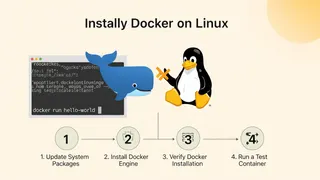 Article
How To Install Docker On Linux In 4 Easy Steps
A step-by-step guide to installing Docker on Linux in 4 steps, from updating the package index to running your first Docker container.
You might also enjoy
More posts on similar topics
6 related posts