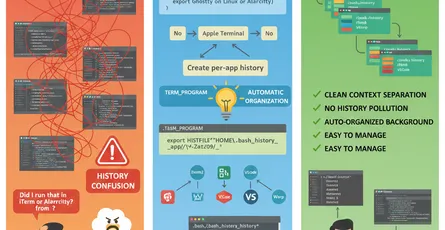
Overview
Quick Tip
You know what’s worse than writing scripts? Writing scripts that break every time you move them to a different machine. Built-in Bash variables fix that.
The problem with hard-coded paths
We’ve all been there. You hard-code /home/john/.config in your script, and it works great on your laptop. Then you run it on the server, and everything breaks because the server uses a different username or directory structure. When you’ve got dozens (or hundreds) of scripts, tracking down all these hard-coded values becomes a real headache.
The solution: built-in Bash variables
Bash already knows about your system. It’s got built-in variables for script paths, user IDs, home directories, and more. Instead of guessing or hard-coding, just ask Bash. Your scripts will work everywhere without modification.
Key Bash variables summary
TL;DR
- Use
$BASH_SOURCE(or$0) to get the script path reliably - Check exit codes with
$?to handle errors properly - Access arguments with
$1,$2,$@, and$* - Get user IDs with
$UIDand$EUIDfor permission checks - Use XDG variables for standard user directories instead of hard-coding paths
Special parameters
Get the script path
Sometimes you need to know where your script lives. Maybe you’re building a help menu and want to show the script name, or you need to reference files relative to the script’s location. Here’s how you grab that info.
#!/usr/bin/env bash
# $BASH_SOURCE gives you the full path to this scriptSCRIPT_PATH="$BASH_SOURCE"echo "Full path: $SCRIPT_PATH"# Output: /home/user/scripts/my_script.sh
# Use basename to strip the directory and keep just the filenameSCRIPT_NAME="$(basename "$BASH_SOURCE")"echo "Script name: $SCRIPT_NAME"# Output: my_script.sh
# Here's a practical use case: building a help menucat <<EOFUsage: $SCRIPT_NAME [OPTIONS]
Options: -h, --help Show this help message -v, --version Show version informationEOFTip
There’s also $0, which works similarly but has a quirk. If someone sources your script (like source my_script.sh), $0 returns “bash” instead of the script name. $BASH_SOURCE doesn’t have this issue, so use that if you’re writing Bash-specific code.
Check exit status
When a command finishes, it leaves behind an exit code, a kind of status report. If everything went fine, you get 0. If something went wrong, you get a number between 1 and 255. The variable $? holds this exit code, and you can use it to figure out what happened and respond accordingly.
#!/usr/bin/env bash
# Method 1: Explicit check using $?ls /nonexistent_directoryif [[ $? -ne 0 ]]; then echo "Error: Directory does not exist" exit 1fi
# Method 2: Cleaner approach test the command directly# If ls succeeds, run the 'then' block. If it fails, run 'else'if ls /home; then echo "Directory exists"else echo "Directory does not exist"fi
# Method 3: One-liner with logical operators# && means "run this if the previous command succeeded"# || means "run this if the previous command failed"ls /home && echo "Success!" || echo "Failed!"
# Method 4: Handle specific error codes# Some commands return different numbers for different errorsgrep "pattern" file.txtcase $? in 0) echo "Pattern found";; 1) echo "Pattern not found";; 2) echo "File error or syntax problem";; *) echo "Unknown error";;esacImportant
Here’s the catch. $? only remembers the last command. If you run another command, the old exit code is gone. So if you need it later, save it right away:
some_commandexit_code=$? # Save it now!echo "Did some other stuff"# Now we can still check the original exit codeif [[ $exit_code -ne 0 ]]; then echo "Original command failed"fiAccess script arguments
You’ll want your scripts to accept arguments: filenames, options, or configuration values. Bash makes this pretty straightforward, though the syntax looks a bit weird at first.
#!/usr/bin/env bash
# Individual arguments are numbered: $1, $2, $3, etc.echo "First argument: $1"echo "Second argument: $2"echo "Third argument: $3"# Run like: ./script.sh hello world test# Output: hello, world, test
# Count how many arguments were passedecho "Total arguments: ${#@}"
# Loop through all arguments# $@ treats each argument separately, which is usually what you wantecho -e "\nProcessing all arguments:"for arg in "$@"; do echo " - $arg"done
# The difference between $@ and $*# This matters when your arguments contain spacesfunction demo_at { # Each argument stays separate printf '@: [%s]\n' "$@"}
function demo_star { # All arguments merge into one string printf '*: [%s]\n' "$*"}
echo -e "\nDifference between \$@ and \$*:"demo_at "arg one" "arg two" # Prints: @: [arg one] and @: [arg two]demo_star "arg one" "arg two" # Prints: *: [arg one arg two] (all together)
# Real-world example: A function that processes filesfunction process_files() { # First, make sure we got at least one file if [[ ${#@} -eq 0 ]]; then echo "Error: No files specified" echo "Usage: process_files file1 file2 ..." return 1 fi
# Process each file for file in "$@"; do if [[ -f "$file" ]]; then echo "Processing: $file" # Your actual file processing logic goes here # wc -l "$file" # Example: count lines else echo "Warning: File not found: $file" fi done}
# You'd call it like this:# process_files report.txt data.csv notes.mdTip
Always use quotes around "$@". If you don’t, filenames with spaces will break. For example, without quotes, "my file.txt" becomes two separate arguments: "my" and "file.txt". With quotes, it stays as one argument.
Environment variables
Get user ID
Sometimes you need to know who’s running your script. Maybe you’re creating user-specific temp files, or you need to check if someone’s running as root. That’s where $UID and $EUID come in.
#!/usr/bin/env bash
# Root check: A common pattern for admin scripts# Root user always has UID 0if [[ $EUID -eq 0 ]]; then echo "Running with root privileges" # Safe to do system-level stuff hereelse echo "Running as regular user (UID: $UID)" echo "Some operations may require sudo" # Maybe prompt for sudo, or just warn and continuefi
# Build paths specific to the current user# This is useful for multi-user systemsUSER_CACHE_DIR="/run/user/$UID/cache"echo "User cache directory: $USER_CACHE_DIR"# Example: /run/user/1000/cache
# Practical example: Create a temp directory that's unique per user# This prevents conflicts when multiple users run your scriptfunction create_user_temp() { local temp_dir="/tmp/myapp-$UID"
if [[ ! -d "$temp_dir" ]]; then mkdir -p "$temp_dir" echo "Created temp directory: $temp_dir" fi
echo "$temp_dir"}
# Now each user gets their own isolated temp spaceTEMP_DIR=$(create_user_temp)echo "Using temp directory: $TEMP_DIR"# User 1000: /tmp/myapp-1000# User 1001: /tmp/myapp-1001Note
You might be wondering about the difference between $UID and $EUID. For most scripts, they’re the same. They only differ in weird edge cases involving sudo or special setuid programs. When in doubt, use $EUID for permission checks. That is the one that matters.
Use the XDG directory specification
Where should your script save config files? Or cache data? Or store downloaded files? You might think “just use ~/.config” but what if a user wants to organize things differently? That’s where XDG variables come in. They’re the standard way Linux systems handle user directories.
#!/usr/bin/env bash
# Set XDG variables if they're not already set# The syntax ${VAR:=default} means "use VAR if it exists, otherwise use default"export "${XDG_CONFIG_HOME:=$HOME/.config}" # Config filesexport "${XDG_CACHE_HOME:=$HOME/.cache}" # Temporary cache dataexport "${XDG_DATA_HOME:=$HOME/.local/share}" # Application dataexport "${XDG_STATE_HOME:=$HOME/.local/state}" # State files (logs, history, etc.)
# Now build your app's specific directoriesAPP_NAME="myapp"APP_CONFIG_DIR="$XDG_CONFIG_HOME/$APP_NAME" # ~/.config/myappAPP_CACHE_DIR="$XDG_CACHE_HOME/$APP_NAME" # ~/.cache/myappAPP_DATA_DIR="$XDG_DATA_HOME/$APP_NAME" # ~/.local/share/myapp
# Create these directories if they don't exist yetfunction initialize_app_directories() { mkdir -p "$APP_CONFIG_DIR" mkdir -p "$APP_CACHE_DIR" mkdir -p "$APP_DATA_DIR"
echo "Initialized application directories:" echo " Config: $APP_CONFIG_DIR" echo " Cache: $APP_CACHE_DIR" echo " Data: $APP_DATA_DIR"}
initialize_app_directories
# Example: Save settings to the config directoryfunction save_config() { local config_file="$APP_CONFIG_DIR/settings.conf"
cat > "$config_file" <<EOF# Application settingsdebug_mode=falselog_level=infomax_connections=100EOF
echo "Saved config to: $config_file"}
# Example: Load settings from the config directoryfunction load_config() { local config_file="$APP_CONFIG_DIR/settings.conf"
if [[ -f "$config_file" ]]; then # Source the config file to load variables source "$config_file" echo "Loaded config from: $config_file" echo "Debug mode: $debug_mode" echo "Log level: $log_level" else echo "Config file not found: $config_file" return 1 fi}
save_configload_configTip
This respects how users organize their systems, not just the spec. Some people put config files on a separate partition, or use custom paths for backups. By using XDG variables, your script just works in all these scenarios.
Complete example: production-ready script
Here’s what a script looks like when you use all these variables properly. It’s got error handling, logging, argument processing, and follows XDG standards. Use it as a template for your own scripts.
#!/usr/bin/env bash
# Strict mode: exit on errors, undefined variables, and pipe failuresset -euo pipefail
# Set up XDG directories with sensible defaultsexport "${XDG_CONFIG_HOME:=$HOME/.config}"export "${XDG_CACHE_HOME:=$HOME/.cache}"export "${XDG_DATA_HOME:=$HOME/.local/share}"
# Grab script info using the variables we learned aboutSCRIPT_NAME="$(basename "$BASH_SOURCE")"SCRIPT_DIR="$(cd "$(dirname "$BASH_SOURCE")" && pwd)"APP_NAME="myapp"
# Build our application's directory structureAPP_CONFIG_DIR="$XDG_CONFIG_HOME/$APP_NAME"APP_CACHE_DIR="$XDG_CACHE_HOME/$APP_NAME"APP_LOG_FILE="$APP_CACHE_DIR/app.log"
# ANSI color codes for pretty outputRED='\033[0;31m'GREEN='\033[0;32m'YELLOW='\033[1;33m'NC='\033[0m' # Reset to no color
# Simple logging function with timestamps# Usage: log "INFO" "Something happened"function log() { local level="$1" shift local message="$*" local timestamp=$(date '+%Y-%m-%d %H:%M:%S')
# Print to screen AND save to log file echo "[$timestamp] [$level] $message" | tee -a "$APP_LOG_FILE"}
# Centralized error handling# This logs the error and exits with a non-zero statusfunction error_exit() { log "ERROR" "$*" >&2 exit 1}
# Check if we have everything we need to runfunction check_prerequisites() { # Example: Some scripts need root privileges if [[ $EUID -ne 0 ]]; then error_exit "This script must be run as root (current UID: $UID)" fi
# Verify required commands are installed local required_commands=("curl" "jq" "aws") for cmd in "${required_commands[@]}"; do if ! command -v "$cmd" &> /dev/null; then error_exit "Required command not found: $cmd. Please install it first." fi done
log "INFO" "All prerequisites satisfied"}
# Set up directories and initialize the appfunction initialize() { # Create necessary directories mkdir -p "$APP_CONFIG_DIR" "$APP_CACHE_DIR" touch "$APP_LOG_FILE"
# Log some useful info for debugging log "INFO" "Initialized $APP_NAME" log "INFO" "Script: $SCRIPT_NAME (located at $SCRIPT_DIR)" log "INFO" "User: $USER (UID: $UID)"}
# Parse command-line argumentsfunction process_arguments() { # If no arguments, show help and exit if [[ ${#@} -eq 0 ]]; then cat <<EOFUsage: $SCRIPT_NAME [OPTIONS] [FILES...]
Options: -h, --help Show this help message -v, --verbose Enable verbose logging -d, --debug Enable debug mode
Examples: $SCRIPT_NAME file1.txt file2.txt $SCRIPT_NAME --verbose *.logEOF exit 0 fi
# Set up some flags local verbose=false local debug=false local files=()
# Loop through all arguments while [[ $# -gt 0 ]]; do case "$1" in -h|--help) process_arguments # Recursively call to show help ;; -v|--verbose) verbose=true log "INFO" "Verbose mode enabled" shift ;; -d|--debug) debug=true set -x # This makes Bash print every command before running it shift ;; -*) error_exit "Unknown option: $1" ;; *) # Anything that doesn't start with - is treated as a file files+=("$1") shift ;; esac done
log "INFO" "Processing ${#files[@]} file(s)"
# Process each file for file in "${files[@]}"; do if [[ -f "$file" ]]; then log "INFO" "Processing file: $file" # Your actual file processing logic would go here # Example: wc -l "$file" else log "WARN" "File not found: $file" fi done}
# Main entry pointfunction main() { initialize check_prerequisites || exit $? process_arguments "$@" || exit $?
log "INFO" "Script completed successfully"}
# This is where everything starts# We pass all command-line arguments to main using "$@"main "$@"Quick reference
| Variable | Description | Example |
|---|---|---|
$0 or $BASH_SOURCE | Script path | /home/user/script.sh |
$(basename $0) | Script name only | script.sh |
$? | Exit status of last command | 0 (success) or 1-255 (error) |
$1, $2, $3… | Positional parameters | First, second, third argument |
$@ | All arguments as array | Each argument separate |
$* | All arguments as string | All arguments in one string |
${#@} | Number of arguments | 3 |
$UID | Real user ID | 1000 |
$EUID | Effective user ID | 0 (when using sudo) |
$USER | Username | john |
$HOME | Home directory | /home/john |
$XDG_CONFIG_HOME | Config directory | ~/.config |
$XDG_CACHE_HOME | Cache directory | ~/.cache |
$XDG_DATA_HOME | Data directory | ~/.local/share |
Best practices
Do these things
- Always quote your variables: Use
"$var"instead of$var. This prevents weird issues when variables contain spaces or special characters. - Set defaults for XDG variables: Use
${XDG_CONFIG_HOME:=$HOME/.config}so your script works even if the variable isn’t set. - Prefer
$BASH_SOURCEover$0: It’s more reliable, especially when your script might be sourced instead of executed. - Check exit codes for important operations: Don’t just assume things worked. Check
$?or useifstatements. - Quote
"$@"when passing arguments: This preserves spaces in filenames and arguments.
Avoid these mistakes
- Don’t hard-code paths: Never write
/home/john/.configdirectly. Use variables so your script works for everyone. - Don’t use
$*by default: It merges all arguments into one string, which usually isn’t what you want. Stick with"$@". - Don’t assume
$?sticks around: It changes with every command. Save it immediately if you need it later. - Don’t forget to quote path variables: Unquoted variables break when paths have spaces.
- Don’t use
$UIDfor permission checks: Use$EUIDinstead. That is what actually matters for access control.