Organize your Bash history per terminal app.
Ever jumped between iTerm2, Ghostty, and VS Code’s terminal only to have your command history get all mixed up? This Bash snippet keeps things clean by creating separate history files for each terminal app you use.
The Problem
Mixed command history
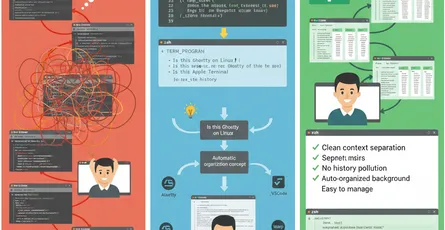
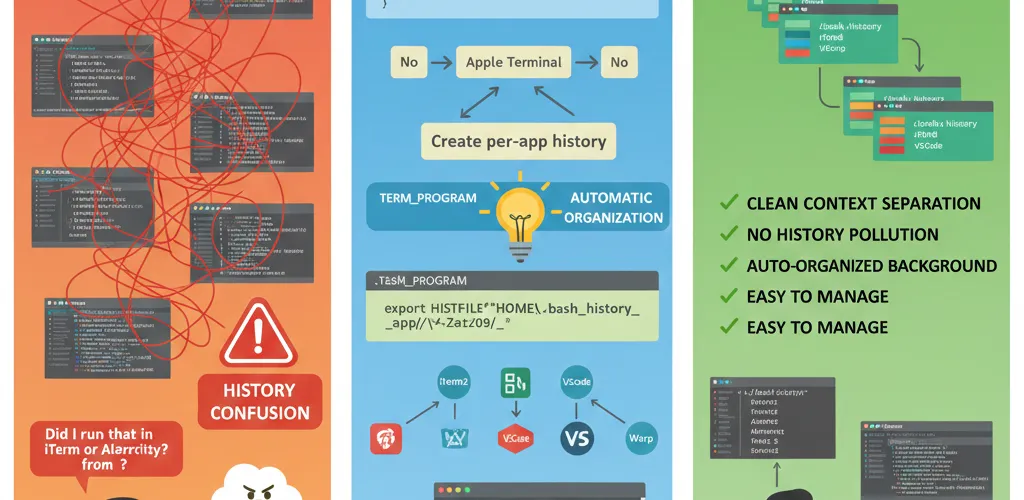
When you use multiple terminal emulators (iTerm, Alacritty, Ghostty, VS Code, etc.), they all share the same shell history file by default. This means commands you ran in one app show up when you press the up arrow in another. It gets messy fast, especially when you use different terminals for different projects or contexts.
Context switching issues
Different terminals used for different purposes (work, personal, testing) end up with mixed command histories, which makes context hard to keep.
The Solution
Per-app history files
This Bash function detects which terminal application you’re using and automatically assigns a dedicated history file for it. Apple Terminal and Ghostty on Linux get the default history, while everything else gets its own isolated file. It all happens on shell startup.
Automatic organization
TL;DR
- Automatically creates separate history files for each terminal app.
- Keeps Apple Terminal and Ghostty (Linux) on the default history.
- Works with iTerm2, Alacritty, Warp, Kitty, and more.
- Just add it to your
~/.bashrcor~/.bash_profileand forget about it.
Implementation
Bash function setup
function set_app_history() {
# Get terminal app name (fallback: Apple_Terminal) local app="${TERM_PROGRAM:-Apple_Terminal}"
# Default history file HISTFILE="$HOME/.bash/.bash_history"
# Ghostty on Linux / WSL → use default history if [[ "$app" == "Ghostty" && "$(uname -s)" == "Linux" ]]; then export HISTFILE return fi
# Apple Terminal → use default history if [[ "$app" == "Apple_Terminal" ]]; then export HISTFILE return fi
# Everything else → per-app history app="${app//[^A-Za-z0-9]/_}" HISTFILE="$HOME/.bash/.bash_history_${app}" export HISTFILE}
set_app_historyBenefits and usage
Organization advantages
Why This Helps
This approach keeps your shell history organized without any manual work. You can switch between terminals without worrying about command pollution or losing context. It helps most if you use different terminals for work, personal projects, or testing, since each gets its own clean slate.
Managing history files
Bonus Tip
Want to see which history files you have? Run this:
ls -lh ~/.bash/.bash_history*You’ll see all your per-app history files. Each one is tied to a specific terminal emulator, so you can even back them up or clean them individually.
Community Discussion
Your history management
Your Turn
How do you organize your shell history? Do you use per-app separation or something else? Drop your setup below!
Alternative approaches
Share your favorite methods for keeping shell history organized across different terminal applications.