Introduction
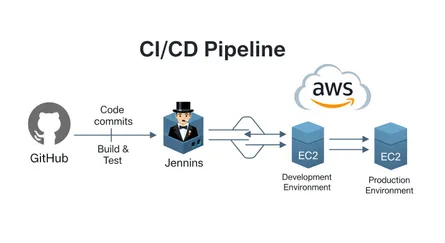
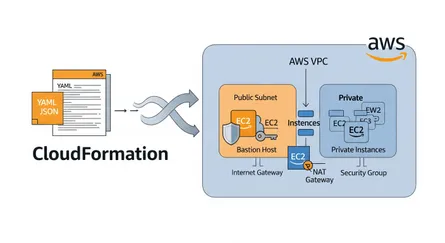
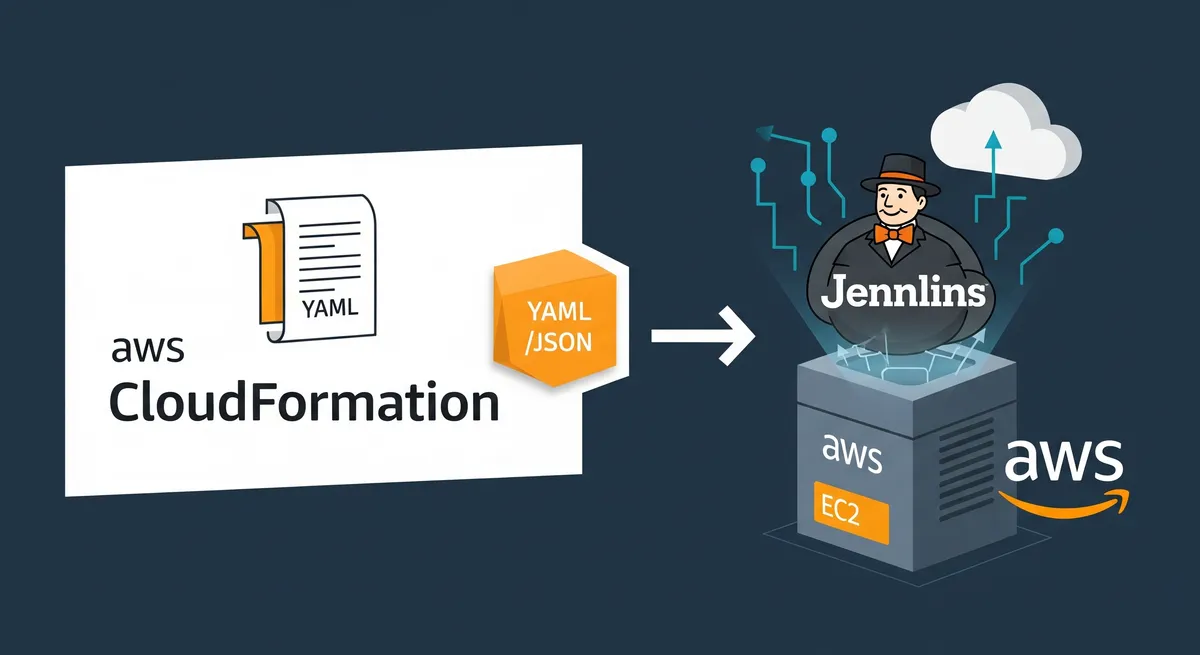
In a previous blog post, we set up Jenkins on AWS using the AWS CLI (How to Install Jenkins on AWS EC2 Instance). In this blog post, we will be using CloudFormation to set up Jenkins on AWS. CloudFormation is a service that helps you model and set up your AWS resources so that you can spend less time managing those resources and more time focusing on your applications that run on AWS.
Prerequisites
- AWS CLI installed and configured
- IAM user with the following permissions:
- AmazonVPCFullAccess
- AmazonEC2FullAccess
- AmazonS3FullAccess
Create the CloudFormation stack
Step 1: Create a key pair
Create a key pair to access the EC2 instance via SSH.
# Create a key pairaws ec2 create-key-pair \ --key-name jenkins-server-key-pair \ --query 'KeyMaterial' \ --output text > jenkins-server-key-pair.pem
# Change the permission of the key pairchmod 400 jenkins-server-key-pair.pemNote
Store the key pair at a safe place. You will need it to access the EC2 instance via SSH.
Step 2: Create a CloudFormation template
Create a file named jenkins-server.yml and add the following content:
touch jenkins-server.ymlAWSTemplateFormatVersion: 2010-09-09Description: >- This template creates a VPC with a public subnet and an EC2 instance with Jenkins installed. The EC2 instance is accessible via SSH and HTTP.
Parameters: VPCCidrBlock: Description: CIDR block for the VPC Type: String Default: 15.0.0.0/16 AllowedPattern: (\d{1,3})\.(\d{1,3})\.(\d{1,3})\.(\d{1,3})/(\d{1,2}) ConstraintDescription: must be a valid IP CIDR range of the form x.x.x.x/x. VPCName: Description: Name of the VPC Type: String Default: jenkins-server-vpc AllowedPattern: ^[a-zA-Z0-9-]*$ ConstraintDescription: must be a valid VPC name. PublicSubnetCidrBlock: Description: CIDR block for the public subnet Type: String Default: 15.0.1.0/24 AllowedPattern: (\d{1,3})\.(\d{1,3})\.(\d{1,3})\.(\d{1,3})/(\d{1,2}) ConstraintDescription: must be a valid IP CIDR range of the form x.x.x.x/x. PublicSubnetAvailabilityZone: Description: Availability zone for the public subnet Type: String Default: us-east-1a PublicSubnetName: Description: Name of the public subnet Type: String Default: jenkins-server-public-subnet AllowedPattern: ^[a-zA-Z0-9-]*$ ConstraintDescription: must be a valid subnet name. InternetGatewayName: Description: Name of the internet gateway Type: String Default: jenkins-server-internet-gateway AllowedPattern: ^[a-zA-Z0-9-]*$ ConstraintDescription: must be a valid internet gateway name. PublicRouteTableName: Description: Name of the public route table Type: String Default: jenkins-server-public-route-table AllowedPattern: ^[a-zA-Z0-9-]*$ ConstraintDescription: must be a valid route table name. SecurityGroupName: Description: Name of the security group Type: String Default: jenkins-server-security-group AllowedPattern: ^[a-zA-Z0-9-]*$ ConstraintDescription: must be a valid security group name. KeyPairName: Description: Name of an existing EC2 KeyPair to enable SSH access to the instances Type: AWS::EC2::KeyPair::KeyName Default: jenkins-server-key-pair ConstraintDescription: must be the name of an existing EC2 KeyPair. InstanceImageId: Description: Image ID of the instance Type: String Default: ami-0b0dcb5067f052a63 AllowedPattern: ami-[a-z0-9]* ConstraintDescription: must be a valid AMI ID. InstanceType: Description: Enter the instance type for the instance Type: String Default: t2.micro AllowedValues: - t1.micro - t2.nano - t2.micro - t2.small - t2.medium - t2.large - m1.small - m1.medium - m1.large - m1.xlarge - m2.xlarge - m2.2xlarge - m2.4xlarge - m3.medium - m3.large - m3.xlarge - m3.2xlarge - m4.large - m4.xlarge - m4.2xlarge - m4.4xlarge - m4.10xlarge - c1.medium - c1.xlarge - c3.large - c3.xlarge - c3.2xlarge - c3.4xlarge - c3.8xlarge - c4.large - c4.xlarge - c4.2xlarge - c4.4xlarge - c4.8xlarge - g2.2xlarge - g2.8xlarge - r3.large - r3.xlarge - r3.2xlarge - r3.4xlarge - r3.8xlarge - i2.xlarge - i2.2xlarge - i2.4xlarge - i2.8xlarge - d2.xlarge - d2.2xlarge - d2.4xlarge - d2.8xlarge - hi1.4xlarge - hs1.8xlarge - cr1.8xlarge - cc2.8xlarge - cg1.4xlarge ConstraintDescription: must be a valid EC2 instance type. InstanceName: Description: Name of the instance Type: String Default: jenkins-server-instance AllowedPattern: ^[a-zA-Z0-9-]*$ ConstraintDescription: must be a valid instance name. ElasticIPAddressName: Description: Name of the elastic IP address Type: String Default: jenkins-server-elastic-ip AllowedPattern: ^[a-zA-Z0-9-]*$ ConstraintDescription: must be a valid elastic IP address name.
Resources: VPC: Type: AWS::EC2::VPC Properties: CidrBlock: !Ref VPCCidrBlock EnableDnsSupport: true EnableDnsHostnames: true Tags: - Key: Name Value: !Ref VPCName PublicSubnet: Type: AWS::EC2::Subnet Properties: VpcId: !Ref VPC CidrBlock: !Ref PublicSubnetCidrBlock AvailabilityZone: !Ref PublicSubnetAvailabilityZone MapPublicIpOnLaunch: true Tags: - Key: Name Value: !Ref PublicSubnetName InternetGateway: Type: AWS::EC2::InternetGateway Properties: Tags: - Key: Name Value: !Ref InternetGatewayName InternetGatewayAttachment: Type: AWS::EC2::VPCGatewayAttachment Properties: VpcId: !Ref VPC InternetGatewayId: !Ref InternetGateway PublicRouteTable: Type: AWS::EC2::RouteTable Properties: VpcId: !Ref VPC Tags: - Key: Name Value: !Ref PublicRouteTableName PublicRoute: Type: AWS::EC2::Route DependsOn: InternetGatewayAttachment Properties: RouteTableId: !Ref PublicRouteTable DestinationCidrBlock: 0.0.0.0/0 GatewayId: !Ref InternetGateway PublicSubnetRouteTableAssociation: Type: AWS::EC2::SubnetRouteTableAssociation Properties: SubnetId: !Ref PublicSubnet RouteTableId: !Ref PublicRouteTable SecurityGroup: Type: AWS::EC2::SecurityGroup Properties: GroupDescription: Jenkins VpcId: !Ref VPC SecurityGroupIngress: - IpProtocol: tcp FromPort: 22 ToPort: 22 CidrIp: 0.0.0.0/0 - IpProtocol: tcp FromPort: 80 ToPort: 80 CidrIp: 0.0.0.0/0 - IpProtocol: tcp FromPort: 443 ToPort: 443 CidrIp: 0.0.0.0/0 - IpProtocol: tcp FromPort: 8080 ToPort: 8080 CidrIp: 0.0.0.0/0 Tags: - Key: Name Value: !Ref SecurityGroupName Instance: Type: AWS::EC2::Instance Properties: ImageId: !Ref InstanceImageId InstanceType: !Ref InstanceType KeyName: !Ref KeyPairName NetworkInterfaces: - DeviceIndex: 0 SubnetId: !Ref PublicSubnet GroupSet: - !Ref SecurityGroup UserData: Fn::Base64: !Sub | #!/bin/bash sudo yum update -y sudo wget -O /etc/yum.repos.d/jenkins.repo https://pkg.jenkins.io/redhat-stable/jenkins.repo sudo rpm --import https://pkg.jenkins.io/redhat-stable/jenkins.io.key sudo yum upgrade sudo amazon-linux-extras install java-openjdk11 -y sudo yum install jenkins -y sudo systemctl start jenkins sudo systemctl enable jenkins sudo yum install git -y Tags: - Key: Name Value: !Ref InstanceName ElasticIP: Type: AWS::EC2::EIP Properties: Domain: vpc NetworkBorderGroup: !Ref AWS::Region Tags: - Key: Name Value: !Ref ElasticIPAddressName ElasticIPAssociation: Type: AWS::EC2::EIPAssociation Properties: InstanceId: !Ref Instance EIP: !Ref ElasticIP
Mappings: AWSRegionArch2AMI: us-east-1: HVM64: ami-0b69ea66ff7391e80 HVMG2: ami-0b69ea66ff7391e80 us-east-2: HVM64: ami-0b69ea66ff7391e80 HVMG2: ami-0b69ea66ff7391e80
Outputs: GetJenkinsDashboard: Description: URL to use for Jenkins dashboard Value: !Join - '' - - 'http://' - !GetAtt Instance.PublicDnsName - ':8080' GitHubWebhookURL: Description: URL to use for GitHub webhooks Value: !Join - '' - - 'http://' - !GetAtt Instance.PublicDnsName - ':8080/github-webhook/'Step 3: Create a CloudFormation stack
Now that you have created a template, you can create a stack using the AWS CLI.
aws cloudformation create-stack \ --stack-name jenkins-server \ --template-body file://jenkins-server.ymlStep 4: Check the status of the stack
You can check the status of the stack using the AWS CLI.
aws cloudformation describe-stacks \ --stack-name jenkins-serverStep 5: Access the Jenkins server
You can access the Jenkins server using the public IP address of the instance.
# Get the public IP address of the Jenkins server instanceAWS_PUBLIC_IP=$(aws ec2 describe-instances \ --filters "Name=tag:Name,Values=jenkins-server-instance" \ --query "Reservations[*].Instances[*].PublicIpAddress" \ --output text)
# Open the Jenkins dashboard in the browserecho "http://${AWS_PUBLIC_IP}:8080"Connect to the Jenkins server and set up Jenkins
Step 1: Connect to the Jenkins server
Connect to the Jenkins server using SSH.
# Get the public IP address of the Jenkins server instanceAWS_PUBLIC_IP=$(aws ec2 describe-instances \ --filters "Name=tag:Name,Values=jenkins-server-instance" \ --query "Reservations[*].Instances[*].PublicIpAddress" \ --output text)
# Connect to the Jenkins server instance via SSHssh -i jenkins-server-key-pair.pem ec2-user@${AWS_PUBLIC_IP}Step 2: Configure Jenkins
Connect to the EC2 instance using SSH and run the following commands to configure Jenkins.
sudo cat /var/lib/jenkins/secrets/initialAdminPassword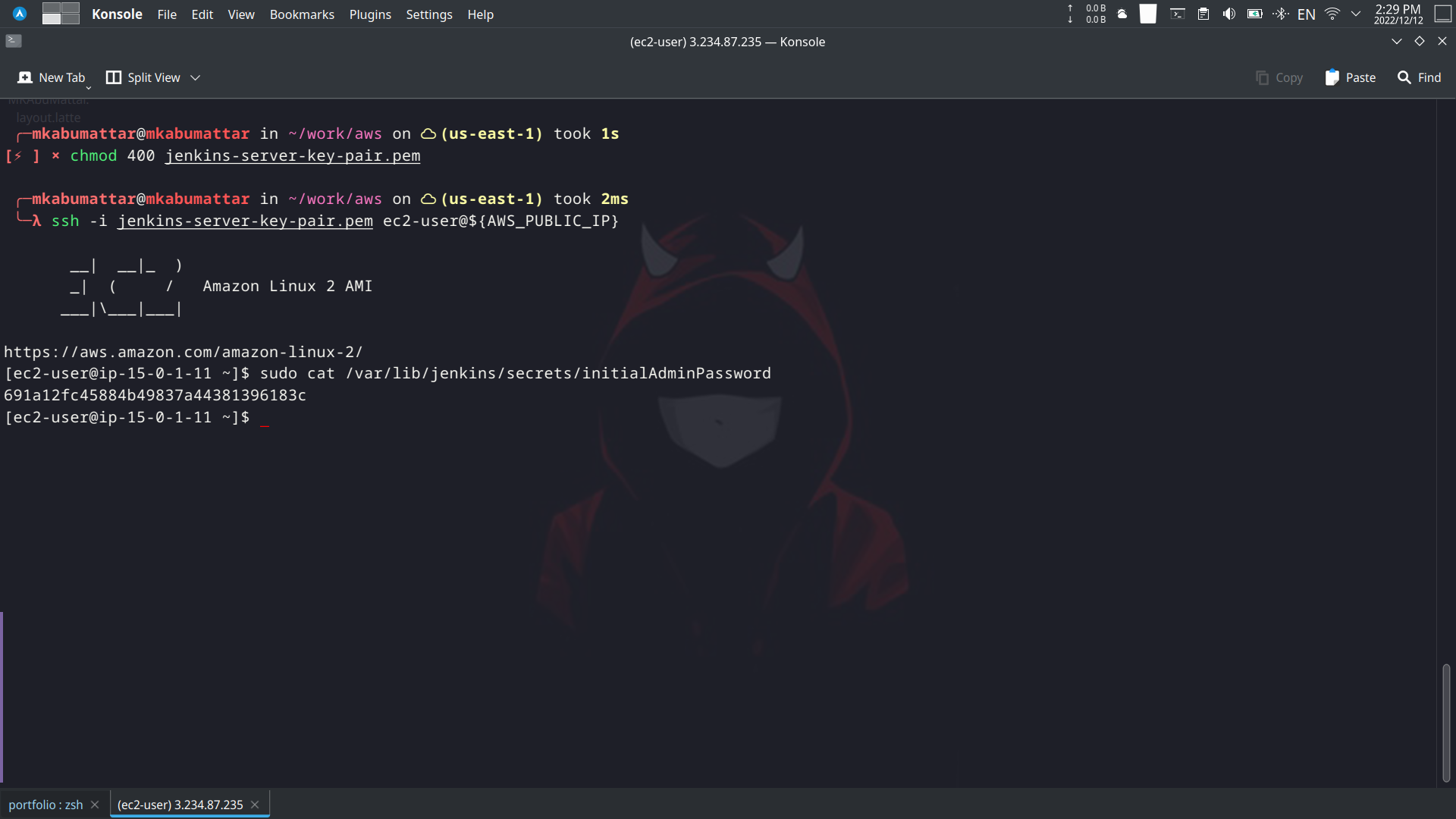
Copy the initial password and paste it in the Jenkins login page.
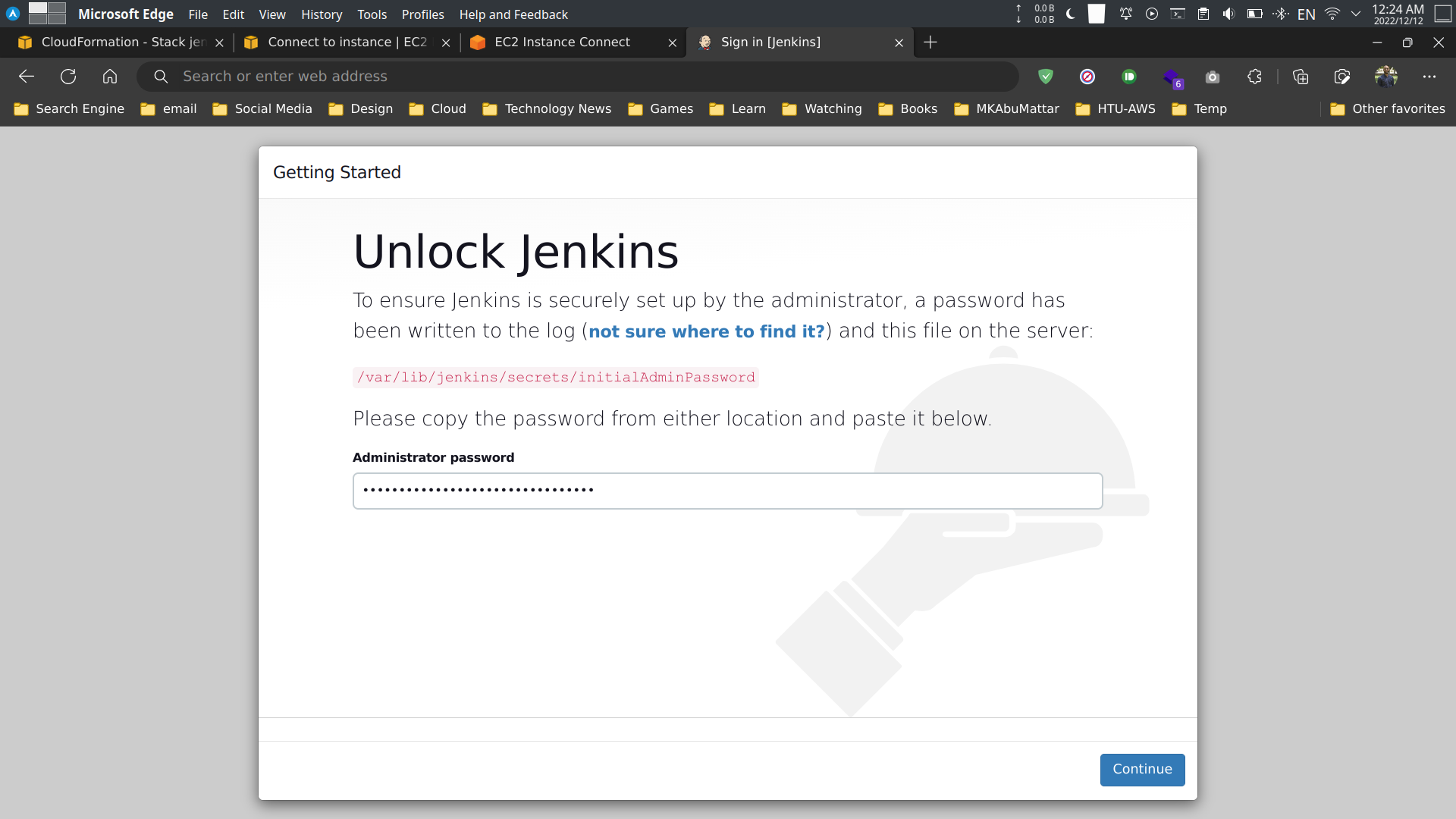
Select the recommended plugins and click on the Install button.
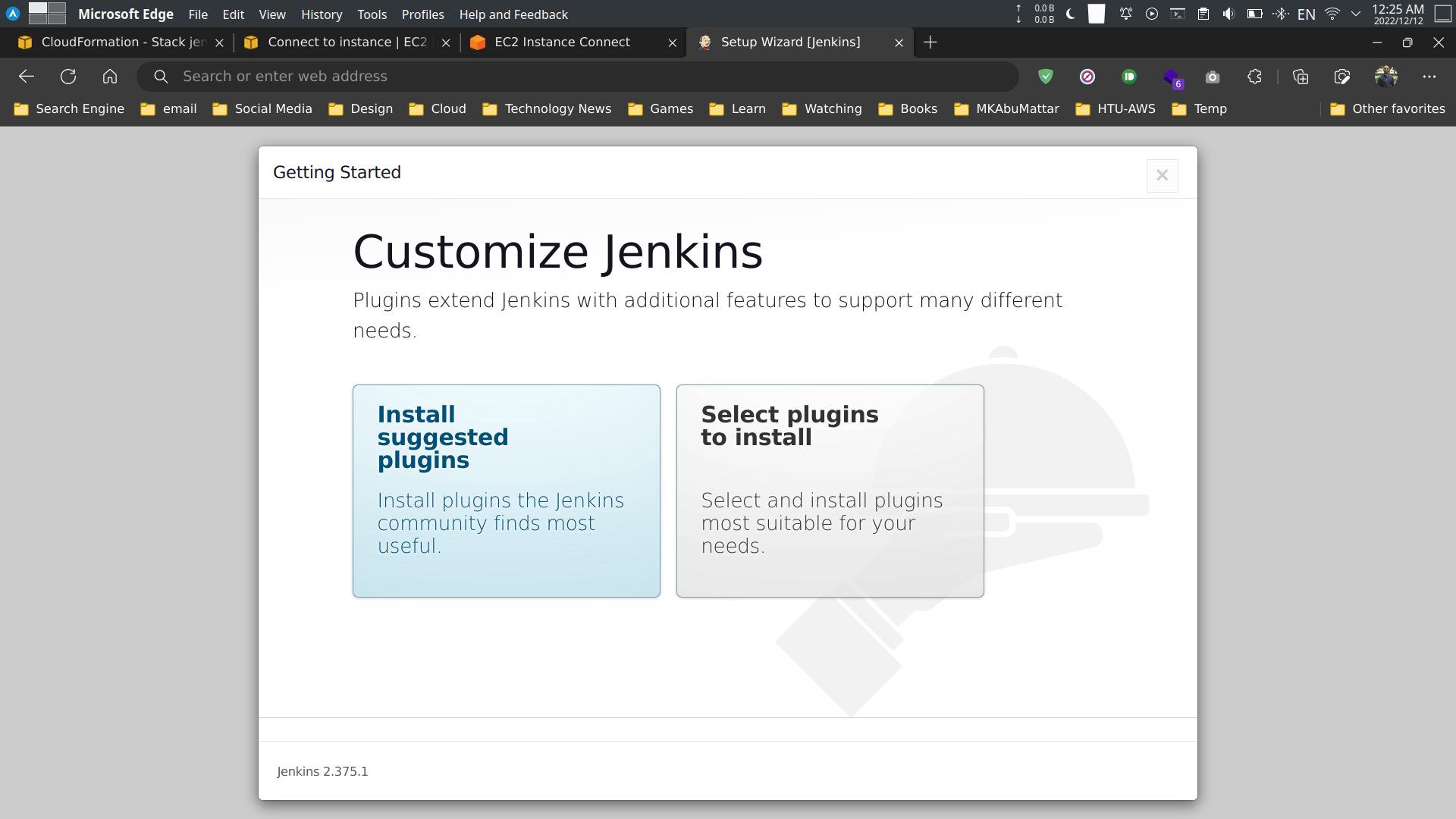
Create an admin user and click on the Save and Finish button.
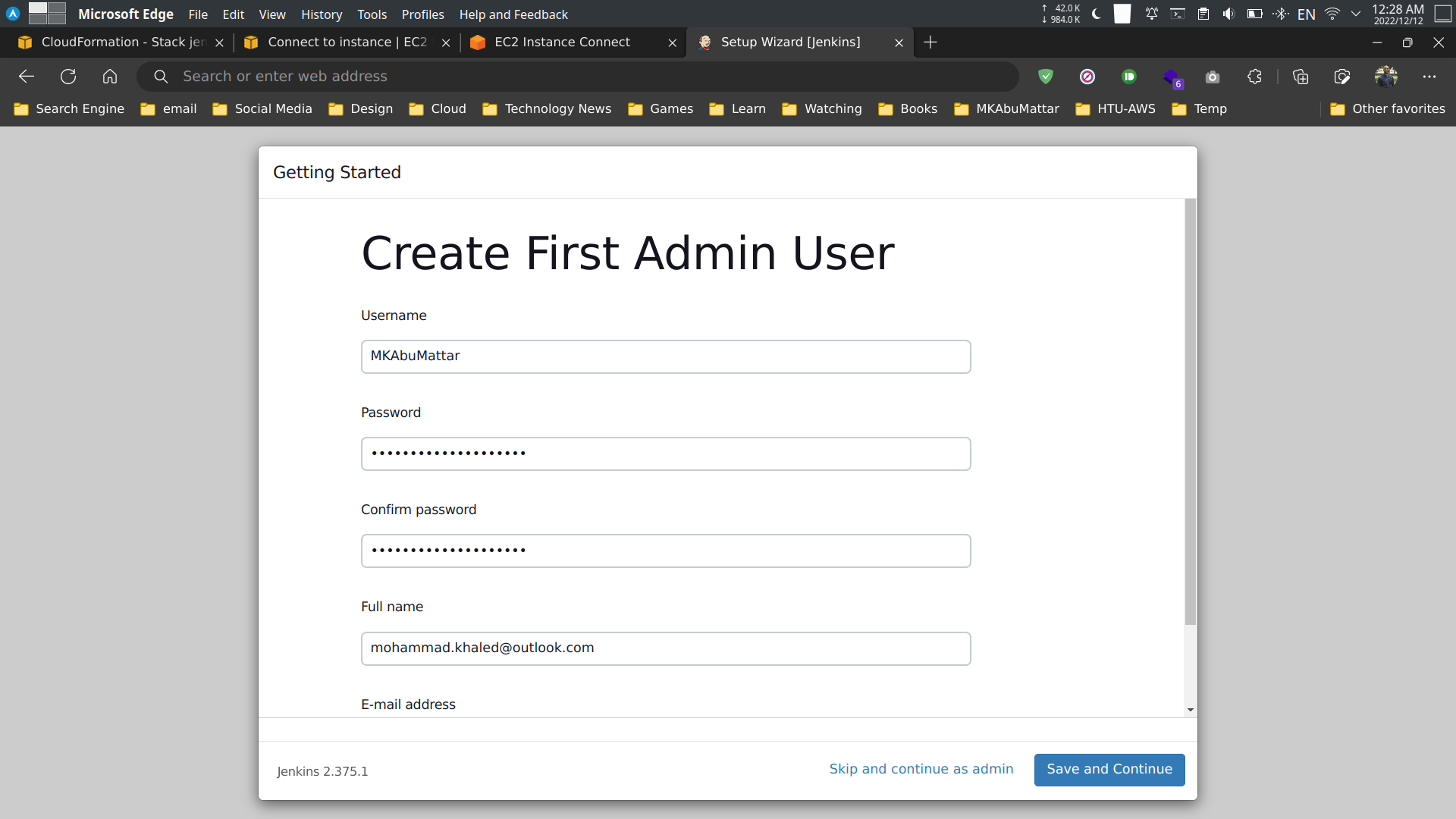
Done! You have set up Jenkins on AWS using CloudFormation.
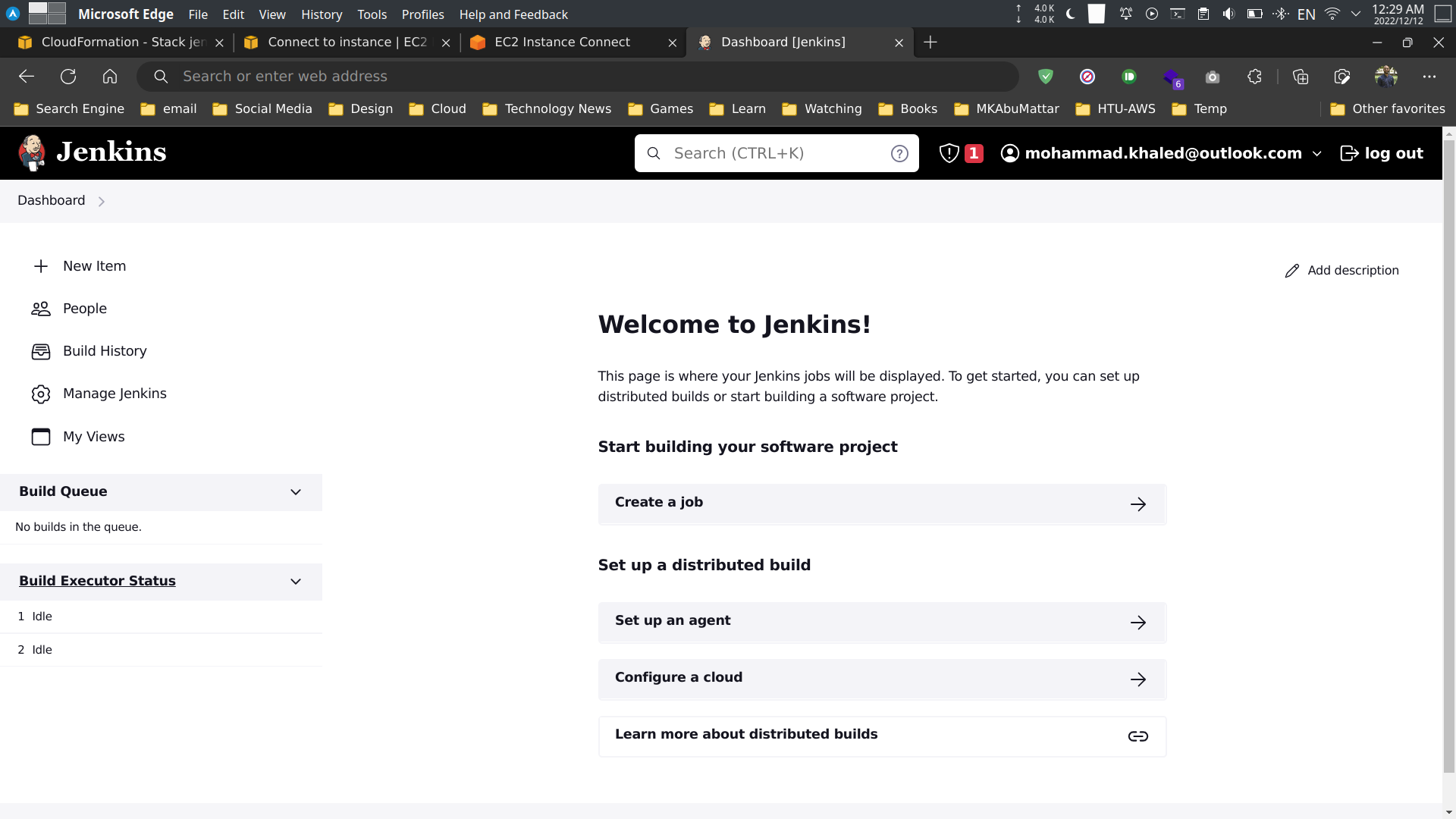
Cleanup
You can delete the stack using the AWS CLI.
# Delete the stackaws cloudformation delete-stack \ --stack-name jenkins-server
# Check the status of the stackaws cloudformation describe-stacks \ --stack-name jenkins-server
# Delete the key pairaws ec2 delete-key-pair \ --key-name jenkins-server-key-pairConclusion
In this article, we have learned how to set up Jenkins on AWS using CloudFormation. We have also learned how to create a CloudFormation template and create a stack using the AWS CLI.
References
- AWS CloudFormation User Guide
- AWS CloudFormation Template Reference
- Jenkins Official Website
- Jenkins User Documentation
- Installing Jenkins
- AWS Command Line Interface (CLI) User Guide
- Amazon EC2 User Guide for Linux Instances
- Amazon VPC User Guide
- AWS Identity and Access Management (IAM) User Guide
- AWS Key Pairs and Amazon EC2 Instances
- Working with AWS CloudFormation Stacks
- User data in CloudFormation
- Elastic IP addresses - Amazon EC2
- How to Install Jenkins on AWS EC2 Instance (Previous related post)
- AWS CloudFormation Best Practices