Introduction
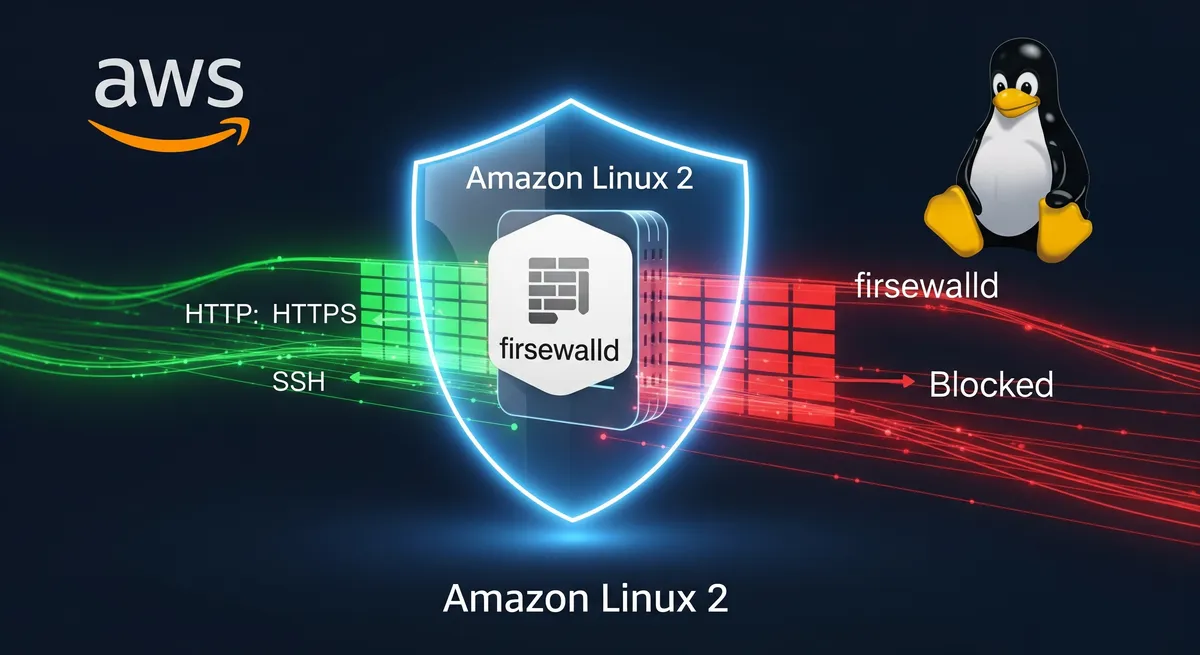
This tutorial covers installing and configuring firewalld on Amazon Linux 2, including setting the default zone and managing services and ports.
Prerequisites
To follow along with this tutorial, you will need:
- An Amazon Linux 2 EC2 instance with a public IP address.
- A user with sudo privileges.
Install and set up firewalld on Amazon Linux 2
Step 1: install firewalld
Before we can install firewalld, we must first update the system.
# Update the systemsudo yum update -yNow that the system has been updated, we can install firewalld.
# Install FireWallsudo yum install firewalld -yNext, after installing firewalld, it’s time to verify whether the iptables service is running.
# Check if the iptables service is runningsudo systemctl status iptablesIf the iptables service is running, we need to stop it.
# Stop the iptables servicesudo systemctl stop iptablesNow that the iptables service is stopped, we can start the firewalld service.
# Start the FireWall servicesudo systemctl start firewalldTo verify that the firewalld service is running, we can use the following command.
# Check if the FireWall service is runningsudo systemctl status firewalldA newly installed firewalld service is not enabled at boot by default. To enable it, we can use the following command.
# Enable the FireWall servicesudo systemctl enable firewalldStep 2: configure firewalld
Now that the firewalld service is running, we can configure it. Allow HTTP, HTTPS, and SSH in the public zone, then reload.
# Configure the FireWall servicesudo firewall-cmd --permanent --zone=public --add-service=httpsudo firewall-cmd --permanent --zone=public --add-service=httpssudo firewall-cmd --permanent --zone=public --add-service=sshsudo firewall-cmd --reloadTo list the zones firewalld ships with:
# List Firewalld Zonessudo firewall-cmd --get-zonesTo list the predefined services firewalld knows about:
# List Services Default Zonesudo firewall-cmd --get-servicesTo verify that the default zone is configured the way we expect, we can use the following command.
# Check the FireWall service configurationsudo firewall-cmd --list-allTo dump the full configuration of every zone at once:
# List All Firewalld Zonessudo firewall-cmd --list-all-zonesStep 3: set the default firewalld zone
To set the default firewalld zone, we can use the following command.
# Set up the default Firewalld zonesudo firewall-cmd --set-default-zone=publicStep 4: check the firewall status
To check the firewalld status, we can use the following command.
# Check the FireWall statussudo firewall-cmd --stateStep 5: assigning services to firewalld zones
Before we assign services to a zone, let’s check that firewalld is running and see which zones are currently active.
# Assign services to Firewalld zonesfirewall-cmd --statefirewall-cmd --get-active-zonesStep 6: adding services to firewalld zones
To add and remove services and ports on a zone, we can use the following commands.
# Add services to Firewalld zonesfirewall-cmd --add-service=rtmp
# Remove services from Firewalld zonesfirewall-cmd --zone=public --remove-service=rtmp
# add port to zonefirewall-cmd --zone=public --add-port=80/tcp --permanent
# remove port from zonefirewall-cmd --zone=public --remove-port=80/tcp --permanentConclusion
This covered installing and configuring firewalld on Amazon Linux 2: enabling the service, setting the default zone, and managing services and ports.
References
- Firewalld Official Website
- Firewalld Documentation - Introduction to firewalld
- Firewalld Documentation - firewall-cmd
- Amazon EC2 User Guide for Linux Instances
- Security Groups for your VPC - AWS Documentation (Note: AWS Security Groups act as a primary firewall)
- Managing software on your Linux instance - AWS
- Controlling Services with systemctl - Red Hat (Amazon Linux is RHEL-based)
- Using firewalld - Fedora Project Docs
- Understanding Firewalld Zones - DigitalOcean
- AWS - Amazon Linux 2 AMI Information
- iptables Tutorial - Netfilter project (For context, as firewalld is a frontend for netfilter)